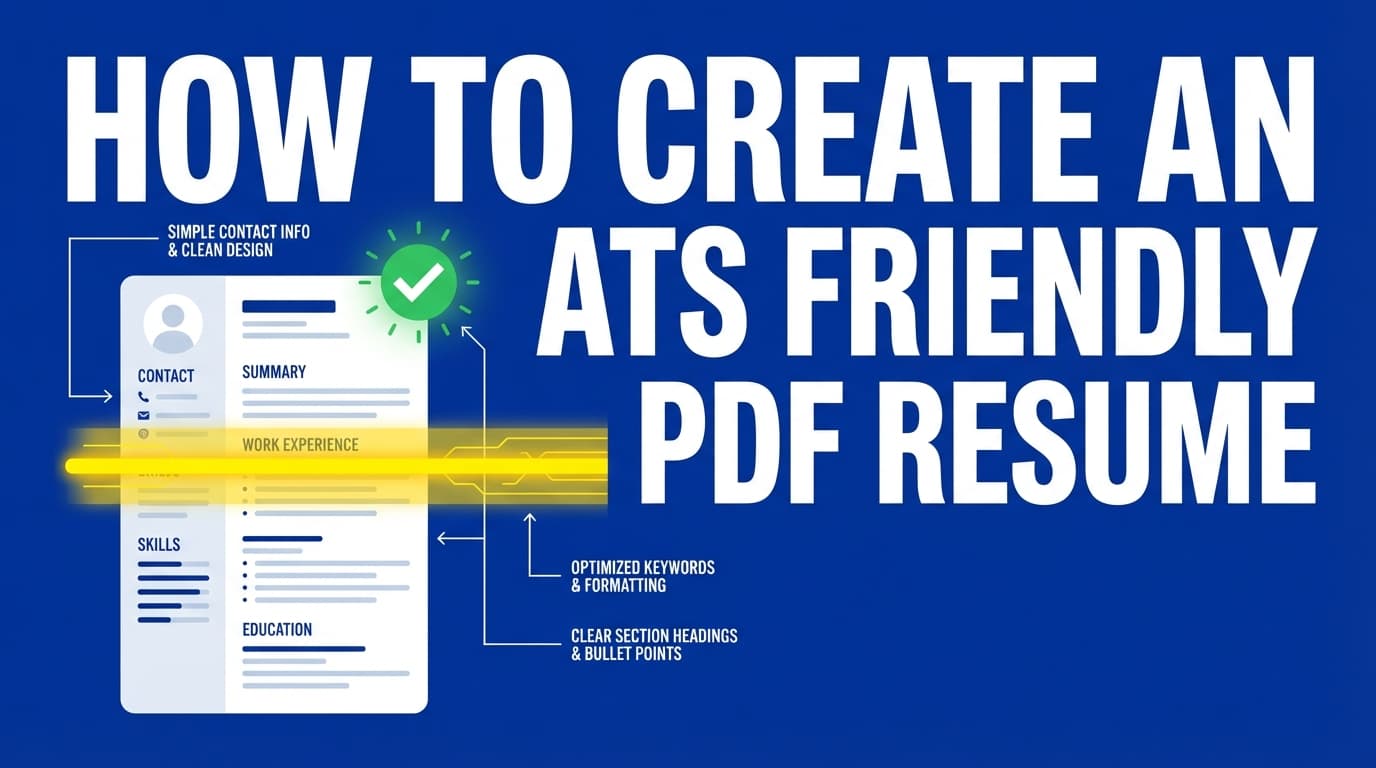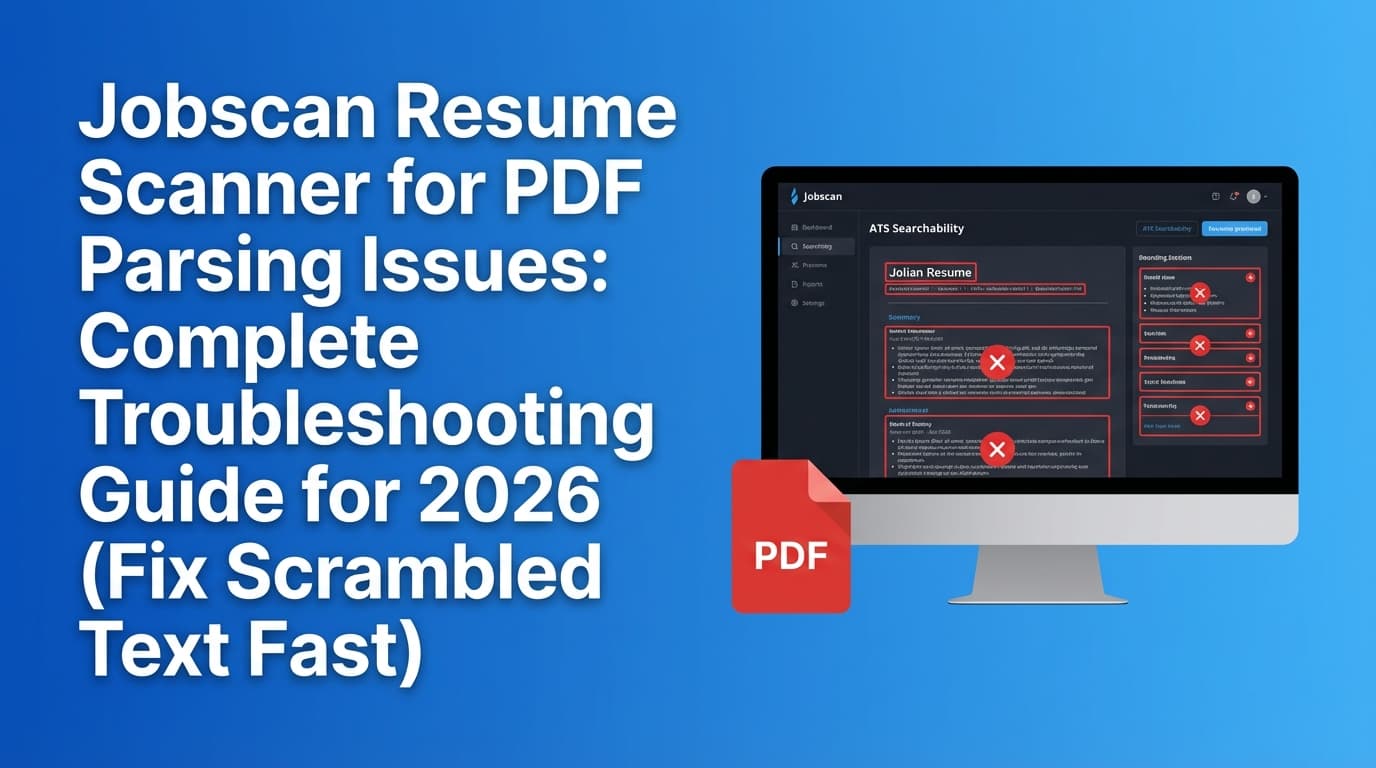
If Jobscan’s resume scanner is mangling your PDF—scrambling columns, missing headings, or turning clean bullets into nonsense—your first instinct is usually: “So… would an ATS do the same thing?”
Sometimes yes. Sometimes no. But either way, parsing problems are a real risk because many systems still rely on extracting text from your file and mapping it into structured fields.
And that matters because:
- 98.2% of Fortune 500 companies used a detectable ATS (Jobscan’s Fortune 500 ATS usage research; also widely repeated by third parties citing Jobscan). Confidence: High (Jobscan + multiple third-party citations in SERPs such as Forbes/InsightGlobal referencing Jobscan).
- Recruiters’ initial resume reviews can be extremely fast—7.4 seconds is a commonly cited number from The Ladders’ eye-tracking study (PDF copy hosted by Boston University). Confidence: High (TheLadders + BU-hosted PDF + HRDive coverage).
- Even in employer-side tooling, parsing is imperfect—HRMorning summarizes research that “conventional resume parsing algorithms are typically only 60% to 70% accurate.” Confidence: Medium (credible publication, but the underlying “recent study” is not clearly identified in the snippet).
So if your PDF breaks parsing, you’re not being paranoid—you’re doing quality control.
In this guide, you’ll learn:
- What “PDF parsing issues” actually mean (and which ones matter most)
- A step-by-step diagnostic workflow to identify the root cause in minutes
- Exact fixes for the most common Jobscan/PDF parsing failures (columns, text boxes, headers/footers, Canva/InDesign exports, image-based PDFs, etc.)
- A “safe export” checklist you can reuse for any ATS (Workday, Greenhouse, Lever, etc.)
- Tools that help you test parsing—without obsessing over a single score
What “PDF parsing issues” means (in plain English)
Resume parsing is when software tries to extract text from your resume and convert it into fields like:
- Name / contact info
- Work experience (job titles, companies, dates)
- Education
- Skills
When parsing fails, you’ll see symptoms like:
- Sections missing (e.g., Skills not detected)
- Text out of order (right column appears before left column, or bottom-to-top weirdness)
- Bullets turned into paragraphs
- Dates detached from jobs
- Random spacing inside words (common with certain PDF text encoding issues)
Important nuance: parsing ≠ “automatic rejection”
Some job seekers assume “ATS rejected me.” In reality, many ATS platforms function like searchable databases—your resume gets stored, then recruiters search/filter. Jobscan itself has content explaining that ATS doesn’t necessarily “reject” resumes; it can simply make your resume harder to find if key info is missing or misread. Confidence: Medium (widely taught across ATS education content; varies by employer configuration).
Takeaway: Parsing quality affects autofill accuracy and searchability—both can reduce your odds even if you’re qualified.
Why Jobscan shows parsing problems (and why that can still be useful)
Jobscan positions its scanner as mimicking ATS-style parsing. Jobscan also states that it uses a parsing API similar to what many ATS use (as described in Jobscan’s “can’t parse resume” help content). Confidence: Medium (first-party claim, but the specific API/vendor isn’t confirmed here).
That means:
- If Jobscan can’t read your PDF at all, that’s a red flag.
- If Jobscan reads it but in the wrong order, that’s also a red flag.
- If Jobscan reads it fine, you’re not guaranteed perfection everywhere—but you’ve cleared a major failure mode.
Use Jobscan like a “smoke test,” not a single source of truth.
The 80/20 of PDF parsing: the 6 failure modes that cause most problems
1) Multi-column layouts (especially with narrow sidebars)
Columns can cause software to read content in an unexpected order (e.g., right column first, or lines interleaved).
Jobscan specifically warns that tables/columns can scramble order or cause missing content. Confidence: Medium (first-party guidance; also echoed across many resume formatting guides).
2) Text boxes, shapes, and “design tool” layouts (Canva, Illustrator, InDesign)
Design tools often place text in separate objects. Your PDF may look perfect but be stored as many independent blocks that extract poorly.
This is why Canva resumes often get flagged in job seeker communities, and why many resume tools recommend simpler layouts for ATS submissions. Confidence: High (high agreement across guides and community discussions; exact failure rate varies).
3) Headers/footers (especially contact info in the header)
Some parsers ignore or mis-handle header/footer content—so your name/email/phone can vanish or move.
4) Image-based PDFs (scans or “flattened” exports)
If your PDF is essentially a picture of text, the parser can’t extract words unless OCR is applied—and OCR quality varies.
5) Weird fonts / encoding / ligatures
Some PDFs encode characters in ways that break extraction (classic example: “fi” ligature issues in copy/paste text extraction). This is more technical, but it’s real in document-processing pipelines. Confidence: Medium (well-documented in PDF text extraction tooling; impact on ATS varies).
6) Corrupt files / file size / upload issues
Even if formatting is fine, the scan may fail due to file corruption, size limits, or unsupported formats. Jobscan’s help center points to supported formats (commonly PDF/DOCX) and issues like corrupted files. Confidence: Medium (first-party support guidance; exact limits depend on their current policy).
How to fix Jobscan PDF parsing issues: a step-by-step diagnostic workflow
This is the fastest way to stop guessing.
Step 1: Determine whether it’s a true parsing failure or just a match-score issue
A lot of people confuse these:
- Parsing failure: text missing/scrambled in the parsed preview
- Match/keyword score issue: text parses fine, but the tool says you’re missing keywords
If the parsed preview is clean, focus on tailoring (keywords, role alignment).
If the preview is broken, fix formatting first—keywords won’t matter if the system can’t reliably “see” them.
Step 2: Do the 60-second “copy/paste test” on your PDF
Open the PDF, Select All, copy, paste into a plain text editor (Notepad/TextEdit).
What you want:
- Headings present
- Work history in the correct order
- Bullets still readable
- No missing lines or strange spacing
This quick test is frequently recommended by job seekers and resume tool guides as a proxy for parseability. Confidence: Medium (common best practice; not perfect but very practical).
If copy/paste is broken, Jobscan/ATS parsing is likely to be broken too.
Step 3: Check if your PDF is actually text-based (not an image)
Try highlighting a single word in the PDF:
- If you can highlight individual text, it’s likely text-based.
- If highlighting grabs the entire page as one object (or you can’t select text), it might be an image/flattened PDF.
Step 4: Identify which layout feature is causing the damage
Use this decision tree:
- Do you use columns or a sidebar? → convert to single column.
- Did you build it in Canva/Illustrator/InDesign? → export to a simpler template or rebuild in a text-native tool.
- Is contact info in the header? → move it into the document body.
- Do you use tables for skills? → replace with simple lines or comma-separated skills.
- Do you use icons/logos? → remove them (or ensure they don’t replace text).
- Do you use text boxes? → remove them entirely.
Step 5: Re-export using a “safe” method (don’t just re-upload the same file)
Re-exporting matters because it can change the underlying text structure.
Try, in order:
- Export as DOCX, then upload the DOCX (often parses more predictably).
- Re-export the PDF using a different method (e.g., “Save As PDF” vs “Print to PDF”).
- If created in a design tool, export using settings that preserve text (avoid outlining fonts).
Step 6: Re-test in Jobscan (and at least one more parser)
No single parser represents all ATS. Your goal is robust readability, not perfection in one tool.
The most common Jobscan PDF parsing issues (and exact fixes)
Issue #1: “My resume is missing sections” (Skills, Education, or job titles disappear)
Likely causes
- Section headings are nonstandard (creative labels)
- Headings are embedded in shapes/text boxes
- Content is in a sidebar column
Fix
- Use standard headings: Work Experience, Education, Skills
- Put headings and text in the main body (no text boxes)
- Keep everything left-aligned in a single column
Pro tip: If you insist on a two-column design, keep the left column very narrow and non-essential (but the safest approach is still one column). Confidence: Medium (some ATS handle columns fine; many still fail unpredictably).
Issue #2: “Jobscan reads my PDF in the wrong order” (right column first, bottom-to-top)
Likely causes
- Multi-column layout
- Text boxes layered in a visual order that doesn’t match reading order
Fix (best): Convert to a single-column layout.
Fix (workaround): Rebuild columns using simple tab stops in a word processor (still risky).
Issue #3: “Bullets turned into paragraphs” or line breaks look weird
Likely causes
- Manual line breaks inside bullets
- Nonstandard bullet symbols
- PDF export changed bullet encoding
Fix
- Use standard bullets (•) from your editor
- Keep bullet lines natural (avoid hard line breaks mid-sentence)
- Re-export as DOCX and retest
Issue #4: “Jobscan can’t scan/upload my resume”
Jobscan’s support documentation commonly points to:
- Unsupported formats
- Scan limits / account limits
- Corrupt/damaged files
- Possibly scanned/image resumes (hard to process)
Fix checklist
- Confirm the file is PDF or DOCX (per Jobscan support articles)
- Rename the file (avoid special characters)
- Re-export the file to remove corruption
- Reduce file size if it’s unusually large (compress images, remove graphics)
- If it’s scanned, recreate it as a text-based document (don’t upload a photo/scan)
Issue #5: “My Canva (or designer) PDF looks perfect—but parsing is terrible”
Likely causes
- Text placed in many independent blocks
- Decorative elements interfering with extraction
- Fonts or export settings converting text to outlines
Fix
- Use a simpler resume template built for ATS compatibility
- Export as DOCX if possible (many Canva workflows don’t produce great DOCX—test carefully)
- If you love the design, maintain two versions:
- a designed PDF for emailing humans directly
- an ATS-safe version for portals
Issue #6: “PDF vs DOCX—what should I submit?”
There is no universal rule.
- Some guidance suggests modern systems can parse PDFs well, if the PDF is text-based and simply formatted.
- Some job application portals (especially autofill-heavy flows) behave more reliably with DOCX.
Daxtra (an employer-side parsing vendor) notes that parsers can process PDFs and DOCX, and emphasizes reducing complicated formatting. Confidence: Medium (first-party vendor guidance; actual performance depends on the ATS + parser + file).
Practical rule:
- If the portal requests DOCX → use DOCX.
- If you’re emailing a recruiter directly → PDF is often preferred for visual consistency.
- If your PDF fails parsing tests → switch to DOCX or rebuild the PDF using a safer structure.
“Safe Resume Export” checklist (works for Jobscan + many ATS)
Use this before every serious application wave.
Layout & structure
- Single column
- Left-aligned text
- Standard headings (Work Experience, Education, Skills)
- No tables (especially for skills)
- No text boxes
- Minimal lines/shapes (horizontal rules can confuse some parsers)
- No icons that replace words (e.g., phone icon instead of “Phone:”)
Content hygiene
- Consistent date formats (e.g.,
Jan 2022 – Mar 2024) - Company + Title + Location clearly labeled
- Skills written as plain text (comma-separated or simple bullets)
- Avoid keyword stuffing (Daxtra explicitly warns against it). Confidence: Medium
File sanity checks
- PDF text is selectable
- Copy/paste into Notepad looks correct
- File size is reasonable (no huge embedded images)
- Filename is simple:
FirstLast_Resume.pdf
Multi-parser check
- Test in Jobscan (or similar)
- Test in at least one other parser/scanner
A unique angle most guides miss: “Parsing preview ≠ hiring system reality”
Jobscan-style tools are useful, but don’t overfit to a single scanner for three reasons:
- Different ATS = different parsing behavior (even within the same ATS brand, configurations vary).
- Some systems display resumes to recruiters “as submitted,” while still extracting fields behind the scenes (a point often mentioned in university career guidance). Confidence: Medium (varies by ATS; commonly discussed).
- Recruiters can still read your attached resume even if autofill is imperfect—so don’t destroy human readability chasing a score.
Best practice: optimize for (a) clean parsing and (b) fast human scanning.
That second part matters because of the speed factor: the eye-tracking research suggests recruiters form impressions extremely quickly (7.4 seconds). Confidence: High (see sources above).
Tools to help with Jobscan/PDF parsing issues (honest recommendations)
Parsing / ATS-readability testing
- Jobscan: Useful for seeing how a parser interprets your resume and highlighting formatting risks (especially columns/tables).
- Resume Worded / other ATS scanners: Helpful second opinion to avoid “single-tool tunnel vision.”
- Workday/portal autofill itself: The most real-world test—upload and see what breaks.
Building a more “parse-stable” resume (without fighting Word spacing)
- JobShinobi: A LaTeX-based resume editor that compiles your resume to PDF with a live preview, plus AI resume analysis and resume-to-job matching (tailoring) workflows.
- Helpful if you want tight control over structure and a consistent PDF output.
- Note: JobShinobi does not claim to parse your uploaded PDFs; it’s primarily for building resumes and analyzing your resume content against ATS-style criteria.
- Pricing: JobShinobi Pro is $20/month or $199.99/year. The pricing page mentions a 7-day free trial, but trial mechanics aren’t fully verifiable in code, so treat trial availability as subject to current billing configuration.
(If you want to explore it, start here: /dashboard/resume. For plans: /pricing.)
Common mistakes to avoid (that make parsing worse)
Mistake 1: Fixing keywords before fixing parsing
If the parser can’t reliably read your content, your keywords may not count the way you think they do.
Mistake 2: Using a two-column template “because everyone says ATS can read it now”
Some can. Some can’t. The cost of being wrong is high.
Mistake 3: Putting contact info in a header
It looks clean to humans and breaks for enough parsers to be not worth it.
Mistake 4: Submitting image-based PDFs
If you scanned a resume (or exported it in a way that rasterizes text), you’re forcing OCR—and OCR can introduce errors.
Mistake 5: Obsessing over a perfect score
A high match score doesn’t guarantee interviews. A low match score doesn’t guarantee rejection. Use scores as a diagnostic—not a verdict.
Key takeaways
- Jobscan PDF parsing issues usually come from columns, tables, text boxes, headers/footers, or image-based PDFs.
- The fastest fix path is: copy/paste test → identify layout culprit → re-export safely → retest in multiple tools.
- Aim for robust parseability + strong human readability, not perfection in one scanner.
- If your resume needs stability and repeatable structure, consider building from a system that helps you maintain consistency (e.g., LaTeX-based workflows), then validate with parsing tests.
FAQ (People Also Ask-style)
Why is my resume not parsing correctly in Jobscan?
Usually because your PDF’s underlying text structure is difficult for parsers to interpret—most commonly due to columns, tables, text boxes, or header/footer content. Run a copy/paste test from the PDF into Notepad: if the order is scrambled there, Jobscan (and some ATS parsers) will likely struggle too.
Can ATS parse a PDF?
Yes—many ATS setups can parse text-based PDFs, but success depends heavily on how the PDF was generated. Text-based, single-column PDFs tend to parse better than design-heavy or image-based PDFs. Vendor guidance (e.g., Daxtra) indicates parsers commonly support both PDF and DOCX. Confidence: Medium (capability is common; quality varies).
What does “unable to parse resume” mean?
It means the system couldn’t reliably extract structured information from your file (or couldn’t read the file at all). In practice, that can lead to broken autofill fields and missing searchable data.
Should I submit DOCX or PDF to avoid parsing issues?
If your PDF parsing preview is broken, submit a DOCX (if accepted) or rebuild the PDF using a simpler layout. If the job portal requests a specific format, follow the instructions. When emailing recruiters directly, PDF is often preferred for consistent formatting—as long as it’s text-based and parses cleanly.
Do tables and columns break ATS parsing?
They can. Jobscan and many career centers warn that tables/columns may cause missing or scrambled data in some parsers. The safest approach is single column, no tables. Confidence: Medium (high agreement on risk; exact failure rate varies).
How do I check if my PDF is ATS-friendly?
Use three quick checks:
- Text selectability (can you highlight words?)
- Copy/paste into Notepad (is order preserved?)
- Parsing preview in at least two tools (Jobscan + another scanner, or a real portal autofill)
Does an ATS automatically reject resumes with formatting issues?
Not always. Many ATS platforms store resumes and help recruiters search/filter candidates; some workflows may auto-screen using knock-out questions or rules, but “formatting auto-rejection” is often overstated. The real risk is that parsing issues can make your resume less searchable or harder to review quickly.