Almost every job seeker has felt it: you apply to dozens of roles you’re qualified for…and hear nothing back. One reason is simple but fixable: your resume might not be getting parsed correctly.
- Jobscan reports that 98.4% of Fortune 500 companies used a detectable ATS in 2024. (Source: https://www.jobscan.co/blog/fortune-500-use-applicant-tracking-systems/ — Confidence: Medium, because it’s a single organization’s study; however, similar “near-universal” ATS adoption is echoed across career centers and recruiting publications.)
- SelectSoftwareReviews summarizes research that 70% of large companies use an ATS and that ATS adoption is significant even among smaller employers. (Source: https://www.selectsoftwarereviews.com/blog/applicant-tracking-system-statistics — Confidence: Medium, as it’s a secondary compilation, but it aligns with broad industry consensus.)
- The Ladders’ eye-tracking research has been widely reported to show recruiters spend about 7.4 seconds on an initial resume screen. (Sources: https://www.prnewswire.com/news-releases/ladders-updates-popular-recruiter-eye-tracking-study-with-new-key-insights-on-how-job-seekers-can-improve-their-resumes-300744217.html and https://www.hrdive.com/news/eye-tracking-study-shows-recruiters-look-at-resumes-for-7-seconds/541582/ — Confidence: High, because multiple independent outlets reference the same finding.)
So you need a resume that works for both:
- software that extracts your text into structured fields, and
- humans who skim fast.
In this guide, you’ll learn:
- What an “ATS-friendly PDF resume” really means (and why some PDFs fail)
- A step-by-step build process you can follow for any industry
- PDF export settings for Word, Google Docs, and LaTeX
- A simple “paste test” to preview what an ATS might read
- The most common PDF mistakes (columns, text boxes, icons, Canva-style designs) and how to fix them
- Tools and workflows (including JobShinobi) that can speed up testing and tailoring without making risky formatting choices
What is an ATS-friendly PDF resume?
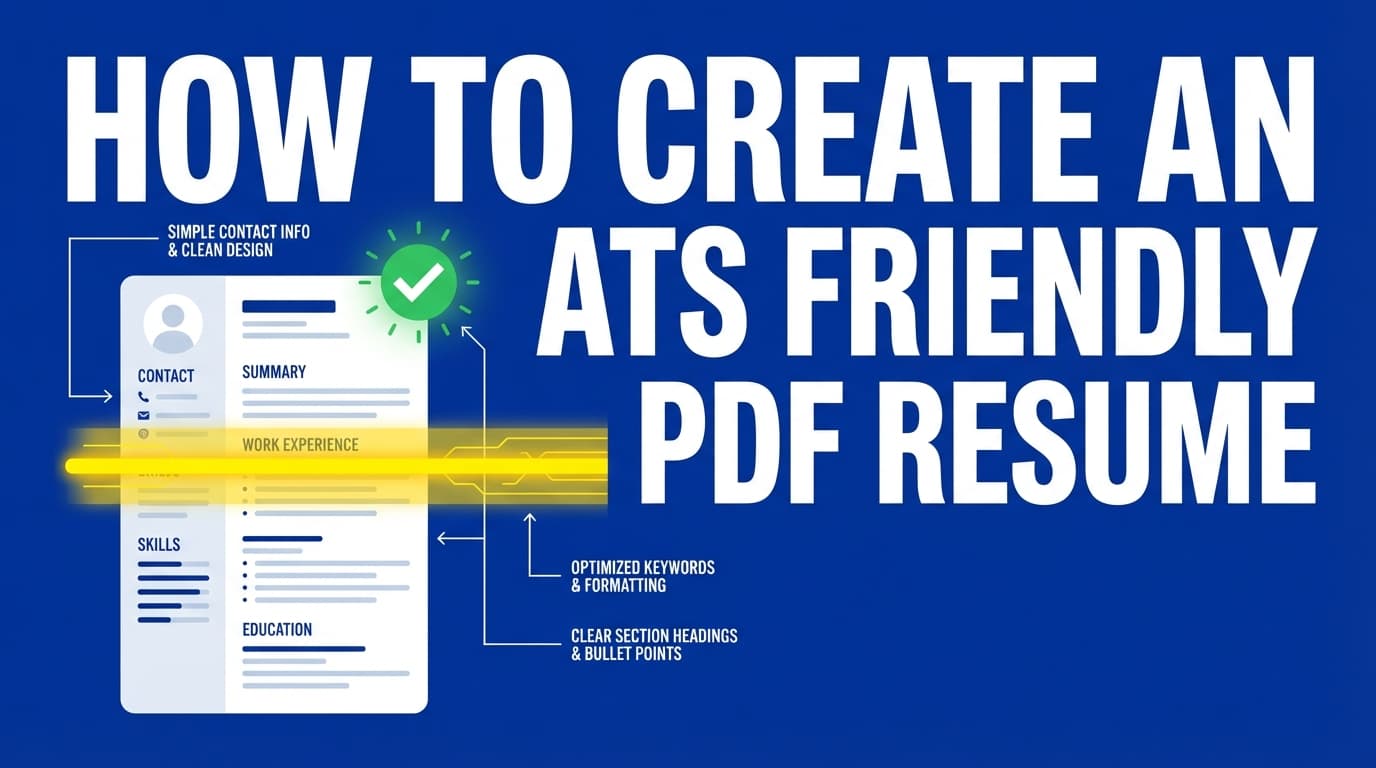
An ATS-friendly PDF resume is a PDF file that:
- contains real, selectable text (not an image/screenshot),
- preserves a logical reading order (top-to-bottom, left-to-right),
- avoids layout elements that often break parsing (tables, columns, text boxes, headers/footers),
- uses standard headings so the ATS can recognize sections like Experience and Education.
Key idea: ATS-friendly is about parsing, not “beating a robot”
A lot of advice online is framed like “hack the ATS.” In reality, most issues are boring and technical:
- The ATS can’t find your contact info because it’s in a header.
- Your experience bullets appear out of order because you used two columns.
- Your PDF is effectively a picture because it was exported as a graphic.
A clean PDF doesn’t guarantee interviews—but it does prevent you from getting rejected for avoidable formatting reasons.
Why ATS-friendly PDFs matter in 2026 (with stats)
1) ATS usage is widespread—especially at large employers
You’ll see slightly different numbers across sources, but the direction is consistent: ATS tools are everywhere in modern hiring.
- 98.4% of Fortune 500 using a detectable ATS (Jobscan) (Source: https://www.jobscan.co/blog/fortune-500-use-applicant-tracking-systems/ — Confidence: Medium)
- 70% of large companies use an ATS (SelectSoftwareReviews compilation) (Source: https://www.selectsoftwarereviews.com/blog/applicant-tracking-system-statistics — Confidence: Medium)
- HiringThing also repeats “over 98% of Fortune 500” and provides adoption figures for large companies and SMBs (Source: https://blog.hiringthing.com/2024-applicant-tracking-system-stats — Confidence: Medium)
Takeaway: If you’re applying online, assume your resume will be parsed.
2) Humans still skim quickly after the ATS step
Even if your resume passes parsing, you have a tiny window to make it feel easy to read.
- Ladders’ research is widely reported at ~7.4 seconds per initial screen. (Sources: PRNewswire + HR Dive above — Confidence: High)
Takeaway: Your formatting should support scanning, not distract from it.
3) Career centers consistently warn that formatting can break ATS readability
University career resources are often the most practical here because they focus on what fails in real portals:
- UIC warns against headers/footers, templates, multiple columns, and emphasizes simple formatting; it also notes that not all ATS read all file types equally. (Source PDF: https://careerservices.uic.edu/wp-content/uploads/sites/26/2017/08/Ensure-Your-Resume-Is-Read-ATS.pdf — Confidence: High)
- MIT’s CAPD advises students to format for the ATS and test their resume beforehand. (Source: https://capd.mit.edu/resources/make-your-resume-ats-friendly/ — Confidence: High as practical guidance from a top career office)
The real reason “PDF vs DOCX” is confusing
You’ll hear conflicting advice:
- “Always submit DOCX—PDFs don’t parse!”
- “Always submit PDF—DOCX breaks formatting!”
Both can be true depending on:
- the ATS,
- the employer’s settings,
- how your PDF was created.
Reality you can trust: a text-based PDF with simple formatting usually parses fine in modern systems, but DOCX can still be safer in some older workflows. UIC explicitly notes file type compatibility is not universal. (UIC PDF — Confidence: High)
Practical rule for applicants:
- Follow the application instructions (if it says DOCX, use DOCX).
- If both are allowed, use PDF if you’ve done the parsing test (you’ll learn it below).
- Keep both formats ready.
How to create an ATS friendly PDF resume: step-by-step
Step 1: Choose a layout that minimizes parsing errors (single column)
Use a single-column resume. This is the #1 formatting decision that reduces “scrambled text” problems.
Avoid:
- two-column designs (especially “skills on the left, experience on the right”),
- sidebars,
- tables used for layout,
- text boxes.
UIC’s handout includes guidance to avoid multi-column layouts and other formatting elements that can confuse ATS parsing. (Source: UIC PDF — Confidence: High)
ATS-safe one-column structure
Use this order:
- Name + contact
- Summary (optional but helpful for clarity)
- Skills
- Experience
- Education
- Projects / Certifications / Publications (as relevant)
Pro tip: Your resume can still look modern in one column—use spacing, consistent typography, and bolding, not complex layout.
Step 2: Put contact info in the resume body (not header/footer)
Many ATS systems can ignore or mishandle headers and footers. Career resources repeatedly warn against putting key information there. (UIC PDF — Confidence: High)
Use a plain-text contact line like:
First Last
City, ST (or “Remote”) • (555) 555-5555 • [email protected]
LinkedIn: linkedin.com/in/firstlast • Portfolio: firstlast.com
Avoid:
- icons (phone icon, email icon),
- contact info inside a text box,
- LinkedIn as a clickable icon-only element.
Step 3: Use standard headings the ATS recognizes
ATS systems often map content into fields using headings.
Use headings like:
- Summary
- Skills
- Experience
- Education
- Projects
- Certifications
Avoid creative headings like:
- “Where I’ve been”
- “My journey”
- “Toolbox”
- “What I know”
Pro tip: If you want personality, put it in your bullet content and accomplishments—keep headings boring.
Step 4: Write experience entries in a consistent, parseable pattern
A safe pattern:
Job Title — Company (Location)
Month Year – Month Year
- Achievement bullet
- Achievement bullet
Or:
Company — Location
Job Title | Month Year – Month Year
- Bullet
- Bullet
Pick one and keep it consistent.
Bullet best practice: “Outcome + method + scope”
Example:
- Reduced monthly reporting time by 35% by automating SQL pipelines and standardizing dashboard definitions across 6 business teams.
This helps both parsing and human skim (the important number stands out early).
Step 5: Avoid common PDF “parsing killers”
These are the formatting elements most associated with ATS confusion:
1) Tables and columns
Even when tables “look like text,” ATS extraction can read cell-by-cell in unexpected order.
Jobscan specifically addresses tables/columns as a frequent parsing problem. (Source: https://www.jobscan.co/blog/resume-tables-columns-ats/ — Confidence: Medium)
Replace tables with:
- short text lists,
- simple grouped skills lines.
2) Text boxes and shapes
Text boxes often float above the page and can be extracted out of order.
Replace text boxes with:
- normal paragraphs,
- simple headings,
- spacing.
3) Icons and graphics (especially for contact + skills)
Icons can become weird characters in extracted text, or the ATS may drop them.
TopResume warns that Canva-style designs often rely on text boxes and images that can harm parsing. (Source: https://topresume.com/career-advice/is-canva-good-for-resumes — Confidence: Medium; it’s a resume service provider, but the explanation matches common parsing mechanics.)
Replace icons with:
- explicit labels (“LinkedIn: …”)
4) Skill bars, charts, and “dot ratings”
They aren’t reliably machine-readable and don’t help recruiters much anyway.
Replace with:
- skills list + proof in bullets.
5) Headers/footers for dates or page numbers
Page numbers are fine, but never put “Experience” content or contact info in a header/footer.
Step 6: Choose ATS-friendly fonts and typography
Font issues are rarely the main cause of parsing failure, but unusual fonts can introduce character encoding problems—especially in PDFs.
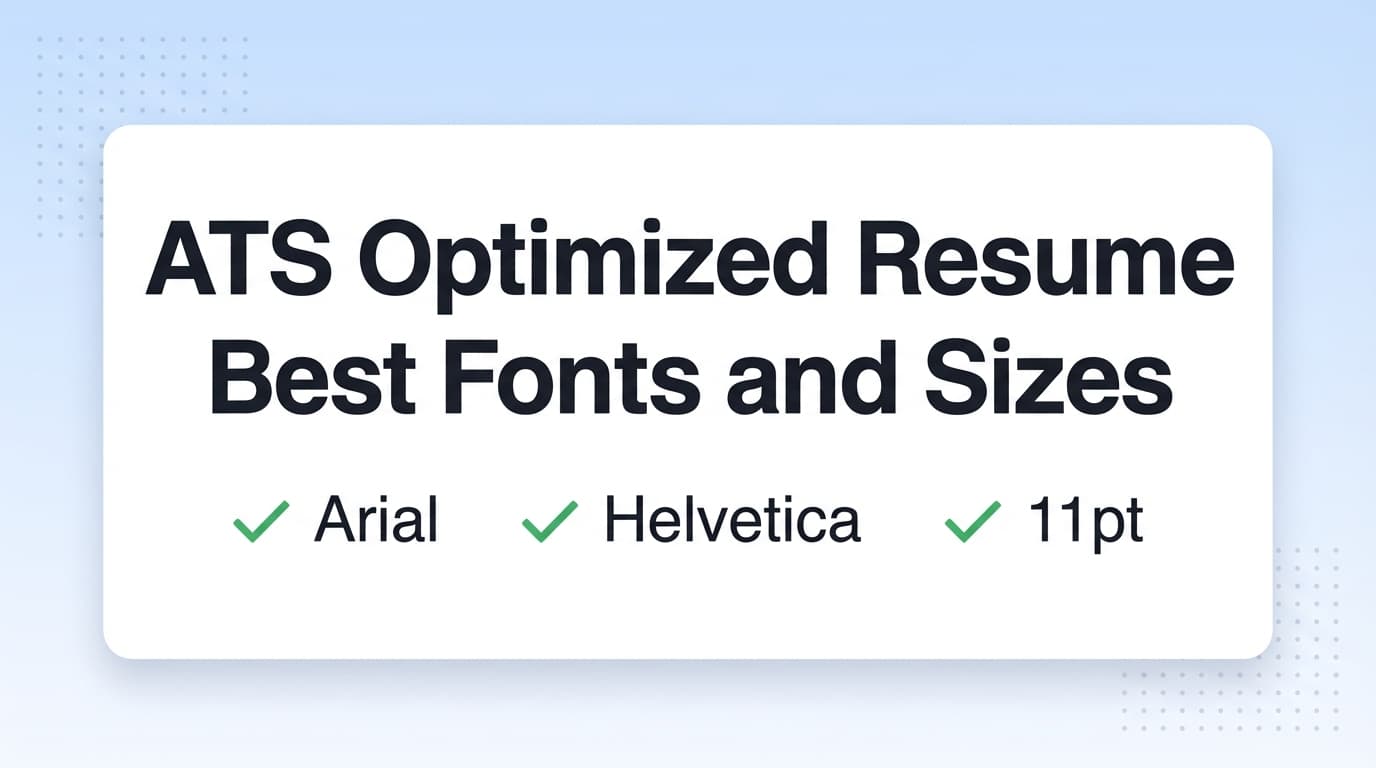
Use common fonts such as:
- Arial
- Calibri
- Times New Roman
- Helvetica
- Georgia
Keep font sizes reasonable:
- body text typically 10–12pt
- headings slightly larger
Avoid:
- decorative fonts,
- heavy script fonts,
- icon fonts for bullet points.
Step 7: Export to PDF correctly (Word, Google Docs, LaTeX)
This is where many “ATS-friendly” resumes become not ATS-friendly.
Option A: Microsoft Word → ATS-friendly PDF
Best practice settings:
- Keep everything in normal text flow (no floating text boxes)
- Use Word’s built-in PDF export (File → Save As → PDF)
Then test the PDF (Step 8).
Troubleshooting tip (when parsing looks broken):
- Try exporting via Print → Save to PDF and compare results. This isn’t guaranteed, but it’s a useful diagnostic path and widely suggested in applicant communities. (Confidence: Low as a universal fix; it’s a troubleshooting tactic.)
Option B: Google Docs → ATS-friendly PDF
- File → Download → PDF Document (.pdf)
- Avoid tables for layout
- Avoid drawings/shapes
Then test the PDF.
Option C: LaTeX → ATS-friendly PDF (often excellent, with caveats)
LaTeX can produce very clean, consistent PDFs. But you can still create parsing problems if you add:
- multiple columns,
- heavy icon packages,
- layered design elements.
If you want a LaTeX workflow without manually managing compilation, JobShinobi lets you:
- edit a resume in LaTeX,
- compile it into a PDF inside the app,
- download both the PDF and the .tex source,
- run AI resume analysis and resume-to-job matching to find keyword gaps and ATS-focused improvements.
Accuracy note on pricing: JobShinobi Pro is $20/month or $199.99/year. Marketing mentions a “7-day free trial,” but the trial mechanism isn’t fully verifiable from code alone, so don’t assume it applies without confirming at checkout. (Confidence: High on pricing; Medium on trial language.)
Internal links:
- Sign in: /login
- Subscription: /subscription
Step 8: Run the ATS “paste test” (the fastest way to catch PDF issues)
MIT specifically recommends testing your resume beforehand and emphasizes that ATS focuses on the text. (Source: https://capd.mit.edu/resources/make-your-resume-ats-friendly/ — Confidence: High)
Here’s the fastest test you can do without any special tool:
The 2-minute paste test
- Open your PDF.
- Select all text (Ctrl/Cmd + A) and copy.
- Paste into a plain text editor (Notepad, TextEdit in plain text mode).
Green flags:
- Sections appear in the right order
- Job titles and companies stay together
- Bullets remain readable
- Contact info appears at the top
Red flags:
- Right column content appears first
- Dates drift away from job titles
- Random symbols appear (often icons)
- Content is missing (often headers/footers or text boxes)
- Everything becomes one long line or strange paragraph breaks
If it fails the paste test, fix formatting and re-export.
Step 9: Decide PDF vs DOCX (the “safe submission” approach)
Because ATS capability varies, you want a consistent personal rule.
Use DOCX when:
- the portal explicitly asks for it,
- the portal has “autofill from resume” that keeps breaking your PDF,
- you’re applying to older systems known for finicky parsing (applicant anecdotes often mention certain portals, but treat this as situational, not universal).
Use PDF when:
- both formats are accepted,
- you’ve passed the paste test,
- you want consistent visuals across devices.
UIC notes not all ATS read all file types equally, which supports keeping a backup format ready. (UIC PDF — Confidence: High)
Worked examples (before/after) that improve ATS parsing
Example 1: Two-column skills → single-column grouped skills
Before (risky):
- Left column: Skills list
- Right column: Tools list
After (ATS-safe):
Skills: SQL, Python, Tableau, dbt, Git, stakeholder management
Tools: Snowflake, BigQuery, Looker, Jira
Methods: A/B testing, cohort analysis, forecasting
Example 2: Icon-only links → labeled links
Before (risky):
- icons for email/LinkedIn/GitHub
After (ATS-safe):
Email: [email protected]
LinkedIn: linkedin.com/in/firstlast
GitHub: github.com/firstlast
Example 3: Header contact line → body contact line
Before (risky):
- name + email inside header
After (ATS-safe): Place it at the top of the page in normal body text.
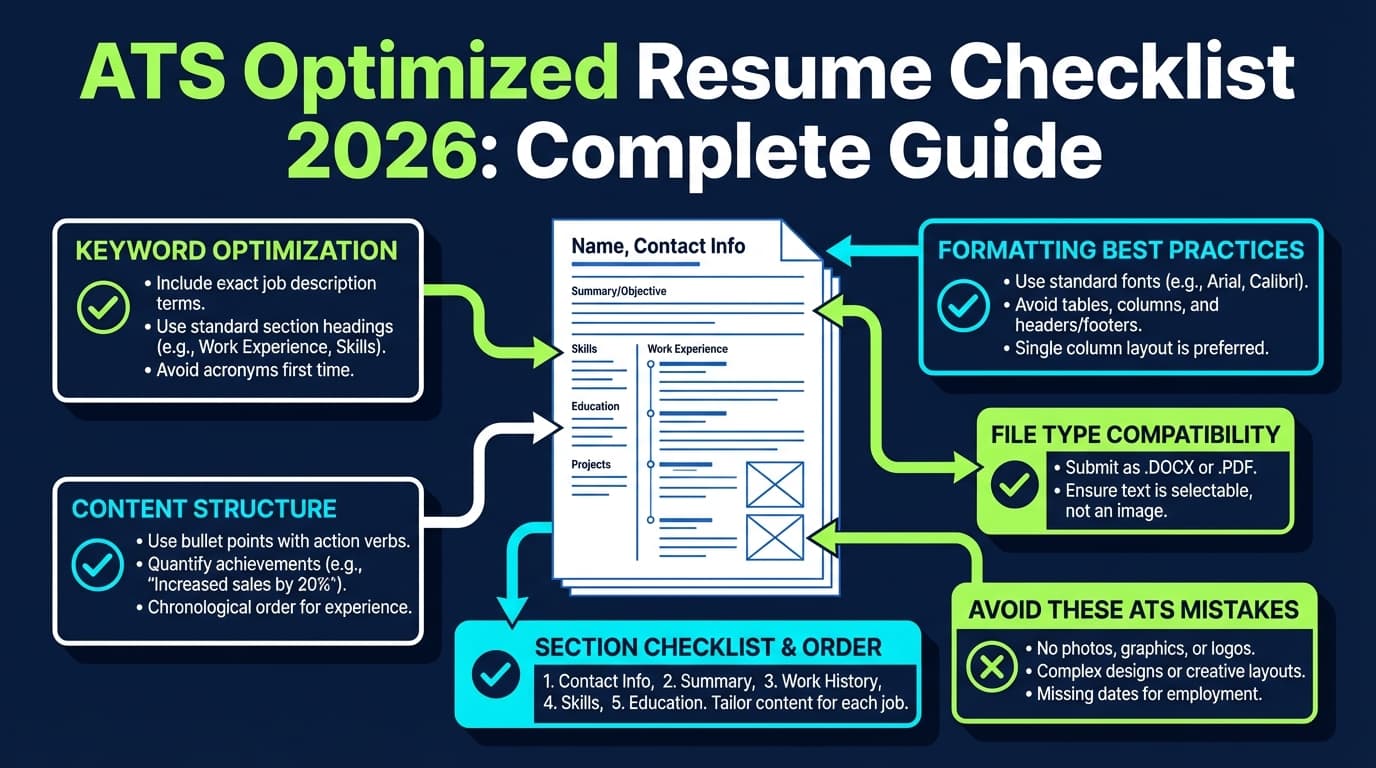
ATS-friendly PDF resume checklist (copy/paste this)
Layout & structure
- Single-column layout
- No tables for layout
- No text boxes / shapes
- Standard headings (Summary, Skills, Experience, Education)
- Consistent spacing and alignment
Content format
- Contact info in the body (not header/footer)
- Dates are consistent (e.g., “Jan 2023 – Oct 2025”)
- Bullets start with outcomes/impact when possible
- Skills are listed as plain text
PDF export & validation
- Text is selectable in the PDF (not an image)
- Paste test shows correct order and readable text
- File name is professional (see next section)
File naming best practices (yes, it matters)
Your file name won’t usually affect ATS scoring, but it affects human handling and professionalism.
Jobscan recommends clear, readable file naming conventions (Source: https://www.jobscan.co/blog/writing-a-resume-pay-attention-to-the-file-name/ — Confidence: Medium; practical advice).
Safe file name format:
FirstLast_Resume.pdfFirstLast_ProductManager_Resume.pdf
Avoid:
resume.pdffinal_resume_v7_REALFINAL.pdf- random numbers
Common mistakes to avoid (and exactly how to fix each one)
Mistake 1: Canva-style “designed resumes” exported to PDF
Why it fails: Many Canva templates use text boxes and design layers. Those layers can export as a PDF that looks great but parses poorly.
- TopResume explicitly warns Canva resumes may harm job search success due to formatting choices (Source: https://topresume.com/career-advice/is-canva-good-for-resumes — Confidence: Medium).
- This is also a frequent complaint in job seeker communities, especially when portal autofill breaks. (Confidence: Medium as a pattern; not every Canva PDF fails, but many do.)
Fix:
- Rebuild the content in a single-column text document (Docs/Word/LaTeX)
- Re-export as PDF
- Paste test again
Mistake 2: Using two columns to “fit on one page”
Why it fails: Reading order can be extracted incorrectly.
Fix:
- One column + tighter but readable spacing
- Cut low-signal content instead of compressing layout
Mistake 3: Putting dates in the far right margin with tab tricks
Why it fails: Some exports turn tabs into unpredictable spacing.
Fix:
- Keep dates near the role line
- Use a consistent separator like
|or parentheses
Mistake 4: Using images for section headings (yes, people do this)
Why it fails: The ATS can’t read images as text.
Fix:
- Use real text headings
Mistake 5: Submitting a scanned PDF (image-only)
Why it fails: It’s essentially a photo of a resume.
Fix:
- Always generate PDFs from the original document
- Confirm you can select/copy text
“ATS score” tools: how to use them without getting misled
ATS checkers can be useful for:
- catching formatting risks,
- identifying missing keywords,
- confirming that your PDF parses.
But don’t chase a perfect number. Different tools simulate different parsing logic and keyword weighting.
Best way to use them:
- Use them as diagnostics, not a grade.
- Prioritize: parsing order, missing sections, and obvious keyword gaps.
Tools to help you create and validate an ATS-friendly PDF resume
A good tool should help you:
- keep formatting safe,
- compare your resume to a job description,
- quickly improve wording and keyword coverage,
- avoid generating a “pretty but broken” PDF.
JobShinobi (LaTeX resume building + ATS-focused analysis)
JobShinobi is built around a LaTeX resume editor with in-app PDF compilation, plus AI-powered resume analysis and resume-to-job matching.
This can be especially helpful when you want:
- a consistent PDF output (LaTeX),
- an ATS-focused critique (analysis),
- keyword gap detection against a specific role (matching).
Pricing accuracy:
- JobShinobi Pro: $20/month or $199.99/year
- Marketing mentions a 7-day free trial, but confirm during checkout (trial enforcement isn’t clearly verifiable in code).
Links:
Plain-text editor (Notepad/TextEdit)
This is your simplest ATS preview tool via the paste test.
Word or Google Docs
Still among the easiest ways to generate a text-based PDF—as long as you avoid complex templates.
Situational guidance: what to do if the application portal autofill is a mess
If you upload a PDF and the portal autofill:
- scrambles your job titles,
- merges your bullets,
- drops your dates,
do this:
- Upload your DOCX instead (if allowed).
- If DOCX isn’t allowed, adjust formatting:
- remove tabs,
- remove any leftover text boxes,
- simplify spacing,
- re-export.
- Re-run the paste test.
This doesn’t mean “PDF is bad”—it usually means that PDF or that portal is sensitive.
Advanced troubleshooting: “my PDF passes the paste test, but the portal still breaks it”
This can happen because:
- the portal’s parser is different than your PDF viewer’s text extraction,
- the portal is optimized for DOCX,
- the portal’s “resume autofill” is simply low quality.
What to do:
- Keep a clean DOCX version as a fallback.
- Keep your resume structure extremely standard:
- “Company — Location”
- “Title | Dates”
- Avoid special characters in headings.
- Avoid unusual bullet glyphs.
If you’re applying to many roles, a repeatable workflow matters more than a “perfect” one-off format.
Key takeaways
- An ATS-friendly PDF resume is primarily about text extraction and reading order.
- The single best formatting decision: use one column.
- The single best validation method: copy/paste the PDF into Notepad and check order.
- Avoid: tables, columns, text boxes, headers/footers for important info, icons, and charts.
- Keep both PDF and DOCX ready; follow portal instructions.
- If you want a controlled PDF output and ATS-focused feedback, tools like JobShinobi (LaTeX + PDF compile + AI analysis/matching) can speed up iteration without relying on fragile “designed resume” layouts.
FAQ (People Also Ask)
Can ATS read PDF resumes?
Often yes—if the PDF is text-based and simply formatted. Problems happen when the PDF is image-based, uses columns/tables/text boxes, or has reading-order issues. (UIC guidance: https://careerservices.uic.edu/wp-content/uploads/sites/26/2017/08/Ensure-Your-Resume-Is-Read-ATS.pdf — Confidence: High)
Is a PDF file ATS friendly?
A PDF is ATS friendly when you can select and copy text, and the pasted text appears in a sensible order. A “graphic” PDF (like a scanned resume or heavily designed layout) is often not.
Is DOCX or PDF better for ATS?
It depends on the employer’s ATS and configuration. Some older systems parse DOCX more reliably, while many modern ATS handle clean PDFs well. Best practice: follow the posting instructions; if uncertain, keep both formats ready and validate your PDF with a paste test. (UIC PDF notes file-type variability — Confidence: High)
How do I make a PDF resume ATS friendly?
Use this simple process:
- Build a single-column resume with standard headings
- Keep contact info in the body (not header/footer)
- Avoid tables, columns, text boxes, icons, and charts
- Export as a text-based PDF
- Run the paste test and fix any scrambled sections
Can ATS read a PDF resume made in Canva?
Sometimes, but Canva resumes are more likely to cause issues because many templates rely on text boxes and layered design elements. If you use Canva, test your exported PDF and consider rebuilding in a more ATS-safe format if the text pastes out of order. (See: https://topresume.com/career-advice/is-canva-good-for-resumes — Confidence: Medium)
How do I know if ATS can read my resume?
Do the paste test: copy all text from your PDF and paste into Notepad/TextEdit. If it’s missing sections, out of order, or filled with weird symbols, your resume is at risk of parsing poorly. MIT also advises testing your resume beforehand. (MIT CAPD: https://capd.mit.edu/resources/make-your-resume-ats-friendly/ — Confidence: High)
How do I make a 100% ATS friendly resume?
There’s no guaranteed “100%” because ATS tools vary. The most reliable approach is:
- single-column formatting,
- standard headings,
- text-based PDF export,
- paste test validation,
- truthful keyword alignment to the job description.