If you’re using the Jobscan resume scanner for a PDF resume, your results depend on one thing most people overlook:
Whether your PDF is actually readable (parsable) by ATS-style software.
A PDF can look perfect to a human and still extract in the wrong order (or fail to extract at all). That’s when you’ll see confusing match gaps like “missing keyword” even though you know you included it.
This guide walks you through:
- how to prep a PDF resume so Jobscan can read it,
- how to run scans without “overfitting” to the score,
- and how to fix the most common PDF parsing issues (tables, columns, text boxes, scanned PDFs).
In this guide, you’ll learn:
- How to tell if your PDF resume is ATS-readable in under 60 seconds
- How to use Jobscan step-by-step for a PDF resume (and interpret results correctly)
- The PDF formatting mistakes that break parsing (and how to fix them)
- Best practices for keywords, match rate, and tailoring without keyword stuffing
- Tools and workflows to make tailoring faster (including a Jobscan alternative approach)
What is Jobscan’s resume scanner (and what does it do for PDF resumes)?
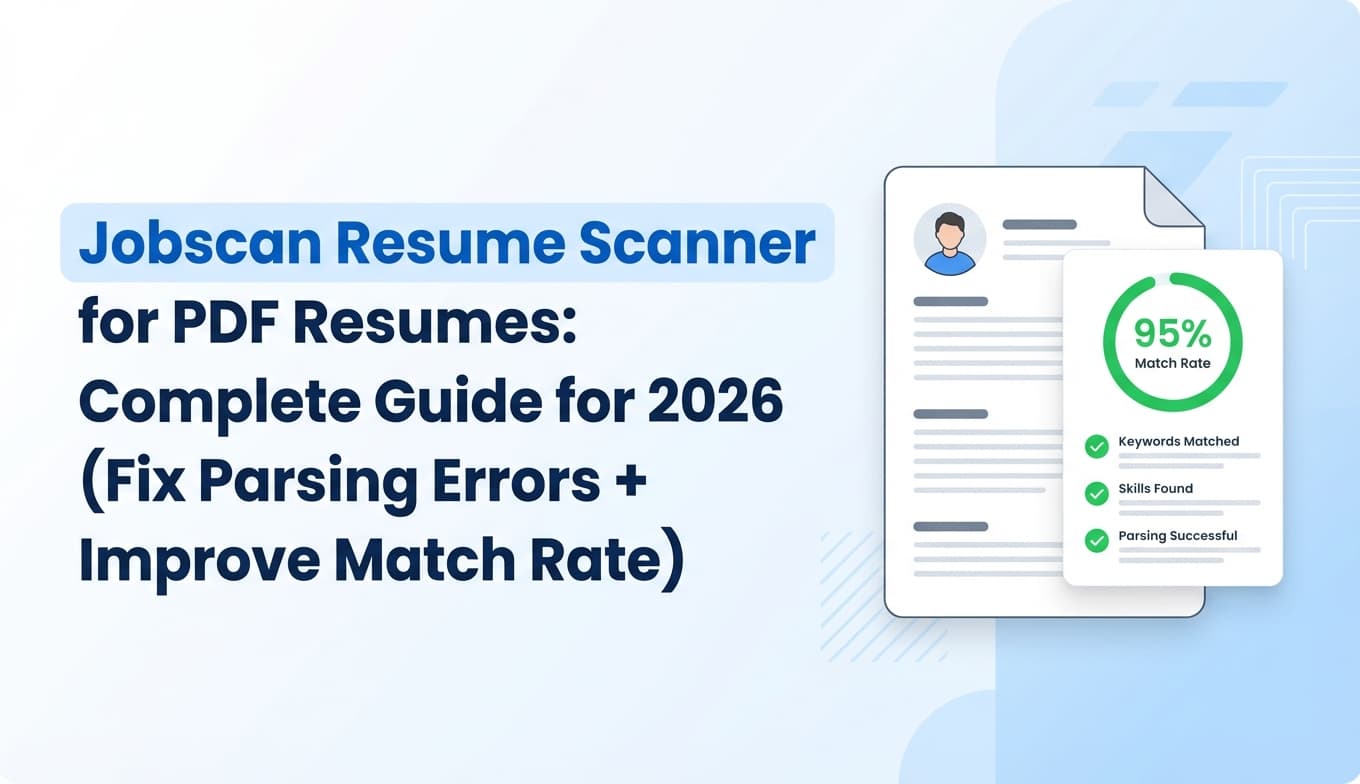
Jobscan’s resume scanner is a tool that compares:
- your resume (uploaded or pasted), and
- a job description (pasted or imported),
then produces a report (often summarized as a “match rate” or score) showing:
- missing keywords,
- keyword frequency and placement signals,
- and potential ATS-style formatting or readability issues.
For PDF resumes, the key variable is how your PDF’s text is extracted. If extraction is messy, your scan results can be misleading.
Why PDF parsing matters in 2026 (and why “score chasing” backfires)
Two realities shape your resume performance:
Reality #1: ATS usage is widespread
Jobscan reports that 98.4% of Fortune 500 companies used a detectable ATS in 2024 (Confidence: Medium — it’s a vendor study, but Jobscan’s ATS tracking report is widely referenced).
Source: https://www.jobscan.co/blog/fortune-500-use-applicant-tracking-systems/
Independent industry roundups often cite high ATS adoption in large companies and heavy recruiter reliance on ATS/tech tools (Confidence: Medium — depends on compilation methodology).
Source: https://www.selectsoftwarereviews.com/blog/applicant-tracking-system-statistics
Reality #2: Humans still skim fast
The Ladders’ eye-tracking study found recruiters spend about 7.4 seconds on an initial resume screen (Confidence: High — primary PDF available).
Sources:
- https://www.theladders.com/static/images/basicSite/pdfs/TheLadders-EyeTracking-StudyC2.pdf
- HR Dive coverage: https://www.hrdive.com/news/eye-tracking-study-shows-recruiters-look-at-resumes-for-7-seconds/541582/
So your resume has to:
- parse cleanly for software, and
- read cleanly for humans.
What “ATS-friendly PDF” actually means
An ATS-friendly PDF is typically:
- Text-based (not scanned/image-only)
- Single-column (or at least a straightforward reading order)
- Uses plain headings (Work Experience, Skills, Education)
- Avoids tables, text boxes, icons, and other layout tricks that can scramble parsing
University career services often recommend single-column/no tables/no text boxes for ATS readability (Confidence: High).
Source (UIC PDF checklist): https://careerservices.uic.edu/wp-content/uploads/sites/26/2017/08/Ensure-Your-Resume-Is-Read-ATS.pdf
How to prep your PDF resume before using Jobscan (quick checklist)
1) Confirm your PDF is text-based (not a scanned image)
60-second test:
- Open your PDF
- Try to select a line of text and copy/paste it into Notes/Notepad
If you can’t select text, your PDF may be image-based. Smallpdf notes that ATS issues often start with scanned/image-only PDFs rather than text-based PDFs (Confidence: Medium).
Source: https://smallpdf.com/blog/do-applicant-tracking-systems-prefer-resumes-in-pdf-format
Fix: Export again from your original document (Word/Google Docs/LaTeX). If you only have a scan, use OCR to create a searchable PDF, then re-test.
2) Remove “parsing traps” before you scan
Common traps:
- Two-column layouts / sidebars
- Tables (especially for skills or dates)
- Text boxes
- Icons (phone/email/link icons) instead of plain text
A lot of “Jobscan says it can’t parse my resume” cases trace back to these.
3) Use simple bullets and standard fonts
Safer bullets:
-hyphen- standard
•
Avoid decorative symbols and nonstandard glyphs.
How to use Jobscan resume scanner for a PDF resume (step-by-step)
Step 1: Choose PDF vs DOCX for the job you’re applying to
- If the application explicitly asks for DOCX, submit DOCX.
- If it allows PDF, PDF is often fine if it’s clean and text-based.
Smallpdf’s guidance frames it as situational—PDF can be ATS-readable, but the file type and PDF type matter (Confidence: Medium).
Source: https://smallpdf.com/blog/do-applicant-tracking-systems-prefer-resumes-in-pdf-format
Pro tip: If a portal auto-fills fields from your resume (parsing), DOCX can be safer—then keep a polished PDF for direct recruiter emails.
Step 2: Run your own “plain-text parse test” first
Before Jobscan:
- Copy all text from your PDF
- Paste into a plain text editor
- Look for:
- sections out of order,
- dates separated from roles,
- skills mashed together (“PythonSQLTableau”),
- bullets turning into paragraphs
If the pasted text is chaotic, your Jobscan results will be noisy.
Step 3: Upload the PDF (or paste the text) and add the job description
Typical Jobscan flow:
- Upload your resume PDF or paste resume text
- Paste the job description
- Run the scan
If the PDF upload fails, Jobscan’s support documentation suggests checking file type, scans, and file integrity (Confidence: Medium).
Source: https://support.jobscan.co/hc/en-us/articles/41334611347091-Why-can-t-I-upload-my-resume-to-scan
Step 4: Interpret the scan report in the right order
Don’t start with “How do I raise the score?”
Start with:
- Parsing/formatting alerts (they can hide your content)
- Missing hard skills from the JD (tools, platforms, certifications)
- Role-specific keywords (domain terms, responsibilities)
- Soft skills (only if explicitly required)
Step 5: Make changes in the source document, then re-export to PDF
Avoid editing the PDF directly (PDF editors can introduce hidden layers or odd text extraction).
Instead:
- edit in Word/Docs/LaTeX,
- export a fresh PDF,
- re-test copy/paste,
- re-scan.
Step 6: Rescan in controlled iterations
Change one area at a time:
- Skills section
- Then 1–2 bullets in the most relevant role
- Then summary/headline (if needed)
This avoids endless churn where your “score” goes up but the resume gets worse for humans.
What match rate should you aim for in Jobscan?
Jobscan publishes match-rate guidance indicating:
- they generally recommend aiming around 80%, and
- many users see success around 75% (Confidence: Medium — vendor guidance, not a guarantee).
Source: https://www.jobscan.co/blog/what-jobscan-match-rate-should-i-aim-for/
How to use this responsibly:
- Treat it like a diagnostic threshold, not a promise of interviews.
- If you hit 75–80% by keyword stuffing, you may harm readability and recruiter trust.
Common PDF resume problems (and fixes that actually work)
Problem 1: “Jobscan can’t parse my resume” / upload fails
Likely causes:
- scanned PDF
- corrupted PDF
- embedded objects, layers, or complex formatting
Fixes:
- Export a new PDF from the source document (don’t re-save the same PDF repeatedly)
- Remove tables/text boxes
- Ensure it’s not password-protected
- Try paste-mode scanning as a backup
Support reference: https://support.jobscan.co/hc/en-us/articles/41334611347091-Why-can-t-I-upload-my-resume-to-scan
Problem 2: The ATS reads your resume “out of order”
This is common with text blocks and multi-column designs. A well-known Reddit thread discusses how ATS-style extraction can read blocks in unexpected order (anecdotally described as bottom-to-top or block-by-block) (Confidence: Low–Medium — anecdotal, but useful as a warning sign).
Source: https://www.reddit.com/r/UXDesign/comments/199f8a7/resume_psa_i_learned_ats_scanners_read_text/
Fix:
- Convert to single column
- Use standard section headings
- Avoid sidebars and floating blocks
Problem 3: Keywords show as “missing” even though you used them
Common reasons:
- you used only an acronym (ATS) but the JD uses the full term (Applicant Tracking System)
- you used a synonym rather than the exact phrase
- the keyword is inside a table/text box and isn’t extracting
Fix:
- include both acronym + full term once when relevant
- mirror exact phrases only when true
- move skills/keywords into normal body text
Problem 4: Score obsession (overfitting your resume to the tool)
Reddit discussions frequently criticize ATS checkers for inconsistent scoring and for not reflecting every ATS implementation (Confidence: Medium — qualitative, not definitive).
Example SERP-visible threads: https://www.reddit.com/r/resumes/
Fix: Use a 3-part validation loop:
- parse test (copy/paste)
- scan report (keyword gaps)
- human skim test (7–10 seconds)
10 best practices for a Jobscan-friendly, ATS-safe PDF resume
- Use a text-based PDF (not scanned)
- Stick to one column (UIC checklist)
- Avoid tables and text boxes (UIC checklist)
- Use plain text contact info (no icons required)
- Use standard headings (Work Experience, Skills, Education)
- Put hard skills in Skills + Experience (show usage, not just listing)
- Mirror JD wording where truthful (avoid fake keyword stuffing)
- Keep bullets scannable (action + impact + metric)
- Keep date formats consistent (e.g., MM/YYYY)
- Rescan after major edits (but don’t chase 100%)
Source for ATS formatting checklist: https://careerservices.uic.edu/wp-content/uploads/sites/26/2017/08/Ensure-Your-Resume-Is-Read-ATS.pdf
Tools to help with Jobscan + PDF resumes (without relying on one score)
-
Jobscan: Resume-to-job description scan and match-style report.
Source: https://www.jobscan.co/resume-scanner -
Smallpdf (OCR / PDF tools): Helpful if your PDF is scanned or not text-searchable (Confidence: Medium).
Source: https://smallpdf.com/blog/do-applicant-tracking-systems-prefer-resumes-in-pdf-format -
Resume Worded: Publishes ATS + PDF guidance and offers scanning tools (useful for a second opinion).
Source (example guide analyzed): https://resumeworded.com/can-ats-read-pdf-documents-key-advice -
JobShinobi (structured alternative workflow):
If your main PDF problems come from formatting instability (Word templates, Canva exports, layout hacks), a structured resume workflow can help. JobShinobi supports:- building resumes in LaTeX with templates,
- compiling LaTeX to PDF in-app,
- AI resume analysis (ATS-focused scoring/feedback),
- job description extraction + resume-to-job matching to find keyword gaps,
- a job application tracker, with Excel export, and
- JobShinobi Pro supports email-forwarding to auto-log job application emails into the tracker.
Pricing (accurate): JobShinobi Pro is $20/month or $199.99/year (Confidence: High).
Note: Marketing mentions a “7-day free trial,” but the trial mechanism isn’t fully verifiable from code (Confidence: Medium).
(See:/pricing)
A repeatable workflow for every application (fast + sane)
- Decide PDF vs DOCX based on the portal instructions
- Confirm your PDF is text-based (copy/paste test)
- Run Jobscan scan against the specific job description
- Update Skills + 2–4 bullets in the most relevant role
- Re-export PDF (fresh) and rescan
- Do a 7–10 second human skim test before submitting
Key takeaways
- Jobscan can be helpful for tailoring a PDF resume, but PDF parsing quality comes first.
- A clean PDF is text-based, simple, and single-column—no tables/text boxes.
- Use match rate targets (75–80%) as guidance, not a guarantee.
- Validate with both a parser test (copy/paste) and a recruiter skim test (7.4-second reality).
FAQ
Can ATS scanners read PDFs?
Yes—many modern ATS can read text-based PDFs, but scanned/image-only PDFs and complex layouts can cause parsing failures (Confidence: Medium).
Source: https://smallpdf.com/blog/do-applicant-tracking-systems-prefer-resumes-in-pdf-format
How do I check if my PDF resume is ATS friendly?
Copy all text from the PDF and paste into a plain text editor. If the order and content look correct, that’s a good sign. Also follow a simple formatting checklist (single column, no tables/text boxes) (Confidence: High).
Source: https://careerservices.uic.edu/wp-content/uploads/sites/26/2017/08/Ensure-Your-Resume-Is-Read-ATS.pdf
Why can’t I upload my resume to Jobscan?
It may be scanned, corrupted, password-protected, or contain hidden formatting issues. Jobscan’s support article suggests ensuring the file is a proper PDF/DOCX and not scanned (Confidence: Medium).
Source: https://support.jobscan.co/hc/en-us/articles/41334611347091-Why-can-t-I-upload-my-resume-to-scan
What is a good Jobscan match rate?
Jobscan recommends aiming around 80%, with many users seeing success around 75% (Confidence: Medium — vendor guidance).
Source: https://www.jobscan.co/blog/what-jobscan-match-rate-should-i-aim-for/
Should I use PDF or DOCX for ATS?
Follow the employer’s instructions first. If the portal parses resumes into fields and you’ve seen parsing issues, DOCX can be safer; if PDF is allowed and text-based, PDF can work well (Confidence: Medium).
Source: https://smallpdf.com/blog/do-applicant-tracking-systems-prefer-resumes-in-pdf-format