Recruiters don’t read your resume like a novel—they skim. An eye-tracking study from The Ladders found recruiters spent 7.4 seconds on an initial resume scan. (Source: The Ladders PDF; coverage summary: HR Dive.)
- https://www.theladders.com/static/images/basicSite/pdfs/TheLadders-EyeTracking-StudyC2.pdf
- https://www.hrdive.com/news/eye-tracking-study-shows-recruiters-look-at-resumes-for-7-seconds/541582/
If you’re applying through Lever (common at tech companies and high-growth teams), your resume has to do two jobs at once:
- Parse cleanly into the fields Lever extracts (so your experience/skills don’t get scrambled).
- Read instantly for a human who may only glance at it for a few seconds.
This guide is built for high-volume applicants who feel stuck in “applied → silence,” and want a repeatable system (not vague advice).
In this guide, you’ll learn:
- What “Lever ATS optimization” actually means (and what it doesn’t)
- The safest formatting choices for Lever’s resume parsing
- A step-by-step workflow to pull keywords from a job description and place them naturally
- A pre-submit test you can run in 2 minutes to catch parsing failures
- A Lever-specific checklist + common mistakes and fixes
- Tools that can speed up tailoring (without keyword stuffing)
What is Lever ATS (and what does it do to your resume)?
Lever is an Applicant Tracking System (ATS) used by employers to collect applications and manage candidates. One of the most important parts for job seekers: Lever parses (extracts) text from your resume and attempts to structure it into a candidate profile (name, contact info, employment history, etc.).
Key point: ATS software generally doesn’t “reject” you automatically because of formatting. But formatting can still hurt you because:
- Your info may be missing or mis-filed (e.g., dates in the wrong role, skills dropped, contact info not captured).
- Recruiters searching inside the ATS may not find you if the right terms aren’t in readable text.
If you want a plain-language overview of how ATS parsing works, Workable’s explainer is a solid reference:
https://resources.workable.com/stories-and-insights/how-ATS-reads-resumes
Why optimizing for Lever ATS matters in 2026
1) ATS usage is widespread (so “ATS-ready” is the default requirement)
MIT’s career office notes that about 99% of Fortune 500 companies use some form of ATS. (That page is ATS-focused guidance for job seekers.)
https://capd.mit.edu/resources/make-your-resume-ats-friendly/
SelectSoftwareReviews also compiles ATS adoption stats (including 70% of large companies using ATS, and lower adoption among smaller companies). (Treat as industry-compiled stats; good directional signal.)
https://www.selectsoftwarereviews.com/blog/applicant-tracking-system-statistics
2) The ATS market keeps growing (meaning more automation, not less)
MarketsandMarkets projects the ATS market to reach $4.88B by 2030 (press release/summary).
https://www.marketsandmarkets.com/PressReleases/applicant-tracking-system.asp
3) “Pretty resumes” still break in parsing workflows
Even if the recruiter can view your original PDF, many workflows depend on parsed fields (search, filtering, scorecards, quick review screens, etc.). Formatting that looks great to you can become a messy block of text to a parser.
Lever resume parsing basics (file types, images, and size limits)
Lever’s own documentation includes practical details job seekers should care about:
Accepted file types (common)
Lever supports multiple resume file types (commonly including PDF and Microsoft Word / .docx).
A Lever Help Center article titled Understanding Resume Parsing includes an “Accepted file types” list (as shown in search snippets and Lever docs pages).
https://help.lever.co/hc/en-us/articles/20087345054749-Understanding-Resume-Parsing
Images are a problem
Lever documentation notes it cannot parse information from image files (like JPG or PNG). If you embed important info as images (icons, graphic skill bars, text inside shapes), it may not be extracted.
https://help.lever.co/hc/en-us/articles/20087345054749-Understanding-Resume-Parsing
File size limits (real and surprisingly relevant)
Lever’s Help Center indicates a 10MB maximum resume file size (when adding/uploading a resume in Lever).
https://help.lever.co/hc/en-us/articles/20087357076253-Adding-and-deleting-resumes
Why it matters: Big PDFs often happen when people export from Canva/InDesign with images embedded. Large files also increase the odds you’ve created an image-based PDF (harder to parse).
Confidence level on these Lever specifics: Medium (we’re relying on Lever Help Center URLs + search snippets; direct page fetch may vary by region/access, but the documentation is consistently referenced across SERPs).
How to optimize resume for Lever ATS: Step-by-step
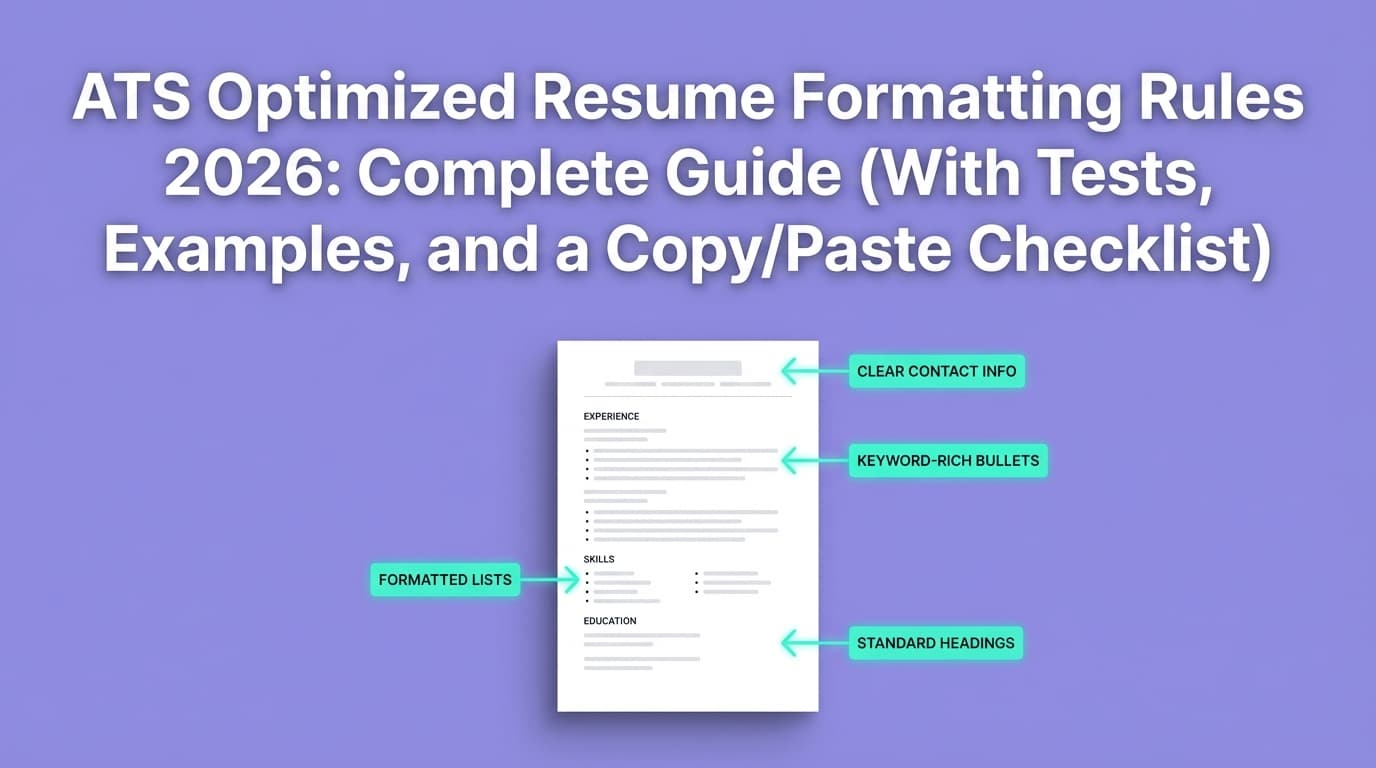
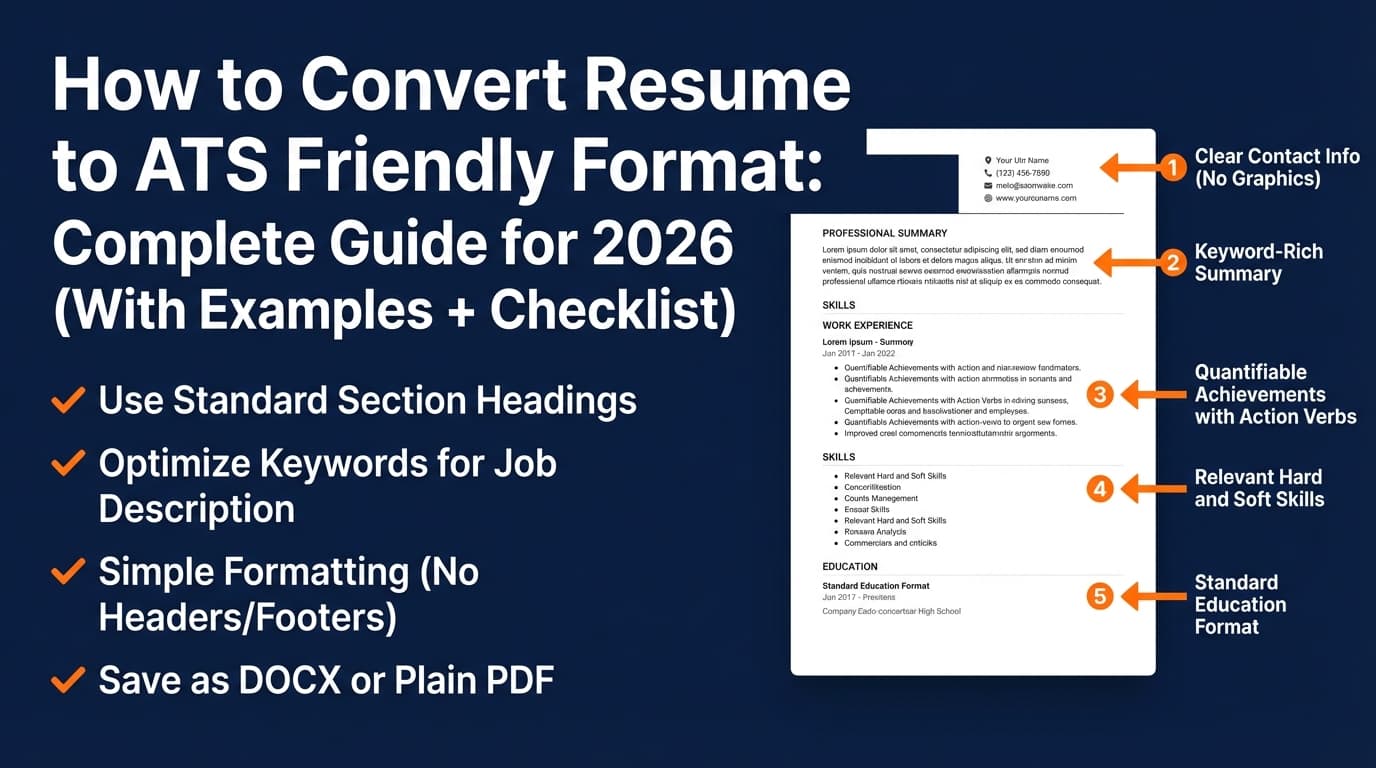
Step 1: Start with a “Lever-safe” resume layout (single-column, text-first)
If you want the highest reliability across ATS parsing (including Lever), use a layout that favors simple reading order:
Use:
- Single-column layout
- Standard section headings
- Plain text (not text-as-image)
- Bullets for achievements (not tables)
Avoid (or use only if you test thoroughly):
- Tables and multi-column structures (risk of scrambled reading order)
- Text boxes and shapes
- Icons used as bullets
- Skill bars, charts, infographics
- Headers/footers for critical info
Santa Clara University’s career toolkit (Jobscan-based) explicitly warns that ATS systems typically do not read headers and footers, and calls out that Lever and iCIMS can struggle with images/graphics.
https://www.scu.edu/careercenter/toolkit/job-scan-common-ats-resume-formatting-mistakes/
Pro tip: Put your contact info in the main body at the top (not in the Word header).
Step 2: Use standard headings that parsers recognize
ATS systems look for predictable labels. Use conventional section headings like:
- Work Experience (or Professional Experience)
- Education
- Skills
- Certifications (if relevant)
- Projects (if relevant)
SCU’s formatting guidance emphasizes using conventional headings that ATS recognizes.
https://www.scu.edu/careercenter/toolkit/job-scan-common-ats-resume-formatting-mistakes/
Avoid “clever” headings like “Where I’ve Made Impact” or “My Journey”—they may be less reliably mapped.
Step 3: Choose PDF vs DOCX using a simple decision rule
You’ll see conflicting advice here, because both can work—but not in every workflow.
Use PDF when:
- The job post accepts PDF
- Your PDF is text-based (selectable text)
- You want consistent layout across devices
Use DOCX when:
- The portal explicitly recommends Word
- Your PDF text selection/paste test looks messy
- You have special characters that export weirdly in PDF
Lever accepts multiple formats, including Word and PDF (see Lever parsing docs references).
https://help.lever.co/hc/en-us/articles/20087345054749-Understanding-Resume-Parsing
Quick self-check: Open your PDF and try selecting a full bullet. If selection jumps around, you may have an “image-ish” PDF or a weird text layer.
Step 4: Run the 2-minute “plain-text test” before you submit
This is the fastest way to catch parsing problems.
How to do it:
- Copy all text from your resume (PDF or DOCX).
- Paste into a plain-text editor (Notes, TextEdit, Google Doc in plain formatting, etc.).
- Scan for these failure signs:
- Dates detached from jobs
- Company names merged into bullet text
- Columns reading left-to-right incorrectly
- Contact info missing
- Skills list mashed together
MIT’s career guidance recommends testing your resume in ways that simulate text-focused parsing (plain-text style checks).
https://capd.mit.edu/resources/make-your-resume-ats-friendly/
If the plain-text version is messy, fix formatting first—before you touch keywords.
Step 5: Extract keywords from the job description (the right way)
“Keywords” doesn’t mean stuffing your resume with buzzwords. It means making sure the language you already have matches how the company describes the role.
Build a keyword list in 10 minutes
Copy the job description into a document and highlight:
- Hard skills / tools (e.g., SQL, Python, Tableau, Docker)
- Role-specific methods (e.g., A/B testing, stakeholder management, regression analysis)
- Required outcomes (e.g., “reduce churn,” “improve conversion,” “cost optimization”)
- Must-have credentials (degree, certs, clearance)
- Exact role title variations (e.g., “Data Analyst” vs “Analytics Specialist”)
Then group keywords into 3 buckets
- Must-have: appears in required qualifications or repeated often
- Nice-to-have: appears once or in “preferred”
- Contextual: related concepts that support your credibility
Pro tip: Prioritize keywords that match what you actually did. If you can’t support it with evidence, don’t include it.
Step 6: Place keywords where Lever parsing + recruiter skimming benefits most
Add keywords in places that are both ATS-readable and human-scannable:
Best placements:
- Skills section (but keep it real and specific)
- Most recent 1–2 roles (especially first 3 bullets)
- Projects (if projects are core to the role)
- Summary (only if you can be concrete)
Weak placements:
- A “keyword dump” paragraph
- White-font keyword stuffing (also a trust-killer)
Acronyms: include both forms
Some ATS/search setups may not recognize acronyms reliably. SCU explicitly notes: ATS like Taleo and Lever may not recognize acronyms if they’re not spelled out, recommending you use both versions.
https://www.scu.edu/careercenter/toolkit/job-scan-common-ats-resume-formatting-mistakes/
Example:
- “Applicant Tracking System (ATS)”
- “Enterprise Resource Planning (ERP)”
- “Search Engine Optimization (SEO)”
Step 7: Rewrite bullets for “match + proof” (not just match)
A strong Lever-optimized bullet has:
Action + Scope + Tool/Method + Result (metric)
Before (generic):
- “Responsible for reporting and dashboards.”
After (ATS + human-friendly):
- “Built weekly KPI dashboards in Tableau using SQL extracts, enabling leadership to track funnel conversion and reducing reporting turnaround time by 30%.”
Notice how the “after” version includes:
- Tools (Tableau, SQL)
- Outcome
- A measurable result
- Plain language that reads well
Step 8: Keep formatting rules consistent (dates, locations, titles)
ATS parsing often fails on inconsistency.
Do:
- Use one date format everywhere (e.g.,
MM/YYYY – MM/YYYYorMonth YYYY – Month YYYY) - Keep each job entry structured the same way:
- Title — Company — Location (optional) — Dates
- Bullets underneath
Don’t:
- Mix date formats across roles
- Put dates in a separate column
- Use right-aligned date blocks that float
Step 9: Do a “Lever-style submission simulation” (optional but powerful)
Many candidates apply through multiple systems. The goal here is to catch problems that show up when a system tries to autofill fields from your resume.
Simulation options:
- Upload your resume to an ATS checker / parser tool (any reputable one)
- Use a known application flow that asks you to review “autofilled” fields and see what breaks
What you’re looking for:
- Does it correctly identify employer names?
- Are job titles attached to the right company?
- Are dates correct?
- Did it capture your skills or merge them into one string?
Lever-specific resume checklist (copy/paste)
Use this before every Lever application:
Formatting (Lever-safe)
- Single-column layout (or thoroughly tested if 2-column)
- No tables, text boxes, or graphics containing critical info
- No icons as bullets (use standard bullets)
- Contact info is in the main body (not header/footer)
- Standard headings: Work Experience, Education, Skills
- Dates use one consistent format
File type & quality
- PDF is text-based (selectable text), not image-based
- File size is reasonable (avoid huge embedded images)
- If PDF paste test is messy, try DOCX
Keywords & content
- Keywords pulled from the job description (must-haves prioritized)
- Keywords appear naturally in bullets + skills
- Acronyms are written as “Long Form (ACRONYM)” at least once
- Every “keyword claim” is backed by proof in bullets/projects
Final polish
- First third of the resume clearly shows role fit (title + key skills + best achievement)
- Metrics included where possible
- No keyword stuffing paragraphs
10 best practices to optimize your resume for Lever ATS
- Prefer simple structure over design. Your portfolio can be creative—your resume should be parseable.
- Use standard section headings so Lever/other ATS can classify sections more reliably. (SCU guidance)
https://www.scu.edu/careercenter/toolkit/job-scan-common-ats-resume-formatting-mistakes/ - Avoid headers/footers for contact info. Many systems don’t read them consistently. (SCU guidance)
- Don’t rely on icons or images to convey meaning (Lever can’t parse image files like JPG/PNG).
https://help.lever.co/hc/en-us/articles/20087345054749-Understanding-Resume-Parsing - Keep your resume under control in file size. Oversized files often indicate embedded images.
- Use the plain-text test every time you change templates or export formats. (MIT ATS guidance)
https://capd.mit.edu/resources/make-your-resume-ats-friendly/ - Mirror the job description language where honest (tools, methodologies, role keywords).
- Include both acronym + spelled-out version at least once. (SCU notes ATS may miss acronyms.)
https://www.scu.edu/careercenter/toolkit/job-scan-common-ats-resume-formatting-mistakes/ - Front-load your best evidence because recruiters skim fast (7.4 seconds).
https://www.hrdive.com/news/eye-tracking-study-shows-recruiters-look-at-resumes-for-7-seconds/541582/ - Tailor the top half, not the whole resume. For many roles, updating summary + skills + most recent job bullets gets most of the gain.
Common mistakes to avoid (and how to fix them)
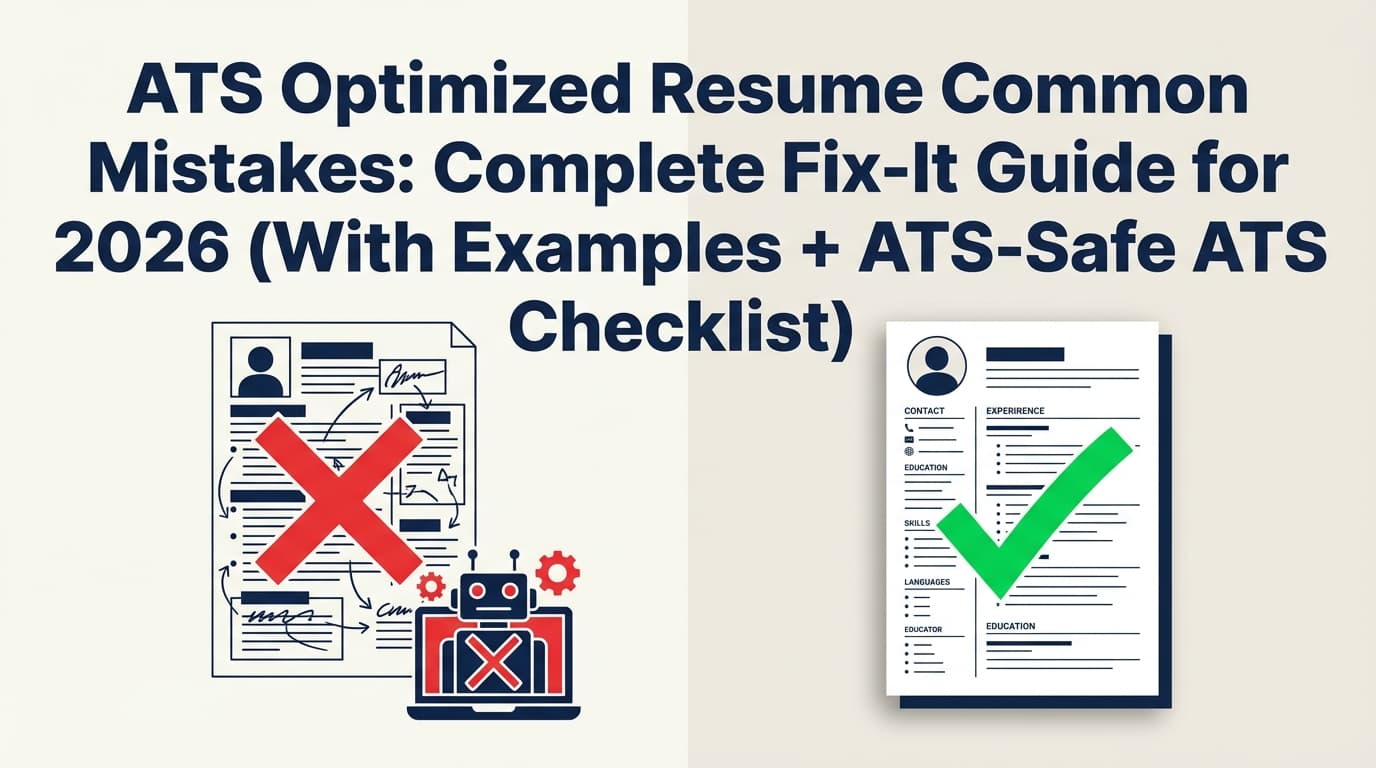
Mistake 1: Using a two-column template without testing
Why it hurts: Reading order can flip (left column reads first, then right column), scrambling experience and skills.
Fix: Convert to single-column, or run the plain-text test and a parser upload test. If anything scrambles, simplify.
Note: You’ll find arguments that “modern ATS can read columns.” Sometimes they can. The issue is reliability across systems and exports. If you’re applying at volume, “works everywhere” beats “might work.”
Mistake 2: Putting contact details in the header/footer
Why it hurts: Some ATS workflows ignore those regions; you risk missing contact info in the parsed profile.
Fix: Put name, phone, email, LinkedIn in the main body at the top.
SCU explicitly advises avoiding critical info in headers/footers.
https://www.scu.edu/careercenter/toolkit/job-scan-common-ats-resume-formatting-mistakes/
Mistake 3: Using icons, graphics, or skill bars
Why it hurts: Lever parsing documentation indicates it can’t parse information from image files like JPG/PNG; graphics also commonly break extraction.
https://help.lever.co/hc/en-us/articles/20087345054749-Understanding-Resume-Parsing
Fix: Replace skill bars with a clean skills list (e.g., SQL • Python • Tableau • dbt • Excel).
Mistake 4: Keyword stuffing (especially “invisible text” tricks)
Why it hurts: It can backfire with recruiters and may trigger quality filters. Plus, it doesn’t prove competence.
Fix: Add keywords only where you can attach proof (bullets/projects). If you need to add a keyword, update a bullet to show how you used it.
Mistake 5: Vague bullets that don’t show outcomes
Why it hurts: Even if ATS can parse you, the human won’t be persuaded.
Fix: Convert “responsible for” bullets into results-driven bullets with scope and metrics.
Tools to help with Lever ATS optimization (honest recommendations)
You don’t need 10 tools. You need one place to:
- Keep a clean ATS-safe base resume
- Tailor keywords and bullets to a specific job description
- Track applications so you don’t lose momentum
JobShinobi (resume analysis + job matching + tracking)
What it helps with (based on supported features):
- AI resume analysis with ATS-focused scoring and detailed feedback
- Job description extraction + resume-to-job matching (paste a job URL or JD text and get a structured match analysis)
- LaTeX resume builder with PDF export (helpful if you want consistent, text-first formatting)
- Job application tracking (including an email-forwarding workflow that can automatically log job application emails) — requires JobShinobi Pro membership
Pricing (be precise): JobShinobi Pro is $20/month or $199.99/year. The pricing page mentions a 7-day free trial, but trial mechanics aren’t fully verified in code (so don’t assume it applies automatically).
Internal links (app):
- Resume area: /dashboard/resume
- Job tracker: /dashboard/job-tracker
- Subscription: /subscription
Other helpful categories of tools
- Grammar/readability tools (catch small errors that hurt credibility)
- PDF text checkers (confirm your PDF is text-based and selectable)
- ATS resume scanners/parsers (useful for simulation—but remember each tool simulates differently)
Key takeaways
- Lever optimization is mostly about clean parsing + fast human readability.
- The safest format is single-column, text-first, with standard headings.
- Run a 2-minute plain-text test before submitting to catch parsing issues early.
- Tailor keywords by mapping job requirements to proof in your bullets, not by stuffing.
- If you apply at volume, build a repeatable system: base resume → targeted edits → test → submit → track.
FAQ (People Also Ask–style)
How do you optimize a resume for ATS (like Lever)?
Use a simple layout (prefer single-column), standard headings, and plain text. Then tailor your skills and bullet language to match the job description keywords—only where truthful. Finally, run a paste-to-plain-text test to make sure the resume reads in the correct order.
Does Lever ATS prefer PDF or DOCX?
Lever supports common formats (including PDF and Word/.docx). The “best” format is the one that stays text-based and cleanly parsable. If your PDF paste test looks messy, submit DOCX instead (when allowed).
https://help.lever.co/hc/en-us/articles/20087345054749-Understanding-Resume-Parsing
What file types does Lever accept for resumes?
Lever documentation lists multiple accepted file types for parsing (commonly including Microsoft Word/.docx and PDF).
https://help.lever.co/hc/en-us/articles/20087345054749-Understanding-Resume-Parsing
Can Lever parse images or a resume made of graphics?
Lever’s documentation indicates it cannot parse information from image files (like JPG or PNG). If your “resume PDF” is really an image (common with some design exports), parsing may fail or be incomplete.
https://help.lever.co/hc/en-us/articles/20087345054749-Understanding-Resume-Parsing
Are two-column resumes ATS-friendly in Lever?
Sometimes they work; sometimes they scramble. The practical answer: two-column resumes are higher risk unless you test them. If you want maximum reliability, use single-column. If you insist on two columns, run the plain-text test and a parser upload test.
How do I know if ATS can read my resume?
Paste your resume into a plain-text editor and check whether roles, dates, and headings remain clear and correctly ordered. MIT’s career office recommends testing and keeping formatting simple for ATS compatibility.
https://capd.mit.edu/resources/make-your-resume-ats-friendly/
How to make a “100% ATS-friendly” resume?
There’s no universal 100% because every ATS and parser behaves differently. But you can get close by using:
- single-column layout
- standard headings
- no headers/footers for critical info
- no graphics/text boxes
- a text-based PDF or clean DOCX
…and verifying with a plain-text test.
What’s the maximum resume file size in Lever?
Lever’s Help Center indicates a 10MB maximum resume file size (for uploading a resume in Lever).
https://help.lever.co/hc/en-us/articles/20087357076253-Adding-and-deleting-resumes