If you’ve ever uploaded your resume, hit “autofill,” and watched your job titles and dates scramble into the wrong fields—you’ve seen the core problem: parsing.
And parsing matters because ATS usage is the default at many employers. Workday states that more than 98% of Fortune 500 companies use an applicant tracking system (ATS). (Source: Workday https://www.workday.com/en-us/topics/hr/applicant-tracking-system.html)
At the same time, even if you pass the ATS step, recruiters still skim fast. HR Dive, citing a Ladders eye-tracking study, reported recruiters scan resumes for an average of 7.4 seconds in an initial review. (Source: HR Dive https://www.hrdive.com/news/eye-tracking-study-shows-recruiters-look-at-resumes-for-7-seconds/541582/). PR Newswire also references the 7.4 seconds finding in its release about the updated Ladders study. (Source: PR Newswire https://www.prnewswire.com/news-releases/ladders-updates-popular-recruiter-eye-tracking-study-with-new-key-insights-on-how-job-seekers-can-improve-their-resumes-300744217.html)
So the goal isn’t to create a “robot resume.” The goal is to convert your resume into a format that:
- ATS can read reliably (your info lands in the correct fields)
- Recruiters can scan in seconds (clear structure, strong top-third)
- Matches the job you’re applying to (keywords appear naturally, with proof)
In this guide, you’ll learn:
- What “ATS-friendly format” actually means (and what it doesn’t)
- A step-by-step conversion process (including Canva/two-column fixes)
- The fastest way to test parsing (plain-text + autofill checks)
- PDF vs DOCX: what to submit and when
- Examples, templates, and a conversion checklist you can use today
What is an ATS-friendly resume format?
An ATS-friendly resume format is a resume layout and file type that allows applicant tracking systems to accurately parse (extract) and index your information—name, contact details, job titles, dates, skills, and education—without scrambling or dropping content.
In practical terms, “ATS-friendly” usually means:
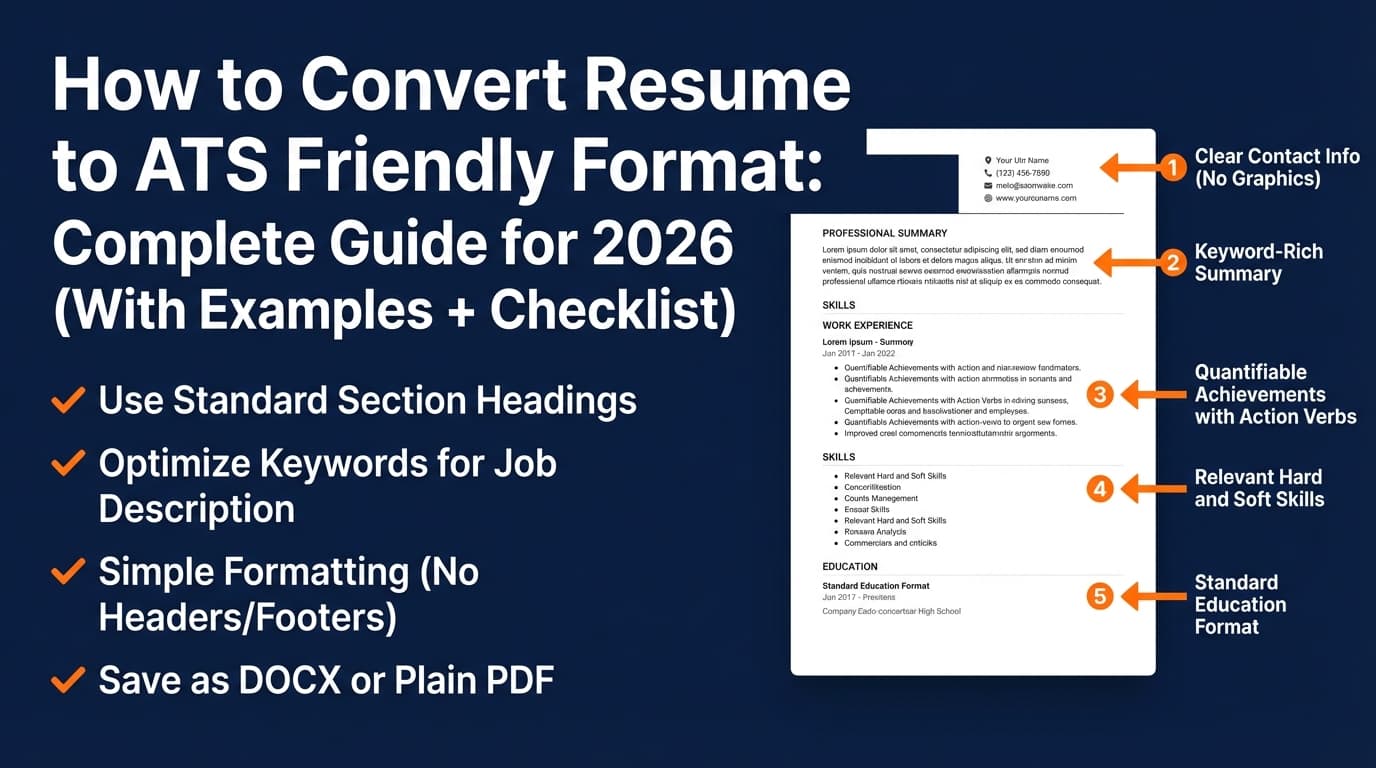
- A single-column layout
- Standard section headings (e.g., “Work Experience,” “Education,” “Skills”)
- Minimal design “containers” (no text boxes, tables, sidebars)
- Consistent date and title formatting
- A file that contains selectable text (not an image-based PDF)
What ATS-friendly doesn’t mean
- It doesn’t mean you must write awkward keyword soup.
- It doesn’t mean you need a boring resume (clean can still look modern).
- It doesn’t mean a perfect “ATS score” guarantees interviews.
Different employers use different ATS platforms and parsing engines. Your goal is to remove avoidable parsing failures and make your resume searchable + skimmable.
Why ATS-friendly formatting matters in 2026
ATS is widespread (and growing)
Here are a few data points that show why ATS isn’t going away:
- More than 98% of Fortune 500 companies use an ATS, according to Workday. (Source: Workday https://www.workday.com/en-us/topics/hr/applicant-tracking-system.html)
- MIT Career Advising notes about 99% of Fortune 500 companies use some form of ATS. (Source: MIT CAPD https://capd.mit.edu/resources/make-your-resume-ats-friendly/)
- Fortune Business Insights projects the applicant tracking system market will grow from $17.22 billion in 2025 to $30.51 billion by 2032, at a CAGR of 8.5%. (Source: Fortune Business Insights https://www.fortunebusinessinsights.com/applicant-tracking-system-market-108826)
- SelectSoftwareReviews compiles ATS adoption stats including 70% of large companies using ATS and 20% of small and mid-sized businesses using ATS (plus other ATS-related metrics). (Source: SelectSoftwareReviews https://www.selectsoftwarereviews.com/blog/applicant-tracking-system-statistics)
Recruiters still skim quickly
- Recruiters spend an average of 7.4 seconds on an initial resume scan (reported by HR Dive, based on the Ladders eye-tracking study).
Source: https://www.hrdive.com/news/eye-tracking-study-shows-recruiters-look-at-resumes-for-7-seconds/541582/
Additional reference: https://www.prnewswire.com/news-releases/ladders-updates-popular-recruiter-eye-tracking-study-with-new-key-insights-on-how-job-seekers-can-improve-their-resumes-300744217.html
Bottom line: ATS-friendly formatting helps you clear the machine step without sacrificing the human step.
How to convert resume to ATS friendly format: step-by-step
Use this workflow whether your current resume is in Canva, InDesign, a two-column Word template, or a “designer” PDF.
Step 1: Create two versions (ATS + designed)
Make a clean split so you stop fighting the same file for every use case.
- ATS version: for online portals (Workday, Greenhouse, Taleo, etc.)
- Designed version: for referrals, direct emails, portfolio sharing (optional)
File naming tip: use something like FirstLast_Resume_TargetRole_2026.pdf (or .docx). File naming best practices are commonly recommended by career sites and recruiters (you’ll see this in sources like Indeed/Jobscan/other career resources in SERPs), and it prevents “resume_final_final2.pdf” chaos.
Step 2: Move to a single-column layout (remove “parsing traps”)
This is the #1 conversion move.
Remove or avoid:
- Two columns / sidebars
- Tables (including skills tables)
- Text boxes
- Graphics, icons, logos, headshots
- Charts (skill bars, timelines)
Government and university resources repeatedly recommend avoiding these because they can confuse parsing:
- ChooseWork (SSA) explicitly says to avoid pictures, tables, columns, text boxes, or any other graphic element.
Source: https://choosework.ssa.gov/blog/2024-08-08-how-to-make-your-resume-applicant-tracking-system-friendly.html - UIC’s ATS resume PDF checklist includes single column guidance (and other formatting cautions).
Source: https://careerservices.uic.edu/wp-content/uploads/sites/26/2017/08/Ensure-Your-Resume-Is-Read-ATS.pdf - ONU’s ATS guide PDF also recommends single column, left-aligned and avoiding tables/columns/text boxes.
Source: https://my.onu.edu/sites/default/files/applicant_tracking_system_resume_guide.pdf
Pro tip: If you need alignment (e.g., location on the right, dates on the right), use simple spacing or tabs—not a table.
Step 3: Fix your header so your contact info actually parses
Many ATS issues start at the top.
Do this: Put your contact info in the body of the document, not the Word “Header/Footer” feature.
UIC’s guide explicitly warns: Do not use headers (including for contact information) or footers.
Source: https://careerservices.uic.edu/wp-content/uploads/sites/26/2017/08/Ensure-Your-Resume-Is-Read-ATS.pdf
Safe contact block format (ATS-friendly):
First Last
City, ST (or City, Country) | phone | email | LinkedIn URL | portfolio/GitHub
Avoid:
- Icons without text labels (ATS may not interpret icons as “email/phone”)
- Putting all contact details in a floating header strip
- Multiple lines of decorative separators
Step 4: Use standard section headings (so ATS can classify sections)
ATS often relies on headings to understand what it’s reading.
Use headings like:
- Summary (or Professional Summary)
- Work Experience (or Experience)
- Skills
- Education
- Projects
- Certifications
University at Buffalo’s ATS guidance explicitly recommends standard headings such as Education, Experience, Skills, Activities, Certifications, Leadership, etc.
Source: https://management.buffalo.edu/career-resource-center/students/preparation/tools/correspondence/resume/electronic.html
Avoid “cute” headings like:
- “Where I’ve Been”
- “My Toolkit”
- “What I Do”
Step 5: Standardize your dates, job titles, and company names
Parsing errors often come from inconsistent date formats or unusual layouts.
Pick one date style and stick to it:
Jan 2022 – Mar 2024
or2022-01 – 2024-03
Example (ATS-safe experience line):
Data Analyst, Acme Corp — Jan 2022 – Mar 2024
New York, NY
Pro tip: If your company used an internal title that’s uncommon, you can include a market-friendly title (truthfully) if it reflects your role. Don’t inflate titles—just reduce ambiguity.
Step 6: Rebuild your Skills section for ATS search and human scanning
Think of Skills as two things:
- a keyword index for ATS searches, and
- a quick checklist for a recruiter.
Option A (simple): Skills: SQL, Python, Tableau, Excel, Snowflake, dbt, A/B testing, stakeholder management
Option B (categorized, still ATS-safe):
- Analytics: SQL, Excel, Tableau
- Data: Python, Snowflake, dbt
- Methods: A/B testing, forecasting
Avoid:
- Skill bars
- “bubble” skills
- icons-only skills
- stuffing 40 tools you barely know
Step 7: Rewrite bullets so keywords appear naturally (with proof)
ATS doesn’t hire you; humans do. Bullets must show outcomes.
A strong bullet formula: Action + scope + tools/skills + result (metric)
Before (weak):
- Responsible for dashboards and reporting
After (ATS-friendly + recruiter-friendly):
- Built KPI dashboards in SQL + Tableau, reducing weekly reporting time by 35% and improving visibility into churn drivers.
This bullet:
- contains searchable keywords (SQL, Tableau, KPI dashboards)
- proves impact (35%)
- stays clean text (no formatting traps)
Step 8: Choose the right file type (PDF vs DOCX) for the portal
There’s no universal rule—follow the employer instructions first.
MIT Career Advising notes it’s usually safe to use .doc/.docx or .pdf unless the job description specifies otherwise, and recommends testing.
Source: https://capd.mit.edu/resources/make-your-resume-ats-friendly/
Smallpdf also summarizes the tradeoff: PDF preserves formatting; Word can be safer for some systems.
Source: https://smallpdf.com/blog/choose-the-right-file-type-for-your-resume
Practical rule:
- If the posting says DOC/DOCX only → submit DOCX
- If it says PDF preferred → submit PDF
- If it doesn’t specify → DOCX is often the “safe parse” choice, but a clean text-based PDF can work too
Avoid image-based PDFs, which can happen with some design tools depending on export settings.
Step 9: Run two fast parsing tests (plain-text + autofill)
This is where most people skip—and where most hidden problems show up.
Test A: Plain-text test (recommended by career services)
MIT recommends testing by saving as plain text (.txt) to simulate how ATS focuses on text.
Source: https://capd.mit.edu/resources/make-your-resume-ats-friendly/
How to do it:
- Copy your entire resume
- Paste into Notepad (Windows) or TextEdit in plain text mode (Mac)
- Check:
- Is the order correct?
- Are headings intact?
- Do bullets turn into weird symbols?
- Is contact info readable?
Test B: Autofill test (real-world simulation)
Upload your resume to a job application that offers “autofill from resume” and watch what breaks:
- dates in wrong fields
- duplicated company names
- missing roles
- scrambled order
If autofill breaks, your formatting likely needs simplifying.
Step 10: Tailor to the job description (without keyword stuffing)
After formatting is stable, tailoring becomes the differentiator.
How to tailor the “safe” way:
- Pull 10–20 important terms from the job post:
- tools (Salesforce, SQL, Jira)
- responsibilities (stakeholder management, forecasting)
- domain terms (B2B, lifecycle marketing)
- Add missing terms where truthful:
- Skills section
- 1–2 bullets under the most relevant role
- Summary (only if you use one)
Avoid keyword stuffing. It can make your resume unreadable and backfire in human review.
ATS-friendly resume conversion checklist (copy/paste)
Layout
- Single column
- No tables (including skills tables)
- No text boxes/sidebars
- No icons used as structure
- Minimal lines/dividers (use whitespace instead)
Headings
- Standard headings (Work Experience, Skills, Education)
- Headings are plain text (bold is fine)
Contact info
- Contact info in the body (not Word header/footer)
- Links are written out as text (e.g., linkedin.com/in/yourname)
Experience
- Job titles + companies are clear
- Dates are consistent
- Bullets include keywords + outcomes
Skills
- Skills list matches the job description
- No “skill bars” or graphics
- No keyword stuffing
File
- PDF text is selectable (if PDF)
- File name is professional and clear
- Plain-text test passes (order looks correct)
Examples: before/after conversions (realistic fixes)
Example 1: Two-column Canva resume → single column ATS version
Before (common Canva setup):
- Left sidebar: Skills, Tools, Certifications (in a text box)
- Right: Experience
After (ATS-safe structure):
- Summary
- Work Experience
- Skills
- Education
- Certifications
Why it works: ATS reads top to bottom more reliably with one column, and your Skills aren’t trapped in a layout container.
Example 2: “Designer headings” → ATS headings
Before:
- “My Journey”
- “What I Bring”
- “Toolbox”
After:
- Summary
- Experience
- Skills
Example 3: Skill bars → skill list with proof
Before:
- Python ▮▮▮▮▮
- Tableau ▮▮▮▮
After: Skills: Python (pandas, scikit-learn), SQL, Tableau, Excel, Snowflake, dbt
Then prove it in bullets:
- Automated weekly reporting using Python + SQL, reducing manual work by 6 hours/week.
Best practices for ATS-friendly resumes (that hold up across sources)
-
Use a simple, single-column format
(ChooseWork SSA + multiple university guides) -
Avoid headers/footers for critical info
(UIC ATS PDF guide) -
Use standard headings
(University at Buffalo guidance) -
Keep formatting consistent (dates, titles, bullets)
(Common across career centers and ATS guides) -
Test parsing (plain-text + autofill)
(MIT CAPD recommends testing; autofill tests simulate real parsing) -
Tailor keywords with context
Keywords help ATS indexing, but context helps humans.
Common mistakes to avoid (and quick fixes)
Mistake 1: Assuming “pretty PDF = safe PDF”
Why it hurts: If the PDF is image-based or layered strangely, text extraction can fail.
Fix: Confirm text is selectable. Run the plain-text test.
Mistake 2: Using tables to align dates or skills
Why it hurts: Tables can cause scrambled reading order.
Fix: Use plain text with line breaks or tabs.
Mistake 3: Contact info in headers/footers
Why it hurts: Some ATS may ignore header/footer content. UIC explicitly warns against this.
Source: https://careerservices.uic.edu/wp-content/uploads/sites/26/2017/08/Ensure-Your-Resume-Is-Read-ATS.pdf
Fix: Put contact info at the top of the body.
Mistake 4: Special characters and accented text everywhere
Some ATS guidance documents recommend avoiding special characters/accents that can create parsing issues in certain systems.
Examples:
- PCC ATS resume tip list warns: Do not use special characters or accented letters.
Source: https://www.pcc.edu/staff/wp-content/uploads/sites/114/2018/07/ATSresumeTipList-.pdf - UIC’s guide includes similar cautions about special characters/accents.
Source: https://careerservices.uic.edu/wp-content/uploads/sites/26/2017/08/Ensure-Your-Resume-Is-Read-ATS.pdf
Fix: Keep bullets and separators simple (• or -). If your name includes accents, consider testing both versions.
Mistake 5: Keyword stuffing
Why it hurts: It can reduce readability and credibility in the human scan.
Fix: Use keywords where they belong:
- Skills section
- Tools used in bullets
- Project descriptions
- Role summary (optional)
Tools to help with converting (and verifying) ATS-friendly formatting
Document editors (best for clean conversion)
- Google Docs / Microsoft Word: easiest way to rebuild as a single column and export DOCX/PDF.
Resume templates (use with caution)
- University templates (often clean and ATS-safe)
- Single-column templates that avoid tables/text boxes
Job-target tailoring + ATS analysis: JobShinobi (natural workflow fit)
If your pain point is “I’ve cleaned formatting, but I still don’t know what to change for this job,” a tool can speed up tailoring and QA.
JobShinobi supports:
- A LaTeX resume builder with templates and in-app PDF compilation/preview
- AI resume analysis (including ATS-focused scoring and feedback)
- Job description extraction and resume-to-job matching (keyword gap + tailoring suggestions)
- A job application tracker, including email-forwarding ingestion for tracking job application emails (this is Pro-gated)
You can explore:
- Resume area:
/dashboard/resume - Job tracker:
/dashboard/job-tracker
Pricing (accuracy note): JobShinobi Pro is $20/month or $199.99/year. The pricing page mentions a 7-day free trial, but trial mechanics are not clearly verifiable from app logic—so treat the trial as “mentioned,” not guaranteed. To manage billing, there’s a /subscription flow that links out to Stripe.
(This is intentionally not a hard sell—just the most relevant place to mention JobShinobi in an ATS conversion + tailoring workflow.)
Key takeaways
- Converting your resume to ATS-friendly format is mostly about structure, not “gaming the bots.”
- The safest baseline is single-column, standard headings, no tables/text boxes, consistent dates/titles.
- Always run a plain-text test (MIT recommends testing) and do at least one autofill test.
- Choose DOCX vs PDF based on the portal instructions; avoid image-based PDFs.
- Once formatting is stable, the biggest win is tailoring (keywords + proof), not obsessing over a single score.
FAQ (People Also Ask–style)
How do you convert your resume to an ATS-friendly format?
Convert it by rebuilding it into a single-column document with standard headings, removing tables/text boxes/graphics, standardizing dates and titles, and testing parsing with a plain-text test and an autofill test.
How do I convert a normal resume into an ATS-friendly resume?
Start by duplicating your resume and creating an “ATS version.” Then:
- remove columns/sidebars,
- rewrite the header so contact info is in the body,
- use standard headings,
- simplify bullets and skills,
- test and iterate.
What is the most ATS-friendly resume format?
In most cases, a reverse-chronological layout with clear sections (Experience, Skills, Education) is the easiest for ATS to parse and for recruiters to scan quickly.
Can ATS read text boxes?
Sometimes partially, sometimes poorly—many formatting guides recommend avoiding them. ChooseWork (SSA) explicitly advises against text boxes and similar graphic elements.
Source: https://choosework.ssa.gov/blog/2024-08-08-how-to-make-your-resume-applicant-tracking-system-friendly.html
Can ATS read headers and footers?
Some systems may ignore or mishandle header/footer content. UIC’s ATS guide explicitly recommends not using headers/footers (including for contact info).
Source: https://careerservices.uic.edu/wp-content/uploads/sites/26/2017/08/Ensure-Your-Resume-Is-Read-ATS.pdf
Is PDF or DOCX better for ATS?
Follow the job posting first. Many career services offices note that DOCX and PDF can both work if formatted simply, and MIT recommends testing your document.
Source: https://capd.mit.edu/resources/make-your-resume-ats-friendly/
If your PDF isn’t text-based (e.g., exported as an image), DOCX is usually safer.
How can I test whether my resume is ATS readable?
Two quick tests:
- Plain-text test: copy/paste into a plain text editor or save as
.txtand check the reading order (MIT recommends testing). - Autofill test: upload into an application autofill flow and see whether fields populate correctly.