If you’ve been applying nonstop and hearing nothing back, it’s easy to assume the ATS is “auto-rejecting” you.
Sometimes it’s simpler: your resume doesn’t parse cleanly, your keywords aren’t showing up where recruiters search, or your resume reads like a job description instead of proof.
And once a human finally sees it, you still have only a moment to look relevant. The Ladders’ eye-tracking research found recruiters spent 7.4 seconds on an initial resume screen in their 2018 update (Confidence: High, primary source: The Ladders eye-tracking PDF; summary: HR Dive).
This guide breaks down the ATS optimized resume common mistakes job seekers keep making—and gives you a practical fix for each one.
In this guide, you’ll learn:
- What “ATS optimized” actually means (parsing + search + recruiter skim)
- The most common ATS mistakes (formatting, keywords, and content clarity)
- A repeatable, step-by-step “ATS QA” process you can run in 10 minutes
- Tools to help you iterate (without chasing a fake “perfect ATS score”)
What is an ATS optimized resume?
An ATS optimized resume is a resume that:
- Parses correctly (the ATS can extract your name, job titles, employers, dates, skills, education)
- Is searchable (recruiters can find you using keywords and filters)
- Is skimmable (a human can understand your fit in seconds)
Workable’s explainer on resume parsing describes how ATS systems “parse” resumes by extracting key data like names, job titles, and education (Confidence: High, Workable: How an ATS reads resumes).
So “ATS-friendly” isn’t about gaming a robot. It’s about making your qualifications easy to extract, store, and retrieve—and then making your impact easy to skim.
Why ATS optimization matters in 2026 (without obsessing over it)
A few data points show why this matters:
- Recruiters skim fast: 7.4 seconds initial screen in The Ladders’ eye-tracking update (Confidence: High, The Ladders PDF).
- Recruiters rely heavily on filtering/search: Jobscan reports 99.7% of 384 recruiters surveyed use filters in their ATS or similar system to find candidates (Confidence: Medium, source: Jobscan – State of the Job Search).
- ATS use is common across company sizes: HiringThing cites 70% of large companies and 35% of SMBs using ATS (Confidence: Medium, HiringThing ATS stats).
- The ATS market keeps expanding: Outsource Accelerator cites Fortune Business Insights valuing the global ATS market at $16.04B in 2024 (Confidence: Medium, Outsource Accelerator citing Fortune Business Insights).
The important nuance: ATS optimization won’t fix mismatch issues (work authorization, location constraints, years of experience filters, etc.). But it will prevent you from losing interviews because your resume is hard to parse, hard to search, or hard to skim.
How to fix ATS optimized resume common mistakes (repeatable workflow)
Use this quick workflow before you submit any application:
Step 1: Run the “Plain-Text Paste Test” (2 minutes)
- Open your resume file.
- Select all text → copy.
- Paste into a plain-text editor (Notes/Notepad).
If the pasted version is scrambled (skills injected mid-experience, dates drifting, missing contact info), your ATS parse may be messy too.
MIT’s career office suggests testing ATS-friendliness by saving your resume as plain text and checking readability (Confidence: High, MIT CAPD: Make your resume ATS-friendly).
Step 2: Extract the job’s “keyword spine” (3 minutes)
Make a short list of:
- Role title keywords (e.g., “Data Analyst,” “Project Manager”)
- Hard skills/tools (e.g., SQL, Tableau, Salesforce)
- Core responsibilities (e.g., forecasting, stakeholder management)
Then place them where ATS + recruiters look:
- Skills section
- Most recent role bullets
- Summary (lightly)
Step 3: Align bullets to prove the keywords (5 minutes)
For the top 3–5 requirements, ensure you have:
- at least one bullet that proves each requirement, and
- the keyword appears in context (not as a dump list).
15 ATS resume mistakes (and exactly how to fix each one)
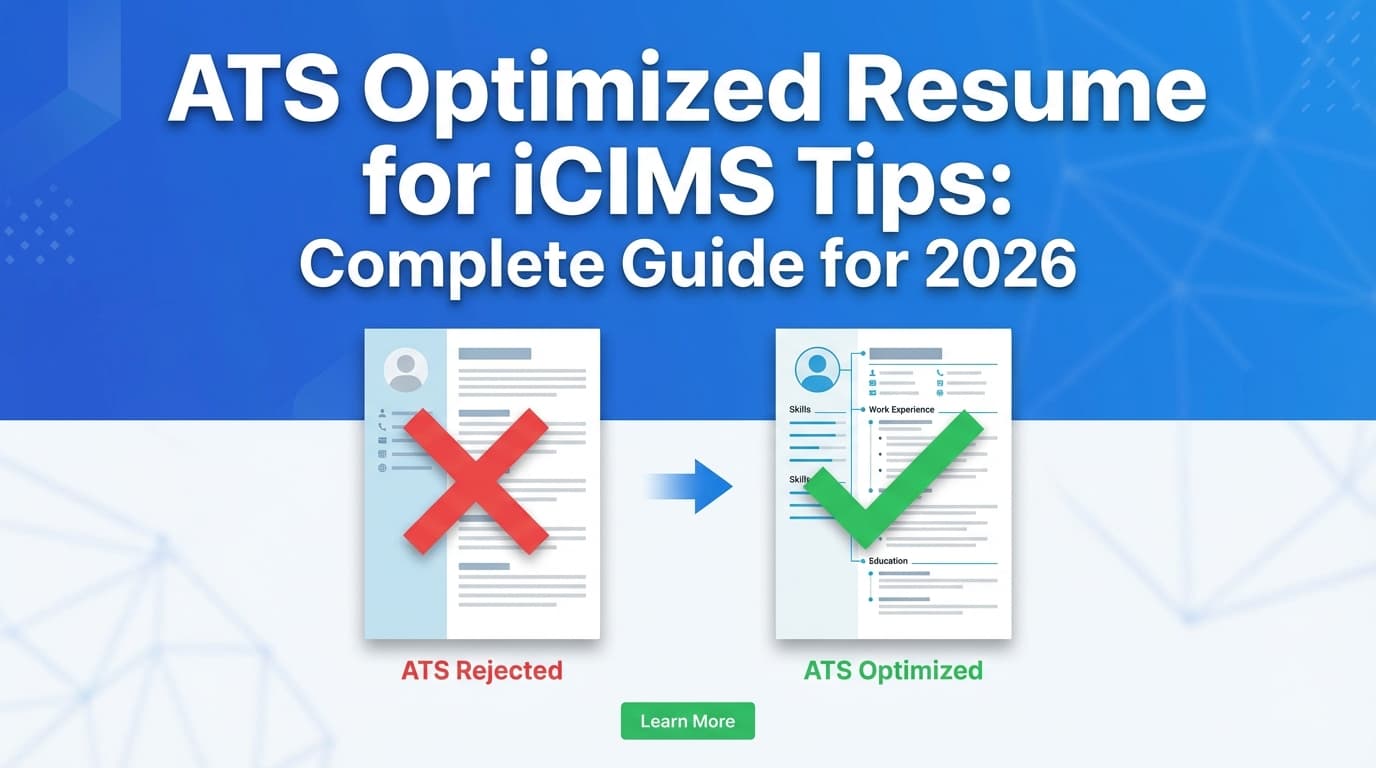
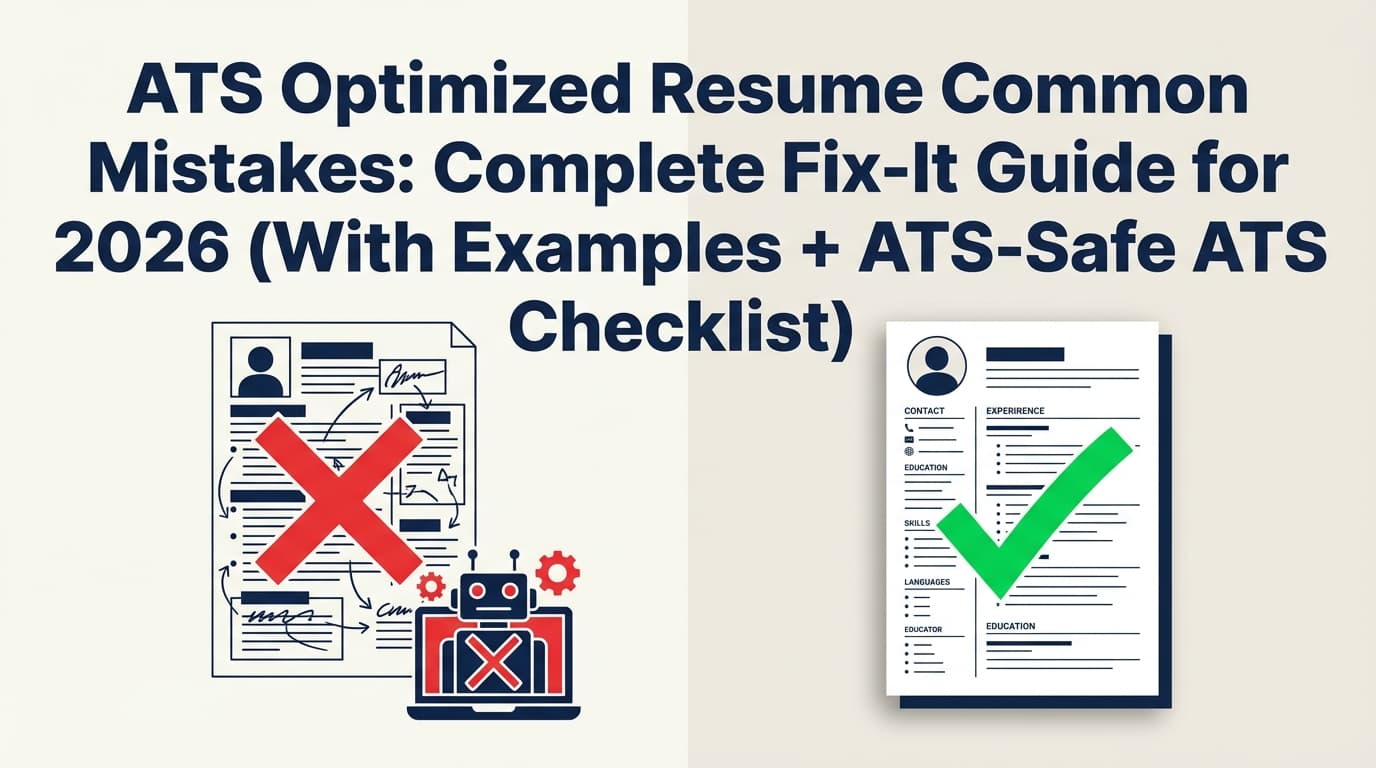
Mistake #1: Using two columns or a sidebar layout
Why it hurts: Many parsers read left-to-right and can scramble column order.
Fix: Use a single-column layout. Use spacing and bolding for hierarchy—not a sidebar.
Quick check: Plain-text paste test. If content order looks wrong, remove columns.
Mistake #2: Putting key info in headers/footers (especially contact info)
Why it hurts: Some systems skip header/footer content, which can hide your name/email.
Fix: Put name + contact info in the document body at the top.
Support: Multiple university ATS guides warn against header/footer contact info (e.g., ONU’s ATS resume guide recommends contact info in the body, not header/footer) (Confidence: Medium, ONU PDF).
Mistake #3: Using tables, text boxes, shapes, or heavy design elements
Why it hurts: ATS can fail to extract or mis-order text inside these containers.
Fix: Use simple text + bullet lists. If you need alignment, format with consistent text patterns:
Company — Title | City, ST | MM/YYYY–MM/YYYY
Mistake #4: Using icons instead of text (phone/email/LinkedIn)
Why it hurts: Icons may not parse as readable text.
Fix: Use plain text contact info:
[email protected] | (555) 555-5555 | linkedin.com/in/name | City, ST
Mistake #5: Creative section headings
Why it hurts: ATS looks for familiar headings to classify content.
Fix: Use standard headings like:
- Work Experience / Experience
- Skills
- Education
- Projects
- Certifications
Support: Indeed and university resources commonly recommend standard headings (e.g., Work Experience, Skills, Education) (Confidence: Medium, Indeed ATS resume template guidance).
Mistake #6: Inconsistent date formats (or missing months)
Why it hurts: Dates can be misread and your timeline can look suspicious.
Fix: Choose one format and stick to it everywhere:
MM/YYYY – MM/YYYYorMonth YYYY – Month YYYY
Mistake #7: Special characters, accented letters, and symbol-heavy formatting
Why it hurts: Some ATS parsing can break on special characters/accents.
Fix: Keep typography simple—especially in headings and filenames. If you’re tempted to write “résumé,” just use “resume.”
Support: Multiple ATS PDFs warn against special characters/accents (e.g., PCC ATS tip list) (Confidence: Medium, PCC ATS resume tip list PDF).
Mistake #8: Submitting a scanned or image-based PDF
Why it hurts: If the resume is an image, the ATS can’t reliably extract text.
Fix: Submit a text-based PDF or DOCX. A quick test: can you highlight/select text in the PDF?
Support: Resume Worded notes scanned/non-editable PDFs can’t be read well by ATS and suggests checking if text can be highlighted (Confidence: Medium, Resume Worded: Can ATS read PDF documents?).
Mistake #9: Keyword stuffing (including “white text” hacks)
Why it hurts: It can create unreadable text blocks, weird parsing, and recruiter distrust.
Fix: Use keywords in context—inside bullets that show impact.
Before (stuffing):
Skills: SQL, SQL, SQL, Tableau, Tableau, reporting, reporting…
After (context):
Built KPI dashboards in Tableau using SQL, reducing manual reporting by 6 hours/week.
Mistake #10: Only matching keywords in the Skills section (no proof in experience)
Why it hurts: Recruiters want evidence. ATS may store keywords, but humans decide.
Fix: Mirror top job requirements in your most recent role bullets.
Mistake #11: Using internal-only job titles that don’t match market language
Why it hurts: Recruiters search by job title filters and keywords.
Fix: Use a market-aligned title (without lying). Example:
Operations Specialist (Project Coordinator equivalent)
Mistake #12: Vague summaries that don’t match the role
Why it hurts: Summary is prime skim real estate.
Fix: 2–3 lines that match the job’s theme:
- target role + domain + core skills
Example:
Data Analyst with 5+ years in product analytics, specializing in SQL, experimentation, and Tableau dashboards to improve retention and revenue decisions.
Mistake #13: Bullets that list responsibilities instead of outcomes
Why it hurts: Doesn’t differentiate you; recruiters can’t see impact quickly.
Fix: Use a results pattern: Action + Tool/Method + Outcome + Metric
Before: Managed reporting.
After: Automated weekly reporting in SQL/Tableau, reducing manual spreadsheet work by 6 hours/week.
Mistake #14: Over-formatting to cram everything onto one page
Why it hurts: Tiny fonts reduce skimmability; dense text lowers comprehension.
Fix: Prioritize relevance. If you need a second page, use it—but keep the first page strong.
Mistake #15: Using an unclear file name
Why it hurts: Recruiters download dozens of files; unclear names get lost.
Fix: Use a simple naming convention:
FirstName_LastName_Resume.pdf (or add the role)
Support: Indeed recommends using your name and keeping it brief (Confidence: Medium, Indeed: resume file name guide).
9 best practices for an ATS-optimized resume (that still reads like a human document)
- Use a single-column format (avoid tables/text boxes)
- Keep contact info as plain text in the body
- Use standard section headings
- Repeat important keywords in context (Skills + bullets)
- Include both acronym + spelled-out versions once (e.g., “Customer Relationship Management (CRM)”)
- Align job titles to market language where appropriate
- Use metrics whenever possible (time saved, revenue, accuracy, adoption)
- Choose a safe file format (follow portal instructions; avoid scanned PDFs)
- Run a final skim test: can a stranger identify your target role + strongest fit in 7–10 seconds?
Tools to help with ATS optimization (without chasing a fake “perfect score”)
JobShinobi (resume analysis + job matching + LaTeX resume builder)
If you want a workflow for building and improving a resume iteratively, JobShinobi supports:
- A LaTeX resume editor with PDF preview
- AI resume analysis with ATS-focused scoring and feedback
- Job description matching (compare your resume to a job description/URL and get keyword + alignment insights)
Pricing: JobShinobi Pro is $20/month or $199.99/year. The pricing page mentions a 7-day free trial, but trial enforcement isn’t clearly verifiable from code—so treat it as “mentioned” rather than guaranteed.
Internal links:
- Product overview: JobShinobi
- Subscription/pricing: /subscription
Other useful tools (for cross-checking)
- Workable (education on how parsing works): helps you understand what ATS extract (Workable resume parsing)
- Resume Worded (PDF readability and ATS considerations): good for file-format sanity checks (Resume Worded PDF + ATS)
- Kickresume’s ATS checker roundup (tool landscape): useful if you want alternatives and comparisons (Kickresume ATS checker ranking article)
Pro tip: Use at least two tools if you’re relying on scanners. Different tools simulate different parsing and scoring approaches.
Common mistakes to avoid after you “fix the resume”
Even with an ATS-friendly resume, applications can fail due to:
- Knockout questions (work authorization, location, degree requirements)
- Applying too broadly with a generic resume (low relevance)
- Applying too late (role already flooded)
- Uploading the wrong version (old resume / wrong target role)
Simple habit: Save the job description text for every application—so you can tailor and prepare for interviews later.
Key takeaways
- ATS optimization is really three things: parsing, searchability, and skim clarity.
- The biggest formatting risks are columns, tables/text boxes, and header/footer contact info.
- Keyword wins come from context + proof (skills list and experience bullets).
- Don’t chase “100% ATS score.” Chase clean parsing + obvious relevance.
FAQ
What should I avoid in an ATS-friendly resume?
Avoid two-column layouts, tables/text boxes, header/footer contact info, graphics that replace text, and non-standard section headings. Keep the structure simple so your content parses and stays searchable.
How do I know if my resume is ATS-friendly?
Do two checks:
- Plain-text paste test (copy/paste into Notepad and see if it stays readable).
- Text-select test for PDFs (make sure your PDF isn’t image-based).
MIT’s career guidance also recommends testing ATS-friendliness by converting to plain text and checking readability (MIT CAPD).
Is PDF or DOCX better for ATS?
It depends on the portal and ATS. Many systems accept both, but scanned/image PDFs are risky. Follow the portal instructions first. If you’re unsure, test both formats and use the one that parses cleanly.
Can ATS read bullet points?
Usually yes—standard bullets are typically fine. Issues come from unusual symbols, icons, or formatting that turns bullets into non-text characters. If bullets look broken in a plain-text test, switch to standard bullets or hyphens.
What are the most common ATS resume mistakes?
The most common are:
- Columns / sidebars
- Tables / text boxes
- Contact info in headers/footers
- Nonstandard headings
- Keyword stuffing instead of keyword-in-context proof
How do I beat an ATS resume checker?
Don’t “beat” it—use it as a diagnostic tool:
- fix parsing issues,
- add missing keywords naturally,
- and ensure your most recent bullets prove the top requirements.
If you want, share a job description and your current resume text (even just the top half). I can point out the highest-impact fixes using the exact mistake categories above.