Most job seekers feel like they’re doing everything right—then the silence hits.
One reason: volume. Glassdoor reports that each corporate job opening attracts ~250 resumes, and only 4–6 candidates get called for an interview (Glassdoor). (High confidence: also echoed by Inc. and other reprints of the Glassdoor stat.)
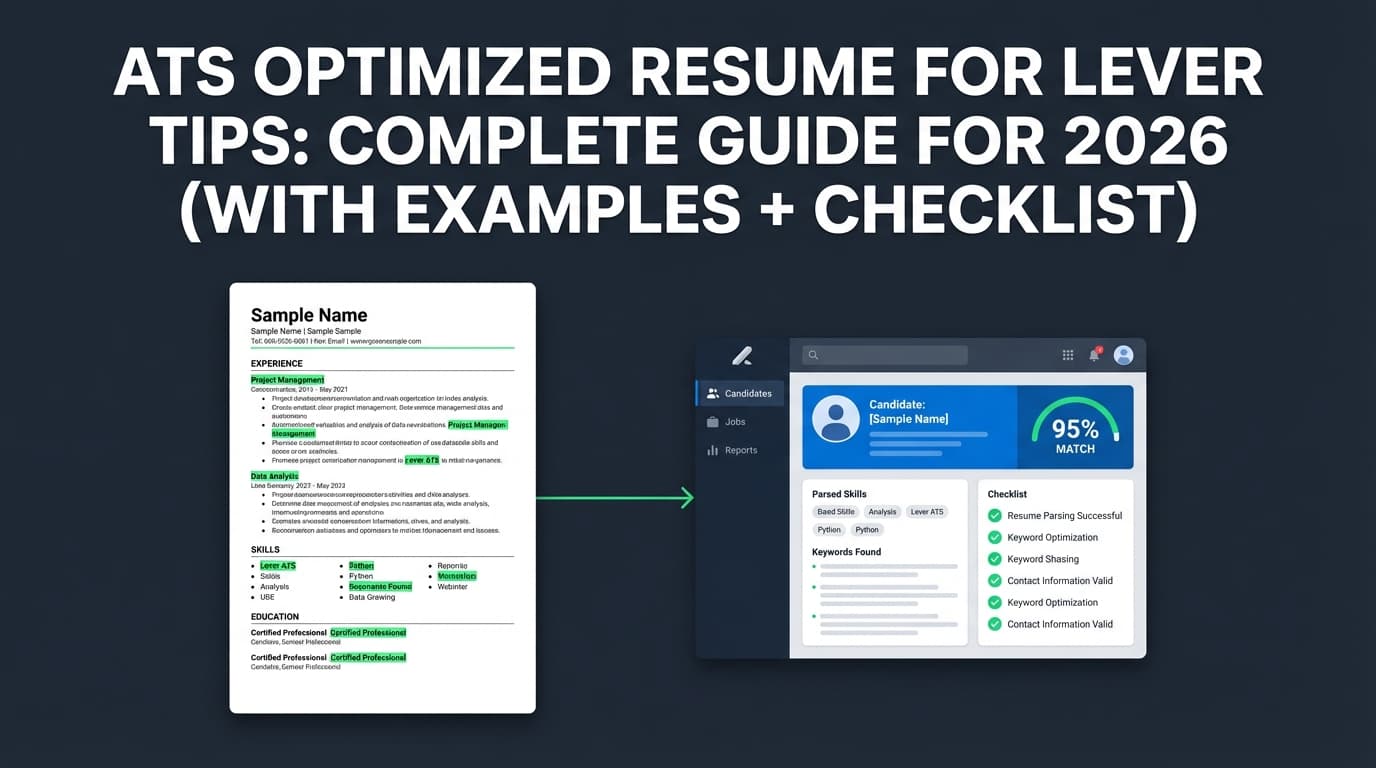
When you apply through Lever, your resume is first uploaded, parsed, and added to your candidate profile—so if your formatting breaks parsing, your best experience can end up in the wrong field (or disappear entirely).
In this guide, you’ll learn:
- How Lever parses resumes (and what typically breaks it)
- A step-by-step workflow to tailor keywords without keyword stuffing
- Lever-friendly formatting rules (PDF/DOCX, sections, layout)
- A Lever-specific checklist + examples you can copy
What is an “ATS optimized resume for Lever”?
An ATS optimized resume for Lever is a resume designed to:
- Parse cleanly into Lever’s candidate profile fields (name, experience, education, skills)
- Match the job’s keywords so recruiters can search/filter effectively
- Stay readable for humans once it reaches a recruiter or hiring manager
Lever is an applicant tracking system (ATS) used by many employers. Like most ATS platforms, it relies on resume parsing—software that extracts text and organizes it into structured fields.
Key idea: “ATS optimization” for Lever is less about “beating a bot” and more about reducing parsing errors + making keyword relevance obvious.
Why Lever ATS optimization matters in 2026
ATS usage is widespread (so “ATS-friendly” isn’t optional)
Jobscan states that more than 98% of the Fortune 500 use an ATS (Jobscan ATS overview). Forbes repeats the same figure referencing Jobscan (Forbes). (High confidence: consistent across multiple credible sources.)
Recruiters scan fast—your formatting has to “work instantly”
The Ladders’ updated eye-tracking research found recruiters spend about 7.4 seconds on an initial resume scan (Ladders PDF). HR Dive summarizes the same finding (HR Dive). (High confidence: multiple sources referencing the same study.)
Job seekers say the search is getting harder
CNBC reported that nearly 70% of job seekers said their current job search is more difficult than their last one (CNBC). (Medium confidence: single-source survey result, but from a major publication.)
What this means for you: You want a resume that (1) parses correctly in Lever, (2) mirrors the role’s keywords, and (3) communicates impact in the top third of the page—fast.
How Lever parses your resume (what we can confirm)
Lever’s own Help Center explains resume parsing and lists accepted file types. According to Lever, it can parse:
- Microsoft Word (including .docx)
- Adobe PDF
- Rich Text (RTF)
- HTML / MS Office HTML …and more (Lever Help Center: Understanding Resume Parsing). (High confidence: primary source.)
Lever also notes it cannot parse information from image files like JPG/PNG (same Lever article). (High confidence: primary source.)
Implication: If your resume includes important content as images (icons, logo-based headers, “graphic skills bars”), that info may not parse.
How to create an ATS optimized resume for Lever (step-by-step)
Step 1: Start with a “Lever-safe” resume structure (single-column, predictable sections)
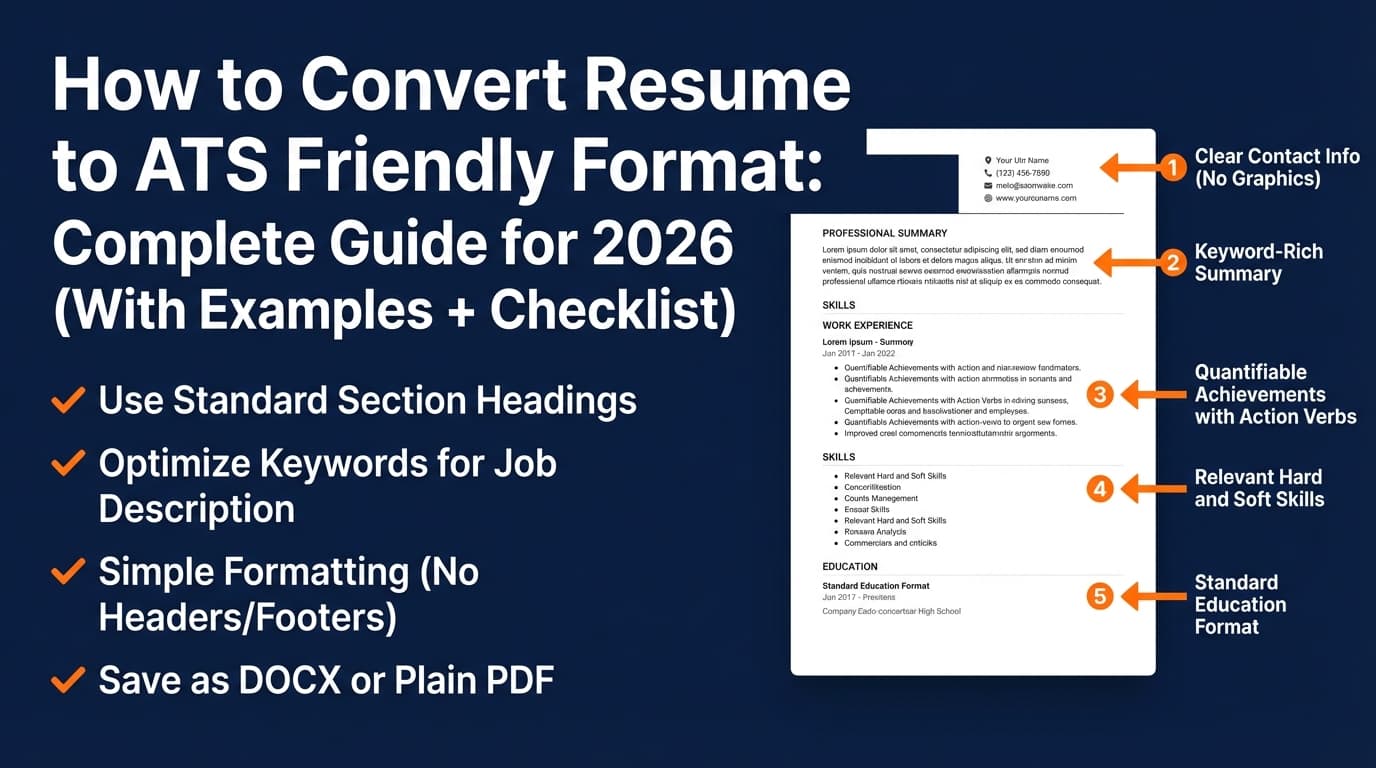
Use a clean structure that’s easy for parsers to understand:
Recommended section order
- Name + contact info (in the document body, not header)
- Summary (optional, but helpful if keyword-rich and specific)
- Skills (targeted)
- Experience (reverse chronological)
- Education
- Certifications / Projects (as relevant)
Use standard headings
- “Work Experience” or “Professional Experience”
- “Education”
- “Skills”
- “Certifications”
- “Projects”
These headings are widely recommended across ATS education materials because parsers often look for recognizable anchors (e.g., Workable’s overview of resume parsing). (Medium confidence: general ATS guidance; exact parser logic varies.)
Avoid common parsing traps University career resources often warn against:
- Headers/footers (content may be skipped or misread)
- Tables, text boxes, multiple columns
- Decorative elements that change reading order
For example, UIC’s ATS PDF guide explicitly recommends avoiding headers/footers and using a single-column layout (UIC Career Services PDF). (Medium confidence: not Lever-specific, but consistent ATS guidance.)
Pro tip: If you love “designed” resumes, keep a design version for networking, but submit a clean ATS version for Lever portals.
Step 2: Choose the right file type (PDF vs DOCX) for Lever applications
What we know from Lever: Lever can parse PDF and DOCX (and other formats) (Lever Help Center). (High confidence.)
Practical rule for job seekers:
- Use PDF if it’s text-based and clean (prevents formatting shifts)
- Use DOCX if the employer’s portal or autofill consistently mangles your PDF
Because parsing performance can vary by employer configuration and resume content, do a quick test (next step) before committing.
Pro tip: If your PDF was generated from a scan (image-based), it may fail parsing. Make sure your PDF contains selectable text.
Step 3: Run a “plain-text parsing test” before you apply
You don’t need access to Lever to catch most parsing failures.
The test:
- Copy your resume content
- Paste into a plain-text editor (Notepad, TextEdit in plain text mode)
- Check whether the content stays in the right order and remains readable
If your pasted text is scrambled, your ATS parse may also scramble (common community advice; also frequently discussed in resume forums and Reddit threads surfaced in SERPs). (Medium confidence: heuristic, not a guarantee.)
What to fix if the text looks wrong:
- Remove columns/tables
- Remove text boxes
- Move contact info out of headers
- Replace icon bullets with simple bullets
- Ensure dates are consistent (e.g.,
MM/YYYYorMonth YYYY)
Step 4: Build a keyword map from the job description (without stuffing)
Lever recruiters often search and filter candidates. Your goal is to make relevant keywords naturally present in:
- Summary
- Skills
- Experience bullets
- Project descriptions
A simple keyword mapping method (10 minutes)
- Paste the job description into a doc.
- Highlight:
- Tools (e.g., SQL, Python, Tableau)
- Methods (e.g., A/B testing, stakeholder management)
- Deliverables (e.g., dashboards, quarterly business reviews)
- Role-specific verbs (e.g., “analyze,” “optimize,” “implement”)
- Group keywords into:
- Must-have (appears multiple times / listed in requirements)
- Nice-to-have
- Context keywords (industry, domain, compliance, etc.)
Pro tip: Don’t chase 100%. Even Jobscan cautions against overfitting to a perfect score and suggests targets like 75%+ in some guidance and 80% in others (Jobscan match rate article; Jobscan support; example university guidance repeating the 75% target: WGU careers). (High confidence: consistent across multiple sources, though “match rate” is tool-specific, not ATS-specific.)
Step 5: Rewrite bullets to prove the keywords (Action + Scope + Result)
Lever optimization isn’t just “include keywords”—it’s show you’ve done the thing.
Use this bullet formula:
Action verb + what you did + how you did it (tools/methods) + result (metric) + scope
Before (weak)
- Responsible for reporting and dashboards.
After (Lever/ATS-friendly)
- Built Tableau dashboards for weekly KPIs (pipeline, churn, CAC), reducing manual reporting time by 30% across a 12-person growth team.
Why this works:
- Tools keyword: Tableau
- Deliverable keyword: dashboards, KPIs
- Outcome metric: 30%
- Human-readable in <8 seconds
Step 6: Make your Skills section “searchable” (and honest)
ATS-friendly skills sections are typically:
- Simple
- Category-based
- Aligned to the job description
Example:
Skills
- Analytics: SQL, Excel, Tableau, Looker
- Experimentation: A/B testing, hypothesis design, statistical significance
- Collaboration: stakeholder management, cross-functional communication
Avoid:
- Skill bars (often image-based)
- Uncommon abbreviations without spelling out once (e.g., write “Customer Relationship Management (CRM)” first)
Step 7: Validate formatting decisions that commonly break parsing
Here’s a quick “do / don’t” table specifically for resumes going into ATS flows like Lever.
| Element | Recommendation | Why |
|---|---|---|
| Columns | Prefer single-column | Reduces reading-order errors (common ATS parsing issue) |
| Tables/text boxes | Avoid | Can flatten or scramble content |
| Headers/footers | Avoid for critical info | Some systems may not parse them reliably (UIC PDF) |
| Icons/images | Avoid | Lever can’t parse image files (Lever Help Center) |
| Fonts | Use common fonts | Prevents character/encoding weirdness |
| Dates | Use consistent date formats | Helps systems (and humans) interpret timelines |
Lever-specific checklist (copy/paste)
Use this right before submitting your resume to a Lever application.
Formatting & file checks
- File is PDF or DOCX (both are supported by Lever parsing) (Lever) (High confidence)
- PDF is text-based (you can highlight/select the text)
- Resume is single-column
- No tables, text boxes, or graphics
- Contact info is not in header/footer
- Headings are standard (Experience, Education, Skills)
Keyword & content checks
- Summary contains the role title (or close equivalent) + 2–4 key skills from the posting
- Skills section mirrors the job’s tool stack (only what you actually know)
- Top 3 bullets under your most recent role include measurable outcomes
- Experience bullets include both keywords + proof (metrics, scope, frequency)
Fast parsing test
- Copy/paste into plain text → content remains in logical order
- No missing employer names, titles, or dates after paste
Common mistakes to avoid (especially for Lever applications)
Mistake 1: Hiding important details in a header (or as icons/images)
If your phone/email/LinkedIn are in a header, some systems may not handle it consistently. If your section headings are icon-based, that may not parse at all.
Lever explicitly states it can’t parse image file info (Lever Help Center). (High confidence.)
Fix: Put contact info in the main document body using plain text.
Mistake 2: Keyword stuffing to chase a “perfect score”
Some tools suggest match-rate targets (often 75–80% in Jobscan guidance: Jobscan). (High confidence for the recommendation existing; medium confidence that it predicts real outcomes.)
Why it backfires:
- You sound generic
- Recruiters notice unnatural repetition
- You may misrepresent skills
Fix: Use keywords once in Skills, once in Experience (where you truly used them), and focus on proof.
Mistake 3: Using two versions of your job title without context
If your internal title is unusual (“Growth Ninja II”), and the job posting says “Marketing Analyst,” you can lose relevancy.
Fix: Use a hybrid format:
- Growth Analyst (Growth Ninja II), Company Name
Mistake 4: Uploading a “scanned” PDF
If your resume is an image (scan/photo), parsing fails or becomes unreliable.
Fix: Export from a document editor that produces selectable text.
Tools to help with Lever ATS resume optimization
You can do everything manually, but tools help you move faster—especially if you’re applying at volume.
JobShinobi (resume analysis + job matching + tracking)
If you’re tailoring frequently, JobShinobi can help in three practical ways:
- AI resume analysis with ATS-focused scoring and feedback (supported)
- Resume-to-job matching: compare your resume against a job description/URL and identify missing keywords (supported)
- Job application tracking (including email-forwarding ingestion for job application emails) (supported; email processing requires Pro)
Pricing: JobShinobi Pro is $20/month or $199.99/year (supported). The pricing UI mentions a “7-day free trial,” but trial mechanics aren’t clearly verifiable in code, so treat it as a marketing claim rather than a guarantee. (Per internal product constraints.)
You can start here: Sign in or view subscription flow at /subscription.
Other helpful options (general)
- Plain-text editor test (free): fastest way to catch formatting issues
- ATS education resources: Workable’s resume parsing explainer is a helpful overview (Workable)
(Note: Tools vary widely in scoring methodology. Use them for keyword gap discovery and formatting checks—not as absolute truth.)
Key takeaways
- Lever uses resume parsing to extract your info; you want a resume that parses cleanly and reads fast
- Use a single-column, standard-heading layout and avoid headers/footers for critical info
- Leverage job-description keyword mapping and rewrite bullets to prove impact (metrics + scope)
- Validate with a plain-text copy/paste test before submitting to Lever
- Aim for relevance and clarity—not “keyword stuffing” or chasing a perfect score
FAQ (People Also Ask-style)
Does Lever use an ATS?
Yes. Lever is an applicant tracking system (ATS) used by employers to collect applications and manage candidates. (High confidence.)
What resume file types does Lever accept?
Lever’s Help Center states it can parse Microsoft Word (.docx), PDF, RTF, HTML, and other formats (Lever Help Center). (High confidence.)
Is PDF or DOCX better for Lever ATS?
Lever supports both. In practice:
- Use PDF if it’s clean and text-based (prevents formatting shifts)
- Use DOCX if you notice your PDF content gets scrambled during autofill
(Medium confidence: depends on the employer’s application flow and how your resume was generated.)
How do I know if my resume will parse correctly in Lever?
Do a quick plain-text copy/paste test. If the content order is scrambled or key fields disappear, simplify formatting (single column, no tables/text boxes, avoid headers/footers). (Medium confidence: strong heuristic, not a perfect simulation.)
Can ATS systems (including Lever) read images on resumes?
Lever states it cannot parse information from image files like JPG/PNG (Lever Help Center). In general, ATS parsing of images/icons is unreliable. (High confidence for Lever; medium confidence in general across all ATS.)
How to make a 100% ATS-friendly resume?
A guaranteed “100% ATS-friendly” resume doesn’t exist because different employers configure systems differently. But you can get very close by using:
- Standard headings
- Single-column layout
- No tables/text boxes/graphics
- Keywords backed by real experience
(High confidence that this approach reduces parsing errors; medium confidence on any “100%” claim.)
Is a 70% ATS score good?
“ATS score” depends on the tool. Some resume scanners recommend targets like 75%+ as a guideline (e.g., Jobscan’s published guidance: Jobscan). Treat it as a directional signal, not a guarantee of interviews. (High confidence the recommendation exists; medium confidence in predictive value.)