If you’ve ever uploaded your resume and watched an application form “autofill” your experience incorrectly, you’ve already seen ATS parsing in action—and you’ve also seen how fragile it can be.
That fragility matters because ATS usage is widespread. MIT Career Advising notes that about 99% of Fortune 500 companies use some form of ATS to streamline recruitment. (Source: MIT CAPD: https://capd.mit.edu/resources/make-your-resume-ats-friendly/ — Confidence: High)
And even when your resume does parse, recruiters can make snap judgments quickly. The Ladders’ eye-tracking research found recruiters spend about 7.4 seconds on an initial resume screen. (Sources: The Ladders article + supporting PDF mirrors: https://www.theladders.com/career-advice/you-only-get-6-seconds-of-fame-make-it-count and https://www.bu.edu/com/files/2018/10/TheLadders-EyeTracking-StudyC2.pdf — Confidence: High)
So here’s the real question behind “LaTeX vs Word resume for ATS parsing”:
Which workflow reliably produces a file that (1) extracts clean text, (2) maps sections correctly, and (3) doesn’t scramble your content during upload?
This guide answers that—without myths, without overpromises, and with a practical testing checklist you can use before you apply.
In this guide, you’ll learn:
- How ATS parsing actually works (and why the same resume can parse differently across systems)
- When LaTeX PDFs parse great—and when they fail (ligatures, encoding, layout traps)
- When Word/DOCX is safest—and when Word formatting breaks parsing (text boxes, tables, headers)
- A step-by-step “parsing test” workflow you can run in under 10 minutes
- A decision matrix: what to submit for Workday/Greenhouse-style portals vs email/direct submissions
What is ATS parsing (and what does the ATS “see”)?
ATS parsing is the process of extracting text from your uploaded resume file (PDF, DOCX, etc.) and attempting to reconstruct structured fields such as:
- Name + contact info
- Work experience entries (company, title, dates)
- Education (degree, school, year)
- Skills (often keyword-indexed)
In other words, an ATS does not “read” your resume the way a human does. It:
- Extracts text (sometimes with coordinates and font metadata)
- Tries to infer reading order
- Groups text into sections
- Maps text to database fields so recruiters can search/filter
Important reality: there isn’t one ATS. There are many systems (and many parsing engines), and they vary in how they handle PDF vs DOCX and simple vs complex layouts. That’s why “PDF is always fine” and “PDF always breaks ATS” are both oversimplifications.
Why “LaTeX vs Word” is the wrong framing (but still a useful question)
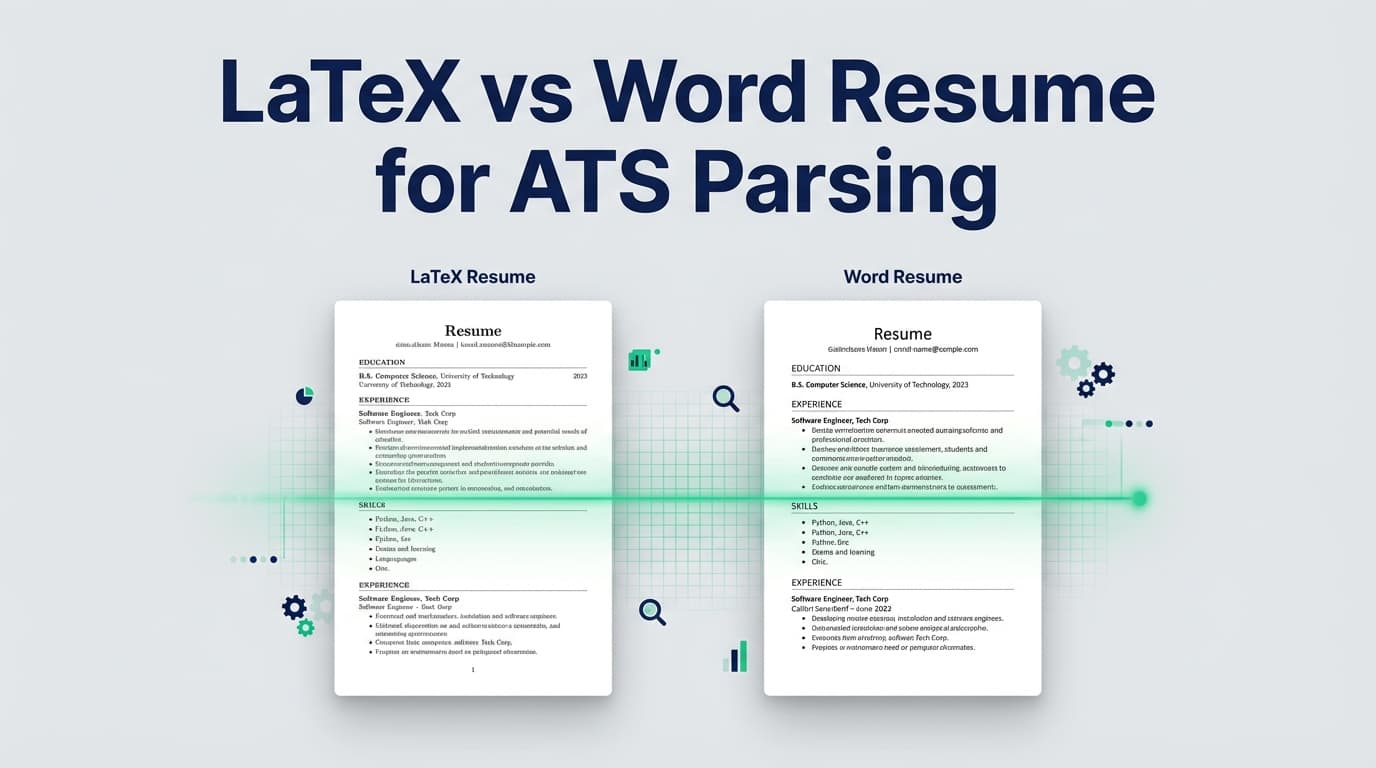
LaTeX and Word are authoring tools. ATS systems don’t parse “LaTeX”—they parse the file you upload, typically a PDF (from LaTeX) or a DOCX/PDF (from Word).
So the more accurate comparison is:
- LaTeX → PDF (usually)
- Word → DOCX (or Word → PDF)
Which parses better depends on:
- File type you submit (PDF vs DOCX)
- Layout choices (single-column vs multi-column, tables, headers)
- Text encoding and font embedding (especially in PDFs)
- The specific ATS parser
That said, you can absolutely use either tool successfully—if you follow ATS-friendly constraints and you test the final output.
The biggest ATS myth: “75% of resumes are automatically rejected”
You’ll often see claims like “75% of resumes are rejected by ATS before a human sees them.”
Multiple sources point out this stat is shaky or misleading. For example:
- Davron critiques the “75% rejected” claim as “often-cited” but lacking strong empirical backing. (Source: https://www.davron.net/ats-systems-explained-75-percent-resumes-rejected/ — Confidence: Medium)
What to do with this: Don’t panic-chase a mythical rejection percentage. Focus on the controllable part: ensuring your resume parses cleanly and matches the job with relevant keywords—without keyword stuffing.
LaTeX resume ATS parsing: when it works well (and why people like it)
A clean LaTeX resume often has two major advantages:
1) Stable layout and consistent spacing
LaTeX is great at producing consistent typography. That can be helpful for human readability and for maintaining a “no surprises” layout.
2) You can enforce a truly simple structure
If you choose a single-column, text-forward template, LaTeX makes it easy to keep everything aligned and consistent.
But here’s the catch: ATS parsing doesn’t care that the PDF looks beautiful. It cares whether the text layer is clean and extractable in the correct order.
Where LaTeX resumes fail ATS parsing (the real pitfalls)
Pitfall #1: Multi-column layouts (reading order problems)
Columns are one of the most common causes of scrambled parsing. Many university career sites explicitly warn against columns/tables/text boxes because parsers may read content out of order.
- UT Austin Career Services lists formatting to avoid, including tables and columns, and explicitly mentions coding your resume in LaTeX as something to avoid in their ATS guidance. (Source: https://careerservices.cns.utexas.edu/resources/resumes/applicant-tracking-systems — Confidence: Medium)
- MIT CAPD similarly recommends avoiding putting information into tables or text boxes and being cautious with tools like LaTeX. (Source: https://capd.mit.edu/resources/make-your-resume-ats-friendly/ — Confidence: High)
What this means: A LaTeX resume can parse perfectly if it’s single-column and text-based. It can parse terribly if it uses columns or complex alignment tricks.
Pitfall #2: PDF text extraction issues (ligatures + encoding)
Some LaTeX-generated PDFs can have text extraction quirks:
- “fi”, “fl”, “ffi” ligatures may not extract as expected in certain pipelines
- Nonstandard font encoding can produce weird copy/paste output
- Some parsers may split characters or insert spaces (e.g., “fi rm”)
This concern shows up repeatedly in technical communities discussing ATS + LaTeX. For example, an Academia Stack Exchange discussion explicitly raises issues like font encoding and ligatures as potential ATS extraction problems. (Source: https://academia.stackexchange.com/questions/193671/do-applicant-tracking-systems-ats-struggle-with-latex-generated-resumes — Confidence: Medium)
Practical takeaway: If your LaTeX PDF fails the copy/paste test (we’ll cover it below), you should treat it as a parsing risk.
Pitfall #3: “Text that isn’t text”
Even if your resume looks like text, some PDFs contain elements that behave like images:
- Exported icons
- Embedded graphics
- Vector shapes that overlay text
- Text converted to outlines
This is also why “designed” PDFs from certain tools can parse poorly: the ATS can only extract what’s truly in the text layer.
Pitfall #4: Fancy section headings and custom macros
Overly clever LaTeX macros can create spacing/ordering artifacts in the PDF’s underlying structure. ATS parsers don’t care that your macros are elegant.
Rule of thumb: If your PDF doesn’t copy/paste in the right order, simplify your template.
Word resume ATS parsing: when Word is safer
Word can be a very ATS-safe option, particularly when you submit a DOCX.
Why DOCX can parse “cleaner”
DOCX is a structured document format where text order is typically straightforward, and many parsing engines handle it reliably.
That’s why you’ll often see guidance suggesting Word/DOCX is the safest “compatibility first” choice—especially for older or stricter ATS setups.
However: Word can also fail spectacularly when people use Word like a design tool.
Where Word resumes break ATS parsing (common Word mistakes)
Mistake #1: Text boxes (the #1 Word parsing killer)
Text boxes often sit outside the main document flow. Many parsers either:
- Skip them, or
- Pull them in weird order
Many ATS guides explicitly warn against text boxes and tables for this reason (see MIT CAPD above).
Fix: Use normal paragraphs and tab stops (carefully), not floating objects.
Mistake #2: Tables (especially nested tables)
Tables are frequently used to align dates, skills, or headings. They look neat—but can create:
- Disappearing content in autofill
- Mis-ordered text extraction
- Skills collapsing into one unreadable block
If you want a “two-column look,” tables are the most common hack—but they’re also risky for parsing.
Mistake #3: Headers and footers (contact info disappears)
Some ATS guidance warns that important info in headers/footers may not be read properly.
For example, Jobscan (in a snippet visible in search results) flags headers/footers as a parsing risk; similarly, UIC’s ATS PDF guidance (also visible in search snippets) warns against headers/footers for contact info. (Sources via SERP snippets: Jobscan ATS formatting mistakes page and UIC ATS PDF — Confidence: Medium)
Fix: Put your name, phone, email, LinkedIn at the top of the main body, not in the header.
Mistake #4: Over-designed templates and shapes
Lines, shading, icons, SmartArt—these can introduce extraction issues or cause the parser to misinterpret section boundaries.
Fix: Minimal styling. Let content do the work.
PDF vs DOCX: the practical rule you can actually trust
Instead of asking “LaTeX vs Word,” use this more reliable rule:
If the application portal asks for DOCX, submit DOCX.
Some systems explicitly request a Word doc—often because they parse it more predictably or because recruiters want an editable version.
If the portal accepts PDF and DOCX, choose based on your specific file’s parsing test.
Some PDFs parse perfectly. Some don’t. Same goes for DOCX.
If you’re emailing a recruiter/hiring manager directly, PDF is often preferred for layout stability.
Humans like consistent formatting. PDFs preserve it.
Bottom line: The best format is the one that (1) the employer requests and (2) your own testing shows parses cleanly.
How to choose: LaTeX vs Word resume for ATS parsing (decision matrix)
Use this quick matrix:
Choose Word (DOCX) when:
- The portal explicitly requests DOC/DOCX
- You’re applying to large companies with strict autofill flows and you want maximum compatibility
- Your LaTeX PDF fails copy/paste tests (ligatures/encoding issues)
- You need an easy collaboration workflow with non-technical reviewers
Choose LaTeX (PDF) when:
- You can keep a single-column, text-first layout
- You want consistent typography and spacing
- You frequently version/tailor your resume and prefer reproducible formatting
- Your final PDF passes extraction tests cleanly
Choose PDF (from Word or LaTeX) when:
- You’re sending directly to a person (email/referral)
- You’ve validated parsing via tests and/or an ATS checker
- You want to avoid layout shifting
How to test ATS parsing: step-by-step (10 minutes)
This is the section most “PDF vs Word” posts skip. Testing is where you stop guessing.
Step 1: Run the “copy/paste into plain text” test
- Open your resume (PDF or DOCX)
- Select all text
- Paste into a plain-text editor (Notepad, TextEdit in plain mode)
This test is widely recommended in ATS guidance because it approximates whether your resume’s text layer is clean.
MIT CAPD even suggests testing your resume by saving it as plain text to see what the ATS might extract. (Source: https://capd.mit.edu/resources/make-your-resume-ats-friendly/ — Confidence: High)
What you’re looking for:
- Does the text appear in the correct reading order?
- Are section headings intact?
- Are bullets readable?
- Are dates attached to the right jobs?
- Do you see weird character gaps (ligature artifacts)?
Pro tip: If your skills line becomes gibberish in plain text, an ATS autofill may also scramble it.
Step 2: Do a “portal autofill” dry run
If you can, apply to a low-stakes listing (or a test environment) and upload your resume.
Check these fields:
- Job titles
- Company names
- Employment dates
- Degree + graduation year
- Skills
If your content lands in the wrong fields, that’s a parsing red flag.
Step 3: Use at least one resume scanner (but don’t worship the score)
Online scanners can highlight:
- Missing keywords
- Formatting risks
- Section detection
But different scanners disagree (and job seekers notice this). Use scanners as a debugging tool, not as your definition of “ATS-passing.”
Step 4: Validate links and contact info (don’t hide it in formatting)
If you include hyperlinks, make sure the visible text contains the actual URL (or at least the domain/handle). Some ATS guidance notes hyperlinks may display only as raw URLs or lose anchor text.
Example: University of Minnesota Duluth’s ATS tips warn that hyperlinks may only display the URL and not the linked word. (Source: https://career.d.umn.edu/students/resume-cover-letter/applicant-tracking-system-ats-tips — Confidence: Medium)
Step 5: Check file size limits (real-world constraint)
Some ATS platforms impose strict limits.
For example, Greenhouse support documentation states Greenhouse Recruiting can’t parse resumes larger than 2.5MB. (Source: https://support.greenhouse.io/hc/en-us/articles/200989175-Unsuccessful-resume-parse — Confidence: High)
Fixes if your file is too large:
- Remove embedded images/icons
- Use standard fonts
- Re-export PDF with size optimization
ATS-friendly formatting rules that matter more than LaTeX vs Word
These rules show up across multiple career services sites and ATS formatting guides:
1) Use a single-column layout
Multi-column resumes can read out of order. If you want a “modern” look, use whitespace—not columns.
2) Avoid tables, text boxes, and heavy graphics
MIT CAPD explicitly cautions against tables/text boxes and warns to be careful with tools that may introduce them. (Source: https://capd.mit.edu/resources/make-your-resume-ats-friendly/ — Confidence: High)
3) Use standard headings
Use headings like:
- Experience
- Education
- Skills
- Projects
- Certifications
Unusual headings (“Where I’ve Been,” “What I Know”) can confuse section mapping.
4) Put contact info in the body (not header/footer)
Don’t risk disappearing contact info.
5) Keep bullets simple
Use standard round bullets. Avoid icon bullets or custom symbols.
“But I’m in tech—aren’t LaTeX resumes normal?”
In some technical communities, LaTeX resumes are common and well-accepted by humans.
The ATS risk isn’t “LaTeX” itself—it’s whether the PDF output has:
- Clean, extractable text
- Correct reading order
- Minimal layout complexity
If you’re in tech and love LaTeX, you can keep your workflow. Just treat ATS parsing like engineering: test and verify.
LaTeX-specific checklist for ATS-safe PDFs
If you’re using LaTeX, run through this checklist:
- Single-column template
- No icons/images used as “text”
- Avoid complex tables for skills
- Test for ligature extraction
- Copy/paste into plain text and look for broken “fi/fl/ffi” words (a common pain point discussed in ATS + LaTeX threads; see Academia SE discussion — Confidence: Medium)
- Use normal section headings (“Experience,” “Education,” etc.)
- Make sure text is selectable in the PDF
- If you can’t select/copy text, the ATS likely can’t extract it either.
Word-specific checklist for ATS-safe DOCX/PDF
If you’re using Word:
- No text boxes
- No tables (or keep them minimal and test thoroughly)
- Avoid headers/footers for contact info
- Avoid shapes/SmartArt
- Use built-in styles sparingly (Heading 1/2 is fine; don’t over-style)
- Export PDF carefully
- After exporting, re-run the plain-text paste test on the PDF version too.
Tools to help with ATS parsing (and how to use them honestly)
Here are categories of tools that can help—without pretending any tool can “guarantee” ATS success.
Resume scanners / parsing checkers
Use them to catch:
- Missing keywords
- Section recognition issues
- Formatting elements that commonly break parsing
Plain-text extraction tools (for PDFs)
If copy/paste is inconsistent, try extracting text using a PDF-to-text tool to see what the underlying text layer looks like.
JobShinobi (when you want a LaTeX-first workflow + analysis)
If you prefer LaTeX but still want ATS-focused feedback and a structured workflow, JobShinobi supports:
- Building resumes in LaTeX and compiling them to PDF inside the app
- Downloading your resume as a PDF and as a
.texfile - AI resume analysis with ATS-focused scoring and feedback
- Job description extraction and resume-to-job matching (paste a job URL or description and get a match analysis)
Product note (accuracy): JobShinobi is a paid Pro subscription at $20/month or $199.99/year. The pricing page/marketing mentions a 7-day free trial, but trial mechanics are not fully verifiable from code alone—so treat that as “mentioned,” not guaranteed. (Product constraints — Confidence: High for pricing; Medium for trial)
You can also track applications in JobShinobi’s dashboard, and Pro users can log applications by forwarding emails to a unique JobShinobi address (helpful if you’re applying at high volume). (Product constraints — Confidence: High)
- Start here: Resume editor (internal):
/dashboard/resume - Pro subscription page (internal):
/subscription
Common mistakes to avoid (that cause “my resume didn’t parse”)
Mistake 1: Trying to “look modern” with columns and icons
Modern design often introduces parsing risk. Use whitespace and strong content instead.
Mistake 2: Putting skills in a table to save space
This is one of the fastest ways to scramble skills extraction.
Mistake 3: Hiding keywords (white text hacks)
Besides being risky and potentially unethical, hidden text can backfire and is easy to detect. Focus on real, relevant keyword alignment.
Mistake 4: Chasing a perfect “ATS score”
Different tools score differently. A human still matters—and keyword stuffing can reduce readability.
Mistake 5: Not testing the final file you upload
Testing your Word file doesn’t help if you upload a PDF export that breaks extraction.
Key takeaways: LaTeX vs Word resume for ATS parsing
- ATS parses files, not authoring tools. The real comparison is LaTeX→PDF vs Word→DOCX/PDF.
- DOCX is often the safest for strict portals, but only if you avoid Word design traps (text boxes, tables, headers).
- LaTeX PDFs can parse perfectly if they’re single-column and have clean text extraction—but they can fail due to encoding/ligature/layout issues.
- Testing beats guessing. Do the plain-text paste test and a portal autofill dry run whenever possible.
- Keep a “compatibility-first” version of your resume. One great layout is useless if the ATS drops your job titles.
FAQ (People Also Ask)
Are LaTeX resumes bad for ATS?
They’re not inherently bad, but the PDF output can be risky if it uses columns, tables, icons, or produces messy text extraction (e.g., ligature/encoding issues). A simple, single-column LaTeX resume that passes a copy/paste plain-text test can be ATS-friendly.
Is LaTeX or Word better for resumes?
For ATS parsing specifically:
- Word (DOCX) is often the safest compatibility choice for application portals.
- LaTeX (PDF) can be excellent when carefully formatted and tested. For humans, either can look great—content quality and relevance still matter most.
Does ATS read Word or PDF better?
It depends on the ATS and your file. Many parsers handle DOCX very reliably, while many modern systems also parse text-based PDFs well—but PDFs can fail when text extraction is messy or the layout is complex. The safest approach is: follow the employer’s requested format and test your final file.
Which resume format is best for ATS systems?
A single-column, text-based resume with standard headings (Experience, Education, Skills), minimal formatting, and no tables/text boxes/graphics is the most consistently parseable—regardless of whether you created it in Word or LaTeX.
How can I test if my resume will parse correctly?
Use a 3-part test:
- Copy/paste into a plain text editor (look for order + missing text)
- Upload to a portal and review autofilled fields (if possible)
- Run a resume scanner to catch formatting/keyword issues
MIT Career Advising explicitly recommends testing by converting/saving to plain text to see what the ATS may capture. (Source: https://capd.mit.edu/resources/make-your-resume-ats-friendly/)
What’s the biggest formatting mistake for ATS?
Consistently, the biggest parsing killers are columns, tables, and text boxes—because they disrupt reading order and field mapping.