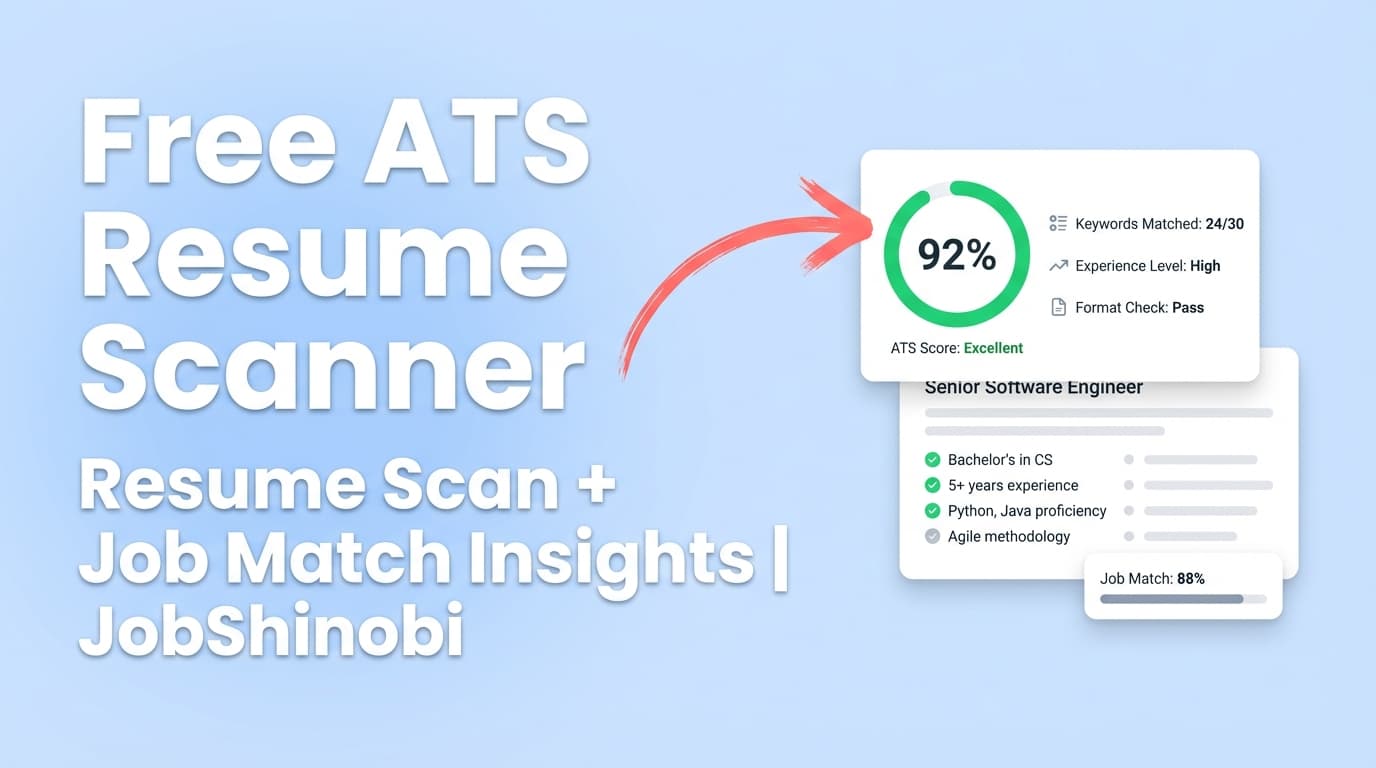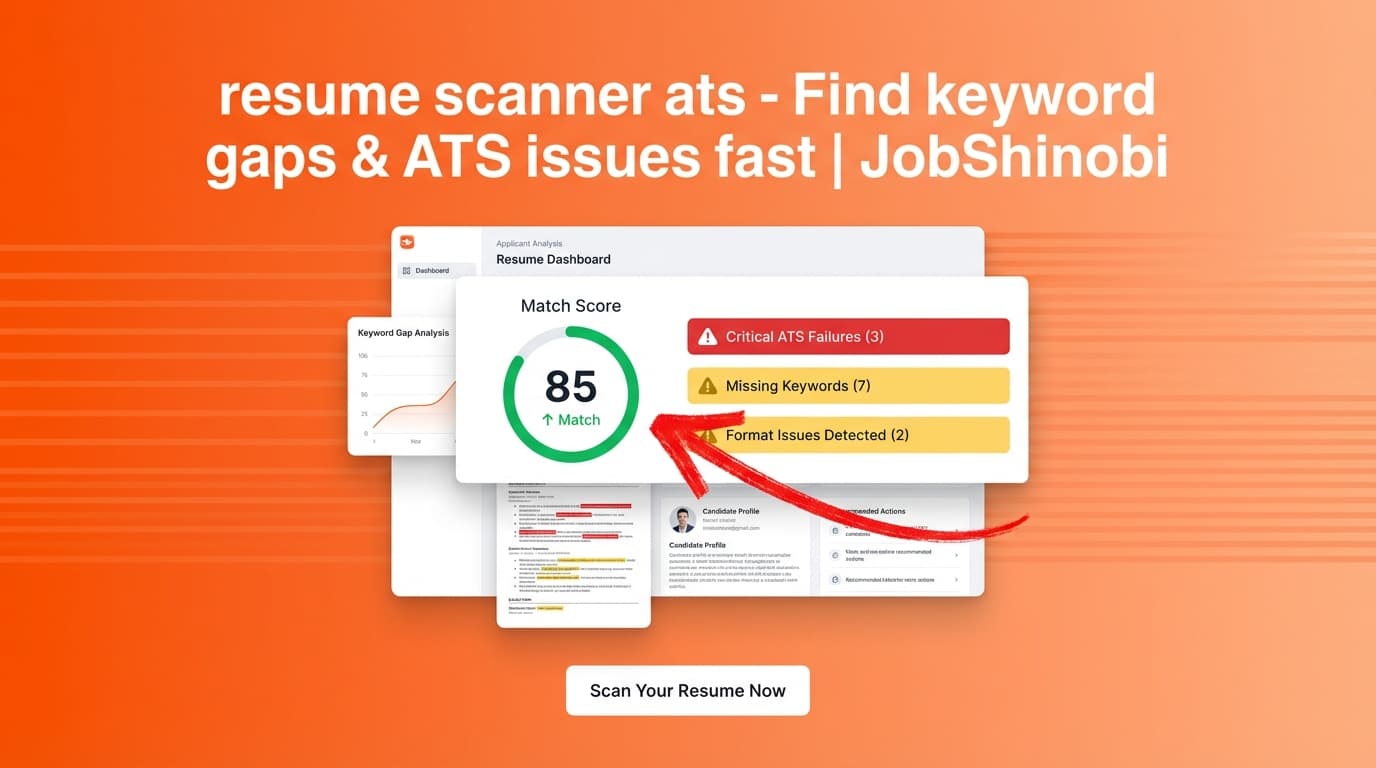
If you’re searching for a resume scanner ATS, you’re usually trying to answer two questions fast:
- Will an ATS parse and “understand” my resume content cleanly?
- Does my resume actually match the role I’m applying for (keywords + requirements)?
JobShinobi is built for exactly that workflow—analyze a resume, find ATS/keyword issues, then immediately apply fixes in a LaTeX-based resume editor with PDF preview. You can also run job-specific matching by adding a job description and getting a match score plus missing/present keywords.
CTA: Sign in to JobShinobi → Open Resume → Run Resume Analysis.
Why choose JobShinobi as your resume scanner ATS?
Most “ATS scanners” stop at a score and a vague checklist. JobShinobi is different because it’s designed as an end-to-end loop:
- Build + edit your resume (LaTeX)
- Compile and preview the PDF
- Run AI resume analysis with a score breakdown
- Run job matching to see missing/present keywords
- Apply improvements immediately (manual or AI chat)
- Re-analyze (cached when the resume hasn’t changed)
This matters because ATS optimization isn’t a one-time pass/fail test—it’s iterative.
Built-in resume analysis with structured results (not just a number)
JobShinobi’s analysis stores and returns structured scoring and feedback, including:
- overall_score
- content_score
- keyword_score
- formatting_score
- completeness_score
- ats_score
- strengths / weaknesses
- missing_sections
- keyword analysis (present, missing, overused, density, contextual usage signals)
- ats_issues
- section_scores, bullet_analysis, ats_analysis, length_analysis
- Optional enhanced mode fields like semantic keywords and an action queue
Because results are structured, you’re not stuck guessing what to fix next.
Job-match scoring: compare your resume to the job description
A resume can be clean and still underperform if it’s not aligned to the role.
With JobShinobi, you can add job data (job description and related fields) and get:
- match_score
- missing_keywords
- present_keywords
- recommendations / tailored suggestions
This makes your “ATS scan” job-specific instead of generic.
A LaTeX-first workflow that keeps your structure consistent
JobShinobi resumes are stored as LaTeX source and compiled to PDF for preview. That means you can:
- keep formatting consistent across edits,
- maintain clean section structure,
- download both PDF and .tex exports.
This is especially useful if you’re tired of tools that “rewrite” your resume and accidentally break structure.
Resume AI editor (streaming) that can help apply fixes
Instead of copying scanner suggestions into a separate document, JobShinobi includes a streaming AI resume editor that works directly with your resume source and supports tool-driven editing workflows (e.g., update resume content and validate via LaTeX compilation checks).
How JobShinobi’s resume scanner ATS works
Step 1: Create or open a resume (LaTeX templates + saved resumes)
Go to your dashboard and open Resume to:
- start from a template (template library with categories),
- or open an existing saved resume.
You’re working with LaTeX source stored in your account.
Internal link: /dashboard/resume
Step 2: Edit in the Resume Editor + preview the PDF
In the resume editor you can:
- edit LaTeX directly,
- compile to generate a PDF preview,
- download PDF and .tex when ready.
This is the fastest way to catch layout issues before you ship applications.
Step 3: Run Resume Analysis (ATS + keyword + content scoring)
From the resume editor/analyze flow, run the analysis to get:
- a score breakdown (overall + category scores),
- strengths, weaknesses, missing sections,
- keyword analysis (present/missing/overused),
- ATS-related issues surfaced as ats_issues.
Important behavior: JobShinobi can return a cached analysis when your resume hasn’t changed since the last analysis—so you don’t waste time rerunning identical scans.
Step 4: Add a job description (optional) for job-specific scanning
If you want the scan to reflect a specific role, add a job description and run job matching. You’ll get:
- match score,
- missing keywords to consider adding,
- present keywords you’re already covering,
- recommendations to tailor.
Step 5: Apply fixes (manual edits or AI chat) and re-scan
Fixing is where most scanners fall apart. JobShinobi keeps you in one workspace:
- implement changes in LaTeX,
- compile and preview,
- re-run analysis (or re-run matching),
- iterate until you’re satisfied.
Key features for resume scanner ATS use cases
| Feature | What It Does | Why It Matters |
|---|---|---|
| Resume Analysis (AI) | Generates scores + structured feedback (ATS issues, keyword analysis, strengths/weaknesses, missing sections) | Turns “why am I getting filtered?” into an actionable checklist |
| Enhanced analysis mode | Adds deeper analysis objects (e.g., semantic keywords + action queue when available) | Helps prioritize what to fix first instead of chasing a perfect score |
| Job matching | Compares resume content to a job description and returns match score + missing/present keywords | Makes your scan specific to the job you’re applying for |
| LaTeX Resume Builder + Templates | Create and manage resumes stored as LaTeX source | Cleaner structure + consistency across edits |
| PDF preview via LaTeX compilation | Compiles LaTeX and displays a generated PDF preview | See what recruiters will actually read before exporting |
| Resume AI Editor (streaming) | Chat-based editing that can update resume content and validate with LaTeX compile checks | Faster iteration when you need rewrites, keyword placement, or bullet upgrades |
| Resume version history | Saves versions tied to manual saves and AI chat changes | You can revert changes and compare iterations without losing work |
| Job Tracker (optional) | Track applications with realtime updates and export to Excel (.xlsx) | Useful once you start applying—especially at volume |
What a “resume scanner ATS” should check (and what JobShinobi outputs)
Different tools market “ATS scans” differently. In practice, job seekers typically need three categories of feedback:
1) ATS parse risk signals (format + structure)
ATS systems are not all identical, but common parse failure patterns include:
- multi-column layouts that scramble reading order,
- content inside tables/text boxes that gets dropped or reordered,
- icons/symbols that replace text,
- nonstandard section headings.
JobShinobi provides ATS-related issues in its analysis output (via ats_issues and related ATS analysis fields), so you can see what to change—then immediately implement it in your resume source.
2) Keyword coverage and context (not just stuffing)
The goal isn’t maximum keyword repetition—it’s coverage + clarity:
- Do you mention the hard skills the role requires?
- Do your bullet points support those skills with evidence and outcomes?
- Are you overusing buzzwords without context?
JobShinobi’s analysis includes keyword fields such as:
- present_keywords
- missing_keywords
- overused_keywords
- keyword_density
- contextual_usage_score
- top_skills_detected
That gives you a practical map of what you’re covering and what you’re not.
3) Content quality and completeness
Even if your resume parses, you can still lose interviews if it reads weakly.
JobShinobi’s structured resume analysis includes:
- strengths and weaknesses,
- missing sections,
- bullet analysis and section scoring,
- length analysis,
- role alignment and benchmarking-style analysis objects (when available in the analysis response).
How to use JobShinobi for an ATS resume scan (step-by-step)
Step 1: Sign in and open the Resume area
- Go to /login
- Open Dashboard → Resume
Step 2: Choose a template or open an existing resume
- Start from a template, or
- pick a resume you already saved.
Step 3: Compile a PDF preview
In the editor, compile your LaTeX to generate a PDF preview. This helps you confirm:
- section order,
- spacing and readability,
- whether headings are clear and consistent.
Step 4: Run “Resume Analysis”
Run the analysis to receive:
- overall + category scores,
- keyword feedback (present/missing/overused),
- ATS issues,
- additional detailed feedback objects.
Step 5: (Optional) Add a job description and run job matching
If you want a job-specific scan, add the job description and run matching to get:
- match_score,
- missing/present keywords lists,
- recommendations.
Step 6: Fix issues in the editor (manual or AI chat), then re-run
This is where you’ll usually see the fastest improvements:
- add missing keywords where they truthfully fit (skills, projects, experience bullets),
- strengthen bullet points with outcomes and metrics,
- standardize section headings,
- keep formatting consistent and readable.
Then re-run the scan and compare changes.
resume scanner ats vs. the “manual approach” (copy/paste keywords into a resume)
A common alternative is:
- copy the job description into a document,
- highlight repeated terms,
- manually add those keywords to your resume,
- hope nothing breaks.
That approach can work—but it’s slow and error-prone.
JobShinobi is designed to make the loop faster and clearer:
- You get a match score and missing/present keyword lists from the same place you edit your resume.
- You can validate layout quickly with PDF compilation preview.
- You can iterate faster with the Resume AI editor and version history.
If you’re applying to multiple roles per week, that workflow difference matters.
Common ATS formatting guidance (quick checklist you can apply immediately)
Even the best scanner won’t help if you ignore the basics. When you’re trying to reduce ATS risk, these practices are widely recommended:
- Keep a simple, readable structure
- Use standard section headings (e.g., “Experience,” “Education,” “Skills”)
- Avoid putting critical info inside tables or text boxes
- Be careful with icons and purely decorative symbols
- Keep your content text-first and scannable
JobShinobi helps by surfacing ATS-related issues in analysis, but you still control the final resume—so this checklist is useful during edits.
Pricing
JobShinobi offers paid subscriptions via Stripe payment links:
- Monthly: $20.00
- Yearly: $199.99
If you’re comparing tools, anchor your decision on whether you’ll actually use the scanner in a real workflow: analyze → fix → re-check → apply.
Frequently Asked Questions
What is a resume scanner ATS (and what can it realistically tell me)?
A “resume scanner ATS” is typically a tool that analyzes your resume for ATS parsing risk factors and keyword alignment with a job description.
No tool can guarantee results across every employer’s ATS configuration, but a good scanner can still help you:
- reduce obvious parsing risks,
- align your language with the role,
- spot missing skills/keywords you should address (truthfully).
JobShinobi focuses on structured feedback + job matching, so you can move from scan → fix without switching tools.
Do I need a 100/100 ATS score?
Usually, no. Chasing 100 can lead to keyword stuffing or unnatural writing.
A better goal is:
- strong keyword coverage for the role,
- clear, readable structure,
- evidence-based bullet points (impact, outcomes, scope),
- consistent section formatting.
JobShinobi gives you category scores and keyword lists so you can prioritize meaningful improvements instead of score-maxing.
Are icons ATS-friendly on a resume?
Icons can be risky depending on how a system parses the document, especially if icons replace actual text (e.g., a phone icon instead of the word “Phone”).
A safer approach is to keep contact and section details in plain text. Use JobShinobi’s PDF preview + analysis feedback to keep your document readable and consistent.
Does ATS software struggle with columns or tables?
Many systems can struggle with multi-column layouts and tables because they may scramble reading order or drop content.
If you’re optimizing for ATS readability, prefer a straightforward layout with clear headings and text-first content. JobShinobi’s analysis can surface ATS-related issues, and the LaTeX editor helps you keep structure consistent across iterations.
Can JobShinobi scan an uploaded PDF or image of my resume?
JobShinobi is designed around LaTeX-based resumes stored in your account. It analyzes the resume content from that source.
If your current resume is only available as a PDF/image and you’re looking for OCR-based scanning, that is a different type of tool than what JobShinobi provides.
How does JobShinobi help with keyword matching to a job description?
You can run job matching to compare your resume against job data and receive:
- a match score
- missing keywords
- present keywords
- recommendations for tailoring
Then you can apply changes directly in the resume editor and re-check.
Will JobShinobi change my resume automatically?
You can edit manually, or use the Resume AI editor (chat-based, streaming) to help rewrite sections and improve bullets. Either way, you stay in control of what’s added—important for keeping your resume accurate and truthful.
Does JobShinobi include a job application tracker?
Yes. JobShinobi includes a job tracker in the dashboard with realtime updates and the ability to export to Excel (.xlsx).
Internal link: /dashboard/job-tracker
Get started with JobShinobi today
If you’re looking for a resume scanner ATS that doesn’t just hand you a score—but actually helps you iterate—JobShinobi is built for the full workflow: scan → fix → re-scan → apply.
- Sign in: /login
- Open Resume: /dashboard/resume
- Track applications when you’re ready: /dashboard/job-tracker