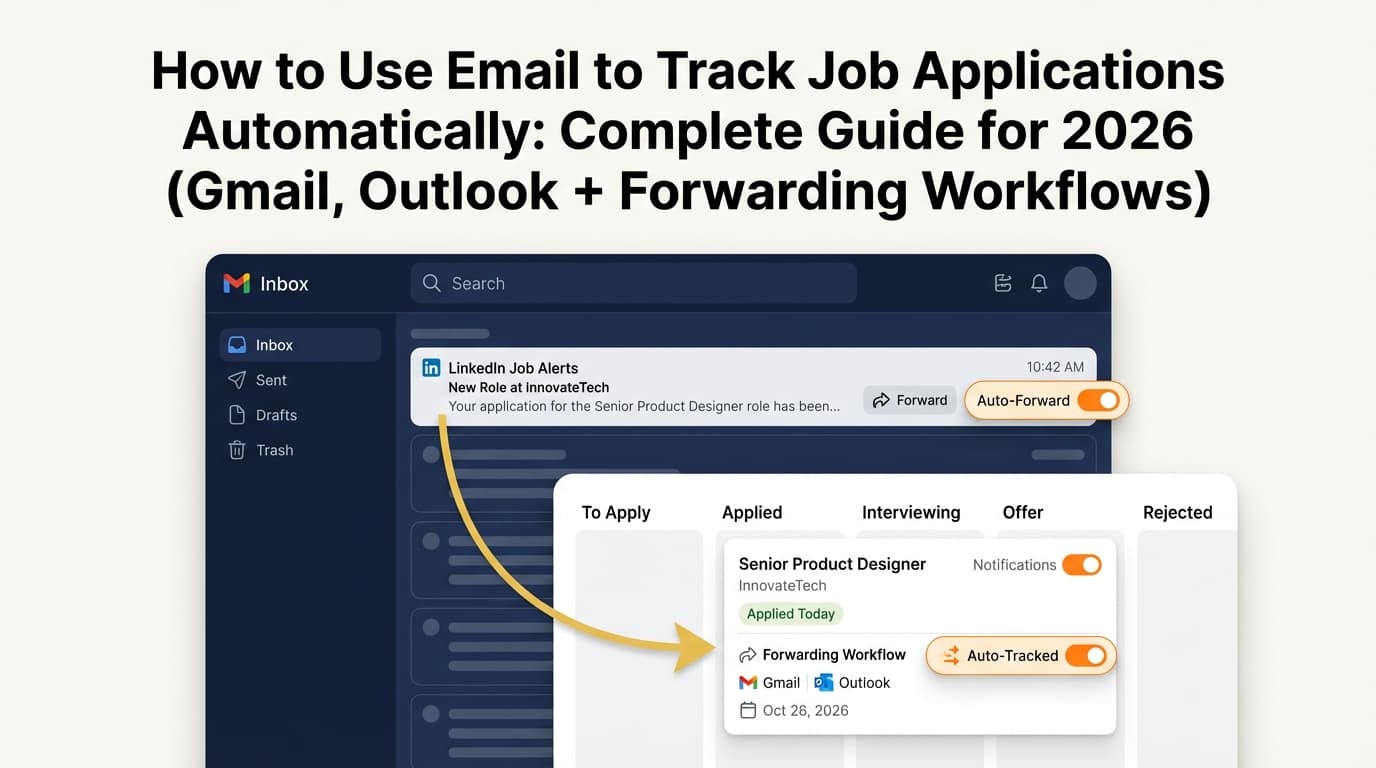
If your job search lives in your inbox, “I’ll just search later” eventually becomes “How did I miss that recruiter email?”
Modern email volume is already heavy: Microsoft reports the average worker receives 117 emails daily. (Source: Microsoft WorkLab, “Breaking down the infinite workday” — Confidence: High)
https://www.microsoft.com/en-us/worklab/work-trend-index/breaking-down-infinite-workday
Now layer on job alerts, application confirmations, “next steps,” interview scheduling, assessments, and rejections—and you need a system that’s:
- fast (works even when you’re applying at volume)
- safe (doesn’t hide human replies)
- simple enough to maintain for months
This guide shows you job tracking using Outlook rules and folders—plus the missing pieces (flags, Search Folders, categories, and Quick Steps) that turn “organized mail” into a real job-search workflow.
In this guide, you’ll learn:
- A folder structure that scales past 10 applications/week
- Rule templates for Applied, Interview, Assessment, Rejection, Offer
- How to build a “Follow-Up queue” using flags + Search Folders
- How to avoid the #1 failure mode: rules that bury recruiter replies
- When Outlook rules hit limits—and what to do next
What is “job tracking using Outlook rules and folders”?
Job tracking using Outlook rules and folders is a workflow where you:
- Create a dedicated Job Search folder structure in Outlook
- Use Rules to automatically file predictable job-search emails (like confirmations and rejections)
- Use flags, categories, Search Folders, and Quick Steps to track follow-ups and time-sensitive actions (like scheduling an interview)
Outlook won’t automatically give you a pipeline dashboard like a job tracker—so the goal is to make your email behave like one.
Why job tracking in Outlook matters in 2026
1) Email overload makes “manual memory” unreliable
Microsoft’s 117-emails/day stat is the best summary of why job-search emails get missed. (Microsoft WorkLab — Confidence: High)
https://www.microsoft.com/en-us/worklab/work-trend-index/breaking-down-infinite-workday
2) Competition is high—follow-up speed matters
CareerPlug reports that employers received an average of 180 applicants per hire (based on their benchmark analysis). (Source: CareerPlug — Confidence: Medium: credible dataset; varies by industry/role)
https://www.careerplug.com/recruiting-metrics-and-kpis/
When you’re one of many applicants, operational excellence (fast replies, never missing scheduling emails, consistent follow-ups) becomes a real advantage.
3) Outlook rules have limitations (and you should design around them)
On Exchange Online, Inbox rules are constrained by a quota. Microsoft documents that the valid range for the Inbox rules quota is 32 KB to 256 KB and notes there isn’t a maximum number of rules—quota is the practical constraint. (Source: Microsoft Learn — Confidence: High)
https://learn.microsoft.com/en-us/exchange/clients-and-mobile-in-exchange-online/outlook-on-the-web/increase-the-space-used-by-inbox-rules
Translation: a “rule per company” approach eventually becomes brittle.
Before you start: pick the right strategy (so you don’t hide recruiter replies)
There are two common approaches:
Approach A (Recommended): “Safe sorting”
- Auto-file only predictable automated emails (confirmations, rejections, some assessments)
- Keep human replies visible using Inbox + categories/flags
This minimizes the risk of missing important messages.
Approach B: “Hard filtering”
- Move almost everything job-related out of Inbox
This is cleaner, but riskier unless you’re extremely disciplined with Search Folders.
This guide is optimized for Approach A.
How to set up job tracking using Outlook rules and folders (step-by-step)
Step 1: Create a job-search folder structure that scales
Microsoft’s folder training covers creating folders and pairing them with rules. (Microsoft Support — Confidence: High)
https://support.microsoft.com/en-us/office/organize-email-by-using-folders-in-outlook-0616c259-4bc1-4f35-807d-61eb59ac79c1
Recommended folder structure (simple + outcome-based)
Create a top-level folder:
- Job Search (2026)
Inside it, create:
- 00 - Action Required
- 10 - Applied (Confirmations)
- 20 - Recruiter / Human Replies
- 30 - Interviews
- 40 - Assessments
- 50 - Offers
- 90 - Rejections / Closed
- 99 - Reference (Receipts, PDFs, misc.)
Why this structure works
- It organizes by outcome/status, not company (less maintenance)
- It separates “automation noise” from “human conversations”
- It gives you one daily triage folder: 00 - Action Required
Pro tip: Add numeric prefixes so folders stay in a predictable order.
Step 2: Create rules that file automated job emails (without hiding human replies)
Microsoft’s rules overview describes using rules to automatically move messages and take actions. (Microsoft Support — Confidence: High)
https://support.microsoft.com/en-us/office/manage-email-messages-by-using-rules-in-outlook-c24f5dea-9465-4df4-ad17-a50704d66c59
Rule safety principle: “file predictable emails; flag uncertain emails”
Rules are great for:
- “Thank you for applying”
- “We received your application”
- “Unfortunately…”
Rules are risky for:
- “Next steps”
- “Quick question”
- “Availability”
- anything that looks like a real person
Step 2A: Create the “Applied (Confirmations)” rule
Common conditions
- Subject includes:
- “thank you for applying”
- “application received”
- “we received your application”
- “your application to”
- “successfully applied”
Optional sender/domain clues (use sparingly)
- ATS platforms often include domains like:
greenhouse.io,lever.co,workday,myworkdayjobs,smartrecruiters,icims,taleo
Actions
- Move to:
Job Search (2026) / 10 - Applied (Confirmations) - (Optional) Categorize:
JS - Applied
Critical exception
- Except if subject contains
Re:orFwd:
Why: recruiter replies can appear in the same thread as the confirmation. Don’t bury them.
Step 2B: Create the “Rejections / Closed” rule
Common subject/body keywords
- “unfortunately”
- “not moving forward”
- “not selected”
- “other candidates”
- “regret to inform”
- “position has been filled”
Actions
- Move to:
90 - Rejections / Closed - (Optional) Categorize:
JS - Closed
Pro tip: Rejections are safe to auto-file because they’re rarely time-sensitive.
Step 2C: Create the “Assessment” rule (semi-safe)
Keywords
- “assessment”
- “take-home”
- “skills test”
- “coding challenge”
- “HackerRank”
- “Codility”
- “CodeSignal”
- “HireVue”
Actions
- Move to:
40 - Assessments - Categorize:
JS - Follow Up - (Optional) Flag for follow-up
If you’re nervous about missing these, don’t move them—just categorize + flag.
Step 2D: Handle interviews safely (categorize + flag, then optional filing)
Keywords
- “interview”
- “schedule”
- “availability”
- “calendar”
- “phone screen”
- “panel”
- “onsite”
- “meet”
Recommended actions
- Categorize:
JS - Interview - Flag for follow-up (with a reminder)
Optional action
- Move to:
30 - Interviews
Many people keep interview scheduling emails in Inbox until the interview is booked, then move them.
Step 2E (Protective rule): “Human replies” must stay visible
Condition
- Subject contains
Re:(and/or sender in Contacts)
Actions (choose one)
- Option A (safest): Keep in Inbox + categorize
JS - Human - Option B: Move to
20 - Recruiter / Human Replies+ flag if needed
Rule ordering matters. Put this rule above other job-search rules.
Step 3: Understand rule conflicts (“Stop processing more rules”)
One common reason job-search sorting breaks is rule conflict.
Microsoft explains “Stop processing more rules”: when enabled, after a rule applies, Outlook won’t evaluate the message against subsequent rules. (Microsoft Support — Confidence: High)
https://support.microsoft.com/en-us/office/stop-processing-more-rules-in-outlook-10dca09a-24c7-4c0d-abf3-9fa29fdc3230
How to use it (job search version)
- If you have a “Human replies” rule, you may want it to stop processing so confirmations/rejections don’t override it.
- If you have broad rules (“job” in subject), avoid stop-processing unless you are very sure.
Step 4: Make follow-ups unmissable with flags + Search Folders
Folders organize history. Follow-ups create outcomes.
4A: Use Search Folders to create a “Follow-Up dashboard”
Microsoft documents Search Folders like Flagged for follow-up and Mail either unread or flagged for follow-up. (Microsoft Support — Confidence: High)
https://support.microsoft.com/en-us/office/use-search-folders-to-find-messages-or-other-outlook-items-c1807038-01e4-475e-8869-0ccab0a56dc5
Create these Search Folders:
- Flagged for follow-up
- Mail either unread or flagged for follow-up
Then pin them to Favorites.
Why this matters: even if rules move job emails into subfolders, Search Folders surface what still needs action.
4B: Flag emails with reminders (so follow-ups happen automatically)
Microsoft documents how to flag email messages for follow up. (Microsoft Support — Confidence: High)
https://support.microsoft.com/en-us/office/flag-email-messages-for-follow-up-9d0f175f-f3e9-406d-bbf7-9c57e1f781cc
Use flags for:
- “Follow up if no response”
- “Reply with availability”
- “Complete assessment”
- “Send thank you note”
Recommended follow-up timing (with sources)
Timing varies, but credible career guidance often recommends waiting about a week before following up on an application.
- We Work Remotely suggests waiting 5–10 business days after the application deadline if you don’t have a timeline. (Source: We Work Remotely — Confidence: Medium)
https://weworkremotely.com/how-to-follow-up-on-a-job-application-not-get-ghosted - Frontline Source Group suggests 7–10 days after applying as a rule of thumb. (Source: Frontline Source Group — Confidence: Medium)
https://www.frontlinesourcegroup.com/blog-how-to-follow-up-on-a-job-application.html - Indeed provides guidance on follow-up emails after applying. (Source: Indeed — Confidence: Medium: widely used career guidance, varies by context)
https://www.indeed.com/career-advice/finding-a-job/follow-up-email-after-application
Practical default you can implement in Outlook
- Application follow-up: 7 business days
- Post-interview thank-you: within 24 hours
- If timeline passes: follow up on the stated decision date (or 5–7 business days later)
Step 5: Add categories for instant “status at a glance”
Microsoft explains color categories for grouping related items. (Microsoft Support — Confidence: High)
https://support.microsoft.com/en-us/office/create-and-assign-color-categories-in-outlook-a1fde97e-15e1-4179-a1a0-8a91ef89b8dc
Create 5 categories:
- JS - Applied
- JS - Human
- JS - Interview
- JS - Follow Up
- JS - Closed
Now you can filter any folder by category and quickly see what’s active.
Step 6: Use Quick Steps to reduce clicks (if your Outlook supports it)
Microsoft documents Quick Steps as a way to automate repetitive actions. (Microsoft Support — Confidence: High)
https://support.microsoft.com/en-us/office/automate-common-or-repetitive-tasks-with-quick-steps-in-outlook-b184f89f-3738-4562-96de-c0244ea830f2
Quick Step 1: “JS: Follow Up”
Actions:
- Categorize:
JS - Follow Up - Flag: Tomorrow (or custom date)
- Move to:
00 - Action Required(optional)
Quick Step 2: “JS: Interview Scheduled”
Actions:
- Categorize:
JS - Interview - Move to:
30 - Interviews - Mark as read (optional)
Important note: New Outlook vs Classic Outlook differences
Feature availability can differ between new Outlook and classic Outlook. Microsoft maintains a feature comparison page. (Microsoft Support — Confidence: High)
https://support.microsoft.com/en-us/office/feature-comparison-between-new-outlook-and-classic-outlook-de453583-1e76-48bf-975a-2e9cd2ee16dd
If Quick Steps or certain rule actions seem missing, check whether you’re using new Outlook, classic Outlook, Outlook on the web, or Mac.
Step 7: Apply rules to existing job-search emails (clean up retroactively)
If your inbox already has months of job-search mail, you can often run rules on existing messages.
Microsoft’s “Set up rules” guidance includes an option like “Run this new rule now on messages already in the current folder.” (Microsoft Support — Confidence: High)
https://support.microsoft.com/en-us/office/set-up-rules-in-outlook-75ab719a-2ce8-49a7-a214-6d62b67cbd41
Some university IT departments also provide step-by-step instructions for running rules against existing mail (useful when Microsoft UI labels differ by version). (Stanford UIT — Confidence: Medium)
https://uit.stanford.edu/service/microsoft365/filter-existing-mail
Safe cleanup sequence
- Run “Rejections / Closed”
- Run “Applied confirmations”
- Leave “Interview” and “Human” rules to apply only to new mail until you trust them
Step 8: Best practices that prevent missed emails
Microsoft’s Outlook best practices emphasize using rules and folders thoughtfully (and not overcomplicating). (Microsoft Support — Confidence: High)
https://support.microsoft.com/en-us/office/best-practices-for-outlook-f90e5f69-8832-4d89-95b3-bfdf76c82ef8
8 best practices for job tracking in Outlook
-
Don’t create a folder per company.
It won’t scale. Sort by status/outcome instead. -
Use exceptions to protect replies (
Re:).
This is the #1 way job-search rules hide critical messages. -
Use Search Folders as your “dashboard.”
Especially “Flagged for follow-up.” (Microsoft Support — Confidence: High)
https://support.microsoft.com/en-us/office/use-search-folders-to-find-messages-or-other-outlook-items-c1807038-01e4-475e-8869-0ccab0a56dc5 -
Favor categorizing over moving for interview/scheduling emails.
Keep them visible until you’re confident. -
Use “Stop processing more rules” deliberately.
(Microsoft Support — Confidence: High)
https://support.microsoft.com/en-us/office/stop-processing-more-rules-in-outlook-10dca09a-24c7-4c0d-abf3-9fa29fdc3230 -
Run a weekly reconciliation.
Rules drift. A 30-minute weekly check prevents silent failure. -
Keep a single “Action Required” folder.
It becomes your job-search mini-inbox. -
Document your rules in a note.
Just a simple list (“Applied rule”, “Rejection rule”, “Human replies rule”) makes troubleshooting easier later.
Common mistakes to avoid (and how to fix them)
Mistake 1: Auto-moving all job emails out of Inbox
Why it’s a problem: you can bury a recruiter’s scheduling email with a generic subject (“Next steps”).
Fix: auto-file only confirmations and rejections; categorize + flag interview threads.
Mistake 2: Letting rules conflict (wrong order)
Why it’s a problem: one broad rule overrides your important rule.
Fix: put “Human replies” first; use stop-processing carefully.
(Microsoft Support stop-processing explanation — Confidence: High)
https://support.microsoft.com/en-us/office/stop-processing-more-rules-in-outlook-10dca09a-24c7-4c0d-abf3-9fa29fdc3230
Mistake 3: Creating too many micro-rules
Why it’s a problem: maintenance burden + potential quota issues.
Fix: use a small set of keyword-based rules; rely on categories/Search Folders.
Microsoft documents Inbox rules quota ranges (32 KB to 256 KB) in Exchange Online. (Microsoft Learn — Confidence: High)
https://learn.microsoft.com/en-us/exchange/clients-and-mobile-in-exchange-online/outlook-on-the-web/increase-the-space-used-by-inbox-rules
Mistake 4: No follow-up system (folders only)
Why it’s a problem: you’re organized but still forget to follow up.
Fix: flags + reminders + Search Folder “Flagged for follow-up.”
(Microsoft Support flags and Search Folders — Confidence: High)
https://support.microsoft.com/en-us/office/flag-email-messages-for-follow-up-9d0f175f-f3e9-406d-bbf7-9c57e1f781cc
https://support.microsoft.com/en-us/office/use-search-folders-to-find-messages-or-other-outlook-items-c1807038-01e4-475e-8869-0ccab0a56dc5
Mistake 5: Rules silently stop working
Why it’s a problem: you assume you’re filing emails, but you aren’t.
Fix: check for folder changes, rule errors, and conflicting rule settings.
A third-party troubleshooting guide summarizes common causes when rules don’t run automatically. (Ablebits — Confidence: Medium)
https://www.ablebits.com/office-addins-blog/outlook-rules-not-working/
A complete job-search inbox workflow (daily + weekly)
Daily routine (10 minutes)
- Check Inbox
- Check
Job Search (2026) / 00 - Action Required - Check Search Folder: Mail either unread or flagged for follow-up
- Flag anything that needs action with a reminder date/time
Weekly routine (30 minutes)
- Review
10 - Applied (Confirmations)- Flag follow-ups for applications older than ~7 business days (if appropriate)
- Review
30 - Interviewsand40 - Assessments- Confirm deadlines, prep tasks, and timelines
- Review
90 - Rejections / Closed- Capture learnings (keywords, role fit notes)
Rule templates you can copy (job-search specific)
Template A: Application confirmations → Applied folder
If subject contains: application received OR thank you for applying OR we received your application
Then move to: Job Search (2026) / 10 - Applied (Confirmations)
Except if subject contains: Re: OR Fwd:
Template B: Rejections → Closed folder
If subject contains: unfortunately OR not moving forward OR not selected OR regret
Then move to: Job Search (2026) / 90 - Rejections / Closed
Template C: Assessments → Assessments + Follow Up category
If subject contains: assessment OR take-home OR HackerRank OR Codility OR CodeSignal OR HireVue
Then move to: Job Search (2026) / 40 - Assessments
And categorize: JS - Follow Up
Template D: Human replies protection (top of your rule list)
If subject contains: Re:
Then categorize: JS - Human
Optionally: stop processing more rules
(Microsoft Support explains stop-processing behavior — Confidence: High)
https://support.microsoft.com/en-us/office/stop-processing-more-rules-in-outlook-10dca09a-24c7-4c0d-abf3-9fa29fdc3230
Tools to help with job tracking beyond Outlook
Outlook rules and folders are excellent for email organization, but job searching often needs a second layer: a tracker that answers:
- How many applications did I send this week?
- What’s in Interview vs Applied?
- What’s stalled for 2+ weeks?
Option 1: Spreadsheet (low-tech, reliable)
Best for:
- custom columns (salary range, referral, remote/hybrid, follow-up date)
- complete control
Downside:
- manual updates are easy to skip when you’re applying fast
Option 2: A dedicated job tracker (reduces manual entry)
If you want less manual logging, a tracker that can ingest job emails helps.
JobShinobi (job tracker + resume tooling) can fit here:
- It supports job application tracking in an in-app tracker (Applied / Interview / Rejected / Offer / Accepted). (Confidence: High: supported by product constraints)
- It supports email-based job tracking via forwarded emails (job-related emails are parsed and logged). (Confidence: High)
- It supports export to Excel (.xlsx). (Confidence: High)
- Important limitation: email processing requires a Pro membership. (Confidence: High)
- Pricing: JobShinobi Pro is $20/month or $199.99/year. (Confidence: High)
- The marketing site mentions a 7-day free trial, but trial mechanics aren’t verified in the implementation details available here—so treat it as unverified rather than guaranteed. (Confidence: Medium)
A practical hybrid approach:
- Use Outlook rules/folders for “inbox hygiene”
- Use a tracker (like JobShinobi) for pipeline visibility and exporting
Key takeaways
- Build a status-based folder system (Applied, Interview, Offer…), not a company-based system.
- Use rules to file predictable automated emails, not human threads.
- Use flags + Search Folders to create a follow-up queue you can’t ignore.
- Rule order and “Stop processing more rules” can make or break your system.
- If manual tracking becomes too much, consider a dedicated job tracker—especially if it can ingest forwarded job emails.
FAQ
How do I create a rule from an email in Outlook?
Microsoft’s rule setup guide describes creating a rule directly from a message (often via right-click → Rules → Create Rule, depending on version). (Microsoft Support — Confidence: High)
https://support.microsoft.com/en-us/office/set-up-rules-in-outlook-75ab719a-2ce8-49a7-a214-6d62b67cbd41
What does “Stop processing more rules” mean in Outlook?
It means once that rule applies to a message, Outlook won’t apply any additional rules to the same message after it. This helps prevent conflicts when multiple rules match. (Microsoft Support — Confidence: High)
https://support.microsoft.com/en-us/office/stop-processing-more-rules-in-outlook-10dca09a-24c7-4c0d-abf3-9fa29fdc3230
Can I apply Outlook rules to existing emails?
Often, yes. When creating a rule, Outlook may offer a checkbox like “Run this new rule now on messages already in the current folder.” (Microsoft Support — Confidence: High)
https://support.microsoft.com/en-us/office/set-up-rules-in-outlook-75ab719a-2ce8-49a7-a214-6d62b67cbd41
What are Outlook rules limits?
In Exchange Online, Microsoft documents that Inbox rules storage quota can be configured from 32 KB to 256 KB. There isn’t a fixed maximum number of rules; quota is the practical limit. (Microsoft Learn — Confidence: High)
https://learn.microsoft.com/en-us/exchange/clients-and-mobile-in-exchange-online/outlook-on-the-web/increase-the-space-used-by-inbox-rules
What’s the best way to track job application follow-ups in Outlook?
Use flags with reminders plus a Search Folder like Flagged for follow-up so your follow-up queue is always visible—even when rules move emails into subfolders. (Microsoft Support — Confidence: High)
https://support.microsoft.com/en-us/office/flag-email-messages-for-follow-up-9d0f175f-f3e9-406d-bbf7-9c57e1f781cc
https://support.microsoft.com/en-us/office/use-search-folders-to-find-messages-or-other-outlook-items-c1807038-01e4-475e-8869-0ccab0a56dc5
Why are some features missing in the new Outlook compared to classic Outlook?
Microsoft maintains a feature comparison between new Outlook and classic Outlook. If a rule action, Quick Step, or workflow seems missing, verify which Outlook version you’re using. (Microsoft Support — Confidence: High)
https://support.microsoft.com/en-us/office/feature-comparison-between-new-outlook-and-classic-outlook-de453583-1e76-48bf-975a-2e9cd2ee16dd