If your job search lives in your inbox, you already have the raw data you need—application confirmations, recruiter replies, interview invites, rejections, offers. The hard part is turning that messy stream into a clean, up-to-date tracker (without spending hours copying/pasting).
Two numbers explain why this matters:
- In an Indeed poll, 44% of people hear back within a couple of weeks, 37% within one week, and only 4% within one day. If you aren’t tracking follow-ups, it’s easy to lose momentum. (Source: Indeed, “How Long Should You Wait To Hear Back About a Job?” https://www.indeed.com/career-advice/finding-a-job/how-long-should-you-wait-to-hear-back-about-a-job — Confidence: High)
- A Federal Reserve Bank of St. Louis analysis found 41% of applications arrive within the first 48 hours after a job is posted. If you’re applying fast, you’re generating a lot of email—and manual tracking becomes the bottleneck. (Source: St. Louis Fed, “How Quickly Do People Apply for Jobs?” https://www.stlouisfed.org/on-the-economy/2017/november/how-quickly-people-apply-jobs — Confidence: High)
In this guide, you’ll learn:
- A simple “automation ladder” (from labels → spreadsheets → full auto-tracking)
- Step-by-step setups for Gmail and Outlook
- Templates and naming conventions that make automation actually work
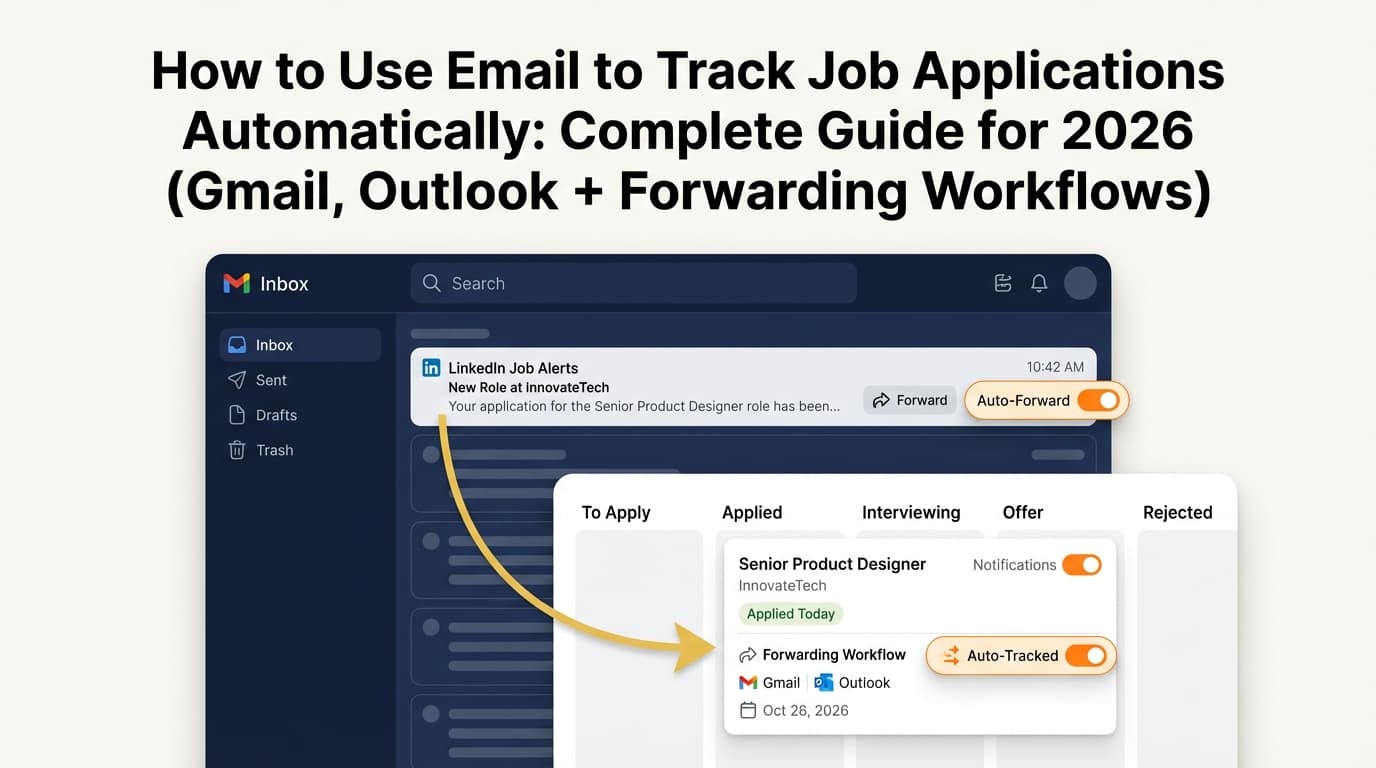
- How email-forwarding trackers can auto-log and auto-update application statuses
- Common pitfalls (privacy, false positives, duplicates) and how to avoid them
What is “email-based job application tracking”?
Email-based job application tracking means using your inbox as the source of truth, then automating the conversion of emails into structured records—typically rows in a spreadsheet or entries in a job tracker.
A good tracking record usually includes:
- Company
- Role/title
- Date applied (or confirmation received)
- Current status (Applied / Interview / Rejected / Offer / Accepted)
- Job URL
- Notes + next step
- Follow-up date
You can automate this at different levels—from simple filters to full “forward email → tracker updates automatically.”
Why tracking from email works so well (and why it breaks for most people)
Email is where job search “events” happen. But it breaks when:
- Your emails are scattered across multiple inboxes
- You can’t reliably identify which emails represent a real status update
- Your system creates duplicates (one job = five emails = five rows)
- You forget follow-ups because there’s no reminder mechanism
The goal isn’t perfection—it’s a system that stays accurate enough to support consistent follow-up and decision-making.
The Email Automation Ladder (choose the level that fits your time)
You don’t need to start with a complicated setup. Pick the simplest level that solves your pain.
Level 1: Inbox organization (labels/folders + filters)
Best for: fast wins, minimal setup.
Level 2: Spreadsheet-assisted tracking (templates + semi-automation)
Best for: people who want a tracker but hate manual data entry.
Level 3: Workflow automation (Zapier/Make/n8n or scripts)
Best for: automatic rows + analytics, with some setup effort.
Level 4: Email-forwarding job trackers (auto-parse + auto-update)
Best for: “I want to forward emails and have everything logged.”
This guide covers all four.
How to use email to track job applications automatically: Step-by-step
Step 1: Create a clean “job-search email identity” (this makes everything easier)
You have three common options:
Option A (cleanest): Create a dedicated inbox
Example: [email protected]
Pros: fewer false positives, easiest to automate
Cons: you must consistently apply using it
Option B (convenient): Use Gmail “plus addressing”
Example: [email protected]
This works because Gmail treats [email protected] as the same inbox. Streak explains the Gmail plus-addressing trick and common uses. (Source: Streak, “Gmail plus addressing trick” https://www.streak.com/post/gmail-plus-addressing-trick — Confidence: High)
Pros: no new inbox, easy filtering (filter “To:” = yourname+jobs@...)
Cons: some application forms reject + emails; some recruiters may mistype it
Option C: Use aliases (Outlook/iCloud depending on provider)
Good if you’re already in the Microsoft ecosystem.
Pro tip: Whatever you choose, use it consistently. Most “automation fails” are really “inbox fragmentation.”
Step 2: Decide what counts as a “trackable” email (so your automation doesn’t go off the rails)
Your tracker should only react to lifecycle events, not noise.
Trackable email types (recommended):
- Application received / confirmation
- Interview request or scheduling
- Rejection / “moving forward with other candidates”
- Offer / next steps
Usually NOT worth auto-tracking:
- newsletters (“jobs you may like”)
- job alerts
- marketing emails from job boards
- generic “create your profile” messages
Why this matters: you’ll get way more alerts than real status updates. Over-tracking creates clutter and bad data.
Step 3: Create the tracker fields (minimum viable schema)
Before you automate extraction, define your columns so the system knows what to capture.
Minimum viable columns (high signal):
- Company
- Role
- Date applied
- Status
- Job URL
- Follow-up date
- Notes
Helpful columns (better analytics):
- Source (LinkedIn, referral, company site)
- Contact name + email
- Resume version used
- Location / remote
- Compensation range
Stat to calibrate expectations: HiringThing claims “on average, a job candidate will get one interview request for every six applications.” (Source: HiringThing, “2024 Job Application Statistics” https://blog.hiringthing.com/job-application-statistics — Confidence: Medium)
Whether that ratio matches your reality or not, tracking helps you see your conversion rates.
Level 1 Automation: Organize your inbox so it becomes a job tracker
Gmail setup: Labels + filters that auto-sort job search emails
Create labels
Suggested structure:
Jobs/AppliedJobs/InterviewJobs/RejectedJobs/OfferJobs/Follow-up
Create filters (start broad, then refine)
Common subject keywords:
- Applied: “application received”, “thanks for applying”, “we received your application”
- Interview: “interview”, “schedule”, “availability”, “next steps”
- Rejected: “unfortunately”, “regret to inform”, “not selected”, “moving forward”
- Offer: “offer”, “compensation”, “contract”, “background check”
You can also filter by sender domains you see frequently (varies by your industry):
@workday.com,@greenhouse.io,@lever.co, etc.
Add one “safety” label for forwarding automation
Create: Jobs/Forward
Only emails in this label should ever be forwarded to a tool or parser (more on that below).
Why: auto-forwarding the wrong mail is a privacy and security risk.
Outlook setup: Rules + folders (official support-backed)
Microsoft’s support docs confirm Outlook rules can automatically move, flag, and process messages. (Source: Microsoft Support, “Manage email messages by using rules in Outlook” https://support.microsoft.com/en-us/office/manage-email-messages-by-using-rules-in-outlook-c24f5dea-9465-4df4-ad17-a50704d66c59 — Confidence: High)
Create folders
Job Search\AppliedJob Search\InterviewJob Search\RejectedJob Search\OfferJob Search\Follow-up
Create rules that move messages automatically
- If subject contains “interview” → move to Interview
- If subject contains “application received” → move to Applied
- If subject contains “unfortunately” / “not selected” → move to Rejected
Pro tip: Interview scheduling emails don’t always say “interview.” Add coordinator addresses and scheduling tools as you discover them.
Level 2 Automation: Use email templates so tracking is “automatic enough”
Here’s the problem: application confirmation emails are inconsistent. Your automation becomes reliable when you standardize the input.
The “send yourself a tracking email” template (high accuracy, low effort)
Every time you apply, email your job-search inbox:
Subject
APPLIED — Company — Role
Body
- Company:
- Role:
- Job URL:
- Source:
- Location:
- Resume version used:
- Notes:
Now you can:
- auto-label these emails as
Jobs/Applied - copy/paste into a tracker quickly
- or auto-parse your own structured emails into spreadsheet rows (Level 3)
This one habit fixes most “garbage in, garbage out” issues.
Level 3 Automation: Turn labeled emails into spreadsheet rows (no-code or light-code)
At this level, your workflow is:
Email → Label/Folder → Automation → Tracker row
Option A: No-code workflows (Zapier/Make/n8n)
Typical pattern:
- Trigger: new email with label
Jobs/Applied(or in folder “Applied”) - Extract: parse subject into fields (split on “—”)
- Action: create a new row in Google Sheets / Airtable
If you’re using n8n, there are many Gmail + Google Sheets integrations and example workflows you can model. (Source: n8n integrations page for Gmail + Google Sheets https://n8n.io/integrations/gmail/and/google-sheets/ — Confidence: Medium)
Option B: Google Apps Script (DIY, high control)
If you’re technical (or willing to tinker), you can:
- tag incoming emails with a label
- have a script search for that label
- write extracted data into a sheet
This approach is common enough that StackOverflow threads discuss extracting Gmail data to spreadsheets using tags/labels as selectors. (Source: StackOverflow, “Extract data from gmail into a spreadsheet” https://stackoverflow.com/questions/32890847/google-apps-scripts-extract-data-from-gmail-into-a-spreadsheet — Confidence: Medium)
Pro tip: Whichever method you choose, add a dedupe key like:
Company + Role(simple)- or
Message-ID/ email thread ID (better)
Level 4 Automation: Use email forwarding to auto-log and auto-update applications
If your goal is: “I just want to forward emails and have my tracker update,” forwarding-based tools can reduce manual work dramatically.
Important: Forwarding safely (official Gmail setup + privacy hygiene)
Google’s official instructions explain how to set up Gmail forwarding and verification. (Source: Google Support “Automatically forward Gmail messages to another account” https://support.google.com/mail/answer/10957?hl=en — Confidence: High)
Best practice for job search forwarding:
- Don’t forward your whole inbox.
- Forward only emails that match a specific label like
Jobs/Forward. - Test with a small batch first.
This prevents accidental forwarding of sensitive personal or financial emails.
Using JobShinobi for automatic email-based job application tracking (accurate capabilities only)
JobShinobi is a resume + job-search tool that includes an email-forwarding job application tracker.
What JobShinobi can do (supported):
- Provide a unique forwarding email address for your account (used for tracking via forwarded emails). (Confidence: High)
- Parse forwarded job application lifecycle emails (confirmation / rejection / interview-type updates) from the email subject/body and create or update job application records. (Confidence: High)
- Track statuses like Applied, Interview, Rejected, Offer, Accepted in the job tracker. (Confidence: High)
- Export your job applications to an Excel (.xlsx) file. (Confidence: High)
Important limitations (supported):
- Attachments are not parsed (PDFs/images/resumes aren’t extracted from email attachments). (Confidence: High)
- No claim of Google Sheets export (Excel export is implemented; Google Sheets export is not supported). (Confidence: High)
Pricing (supported):
- JobShinobi Pro is $20/month or $199.99/year. (Confidence: High)
- Marketing copy mentions a “7-day free trial,” but trial mechanics aren’t clearly verified in code—so don’t assume it applies unless you see it at checkout. (Confidence: Medium)
Where to start:
- Learn more: JobShinobi
- Pro plan: /subscription
Best practices to make email tracking accurate (not just automated)
1) Design for duplicates (because every application generates multiple emails)
Your system should ideally update a job entry when a new email arrives (e.g., from “Applied” to “Interview”), not create a new row every time.
Practical dedupe strategies:
- Key = Company + Role
- Key = Company + Role + Location
- Key = original confirmation email thread
2) Track follow-up timing explicitly
Use a follow-up date column (or label), because “I’ll remember” doesn’t scale.
The Indeed poll response windows (1–2 weeks for many people) supports a follow-up schedule like:
- Day 7 (business days): status check if you have a human contact
- Day 14: final follow-up if still open (Indeed poll source above — Confidence: High)
3) Save job descriptions outside email
Postings change or disappear. Email often won’t preserve the full description.
Simple method:
- paste the job description into Notes for that tracker entry
- or email yourself the description text as part of your “APPLIED — …” template
4) Keep privacy in mind when using parsing services
Email parsing implies sending email content to a third party. Many providers publish security guidance/FAQs; for example, Parseur discusses safety in its email parser FAQ. (Source: Parseur “Email Parser FAQ” https://parseur.com/blog/email-parser-faq — Confidence: Medium)
Your rule of thumb:
- forward only what you’re comfortable storing in another system
- avoid forwarding sensitive documents or personal info unless necessary
Common mistakes to avoid
Mistake 1: Auto-forwarding everything
This is the fastest way to create privacy risk and unusable data.
Fix: forward only a dedicated label (Jobs/Forward) and refine filters first.
Mistake 2: Expecting attachments to be parsed
Many inbound-email tracking systems parse only subject/body. JobShinobi does not support attachment parsing. (Confidence: High)
Fix: treat attachment handling as manual unless your tool explicitly supports it.
Mistake 3: Using inconsistent naming conventions
Automation loves consistency.
Fix: standardize your subject lines:
APPLIED — Company — RoleINTERVIEW — Company — RoleREJECTED — Company — Role
Mistake 4: Letting “job alerts” pollute your tracker
Alerts are not applications.
Fix: separate labels: Jobs/Alerts vs Jobs/Applied
Tools to help with email-based job application tracking (honest recommendations)
- Gmail filters + labels (Level 1): quick auto-sorting
- Outlook rules (Level 1): same concept for Microsoft users (Microsoft Support source above)
- Google Sheets / Excel (Level 2–3): flexible tracker + analytics
- n8n / Zapier / Make (Level 3): automation pipelines (Gmail → Sheets)
- Bardeen (Level 1–3): has a workflow page for labeling job application emails in Gmail (Source: Bardeen workflow page https://www.bardeen.ai/workflows/label-and-filter-job-application-emails-in-gmail — Confidence: Medium)
- JobShinobi (Pro) (Level 4): forwarding-based auto-tracking + job tracker + Excel export (pricing and capabilities described above)
Key takeaways
- Email is already your job-search activity stream—automation turns it into a usable tracker.
- The highest-leverage first step is a dedicated job-search identity (separate inbox or plus-addressing).
- Don’t automate everything—automate status events (applied/interview/rejection/offer).
- If you want spreadsheet automation, start by parsing your own structured “APPLIED — …” emails.
- If you want minimal manual work, forwarding-based trackers can log and update applications—just use label-based forwarding for privacy.
- JobShinobi’s automatic email tracking requires Pro ($20/month or $199.99/year) and does not parse attachments.
FAQ
Can I create an auto-forward rule in Gmail?
Yes—Gmail supports forwarding, including verification steps. (Source: Google Support https://support.google.com/mail/answer/10957?hl=en — Confidence: High)
For job search tracking, the safer approach is to auto-forward only emails that match a specific label/filter (not your entire inbox).
How do I filter job application emails by subject in Gmail?
Use Gmail filters that match common keywords (e.g., “application received,” “interview,” “unfortunately”) and apply labels automatically. Start broad, then refine as you see false positives.
How do I set up rules in Outlook to move job application emails to folders?
Outlook supports rules that automatically move messages to folders based on conditions like subject keywords or sender. (Source: Microsoft Support https://support.microsoft.com/en-us/office/manage-email-messages-by-using-rules-in-outlook-c24f5dea-9465-4df4-ad17-a50704d66c59 — Confidence: High)
Is Gmail “plus addressing” okay for job applications?
Often yes, and it’s useful for filtering. Gmail plus addressing is widely documented (for example by Streak). (Source: https://www.streak.com/post/gmail-plus-addressing-trick — Confidence: High)
But some application systems reject + addresses, so test it. If it fails, use a dedicated inbox instead.
What’s the easiest way to track job applications automatically from email?
Most people get the best results with this progression:
- Gmail/Outlook labels or folders
- A standardized “APPLIED — Company — Role” email template
- Optional: automation that turns labeled emails into rows
- Optional: forwarding-based job tracker that parses emails into application entries
If you’re applying at high volume, automation helps you follow up consistently—especially since many people hear back within 1–2 weeks per the Indeed poll. (Indeed source above — Confidence: High)