The average corporate job opening attracts 250 resumes, and only 4–6 candidates get called for an interview—so if your resume parses poorly in Workday or misses key keywords, you’re competing at a huge disadvantage. (Source: Glassdoor, “50 HR & Recruiting Stats That Make You Think”: https://www.glassdoor.com/blog/50-hr-recruiting-stats-make-think/)
If you’ve ever applied through Workday, you know the pain:
- You upload your resume…
- …and then Workday butchers your autofill or forces you to retype everything anyway.
This guide focuses on what actually moves the needle for Workday resume parsing + ATS-friendly tailoring—without myths, keyword stuffing, or “one weird trick” advice.
In this guide, you’ll learn:
- What “Workday ATS” really means for job seekers (parsing vs screening)
- The safest Workday resume format (layout, headings, dates, file type)
- How to tailor keywords the right way (proof-first, not stuffing)
- A step-by-step Workday autofill troubleshooting workflow
- Workday-specific mistakes that cause retyping and missed matches
What is Workday ATS (and what “optimize for Workday ATS” actually means)
Workday is a major HR and recruiting platform. When job seekers say “Workday ATS,” they usually mean two separate things:
-
Resume parsing + autofill
Workday tries to extract your work history, education, and skills into structured application fields. -
Recruiter search and screening workflow
Recruiters and hiring teams may filter, search, and review candidates inside Workday. (Some employers may also use additional AI/matching tools in their hiring stack.)
Key takeaway: You can’t control an employer’s Workday configuration. But you can make your resume:
- easy to parse (so your application fields aren’t a mess),
- easy to search (so your keywords show up),
- easy to skim (because humans still make fast decisions).
Recruiters’ initial resume reviews can be extremely quick—The Ladders reports 7.4 seconds in an eye-tracking study. (Source: The Ladders: https://www.theladders.com/career-advice/why-do-recruiters-spend-only-7-4-seconds-on-resumes)
Why Workday optimization matters in 2026 (with data)
1) ATS is the default at large employers
Jobscan states 98%+ of Fortune 500 companies use an ATS. (Source: Jobscan ATS overview: https://www.jobscan.co/applicant-tracking-systems)
Confidence: Medium–High (Jobscan is the primary source; the 98% figure is widely cited).
2) AI is in the hiring conversation—even if it’s inconsistent
Workday reports 42% of HR leaders told Workday their companies aren’t fully ready to leverage AI. (Source: Workday blog: https://blog.workday.com/en-us/talent-sourcing-done-right-age-ai.html)
Confidence: High (first-party Workday source).
3) Workday applications often restrict what you can submit
Some Workday candidate FAQs state you can upload only one attachment (resume/CV) per application. (Example PDF: https://dn9tckvz2rpxv.cloudfront.net/sci/pdf/Workday-FAQ.pdf)
Confidence: Medium (varies by employer setup, but it’s documented).
4) Upload limits can cause silent failures
Workday-powered talent community pages often specify file requirements like DOC, DOCX, HTML, PDF, or TXT (5MB max). (Example: https://workday.wd5.myworkdayjobs.com/en-US/Workday/introduceYourself)
Confidence: Medium (this is an example instance; your employer portal may differ).
5) When it’s competitive, removing “preventable errors” matters
Back to the earlier stat: 250 resumes per corporate opening and only 4–6 interviewed (Glassdoor). If your Workday autofill is broken or your resume misses obvious keywords, you may not even get into the top “reviewable” set.
How Workday resume parsing/autofill works (in plain English)
When you upload a resume, Workday attempts to:
- detect sections (Experience, Education, Skills),
- extract entities (job titles, companies, dates, degree names),
- map them into application fields.
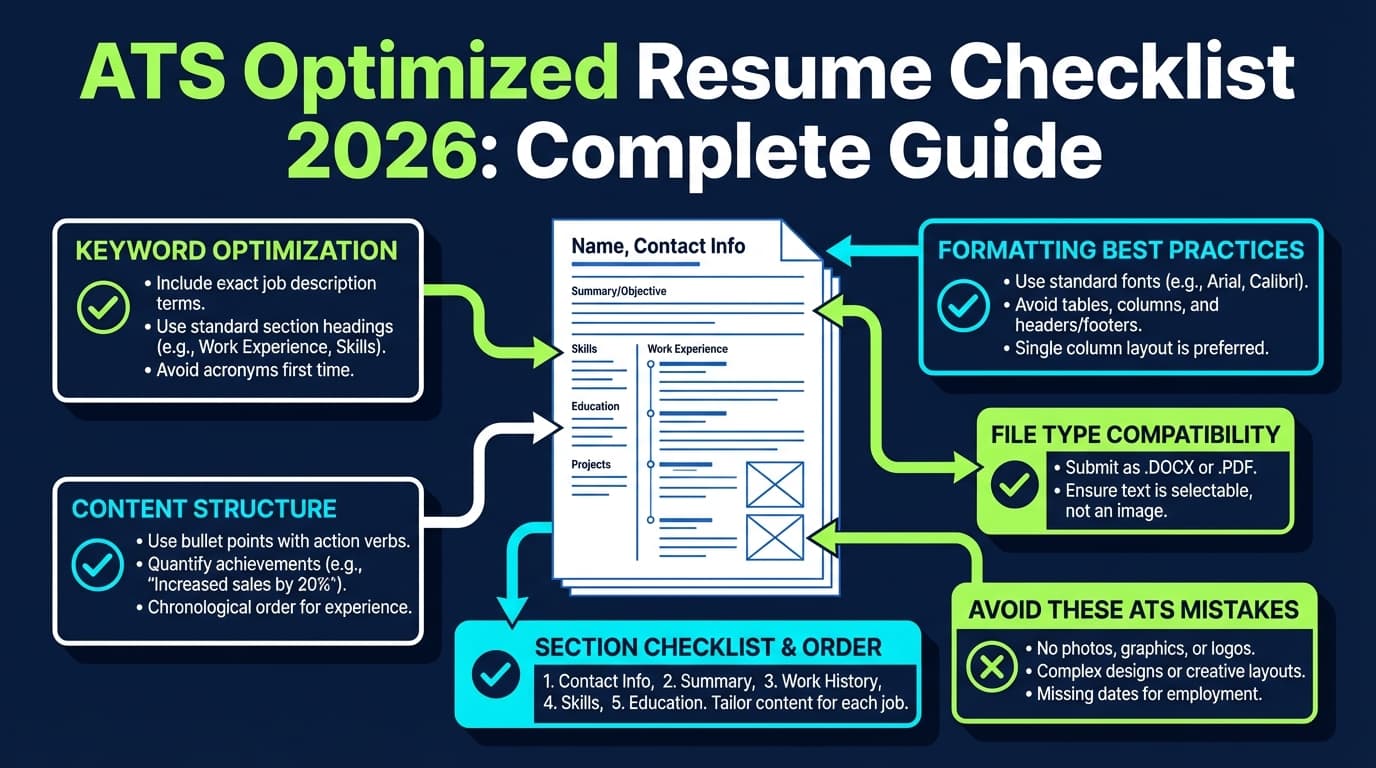
Parsing tends to fail when your resume is designed for visuals instead of structure—like columns, tables, and text boxes.
Workday itself recommends using:
- simple section headings (“Experience,” “Education,” “Skills”)
- limited graphics/special characters
- industry-standard job titles
(Source: Workday “Applicant Tracking System” page: https://www.workday.com/en-us/topics/hr/applicant-tracking-system.html)
Confidence: High (first-party guidance).
How to optimize resume for Workday ATS: Step-by-step
Step 1: Use a “Workday-first” layout (single column, no tricky elements)
If your resume is two columns, there’s a high chance Workday will:
- read the left column top-to-bottom,
- then jump to the right column,
- scrambling the text order.
Workday-safe layout rules:
- Single column
- Left-aligned text
- Standard bullets (• or -)
- Minimal styling (bold headings are fine)
Avoid (high risk for Workday parsing):
- Tables (even invisible ones)
- Text boxes / shapes
- Icons replacing words (phone icon instead of “Phone:”)
- Header/footer for contact info
- Multi-column layouts
Pro tip: If you love your designed resume, use a two-resume strategy:
- Resume A (Workday version): plain, parsable, structured
- Resume B (Networking/Email PDF): designed for humans
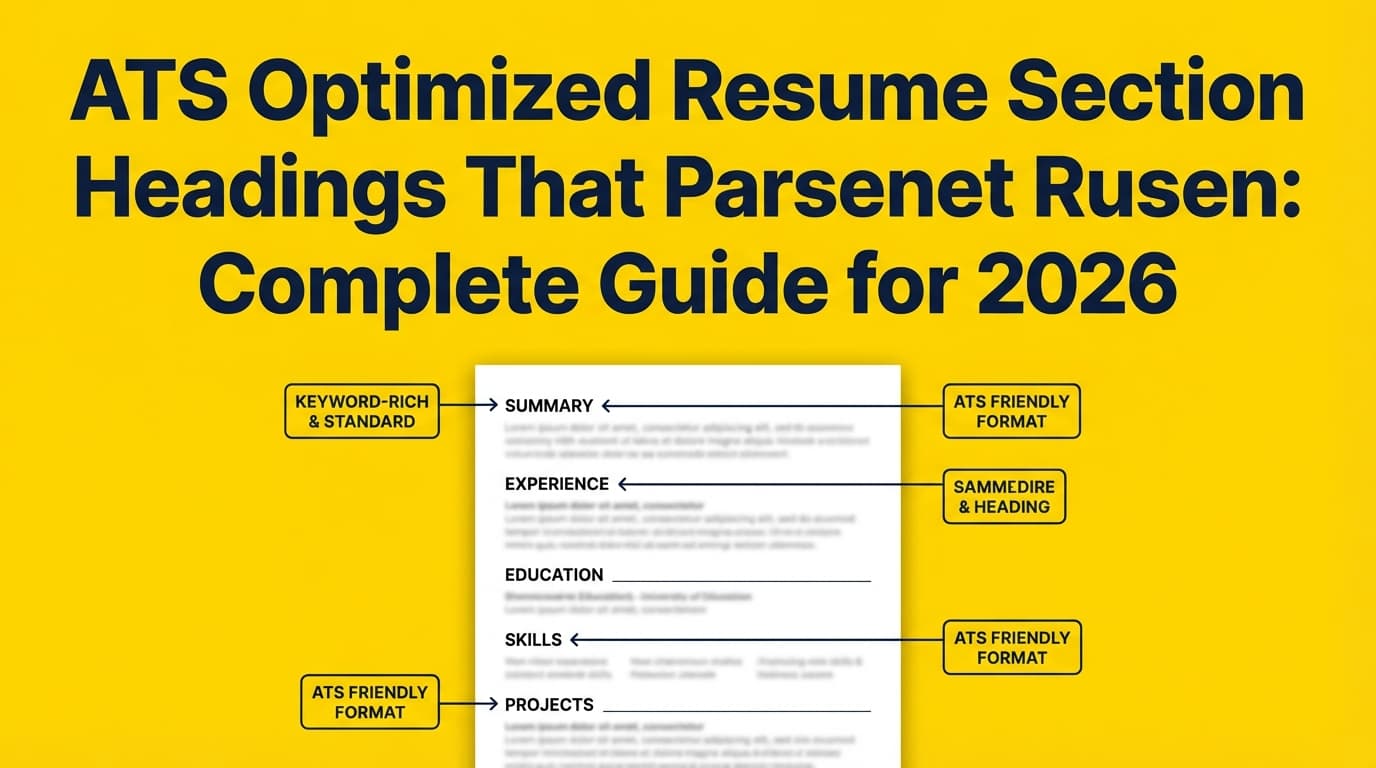
Step 2: Use standard section headings Workday recognizes
Workday’s guidance explicitly calls out simple headings like “Experience,” “Education,” and “Skills.” (Source: https://www.workday.com/en-us/topics/hr/applicant-tracking-system.html)
Use these headings (exact wording matters more than people think):
- Experience or Work Experience or Professional Experience
- Education
- Skills
- Certifications (optional)
- Projects (optional)
Avoid creative headings like:
- “My Impact”
- “Where I’ve Helped”
- “Toolbox”
- “What I Bring”
Step 3: Format each job entry as a clean “block” Workday can separate
Here’s a Workday-friendly job block pattern:
Job Title — Company
MMM YYYY – MMM YYYY | City, State
- Bullet (achievement + metric + keyword)
- Bullet (tool/skill + outcome)
- Bullet (collaboration + result)
Example:
Data Analyst — Northwind Analytics
Jan 2023 – Present | Austin, TX
- Built SQL reporting layer and Tableau KPI dashboard; reduced weekly reporting time by 35%.
- Partnered with stakeholders across Sales Ops and Finance to improve forecast accuracy by 12%.
Pro tip: Don’t right-align dates with tabs. Some parsers treat tabbed content unpredictably.
Step 4: Pick one date format and use it everywhere
Workday parsing can get messy when your dates change formats across roles.
Choose one and stick to it:
Jan 2022 – Mar 20252022 – 2025
Avoid mixing:
- “03/2022”
- “March 2022”
- “2022 (Spring)”
Step 5: Choose the best file type for Workday (DOCX vs PDF)
You’ll see contradictory advice because parsing engines vary. The safest practical approach:
- If Workday autofill is failing: try DOCX
- If you use PDF: ensure it’s text-based (not scanned)
Some Workday resume upload guidance documents explicitly warn that image-based files are not supported and list supported formats such as PDF/DOC/DOCX/HTM/TXT. (Example PDF: “Using Your Resume to Create Your Professional Profile in Workday,” Henry Schein Workday: http://www.henryscheinworkday.com/gb-en/wp-content/uploads/2021/12/Using-Your-Resume-to-Create-Your-Professional-Profile-in-Workday.pdf)
Confidence: Medium (organization-issued Workday guidance; not universal, but highly relevant for parsing behavior).
Also, Workday-powered pages often list acceptable formats and a 5MB max file size. (Example: https://workday.wd5.myworkdayjobs.com/en-US/Workday/introduceYourself)
Confidence: Medium (instance-specific, but useful for troubleshooting).
Quick “is my PDF parsable?” test
Open your PDF and try to:
- highlight a line of text,
- copy/paste it into Notepad.
If it pastes as gibberish, missing spaces, or scrambled order, Workday autofill is likely to break too.
Step 6: Optimize for Workday autofill (so you don’t have to retype everything)
Workday autofill is more likely to work when your resume has:
- clear separators between jobs,
- consistent title/company/date placement,
- standard headings.
Special case: multiple roles at the same company
Format like this so Workday doesn’t merge roles:
Company — City, State
Senior Analyst | Jan 2023 – Present
- …
Analyst | Jun 2021 – Jan 2023 - …
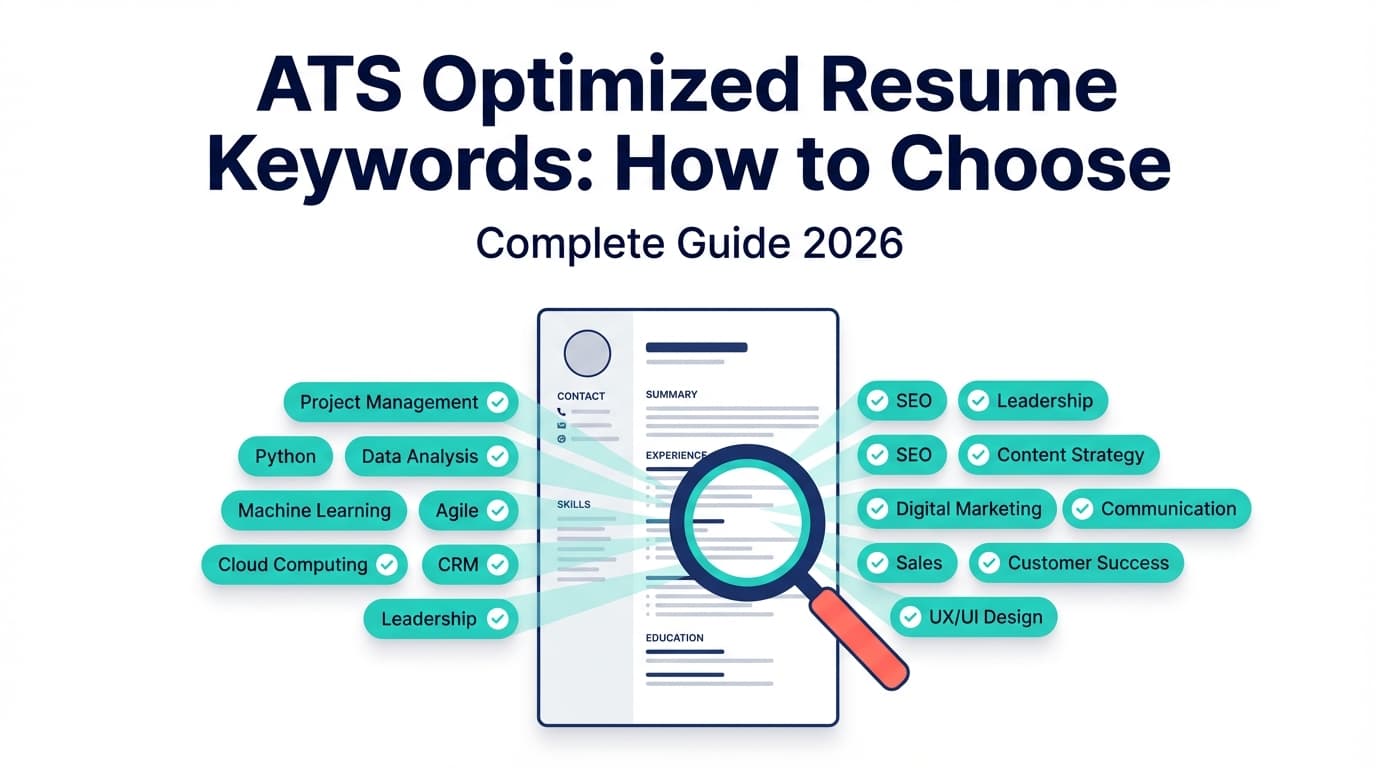
Step 7: Tailor keywords like a recruiter search will find you (without stuffing)
Workday optimization isn’t “tricking the ATS.” It’s ensuring:
- the right terms exist on your resume,
- in the right places,
- backed by evidence.
The 15-minute keyword tailoring workflow
- Paste the job description into a doc.
- Extract:
- must-have skills/tools,
- required responsibilities,
- “preferred” skills,
- certifications/clearances.
- Create two buckets:
- Tier 1 (must-have): 6–12 items
- Tier 2 (nice-to-have): 5–10 items
- Update your resume in three places:
- Skills section: list Tier 1 items you truly have
- Recent experience bullets: prove 3–6 Tier 1 items with outcomes
- Summary (optional): include 2–3 Tier 1 items
Example (keyword + proof)
Job requires: “stakeholder management, KPI dashboards, Tableau, SQL”
Weak bullet:
- “Created dashboards and reports.”
Strong bullet:
- “Built SQL datasets and Tableau KPI dashboards; partnered with stakeholders in Sales Ops to improve pipeline visibility and reduce ad-hoc requests by 25%.”
Pro tip: A keyword in Skills is good. A keyword in a bullet with measurable impact is better.
Step 8: Use “market names” for tools and skills (so parsing + search is easier)
Avoid internal abbreviations unless you also include the full term:
- Use “Google Workspace (G Suite)”
- Use “Azure Data Factory (ADF)”
- Use “BigQuery (BQ)”
This helps both:
- Workday parsing (clearer text patterns),
- recruiter searching (standard terminology).
Step 9: Run the “Workday cleanup pass” before exporting
Use this checklist right before you save DOCX/PDF:
- Single column
- No tables
- No text boxes
- No icons-only contact info
- Contact info is in body text (not header/footer)
- Standard headings: Experience / Education / Skills
- Consistent date format
- Standard bullets (• or -)
- Simple fonts (Arial, Calibri, Times New Roman)
- No images (logos, headshots, skill bars)
Step 10: Test your resume like Workday will “see” it
Test A: Plain-text paste test (fastest, most reliable)
- Copy all text from your resume
- Paste into Notepad/TextEdit
Pass: the text reads top-to-bottom in the same order as your resume.
Fail: sections interleave, dates jump around, or the right side appears before the left.
Test B: “Structured field sanity” test
Before you submit a Workday application:
- check that job titles, companies, and dates autofilled correctly
- correct errors (don’t leave them “because it’s on the resume”)
Some recruiters rely on application fields for filtering, and inconsistent info can look sloppy.
Workday-optimized resume template (copy/paste structure)
FIRST LAST
City, State | phone | email | LinkedIn | portfolio
SUMMARY (optional)
[Role] with [X years] experience in [domain]. Skilled in [Tier 1 keyword], [Tier 1 keyword], and [Tier 1 keyword], delivering [outcome].
SKILLS
- Analytics: SQL, Tableau, KPI dashboards, Excel
- Data: ETL, Data modeling, BigQuery
- Business: Stakeholder management, Forecasting, Requirements gathering
EXPERIENCE
Job Title — Company
Jan 2022 – Present | City, State
- [Action] + [tool/keyword] + [measurable result]
- [Action] + [stakeholder/cross-functional] + [measurable result]
EDUCATION
Degree, Major — School | Year
CERTIFICATIONS (optional)
Certification — Issuer | Year
PROJECTS (optional)
Project — Tools | Year
- What you built + impact
12 best practices for Workday ATS resumes (quick list)
- Use a single-column format
- Use standard headings (“Experience,” “Education,” “Skills”)
- Keep contact info in body text (not header/footer)
- Keep dates consistent and easy to read
- Avoid tables/text boxes/graphics
- Use simple bullets and standard fonts
- Mirror job description keywords (honestly)
- Put keywords in context (proof bullets)
- Prefer DOCX if autofill keeps failing
- Ensure PDFs are text-based (not scanned)
- Plain-text paste test before applying
- Fix autofill errors in the application fields
Common Workday resume mistakes (and exact fixes)
Mistake 1: A two-column resume that looks great but parses badly
Why it hurts: Workday may read columns in the wrong order.
Fix: Create a Workday-specific single-column version.
Mistake 2: “Creative” headings that Workday doesn’t map correctly
Why it hurts: parsers look for predictable patterns.
Fix: Use “Experience / Education / Skills.”
Mistake 3: Keyword stuffing (especially a long skills paragraph)
Why it hurts: it reduces human trust and still doesn’t prove capability.
Fix: Use 8–15 targeted keywords + proof bullets.
Mistake 4: Inconsistent job blocks (titles/dates in random places)
Why it hurts: Workday merges roles or misreads dates.
Fix: Standardize each job entry as Title — Company / Dates / Location / Bullets.
Mistake 5: Upload errors from file size or format issues
Workday instances may enforce constraints like accepted file types and 5MB max. (Example Workday portal: https://workday.wd5.myworkdayjobs.com/en-US/Workday/introduceYourself)
Another reference: UChicago’s Workday Recruiting FAQ also describes accepted types and a 5MB max limit. (Source: https://uchicago.service-now.com/services?id=kb_article&sysparm_article=KB06000556)
Confidence: Medium (organization-specific FAQ, but consistent with many Workday portals).
Fix:
- Save as DOCX
- Re-export PDF (text-based)
- Remove images
- Reduce embedded font bloat
Troubleshooting: When Workday autofill is a mess
Symptom: Workday merges two jobs into one
Likely cause: weak separators between roles.
Fix: add clear job blocks with consistent spacing and formatting.
Symptom: Workday misses your education
Likely cause: non-standard heading or unconventional formatting.
Fix: heading “Education” + standard degree line.
Symptom: Dates are wrong or swapped
Likely cause: mixed date formats or tabbed right-alignment.
Fix: use MMM YYYY – MMM YYYY consistently; keep dates left-aligned.
Symptom: You can’t upload your resume
Likely cause: file type/size restrictions, or a portal-specific issue.
Fix checklist:
- Try DOCX
- Keep under the portal’s file size limit (often 5MB)
- Avoid image-based files (some Workday guidance states image-based files aren’t supported: Henry Schein PDF above)
Tools to help with Workday ATS optimization (honest recommendations)
JobShinobi (resume building + ATS-focused analysis + job matching)
If you want help tailoring and iterating quickly, JobShinobi supports:
- A LaTeX resume editor with PDF preview/compilation
- AI resume analysis (ATS-focused scoring + feedback)
- Job description extraction (from a URL or pasted text) and resume-to-job matching
- Resume version history so you can keep a clean “Workday base resume” plus tailored copies for different roles
Pricing: JobShinobi Pro is $20/month or $199.99/year. The pricing page mentions a 7-day free trial, but trial enforcement is not clearly evidenced in the app code—so don’t treat it as guaranteed.
Internal links:
- Resume workspace:
/dashboard/resume - Subscription page:
/subscription
Other tools you’ll see in this space
- Teal’s Workday resume guide: https://www.tealhq.com/post/workday-resume
- Resumly’s Workday ATS tailoring guide: https://www.resumly.ai/blog/how-to-tailor-resumes-for-workday-ats-specifically
- ResuFit’s autofill-focused article: https://www.resufit.com/blog/optimizing-resume-text-for-autofill-success-a-guide-to-workday-and-ats-compatibility/
- The Interview Guys (deep ATS tactics, not Workday-specific): https://blog.theinterviewguys.com/ats-resume-hack/
Key takeaways
- Workday optimization is mostly about parsing reliability + keyword alignment, not hacks.
- Use single-column formatting and standard headings Workday expects.
- If Workday autofill is failing, DOCX is often safer than PDF.
- Tailor keywords by putting them in Skills + proof bullets, not stuffing.
- Always run the plain-text paste test and correct application field errors.
FAQ (from common Workday/ATS searches)
What is the best format for resume for Workday ATS?
A single-column resume with standard headings like Experience, Education, Skills is the safest. Workday itself recommends simple section headings and limited graphics/special characters. (Source: https://www.workday.com/en-us/topics/hr/applicant-tracking-system.html)
Does Workday prefer PDF or Word (DOCX)?
It depends on the employer portal configuration, but if Workday autofill keeps failing, DOCX is often the safer choice. If using PDF, make sure it’s text-based (not scanned) and passes the copy/paste plain-text test.
Why do I have to manually enter info after uploading my resume in Workday?
Because Workday is trying to parse your resume into structured fields. If your formatting is hard to parse (columns, tables, headers/footers, text boxes), the extracted content may be incomplete—so you end up correcting it manually.
How does Workday ATS score applicants?
There’s no universal “Workday score” visible to job seekers, and employer setups vary. Focus on what you can control: clean parsing, strong keyword alignment, and clear, measurable proof in your bullets.
What file types does Workday accept for resume upload?
Many Workday portals list accepted formats like DOC, DOCX, HTML, PDF, or TXT (often with size limits such as 5MB max). Example: https://workday.wd5.myworkdayjobs.com/en-US/Workday/introduceYourself
Always follow the requirements shown on the specific application portal you’re using.
Can I upload more than one document in Workday?
It depends on the employer’s configuration. Some Workday candidate FAQs state you can upload only one attachment per application (example PDF: https://dn9tckvz2rpxv.cloudfront.net/sci/pdf/Workday-FAQ.pdf), while other organizations may allow multiple documents in certain sections. Check the application instructions carefully.