A single corporate job opening attracts 250 resumes on average, but only 4–6 candidates get called for an interview (Glassdoor). Confidence: Medium (commonly cited; still one primary source).
Source: https://www.glassdoor.com/blog/50-hr-recruiting-stats-make-think/
When competition is that tight, you can’t afford to lose opportunities because your PDF exported incorrectly—turning your resume into scrambled text, missing dates, or “blank” fields inside an applicant tracking system (ATS).
In this guide, you’ll learn:
- What an “ATS-friendly PDF” actually is (and what breaks it)
- How to export/download a PDF safely from Word, Google Docs, Canva-style tools, and LaTeX workflows
- A fast ATS PDF validation checklist (5 minutes before you submit)
- When to choose PDF vs DOCX (and why “always PDF” is not always correct)
- Common parsing failures and how to fix them
- Tools to help you test (including JobShinobi, when relevant)
What Is an ATS-Friendly PDF?
An ATS-friendly PDF is a PDF that an ATS can reliably:
- Open
- Extract text from
- Read in the correct order (top-to-bottom, left-to-right)
- Map into fields like Work Experience, Education, Skills, job titles, company names, and dates
The key idea: PDF “file type” isn’t the whole story
Two PDFs can look identical to a human—but one might be:
- an image-only PDF (basically a screenshot), or
- a hybrid PDF with weird reading order due to design layers, text boxes, or columns.
That’s why “download as PDF” is not enough. You need “download as a text-based, properly ordered PDF.”
Why This Matters in 2026 (ATS + Human Review)
ATS systems are widely used—and even when an ATS doesn’t “reject” you automatically, it can still mis-parse your resume, which affects:
- how you appear in recruiter searches
- how your application looks in their system
- how easily a human can scan it
Here are a few data points worth knowing:
-
97.8% of Fortune 500 companies had an ATS detected by Jobscan (2025 report). Confidence: Medium (credible industry study, but Jobscan-specific detection methodology).
Source: https://www.jobscan.co/blog/fortune-500-use-applicant-tracking-systems/ -
Recruiters skim quickly: The Ladders’ eye-tracking research is widely cited as showing an average 7.4 seconds spent on an initial resume scan. Confidence: High (primary PDF + reputable secondary coverage).
Sources:
https://www.theladders.com/static/images/basicSite/pdfs/TheLadders-EyeTracking-StudyC2.pdf
https://www.hrdive.com/news/eye-tracking-study-shows-recruiters-look-at-resumes-for-7-seconds/541582/ -
ATS adoption goes beyond Fortune 500. Select Software Reviews cites 70% of large companies using an ATS and 75% of recruiters using an ATS or another tech-driven recruiting tool. Confidence: Medium (aggregation-style stats page; validate with additional primary sources when possible).
Source: https://www.selectsoftwarereviews.com/blog/applicant-tracking-system-statistics -
Competition is intense: 250 resumes per opening (and 4–6 interviews) reinforces why formatting mistakes are costly. Confidence: Medium.
Source: https://www.glassdoor.com/blog/50-hr-recruiting-stats-make-think/
Bottom line: You need a resume that parses cleanly and reads clearly once a human sees it.
How to Download a Resume as an ATS Friendly PDF: Step-by-Step
Step 1: Make your resume “ATS-safe” before exporting
The PDF export can’t fix a layout that’s built on elements ATS parsers commonly struggle with.
Avoid these high-risk formatting choices:
- Two columns (or multi-column sections)
- Tables (especially for skills)
- Text boxes / floating shapes
- Headers/footers for critical info (name, email, phone)
- Icons used instead of words (phone icon instead of “Phone”)
- Skill bars, charts, heavy graphics
- Weird symbols for bullets
UIC’s career services guide explicitly warns about complex formatting (headers/footers, etc.) and notes not all ATS systems can read all file types. Confidence: Medium (institutional guidance; ATS capability varies).
Source: https://careerservices.uic.edu/wp-content/uploads/sites/26/2017/08/Ensure-Your-Resume-Is-Read-ATS.pdf
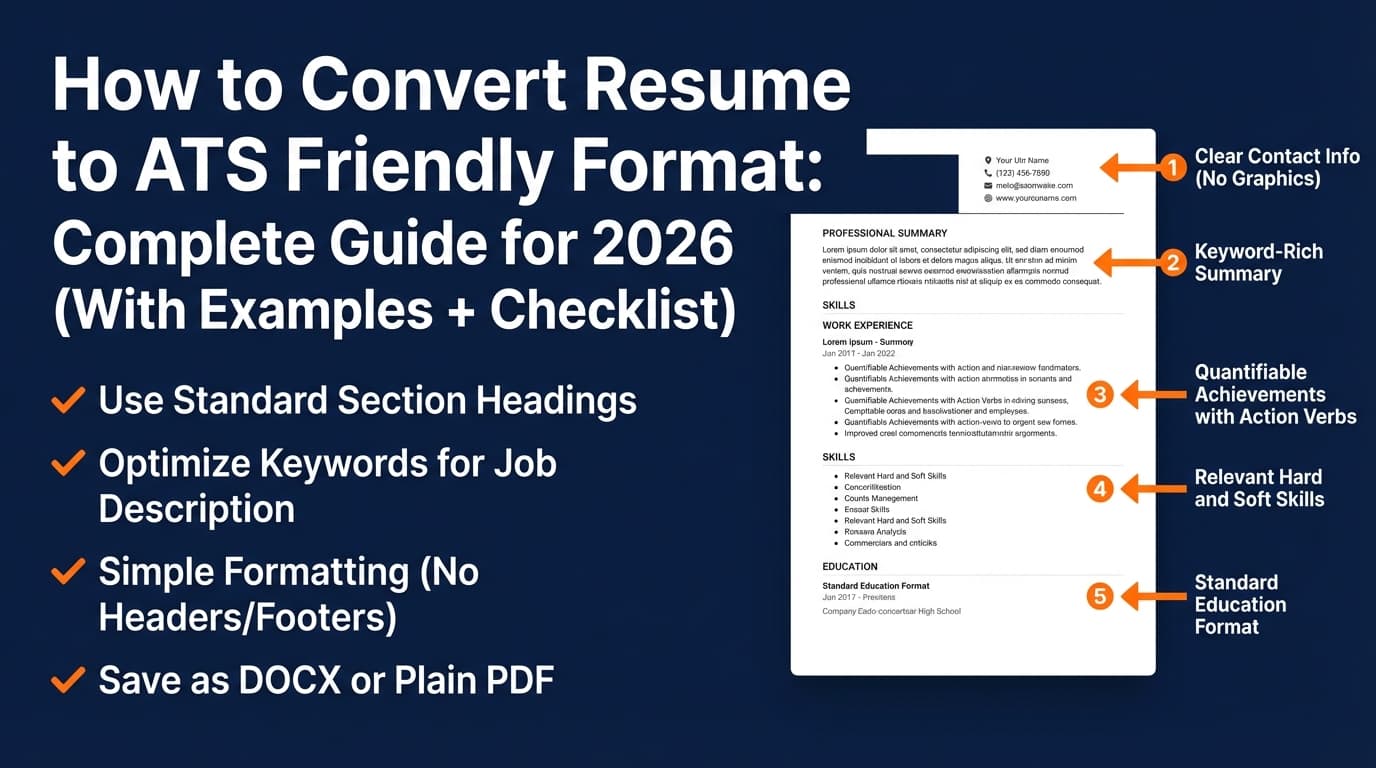
Pro tip: Use standard section headings like:
- WORK EXPERIENCE
- EDUCATION
- SKILLS This helps parsers classify your content consistently.
Step 2: Export your PDF correctly (by tool)
Below are practical “safe defaults.” The goal is always the same: produce a text-based PDF with clean reading order.
Option A: Google Docs (common + usually safe)
- Open your resume in Google Docs
- File → Download → PDF Document (.pdf)
- Save
Extra safety tips (Docs):
- Avoid “drawing” elements, floating text boxes, or heavy use of columns
- After exporting, do the copy/paste test (Step 3)
Option B: Microsoft Word (use Standard quality)
- Open in Word
- File → Save As
- Choose file type PDF
- Select Optimize for: Standard (publishing online and printing)
- Save
Why “Standard” matters: Over-compression can sometimes create weird text extraction behavior. It’s not guaranteed, but choosing Standard is a low-effort best practice.
Option C: Canva / design-first resume tools (be cautious)
Design-first tools can produce PDFs that look great but parse poorly because text is layered, grouped, or positioned in blocks.
If you use a design tool:
- pick an explicitly “ATS-friendly” template (single column, minimal graphics)
- avoid icons and text boxes where possible
- validate reading order (Step 3)
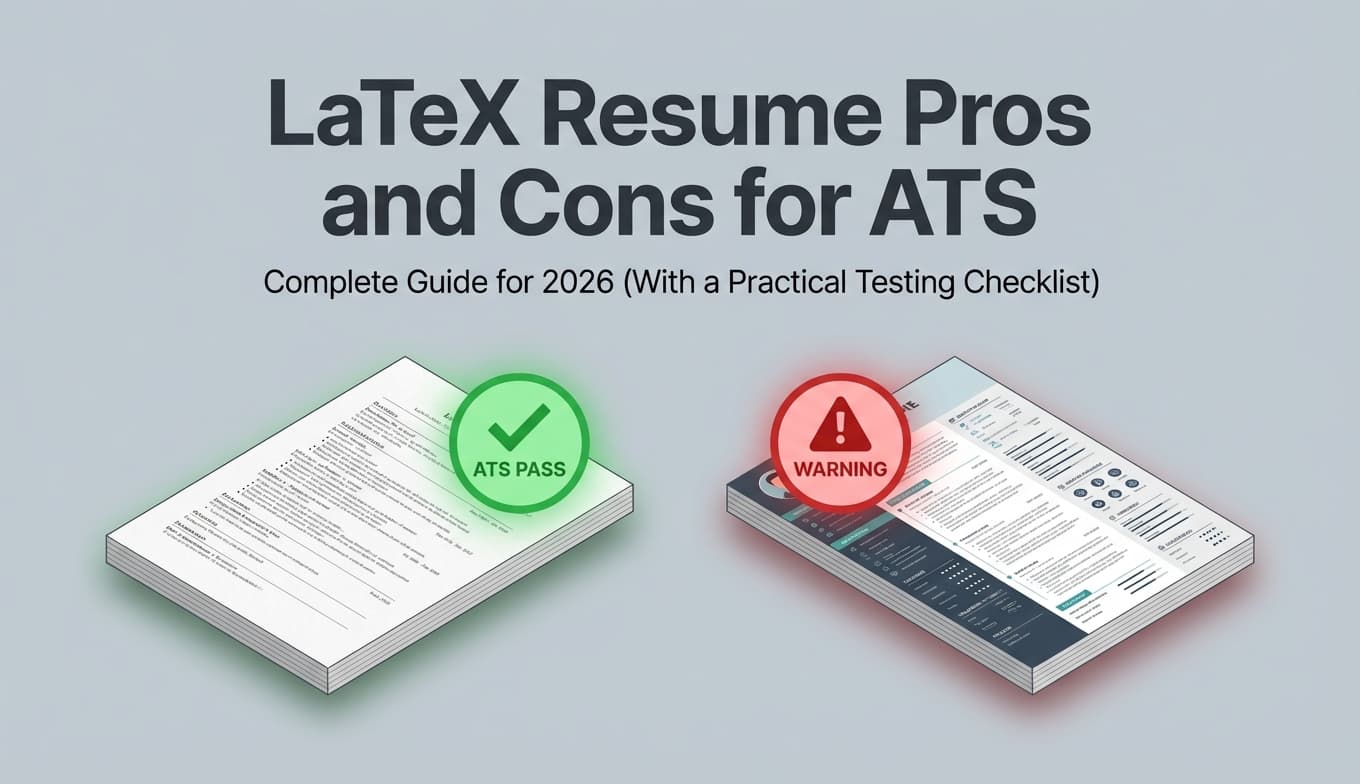
Option D: LaTeX resumes (predictable structure, but still validate)
LaTeX often yields consistent typography and layout control. However, you still need to validate the exported PDF is text-based and ordered correctly—especially if you use multi-column packages or creative layouts.
JobShinobi note (accurate feature mention): JobShinobi includes a LaTeX resume editor with PDF preview and lets you download your PDF and your .tex file from the editor. It also supports AI resume analysis and job matching (resume-to-job).
Pricing accuracy: JobShinobi Pro is $20/month or $199.99/year. Marketing mentions a “7-day free trial,” but trial mechanics aren’t clearly verifiable in code, so don’t rely on it as guaranteed.
Internal links: /dashboard/resume, /login, /subscription
Step 3: Validate your PDF is ATS-readable (5-minute checklist)
This is the “make it or break it” step. Do it before you upload anywhere.
Test #1: Text select test (fastest)
Open the PDF and try to highlight text.
- If you can’t select text, your PDF may be image-only (bad for ATS).
- If you can select text, good sign—keep going.
Adobe describes selecting/highlighting as a quick way to tell whether a PDF is scanned/image-based. Confidence: High.
Source: https://www.adobe.com/acrobat/online/ocr-pdf.html
Test #2: Copy/paste test (reveals reading order problems)
- Select all (Ctrl/Cmd + A)
- Copy
- Paste into plain text:
- Notepad (Windows) / TextEdit in plain-text mode (Mac), or
- a blank Google Doc
What to look for:
- Your name + contact info appears at the top
- Experience entries stay grouped (title + company + dates + bullets)
- Dates don’t “float” away from the job they belong to
- Bullets don’t merge into a single paragraph
- Content is not interleaved (left column mixed with right column)
If paste output looks chaotic, ATS extraction may be chaotic too.
Test #3: Search test (Ctrl/Cmd + F)
Search the PDF for:
- your email address
- your current job title
- a key skill (“SQL”, “Python”, “Project management”)
If search can’t find visible words, something is wrong with the text layer.
Test #4: Portal preview test (the most realistic)
Many job portals show a parsed preview after upload.
Use it like a final exam:
- Are company names correct?
- Are job titles and dates aligned?
- Are bullets missing?
- Is the Education section misread?
If it’s wrong, fix the source resume and re-export.
PDF vs DOCX for ATS: What to Upload (Practical Rules)
Some people say “always submit PDF.” Others say “always submit DOCX.” Realistically, it depends on the employer’s system and instructions.
MIT Career Advising suggests it’s usually fairly safe to use either DOC/DOCX or PDF unless the job description specifies otherwise. Confidence: High (credible institution guidance).
Source: https://capd.mit.edu/resources/make-your-resume-ats-friendly/
Use this decision tree
- If the posting requests DOC/DOCX: submit DOCX.
- If it requests PDF: submit PDF.
- If it doesn’t specify:
- default to a validated, text-based PDF (clean + consistent appearance)
- keep a DOCX fallback if the portal preview breaks your PDF
When DOCX is often safer
- Portals with notoriously bad PDF parsing
- Applications that force you to “review parsed fields” and the PDF comes out scrambled
When PDF is often better
- You’re emailing a recruiter/hiring manager directly
- You need formatting consistency across devices
- Your PDF passes the copy/paste + search tests
How to “Download as ATS Friendly PDF” From Common Formats (Mini How-Tos)
How to convert a DOCX resume to an ATS-friendly PDF
- Clean up formatting first (single column, no tables/text boxes)
- Save as PDF (Standard quality)
- Validate using Step 3 tests
How to convert a Google Doc resume to an ATS-friendly PDF
- Avoid columns/tables/graphics
- Download as PDF
- Copy/paste test to confirm reading order
How to convert a Canva resume to an ATS-friendly PDF (without breaking parsing)
- Simplify layout: one column, minimal design
- Avoid icons and floating blocks
- Export as PDF
- Validate reading order; if it fails, rebuild in Word/Docs using a simple layout
12 Best Practices for an ATS-Friendly PDF Resume
- Single-column layout
- Standard headings (Work Experience, Education, Skills)
- Contact info in the body (not header/footer)
- Readable, common font
- Consistent date format (e.g.,
Jan 2022 – Mar 2024) - Avoid text boxes and shapes
- Avoid tables (especially for skills)
- No icons as labels
- Simple bullets (standard bullet points)
- No image-only PDFs
- Keyword alignment without stuffing
- Keep a DOCX fallback ready
For additional context on PDF types and ATS compatibility, Smallpdf’s breakdown is a helpful overview. Confidence: Medium (credible PDF company, not an ATS vendor).
Source: https://smallpdf.com/blog/do-applicant-tracking-systems-prefer-resumes-in-pdf-format
Common Mistakes to Avoid (and How to Fix Each One)
Mistake 1: Your PDF is image-only
Symptoms
- You can’t highlight text
- Search (Ctrl/Cmd+F) doesn’t work
Fix
- Re-export from the original document (Word/Docs/LaTeX)
- If you only have a scanned PDF, OCR is an option—but re-exporting is better whenever possible
(Adobe’s guidance supports using text selection to identify scanned PDFs.)
Source: https://www.adobe.com/acrobat/online/ocr-pdf.html
Mistake 2: Two-column layouts scramble parsing
Symptoms
- Copy/paste shows content out of order
- Portal preview interleaves sections
Fix
- Rebuild in a single-column format
- Use whitespace and bold for structure—not columns
Mistake 3: Dates detach from jobs
Symptoms
- Dates appear in the wrong place in portal preview
Fix
- Put dates inline:
Company — Title | City, ST | Jan 2022 – Present - Avoid far-right aligned dates via text boxes or unusual tabs
Mistake 4: Tables break skills parsing
Symptoms
- Skills disappear or merge
- Columns collapse
Fix
- Use a simple list, e.g.
Skills: SQL, Excel, Tableau, Python, Stakeholder Management
Mistake 5: You’re chasing an “ATS score” instead of clarity
Symptoms
- Resume reads awkwardly but scores “higher” in a tool
Fix
- Use tools for guidance, but keep the resume readable for humans (remember the ~7.4-second skim reality from Ladders/HR Dive)
Sources:
https://www.theladders.com/static/images/basicSite/pdfs/TheLadders-EyeTracking-StudyC2.pdf
https://www.hrdive.com/news/eye-tracking-study-shows-recruiters-look-at-resumes-for-7-seconds/541582/
A Simple Example of ATS-Safe Formatting (Copy/Paste Friendly)
Use this as a structural template (not a design template):
FIRST LAST
City, ST • phone • email • LinkedIn • Portfolio/GitHub
SUMMARY
2–3 lines aligning your role + strengths + target.
SKILLS
SQL, Python, Excel, Tableau, Stakeholder Management, Agile
WORK EXPERIENCE
Company Name — Job Title | City, ST | Jan 2023 – Present
- Did X by doing Y resulting in Z (quantified)
- Improved A by B% by implementing C
Company Name — Job Title | City, ST | Jun 2020 – Dec 2022
- …
EDUCATION
School — Degree | Graduation Year
This structure usually survives both ATS parsing and recruiter skimming.
Tools to Help You Validate an ATS-Friendly PDF
You’re looking for tools that help with export quality and parsing validation—not just “pretty templates.”
-
JobShinobi: LaTeX resume editor + PDF compilation/preview + download PDF and .tex, plus AI resume analysis and resume-to-job matching. (Pricing: Pro $20/month or $199.99/year; “7-day free trial” is mentioned in marketing but not clearly verifiable in code.)
Internal links: /dashboard/resume, /subscription -
Resume Worded (education on ATS + PDFs): A practical explainer on whether ATS can read PDFs and what matters beyond file type. Confidence: Medium (helpful, but still a vendor site).
Source: https://resumeworded.com/can-ats-read-pdf-documents-key-advice -
Smallpdf (education on PDF vs DOCX): Helpful overview of PDF types and when each format is appropriate. Confidence: Medium.
Source: https://smallpdf.com/blog/do-applicant-tracking-systems-prefer-resumes-in-pdf-format -
University career center guides (high-signal, less salesy)
MIT: https://capd.mit.edu/resources/make-your-resume-ats-friendly/
UIC: https://careerservices.uic.edu/wp-content/uploads/sites/26/2017/08/Ensure-Your-Resume-Is-Read-ATS.pdf
Key Takeaways
- “ATS-friendly PDF” means text-based + correct reading order, not just “saved as PDF.”
- Export correctly, then run the select → copy/paste → search validation checks.
- If the portal breaks your PDF or requests Word, use a DOCX fallback.
- Optimize for both the ATS and the human skim (recruiters move fast).
FAQ (People Also Ask)
How to make a PDF resume ATS friendly?
Make sure your PDF is text-based (selectable text), uses a single-column layout, avoids tables/text boxes/graphics, and uses standard headings. Then validate by copy/pasting into plain text to confirm the order stays correct.
Can ATS read PDF resumes?
Often yes—especially modern systems—but ATS compatibility depends on the PDF’s text layer and structure. A clean, text-based PDF usually parses better than an image-based or heavily designed PDF.
Helpful guidance: MIT says PDF or DOCX is usually fine unless the employer specifies otherwise.
Source: https://capd.mit.edu/resources/make-your-resume-ats-friendly/
Does ATS prefer PDF or DOCX?
There’s no universal preference across all ATS platforms. DOCX is often the safest if the portal requests it or if your PDF parses incorrectly in the preview. PDF is often best when validated and when formatting consistency matters.
How do I check if my PDF is text-based or scanned?
Try to highlight/select text in the PDF. If you can’t, it’s likely image-based. Adobe recommends this as a quick test.
Source: https://www.adobe.com/acrobat/online/ocr-pdf.html
Why does my resume parse wrong in job portals?
Because parsers interpret document structure differently than humans. Columns, tables, text boxes, and right-aligned dates can scramble extraction. Simplify to single column, remove tables/text boxes, re-export, and re-test using the portal preview.
Is the “75% of resumes are rejected by ATS” statistic real?
This claim is widely repeated, but it’s often criticized as hiring folklore rather than a consistently verifiable statistic. Treat it cautiously and focus on what you can control: clean formatting, correct keywords, and strong, quantified content. Confidence: Medium (credible critiques exist, but “true rate” varies by employer and process).