Recruiters skim fast. One widely cited eye-tracking study recap found recruiters looked at resumes for about 7.4 seconds on average—and spent longer when layouts were simple and clearly sectioned. (Source: HR Dive’s coverage of The Ladders eye-tracking study) 1
So if your resume scanner (or the employer’s ATS parser) reads your file out of order—or drops key info like skills and dates—you can lose your shot before a human ever sees your strongest bullets.
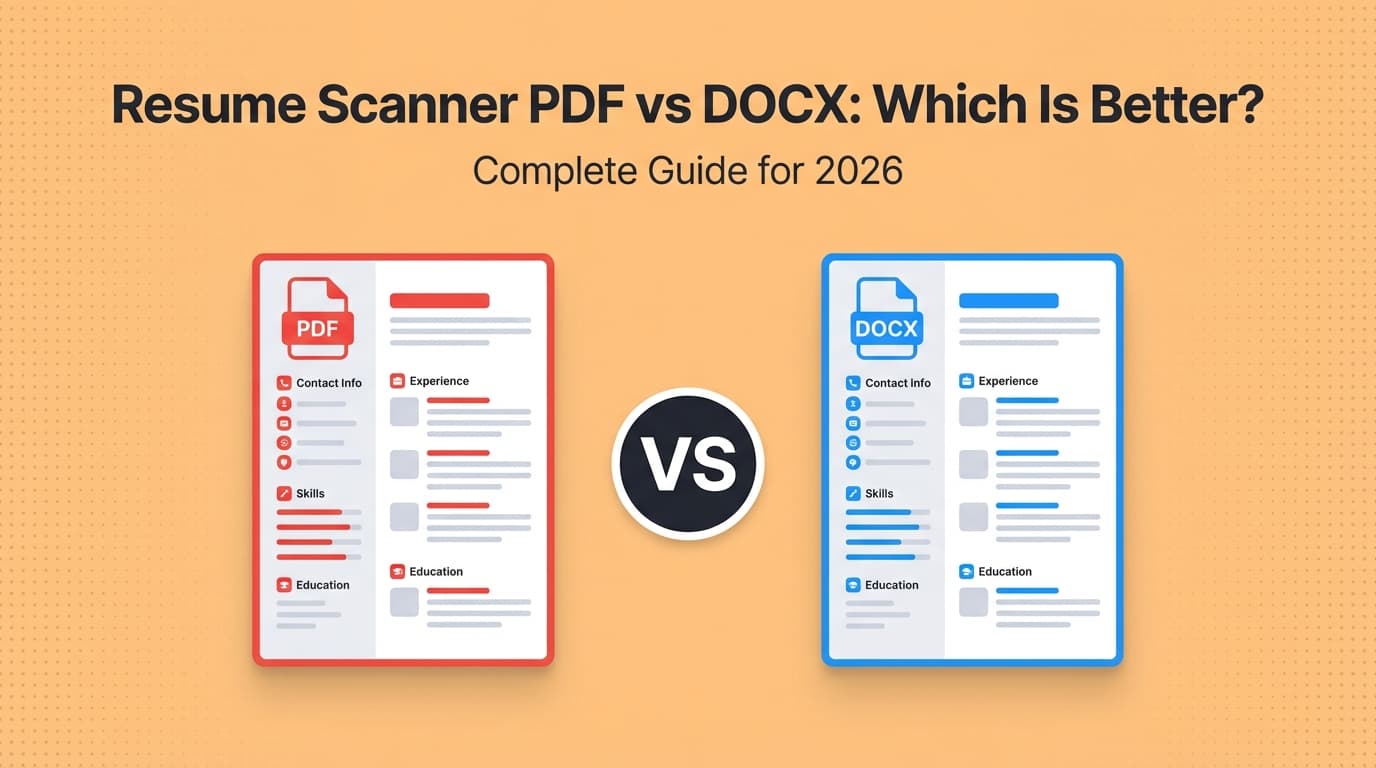
This guide answers the question behind the keyword: resume scanner PDF vs DOCX which is better—with a practical decision tree, real parsing failure modes, and “how to test it” steps you can use today.
In this guide, you’ll learn:
- Why “PDF vs DOCX” isn’t a one-size-fits-all answer (and what actually matters to scanners)
- A step-by-step method to test whether your PDF or DOCX will parse correctly
- When to submit PDF, when to submit DOCX, and when to keep both versions ready
What is a resume scanner (and what does it actually “scan”)?
A resume scanner is any software that tries to read your resume and turn it into structured data. Depending on context, that could mean:
- An ATS (Applicant Tracking System) parsing your upload into fields (name, experience, education, skills)
- A job board doing resume autofill (upload → form fields get populated)
- A third-party ATS resume checker that gives you a score, keyword match, or formatting warnings
Resume scanners don’t “read like humans”
They typically:
- Extract text from the file (PDF/DOCX)
- Guess document structure (headings, sections, dates, company names)
- Store the results in a profile and/or search index
That’s why file type matters: PDF and DOCX store text and layout differently, and that changes how reliably the scanner can extract the text in the right order.
Why PDF vs DOCX matters more in 2026 (and why this debate won’t die)
ATS usage is widespread—and your file often gets parsed multiple times.
- Select Software Reviews reports: 70% of large companies use an ATS, 20% of small and mid-sized businesses use an ATS, and 75% of recruiters use an ATS or other tech-driven tools. 2
- Even when a company uses a modern ATS, your resume may still pass through:
- a job board parser,
- an ATS parser,
- and internal recruiter tooling.
Translation: you’re not optimizing for one perfect scanner—you’re optimizing for reasonable compatibility across many parsers.
The real answer: Is PDF or DOCX better for resume scanners?
Quick summary (decision rule)
- DOCX is usually the safer choice for strict parsing and autofill.
- PDF is usually the better choice for consistent visual formatting—if it’s text-based and simply structured.
- If the application gives instructions, follow them. (This is “Rule #1” for a reason on most credible guidance pages.)
The Muse puts it bluntly (quoting a Jobscan representative): “DOCX files are much easier for applicant tracking software to parse into a digital applicant profile.” 3
Smallpdf’s ATS guide similarly frames it as situational: PDF and DOCX can both work, but DOCX tends to be more reliably parsed, while PDF depends heavily on what kind of PDF you created. 4
MIT’s career office also advises that, unless an employer specifies otherwise, it’s often fairly safe to use either .doc/.docx or .pdf—but the key is using a supported file type and keeping formatting clean. 5
What makes a PDF “ATS-friendly” vs “ATS-hostile”?
Not all PDFs are equal. A resume scanner typically handles text-based PDFs well and struggles with image-based PDFs.
A PDF is usually ATS-friendly when:
- The text is selectable and searchable
- The document uses a logical reading order (single column helps)
- Fonts are embedded normally (nothing exotic)
- The file isn’t protected/locked in a way that blocks text extraction
A PDF often breaks parsing when it’s:
- A scanned PDF (i.e., one big image)
- A “flattened” export where text becomes shapes/images
- Built with heavy text boxes, layered elements, or multi-column designs that scramble reading order
HiringThing (an ATS vendor) explicitly notes parse failures often happen when a resume is in a format the system can’t read—such as a scanned PDF or an unusually formatted document. 6
Why DOCX can parse more cleanly (and when it still fails)
DOCX is structured text with style/paragraph data, so many parsers extract content more predictably.
DOCX can still fail when you use:
- Tables for layout (especially “invisible” tables)
- Text boxes / shapes
- Headers and footers for critical content (like contact info)
Many ATS-formatting guides warn that headers/footers may be ignored by parsers—so contact details can disappear if you place them there. (Jobscan and multiple ATS-focused guides frequently mention this risk; see related discussions in ATS formatting resources.) 4
How to choose: PDF vs DOCX (a practical decision matrix)
Use this matrix instead of guessing.
Choose DOCX when:
- The application portal includes resume autofill (upload → fields populate)
- The employer explicitly says “upload a Word document”
- You’re applying through older/legacy systems (common in large enterprises)
- You’ve had issues where your PDF parses out of order
Choose PDF when:
- You’re emailing a recruiter/hiring manager directly (presentation matters)
- You want consistent formatting across devices
- The job post explicitly requests PDF
- You’ve verified your PDF is text-based and parses cleanly (you’ll learn how below)
Choose both (recommended strategy) when:
- You’re applying to many roles across many systems and want a safe fallback.
Pro move: Keep two files ready at all times:
FirstName_LastName_Resume.pdfFirstName_LastName_Resume.docx
How to test your resume like a scanner (Step-by-step)
This is the part most “PDF vs DOCX” articles skip. Testing beats guessing.
Step 1: Do the “copy/paste into plain text” test (2 minutes)
Goal: see what the ATS likely “sees.”
- Open your PDF
- Select all text (Ctrl/Cmd + A)
- Copy
- Paste into a plain text editor (Notepad/TextEdit)
What good looks like:
- Sections remain in logical order
- Bullets don’t turn into gibberish
- Dates and company names stay aligned with the right roles
What bad looks like:
- Right column pastes first, then left column
- Lines break strangely and merge into paragraphs
- Headings vanish or repeat randomly
If your PDF fails this test, DOCX is often the safer submission for scanners.
Step 2: Check whether your PDF is actually text-based
A simple “human” check:
- Can you highlight individual words in the PDF?
- Can you use Find (Ctrl/Cmd + F) to search for a skill like “SQL”?
If not, your PDF may be image-based (scanner-unfriendly). Guidance for identifying image-based vs searchable PDFs is common across PDF help documentation (e.g., selection/search tests). 6
Step 3: Test your DOCX the same way
Open the DOCX and copy/paste into plain text.
If your DOCX paste is clean but your PDF paste is scrambled, that’s a strong sign to submit DOCX—at least for online portals.
Step 4: Run a resume parser preview (optional but helpful)
Many resume scanners and ATS checkers show a “parsed view” (what fields they extracted). Use it to confirm:
- Contact info appears
- Job titles map to the right companies
- Dates aren’t missing
- Skills aren’t dropped
Important: Different scanners can give different results—use them as debugging tools, not ultimate truth.
Common mistakes that make scanners misread PDFs and DOCX
Mistake 1: Two-column layouts and sidebars
Columns often look great to humans and fail in parsing. The scanner may read across columns in a strange order.
Fix: Use a single-column layout (especially for ATS-heavy industries).
Mistake 2: Putting contact info in headers/footers
Some parsers ignore headers/footers, so your name/email can disappear.
Fix: Put contact info in the main body at the top.
Mistake 3: Using text boxes for section headings
Text boxes can be extracted out of order or skipped.
Fix: Use simple headings styled as bold text (no shapes).
Mistake 4: Exporting a “designed PDF” where text becomes non-text
Common with some design tools or certain export settings.
Fix: Ensure the exported PDF keeps selectable text. Re-export using a “standard PDF” option and retest.
Mistake 5: Oversized resume files that fail upload
Some systems enforce file size limits.
- Workable’s help center notes a 5MB resume upload limit for resumes on their application form, and lists accepted file types like .pdf / .doc / .docx / .rtf / .html / .odt. 7
- Greenhouse allows common resume formats (doc, docx, pdf, rtf, txt) and states uploads can be up to 100MB. 8
Fix: Keep your resume lightweight:
- Avoid high-resolution photos/graphics
- Don’t embed huge images/icons
- Compress if needed (but re-test parsing after compression)
PDF vs DOCX: Best practices (for better scanner results)
10 Best Practices for PDF resumes (ATS + scanners)
- Use a single-column layout
- Avoid text boxes, shapes, and layered elements
- Keep fonts standard (e.g., Arial, Calibri, Times New Roman)
- Make sure text is selectable
- Don’t scan/photograph your resume into a PDF
- Avoid icons as the only label (e.g., phone icon with no number label)
- Use standard headings (“Experience,” “Education,” “Skills”)
- Use real bullet characters (not special symbol fonts)
- Keep file size modest (some portals choke on large PDFs) 7
- Re-test after every export (copy/paste test)
8 Best Practices for DOCX resumes
- Avoid tables for layout (even “invisible” ones)
- Avoid text boxes and shapes
- Don’t put key info in headers/footers
- Keep spacing simple (use paragraph spacing, not dozens of line breaks)
- Use consistent date formats (helps parsers categorize timelines)
- Use standard section headings
- Save as .docx (not .doc) unless required
- Open and review on another device (DOCX can shift visually)
“Which is better for resume scanners?” A simple decision tree
Use this every time you apply:
- Does the posting specify a format?
- Yes → use that format.
- Is it an online portal with autofill?
- Yes → start with DOCX, then verify autofill results.
- Is it email/direct submission?
- Yes → use PDF (clean, text-based).
- Unsure what ATS they use?
- Keep both ready; default to DOCX for portals, PDF for humans.
Real-world scenarios (examples)
Example 1: “My PDF looks perfect but the application form is nonsense”
What happens: You upload a PDF, the portal autofill puts your skills into “Company Name,” and your job titles vanish.
Likely cause: The parser couldn’t infer reading order because of columns/text boxes.
Fix:
- Submit DOCX instead
- Simplify layout (single column)
- Retest paste-to-plain-text
Example 2: “My DOCX parses fine but looks ugly when emailed”
What happens: Recruiter opens the Word file, spacing changes, and it looks less polished.
Fix:
- Email the PDF
- Keep DOCX for portal uploads
Example 3: “My PDF isn’t selectable”
What happens: You can’t highlight text in the PDF, and scanners struggle.
Likely cause: You exported a flattened or image-based PDF.
Fix:
- Re-export from the source document using a standard PDF export
- If it’s scanned, use OCR to convert it to searchable text, then re-test
- Consider switching to DOCX for portals
Tools to help with PDF vs DOCX resume scanning (honest recommendations)
You don’t need 10 tools. You need:
- a way to build a clean resume, and
- a way to test and tailor it to job descriptions.
JobShinobi (resume building + ATS-focused analysis)
If you want to reduce format-related surprises, JobShinobi is built around a LaTeX resume editor that compiles your resume to PDF inside the app, plus AI-powered resume analysis and resume-to-job matching (so you can check keyword gaps against a job description).
It also includes a job application tracker—and one differentiator is email-forwarding-based tracking, but email processing is gated to JobShinobi Pro.
Pricing (transparent): JobShinobi Pro is $20/month or $199.99/year. The pricing UI mentions a 7-day free trial, but trial enforcement isn’t clearly verifiable from code—so treat the trial as “may be offered” rather than guaranteed. (If you’re not logged in yet, start here: /login.)
Smallpdf (PDF checks and education)
Smallpdf publishes an ATS-focused PDF guide and offers PDF tools that can help you re-save, compress, and sanity-check PDFs—useful when file size or PDF structure is the issue. 4
ATS parsing preview tools (various)
Use any reputable “resume parser preview” to answer one question: Did it extract my experience, dates, and skills correctly?
Treat the score as secondary; treat the parsed output as the truth.
Key Takeaways
- DOCX tends to be more reliably parsed by resume scanners and ATS autofill, especially in online portals. 3
- PDF is great for consistent formatting, but only if it’s a text-based, simply structured PDF. 4
- The fastest way to avoid surprises is to keep both versions and test what the scanner sees (copy/paste into plain text).
- Simple structure beats fancy design—especially when recruiters may only spend seconds on the first pass. 1
FAQ (People Also Ask)
Should my resume be a PDF or DOCX?
If the application doesn’t specify:
- DOCX is often safer for online portals and resume autofill.
- PDF is often better for emailing or handing directly to a recruiter—assuming it’s text-based and parses cleanly.
Is PDF or DOCX more ATS friendly?
Usually DOCX, because parsers can extract structured text more consistently. PDFs can be ATS-friendly too, but only if they’re text-based and not overly designed. 4
Can ATS read PDF resumes?
Yes—many can. The bigger issue is which kind of PDF you upload. A scanned/image-based PDF may fail parsing entirely. ATS vendors note scanned PDFs and unusual formatting are common reasons resumes won’t parse. 6
Why does my resume look fine but parse wrong?
Most parsing issues come from:
- columns/sidebars,
- text boxes,
- headers/footers,
- or PDFs that aren’t truly text-based.
Run the copy/paste test to see what the scanner likely extracted.
What file format do ATS systems accept?
Many ATS/application systems accept common formats like PDF and DOCX (often also RTF/TXT). For example:
- Workable lists accepted resume types including .pdf / .doc / .docx / .rtf / .html / .odt and a 5MB resume limit. 7
- Greenhouse supports doc, docx, pdf, rtf, txt and allows uploads up to 100MB. 8
(Always follow the specific instructions on the posting.)
Sources
Footnotes
-
HR Dive — Eye tracking study shows recruiters look at resumes for 7 seconds https://www.hrdive.com/news/eye-tracking-study-shows-recruiters-look-at-resumes-for-7-seconds/541582/ ↩ ↩2
-
Select Software Reviews — Applicant Tracking System Statistics (Updated for 2026) https://www.selectsoftwarereviews.com/blog/applicant-tracking-system-statistics ↩
-
The Muse — Should You Submit Your Resume as a PDF or Word Doc? 5 Rules to Follow https://www.themuse.com/advice/the-answer-to-should-my-resume-be-submitted-as-a-word-doc-or-pdf ↩ ↩2
-
Smallpdf — Can ATS Read PDF Resumes in 2026? https://smallpdf.com/blog/do-applicant-tracking-systems-prefer-resumes-in-pdf-format ↩ ↩2 ↩3 ↩4 ↩5
-
MIT Career Advising — Make your resume ATS-friendly https://capd.mit.edu/resources/make-your-resume-ats-friendly/ ↩
-
HiringThing Support — Why Some Resumes Won’t Parse https://support.hiringthing.com/support/solutions/articles/3000128879-why-some-resumes-won-t-parse ↩ ↩2 ↩3
-
Workable Help Center — What types of files can be uploaded on the application form? https://help.workable.com/hc/en-us/articles/115012238108-What-types-of-files-can-be-uploaded-on-the-application-form ↩ ↩2 ↩3
-
Greenhouse Support — Supported formats for resumes, cover letters and other candidate uploads https://support.greenhouse.io/hc/en-us/articles/360052218132-Supported-formats-for-resumes-cover-letters-and-other-candidate-uploads ↩ ↩2