Recruiters skim quickly. One widely cited eye-tracking analysis reports recruiters spend about 7.4 seconds on an initial resume review.
Sources: The Ladders eye-tracking PDF (7.4 seconds) and HR Dive coverage of the same study (The Ladders PDF, HR Dive). Confidence: High (reported across multiple independent outlets).
That’s why tools like Jobscan exist: not to “guarantee” a job, but to help you reduce avoidable mistakes (missing keywords, parsing problems, unclear formatting) before your resume hits a real ATS or a human skim.
In this guide, you’ll learn:
- What Jobscan’s resume scanner does (and what it can’t do)
- The step-by-step workflow: parsing → keyword extraction → matching → Match Rate → formatting checks
- How to interpret the Match Rate like an adult (not a video game)
- Common errors (“can’t scan,” “missing skills,” formatting issues) and fixes
- Tools and alternatives—including how JobShinobi approaches matching + resume editing
What is Jobscan’s resume scanner?
Jobscan’s resume scanner is a resume-to-job-description comparison tool. In plain English, it:
- Takes your resume
- Takes a job description
- Compares them to show keyword gaps, matches, and formatting risks
- Produces a Match Rate score and recommendations
Jobscan describes its scanner as comparing your resume to the job description and identifying important keywords and optimization opportunities (Jobscan Resume Scanner). Confidence: High (primary source).
Why Jobscan (and resume scanners in general) matter in 2026
ATS adoption is widespread (especially for large employers)
MIT Career Advising notes that about 99% of Fortune 500 companies use some form of ATS (as stated on their ATS-friendly resume guidance page) (MIT CAPD). Confidence: Medium (credible institution, but still not a peer-reviewed market study).
Jobscan similarly publishes ATS usage reporting, and ATS usage statistics are commonly repeated across hiring research.
ATS software and automation are not going away
A major market report release projects the Applicant Tracking System market to grow from $3.28B in 2025 to $4.88B by 2030 at roughly 8.2% CAGR (MarketsandMarkets via PR Newswire) (PR Newswire). Confidence: Medium (press release, but commonly cited).
What this means for job seekers: formatting + keyword alignment will remain table-stakes—especially in high-volume applicant funnels.
How the Jobscan resume scanner works (step-by-step)
Think of Jobscan as doing four main jobs:
1) You input two documents: your resume + the job description
Jobscan’s own tutorial flow shows you upload/paste your resume and paste a job description to run a scan (Jobscan Tutorial). Confidence: High.
Practical takeaway: Jobscan is not scoring your resume in a vacuum. It’s scoring how well your resume matches a specific job post.
2) It parses your resume (turns formatting into structured text)
Before any “matching,” the tool needs to read your resume the way many ATS systems do: extracting text, then mapping it into fields like Experience, Education, Skills, etc.
A good third-party explanation of resume parsing is Workable’s guide: ATS “parses” resumes by electronically analyzing and extracting key data (Workable). Confidence: Medium (credible HR tech company; still general guidance).
Why parsing matters: If parsing fails, Jobscan might:
- Miss keywords you do have
- Misread your sections
- Under-score you for issues that are really formatting problems
3) It extracts keywords and requirements from the job description
Jobscan’s scanner positions itself around identifying the keywords that matter most in a job description and showing you what’s missing (Jobscan Resume Scanner). Confidence: High.
What counts as a keyword (in practice):
- Hard skills/tools: SQL, Python, Salesforce, Tableau
- Role language: “customer lifecycle,” “forecasting,” “stakeholder management”
- Requirements: degree level, years of experience, certifications
4) It compares resume vs job description and produces a Match Rate report
This is Jobscan’s core output: a report that highlights alignment and gaps, plus an overall Match Rate.
Jobscan’s tutorial content indicates the Match Rate is based on priorities (e.g., hard skills first) and recommends targeting at least a certain threshold (the tutorial page snippet commonly references 75%+) (Jobscan Tutorial). Confidence: Medium (page-level details can vary; still a primary source).
They also publish Match Rate guidance elsewhere, recommending targets like 80% and noting many succeed around 75% (commonly referenced in Jobscan materials and in third-party writeups that quote Jobscan). Confidence: Medium (we have strong SERP support; direct page fetch was blocked in analysis tooling, so treat as “according to Jobscan” rather than an independently verified benchmark).
5) It flags formatting issues that can break ATS parsing
Jobscan emphasizes formatting checks like file type compatibility and ATS-friendly formatting (Jobscan Resume Scanner). Confidence: High.
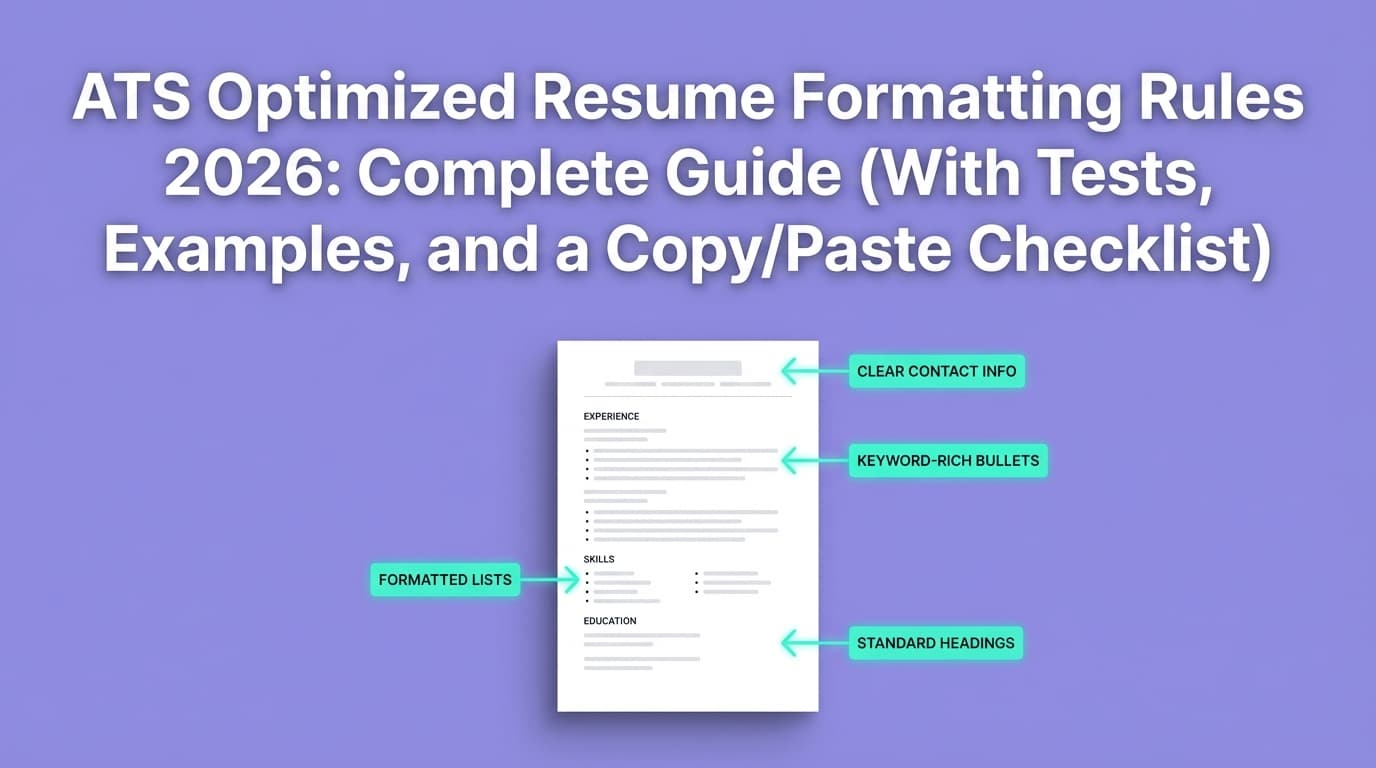
Common formatting pitfalls scanners look for:
- Tables/columns that scramble reading order
- Headers/footers that hide key info
- Icons/images that don’t convert to text
- Inconsistent date formats
MIT also recommends doing a “plain text” style check to see whether your resume content survives conversion (MIT CAPD). Confidence: Medium.
How to use Jobscan properly: a practical workflow (that actually helps)
Step 1: Start with a clean “base resume”
Before tailoring, make sure your resume is:
- Single-column
- Simple headings (Experience, Education, Skills)
- No tables/text boxes/icons for critical content
- Consistent date formatting
Pro tip: Upload your resume into any real application portal that has an “autofill/parse” step. If the form scrambles your content, fix formatting first. Confidence: High (practical best practice; consistent with parsing guidance across multiple sources).
Step 2: Use the full job description (not a summary)
Paste the complete posting (responsibilities + requirements). Remove boilerplate EEOC text if it’s huge.
Pro tip: If the job includes a “Requirements” section, treat it like a checklist—those terms often become search filters later.
Step 3: Run Jobscan and triage the report in this order
- Parsing/formatting warnings first
- Hard skills and must-haves
- Role-specific keywords
- Soft skills last
This keeps you from doing “keyword makeup” on a resume that’s fundamentally not parsing well.
Step 4: Edit by “mapping” requirements to proof—not copying
Don’t paste the job description into your resume. Instead, translate requirements into evidence-backed bullets.
Example (JD → resume bullet mapping)
Job description says: “Build dashboards in Tableau. Use SQL. Partner with stakeholders.”
Better resume bullet:
“Built Tableau dashboards for weekly revenue and retention reporting; partnered with Growth stakeholders to define KPIs and automate SQL extracts, reducing manual reporting by 6 hours/week.”
Why it works:
- Includes real keywords (Tableau, SQL, stakeholders, KPIs)
- Adds credibility (outcome + scope)
- Still reads like a human wrote it
Step 5: Re-scan—but stop once you’re solid
A good goal is “strong alignment + human readability,” not perfection.
A practical stopping rule:
- You’ve covered the key hard skills honestly
- Your experience bullets prove those skills
- The resume is readable and parsable
- You’re not sacrificing clarity to increase a score
What Jobscan’s Match Rate means (and what it doesn’t)
What it does mean
- Your resume vocabulary is aligned with the job description
- You’re less likely to miss obvious ATS search terms
- You’ve addressed common gaps (skills, titles, tools)
What it does not mean
- You’ll get an interview
- You “beat the ATS”
- You’re the best candidate
- The employer’s exact ATS will score you the same way
Reality check (important): “ATS score” tools are simulations. They can be useful—especially for keyword gap checks and formatting red flags—but they’re not a window into every employer’s configuration. Confidence: High (broadly supported across recruiting guidance; exact behavior varies).
Common Jobscan mistakes (and how to avoid them)
Mistake 1: Keyword stuffing
Adding keywords with no proof can damage credibility and sometimes worsen readability.
Fix: For every major skill you add, include at least one bullet that demonstrates it with outcome/scope.
Mistake 2: Chasing 95–100% and making the resume robotic
You can overfit your resume to a score.
Fix: Keep phrasing natural. Use synonyms where appropriate. Avoid repeating the same keyword 10 times.
Mistake 3: Ignoring parsing errors
If your resume isn’t being read correctly, everything else is noise.
Fix: Simplify formatting; remove columns/tables; keep contact info in the main body, not headers/footers (many ATS can struggle with headers/footers). Confidence: Medium (supported in multiple resume-parsing guides and common ATS recommendations; specific ATS capabilities vary).
Mistake 4: Using one scan as “the truth”
Different scanners can score the same resume differently (and sometimes users report variability).
Fix: Use scanners as diagnostic tools, then validate with real application parsing and recruiter feedback. Confidence: Medium (user reports and tool differences exist; not a controlled study).
Troubleshooting: “Jobscan can’t scan my resume” and “missing skills” issues
If Jobscan says you’re missing skills you already have
This often happens when:
- The job description uses different phrasing (exact-match bias)
- Your formatting prevented the parser from reading your Skills section
- The skill appears in a table/text box
Jobscan’s support center includes troubleshooting for “missing skills” scenarios (Jobscan Support Center). Confidence: Medium (direct page fetch may vary by region/access, but the support domain is authoritative).
Fix checklist:
- Add the exact keyword variant where accurate
- Put critical skills in plain text (not tables)
- Use standard headings
If the scan fails (file type/limits/corruption)
Jobscan support articles commonly cite issues like unsupported formats, scan limits, and file problems (Jobscan Support Center). Confidence: Medium.
Fix checklist:
- Export a fresh PDF (not an image-based PDF)
- Try a clean DOCX
- Remove unusual fonts/icons
- Rebuild a design-heavy resume into a simpler layout
Best practices to get the most value from Jobscan
- Tailor the top third of your resume first (headline + summary + core skills).
- Prioritize hard skills and requirements language from the job post.
- Use “proof keywords” (skills shown in bullets) over “claim keywords” (skills listed with no evidence).
- Validate with the “plain text test” or application-form preview (MIT recommends testing readability/parsing) (MIT CAPD). Confidence: Medium.
- Remember humans skim in seconds—format for speed (7.4-second stat) (HR Dive). Confidence: High.
Tools to help with resume scanning and tailoring (including JobShinobi)
Jobscan
- Best for: Resume ↔ job description comparison, keyword gap checks, formatting warnings
- Source: Jobscan’s own scanner description (Jobscan Resume Scanner). Confidence: High.
JobShinobi (alternative workflow: build + analyze + match + track)
If you want an end-to-end workflow instead of bouncing between tools, JobShinobi supports:
- LaTeX resume building/editing with PDF compilation/preview inside the app
- AI resume analysis with scoring and detailed feedback
- Job matching: paste a job URL or job description, extract job details, and generate a resume-to-job match analysis
- Job application tracker, plus email-forwarding automation that can log job application emails (note: email processing is Pro-restricted)
Pricing (verified): JobShinobi Pro is $20/month or $199.99/year.
Trial note: Product marketing mentions a 7-day free trial, but trial mechanics are not clearly verifiable from code-level enforcement; treat as “mentioned” rather than guaranteed. Confidence: High (price), Medium (trial).
Internal links:
- Resume area: /dashboard/resume
- Subscription: /subscription
Key takeaways
- Jobscan works by parsing your resume, extracting job-description keywords, and producing a Match Rate + recommendations.
- The Match Rate is a heuristic, not a promise—use it to identify gaps and parsing issues, then stop when your resume reads well.
- Formatting matters as much as keywords because parsing errors can hide your experience.
- A strong workflow is: clean base resume → tailor → scan → revise → validate in real applications.
FAQ
How does Jobscan work?
It compares your resume to a job description. It parses your resume text, identifies keywords and requirements in the job post, and generates a Match Rate report showing matches, missing terms, and formatting issues (Jobscan Resume Scanner). Confidence: High.
What is a good Jobscan Match Rate?
Jobscan commonly recommends aiming around the 75–80% range in its educational content and tutorials, but it’s best treated as a guideline—not a guarantee of interviews. Confidence: Medium (consistent across Jobscan/third-party references, but exact thresholds vary and outcomes are not guaranteed).
Why does Jobscan say I’m missing skills that are already on my resume?
Usually because the wording doesn’t closely match the job description, or your resume formatting prevented the parser from reading the section correctly. Check the support docs and simplify formatting if needed (Jobscan Support Center). Confidence: Medium.
Can ATS read headers and footers?
Some systems struggle with content placed in headers/footers, which can cause missing contact details or scrambled parsing. A safer approach is placing key info in the main body and testing by uploading into a real application form. Confidence: Medium (varies by ATS; recommended across multiple ATS-friendly guides).
Are ATS resume checkers “accurate”?
They’re useful as simulations for spotting common issues (keywords, formatting, parsing), but they can’t perfectly replicate every employer’s ATS configuration. Treat the report as diagnostic input, not a definitive pass/fail. Confidence: High (widely accepted limitation of simulations).