If you write your resume in LaTeX (Overleaf), you’ve probably had this exact moment:
- Your PDF looks clean and “ATS-friendly”…
- You run it through Jobscan…
- And Jobscan says your Work Experience is empty, your contact info is missing, or your sections are scrambled.
That disconnect is usually not because LaTeX is inherently “bad for ATS.” It’s because ATS-style tools often start by extracting raw text from your PDF—and PDF text extraction can break when the layout is complex.
Why does this matter in 2026? Because ATS usage is extremely common at large companies. Jobscan reports 98.4% of Fortune 500 companies used a detectable ATS in 2024 (492 out of 500). (Source: Jobscan ATS usage report: https://www.jobscan.co/blog/fortune-500-use-applicant-tracking-systems/) Confidence: High (widely cited, consistent across multiple sites)
And once your resume makes it to a human, you still need to be scannable: The Ladders’ eye-tracking research (as summarized by The Ladders and HR Dive) found recruiters spent 7.4 seconds on an initial resume scan. (Sources: https://www.theladders.com/career-advice/why-do-recruiters-spend-only-7-4-seconds-on-resumes and https://www.hrdive.com/news/eye-tracking-study-shows-recruiters-look-at-resumes-for-7-seconds/541582/) Confidence: High (cross-validated)
In this guide, you’ll learn:
- What “Jobscan resume scanner for LaTeX resumes” actually means (it’s about PDF parsing)
- A step-by-step workflow to scan, diagnose, and fix parsing errors
- LaTeX formatting rules that usually improve ATS-style parsing
- How to interpret Jobscan “match rate” without chasing 100%
- Practical fallbacks when your PDF still won’t parse cleanly
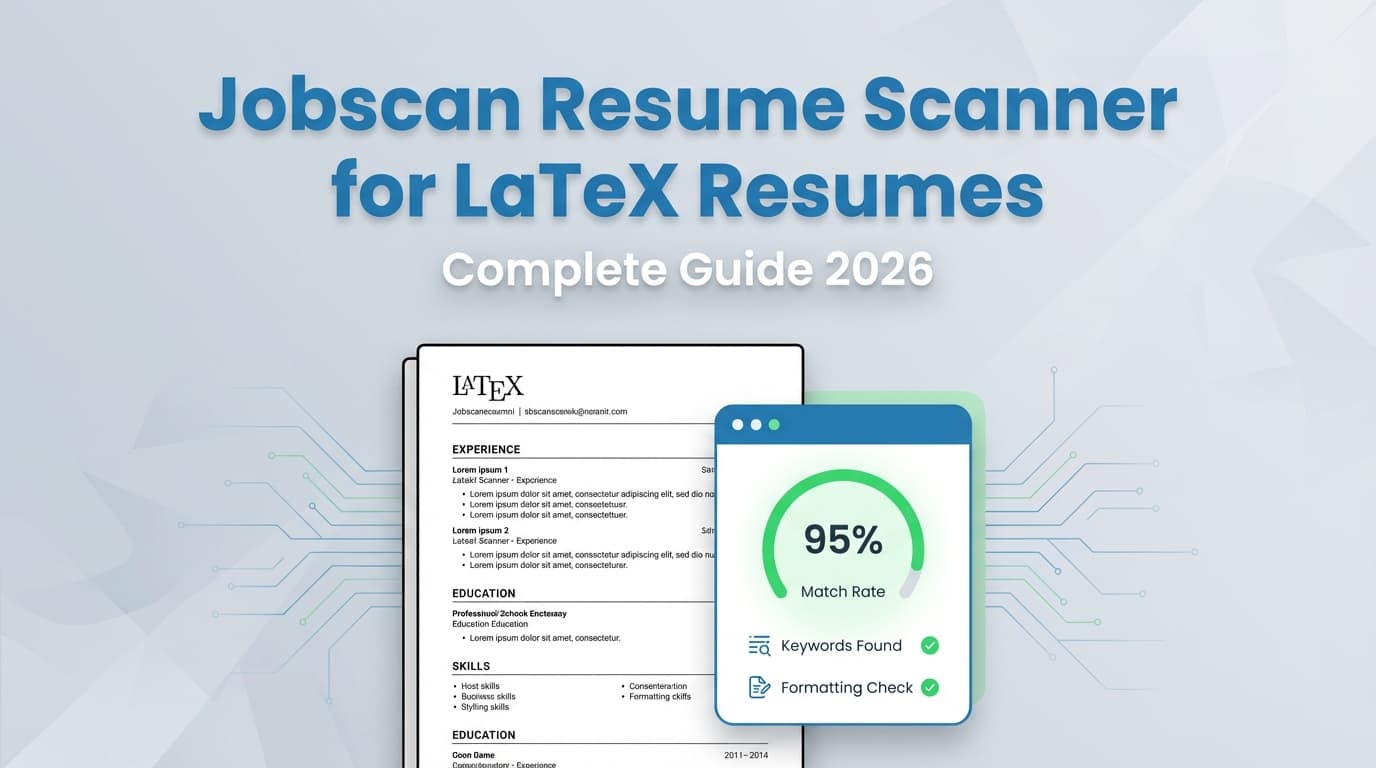
What “Jobscan resume scanner for LaTeX resumes” really means
Jobscan doesn’t scan .tex files. It scans what you submit—most commonly:
- DOCX
- sometimes TXT (plain text)
Jobscan’s support materials list .DOCX, .PDF, or plain text (.TXT) as supported file types for scanning. (Source: Jobscan support article “Why can’t I perform a resume scan?” https://support.jobscan.co/hc/en-us/articles/41334642533523-Why-can-t-I-perform-a-resume-scan) Confidence: Medium (support page is authoritative, but access can be restricted in some environments)
So “Jobscan for LaTeX resumes” really means:
- You write your resume in LaTeX.
- You compile/export it as a PDF (or convert it).
- Jobscan extracts the text from that file and compares it to a job description.
Bottom line: LaTeX is not the problem. Your PDF’s text layer and reading order are the problem (or the solution).
How ATS-style parsing works (why columns and tables blow things up)
Most resume parsing follows a sequence like this:
- Text extraction (turn PDF/DOCX into raw text blocks)
- Reading order inference (decide what comes first: left column vs right column)
- Section detection (“Work Experience,” “Education,” “Skills,” etc.)
- Field extraction (job title, company, dates, keywords)
If step 1 or 2 fails, everything after becomes unreliable.
This is why Jobscan and many university career centers warn that tables, columns, headers/footers, graphics, and text boxes can cause missing or scrambled resume content. For example, MIT’s career advising notes that tools like Canva and LaTeX can introduce formatting elements that hinder parsing and recommends avoiding tables/text boxes/graphics for ATS readability. (Source: https://capd.mit.edu/resources/make-your-resume-ats-friendly/) Confidence: Medium (institutional guidance; not ATS-vendor-specific)
Textkernel (a resume parsing vendor) also discusses the challenge of extracting information from column resumes, reinforcing that column layouts are inherently harder for parsers. (Source: https://www.textkernel.com/learn-support/blog/improving-extraction-from-column-resumes/) Confidence: Medium–High (vendor expertise; focused specifically on parsing)
Why LaTeX resumes sometimes parse worse than Word resumes (even if they look simpler)
LaTeX can create excellent text-based PDFs. But many LaTeX resume templates use:
- two-column layouts
- tabular environments for alignment
- icon fonts for contact info (email/phone/link icons)
- custom headings that don’t match typical ATS labels
Those choices can cause:
- scrambled reading order (right column read before left)
- missing contact info (icons don’t extract as text)
- “empty” Work Experience (if the parser doesn’t recognize the heading or the content is in a table-like structure)
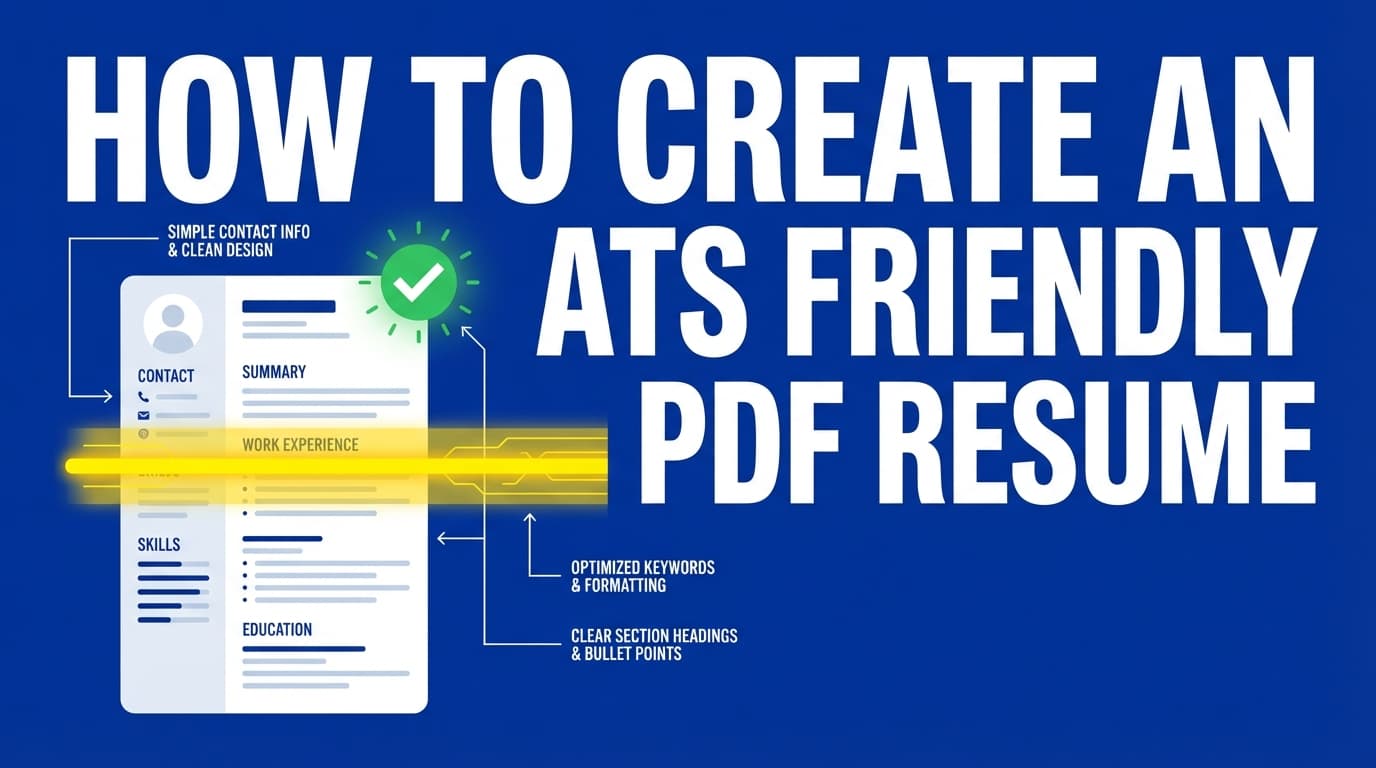
This is why the best LaTeX resume for ATS is usually the most boring one: single column, minimal layout tricks, conventional headings.
Quick reality check: “Is my PDF text-based or image-based?”
Before you do anything else, run a 30-second test.
The copy/paste test (fastest)
- Open your PDF.
- Select all (
Cmd+A/Ctrl+A), copy, paste into a plain text editor. - Look for:
- missing text
- weird squares/characters
- content out of order
- bullets turning into nonsense
MIT also recommends testing ATS readability by saving/previewing your resume as plain text to see what’s left when formatting is stripped away. (Source: https://capd.mit.edu/resources/make-your-resume-ats-friendly/) Confidence: Medium
If the pasted text looks wrong, Jobscan and ATS portals may also read it wrong.
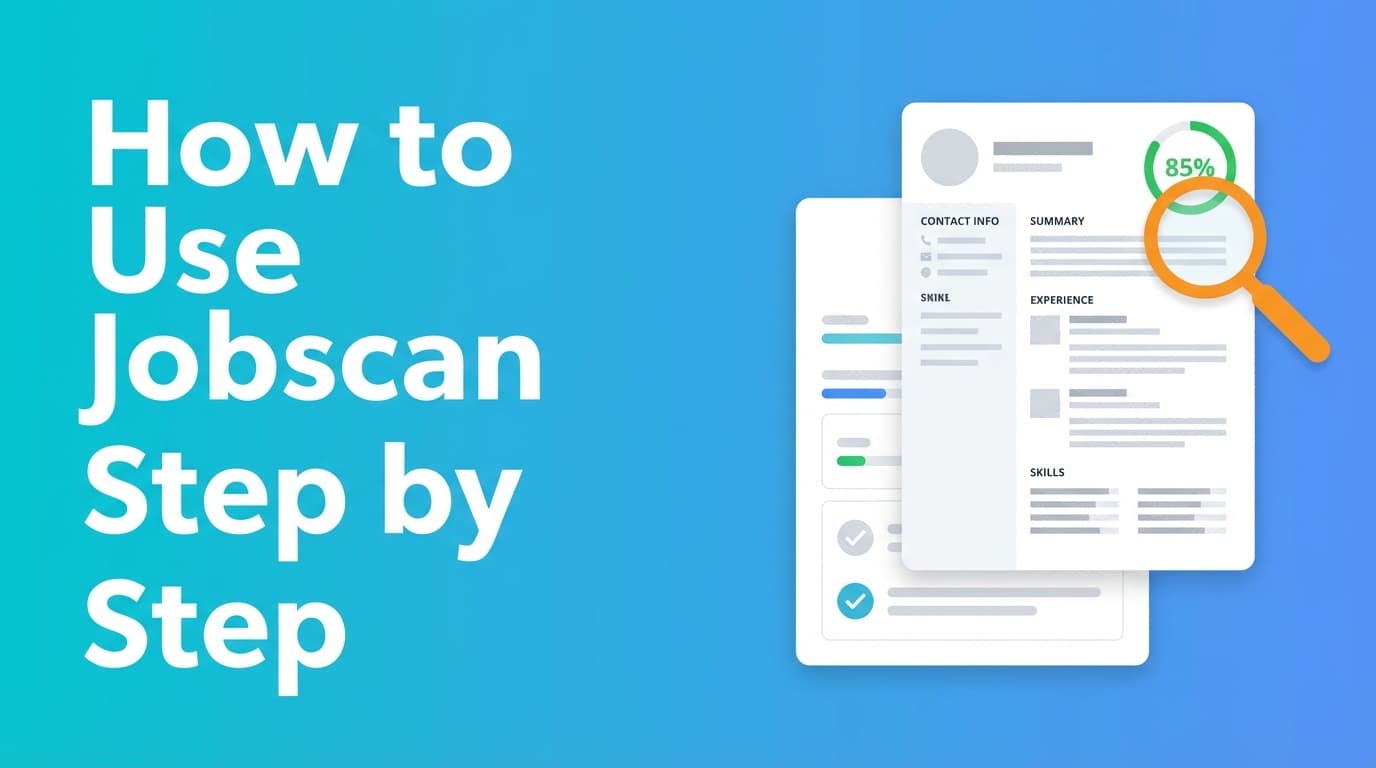
How to use Jobscan resume scanner with a LaTeX resume (step-by-step)
Step 1: Export the cleanest file version you can
Start with a LaTeX-generated PDF if it passes the copy/paste test.
If Jobscan still struggles, test alternatives:
- Export a simpler PDF (single-column variant)
- If needed: convert to DOCX (as a troubleshooting step)
Jobscan’s own “PDF vs Word” guidance indicates both formats can work, but DOCX is often a safer bet for compatibility in some ATS contexts. (Source: Jobscan “Resume PDF vs Word” https://www.jobscan.co/blog/resume-pdf-vs-word/) Confidence: Medium (Jobscan is a primary source; page access may vary)
Step 2: Scan in Jobscan + immediately check what it “sees”
When you upload your resume and job description:
- Don’t start keyword-stuffing right away.
- First check: Did it parse your sections correctly?
If Jobscan says you’re missing:
- contact details
- skills
- work experience
Treat that as a formatting/parsing alarm, not a content weakness.
Step 3: Clean the job description input (so your match report is meaningful)
Job descriptions often include:
- EEO boilerplate
- legal disclaimers
- internal “about the company” fluff
Keep the parts that affect screening:
- responsibilities
- requirements / qualifications
- tools / tech stack
- must-have skills
This reduces “false keyword gaps” and makes your match report more actionable.
Step 4: Fix one variable at a time, then rescan
A high-signal debugging loop looks like:
- Fix structure (columns/tables/header/footer)
- Fix headings (Work Experience / Education / Skills)
- Fix content alignment (keywords, job title, tools)
- Rescan after each major change
If you change everything at once, you won’t know what actually improved parsing.
Common Jobscan parsing errors for LaTeX resumes (and how to fix them)
Error 1: “Work Experience appears empty”
Most likely causes
- “Work Experience” is named something nonstandard (e.g., “Professional History”)
- Experience content is laid out using
tabularor multi-column structures - Dates/titles are aligned in a way that becomes unreadable after text extraction
Fixes
- Rename the section header to Work Experience
- Remove table-like layout structures
- Use a consistent role block format:
Example (ATS-friendly structure)
- Job Title — Company | Location
Month YYYY – Month YYYY- Bullet (impact + scope + metric)
- Bullet (tools + outcome)
Error 2: Skills missing or scrambled
Most likely causes
- Skills in a two-column section
- Skills in a table
- Skills separated by decorative symbols that don’t extract cleanly
Fixes
- Put skills in a simple line:
Skills: Python, SQL, Tableau, Power BI, Snowflake
- Or a single-column bullet list under a standard Skills heading
Error 3: Contact info missing (email/phone/links)
Most likely causes
- Contact info placed in a header/footer
- Contact info uses icons instead of plain text
- Characters/fonts don’t copy cleanly
Fixes
- Move contact info into the main body at the top
- Ensure email/phone/URLs are plain text
Jobscan’s formatting mistake guides commonly call out headers/footers as a parsing risk. (Example reference via SERP snippet + topic: https://www.jobscan.co/blog/ats-formatting-mistakes/) Confidence: Medium
Error 4: Text order is wrong (right column reads first)
Most likely cause
- Two-column design
Fix
- Switch to single-column for the ATS-submitted version.
This is one of the biggest “LaTeX template traps”: many popular templates are visually beautiful but structurally ambiguous to parsers.
LaTeX formatting rules that usually improve ATS + Jobscan results
These are intentionally conservative. The goal is predictable extraction, not maximum design.
1) Use a single-column layout for the version you submit online
Two columns increase the chance of:
- wrong reading order
- section mixing
- missing content
Confidence: High (widely recommended by career centers, ATS tooling ecosystems, and parsing vendors; see MIT + Textkernel)
2) Avoid tables (tabular) for layout
Tables are one of the most common reasons parsers “drop” sections or reorder text.
If you’re using tables for:
- aligning dates to the right
- building a skills matrix
- creating a faux sidebar
Replace with:
- simple spacing
- consistent text separators
- bullets
3) Use standard ATS section headings
Use headings parsers expect:
- Work Experience
- Education
- Skills
- Projects
- Certifications
Santa Clara University’s Jobscan-oriented guide explicitly warns that custom headings may not be parsed correctly and recommends conventional headings. (Source: https://www.scu.edu/careercenter/toolkit/job-scan-common-ats-resume-formatting-mistakes/) Confidence: Medium (career center guidance; practical and specific)
4) Don’t put important info in headers/footers
Some parsers ignore them or extract them inconsistently.
Put:
- name
- phone
- LinkedIn/GitHub in the body.
5) Keep icons optional (and never icon-only)
If you like icons, fine—but repeat the literal text.
Bad:
- icon-only phone/email
Good:
[email protected] | (555) 555-5555 | linkedin.com/in/johndoe
6) Use simple bullets and characters
If copy/paste creates weird characters, simplify:
- bullet characters
- separators
- punctuation
The simplest resume is the easiest resume to parse.
What Jobscan match rate should you aim for (and how to use it without obsessing)
Jobscan has published guidance recommending a target match rate around 80%, and that many users see success around 75%. (Source: Jobscan “What Jobscan Match Rate Should I Aim For?” https://www.jobscan.co/blog/what-jobscan-match-rate-should-i-aim-for/) Confidence: Medium (primary source, but direct access may be limited in some environments; widely cited)
A better way to treat match rate
Use match rate to answer:
- Are you missing obvious hard-skill keywords you truly have?
- Are your role titles aligned with the job you’re applying to?
- Did you bury key skills in a project bullet where a parser might miss them?
Don’t use match rate to:
- paste the whole job description into your resume
- add skills you don’t actually have
- ruin readability chasing 100%
A high-impact lever: job title alignment
Jobscan’s “State of the Job Search” research claims aligning your resume with the target job title can increase interview rates by 10.6x. (Sources: Jobscan report page + third-party summary: https://www.jobscan.co/state-of-the-job-search and https://scoutapply.com/research/resume-checker-benchmarks) Confidence: Medium–High (cross-validated, but based on proprietary analysis)
Practical way to apply this (ethically):
- Use the target title if it’s accurate for you.
- Or add a clarifier:
- “Reporting Specialist (Data Analyst)”
- “Software Engineer — Backend (Python)”
A repeatable workflow for LaTeX users: “Master resume + ATS-safe variant”
If you love LaTeX, keep it—but split your resume into two outputs:
- Design-forward version (for networking, referrals, emailing recruiters)
- ATS-safe version (for job portals and scanner-heavy pipelines)
Recommended ATS-safe LaTeX checklist
- single column
- no tables
- standard headings
- contact info in body
- plain-text-friendly output (passes copy/paste test)
This reduces the “I swear it’s there” problem when a portal or scanner misreads your content.
Practical example: before/after fixes that help Jobscan parse correctly
Example 1: Nonstandard headings
Before
- “Where I’ve Worked”
- “Toolbox”
- “Academic Journey”
After
- Work Experience
- Skills
- Education
Example 2: Skills in a table
Before
- skills arranged in columns inside a
tabular
After
Skills: Python, SQL, Airflow, dbt, Snowflake, Tableau
Example 3: Contact info with icons only
Before
- phone icon + number in a stylized font
- email icon only
After
[email protected] | +1 (555) 555-5555 | github.com/johndoe
“PDF vs DOCX” for LaTeX resumes: when to switch formats
Use PDF when:
- it’s text-based and copy/paste looks clean
- you’re using a simple, single-column layout
- the job posting accepts PDF
Consider DOCX when:
- Jobscan/ATS portals scramble your PDF consistently
- the employer’s portal is known to handle DOCX better
- the posting explicitly requests Word format
Jobscan discusses PDF vs Word considerations in its own guidance. (Source: https://www.jobscan.co/blog/resume-pdf-vs-word/) Confidence: Medium
Tools to help with Jobscan + LaTeX resumes (honest recommendations)
Jobscan
Best for:
- keyword gap visibility
- identifying formatting risks (headers/footers, columns, etc.)
- fast feedback loops against a specific job description
Supported upload formats commonly listed: PDF, DOCX, TXT. (Source: https://support.jobscan.co/hc/en-us/articles/41334642533523-Why-can-t-I-perform-a-resume-scan) Confidence: Medium
JobShinobi (LaTeX-first resume workflow + ATS-focused analysis)
If you want to stay fully in a LaTeX workflow and still get ATS-focused feedback, JobShinobi supports:
- LaTeX resume editing with PDF preview (compile LaTeX → PDF inside the app)
- AI resume analysis (ATS-focused scoring + detailed feedback)
- Job description extraction and resume-to-job matching (paste a job URL or job text)
It also includes an email-forwarding job application tracker, but email processing requires a Pro membership (so don’t assume it works on a free tier).
Pricing (accurate): JobShinobi Pro is $20/month or $199.99/year. Product marketing mentions a “7-day free trial,” but trial enforcement isn’t clearly verifiable from code-level billing logic—treat it as “mentioned,” not guaranteed. Confidence: High (pricing), Medium (trial mention)
Internal links:
- Sign in: /login
- Subscription: /subscription
Extra sanity check: plain-text export
If you suspect parsing issues, a TXT export (for debugging only) can reveal what your resume looks like with formatting stripped.
Stats you can cite (with confidence levels)
-
98.4% of Fortune 500 used a detectable ATS (2024) — Jobscan report
Source: https://www.jobscan.co/blog/fortune-500-use-applicant-tracking-systems/
Confidence: High -
Recruiters spend ~7.4 seconds on initial resume scan — The Ladders / HR Dive summary
Sources: https://www.theladders.com/career-advice/why-do-recruiters-spend-only-7-4-seconds-on-resumes and https://www.hrdive.com/news/eye-tracking-study-shows-recruiters-look-at-resumes-for-7-seconds/541582/
Confidence: High -
Job title match linked to 10.6x interview rate (Jobscan research claim)
Sources: https://www.jobscan.co/state-of-the-job-search and https://scoutapply.com/research/resume-checker-benchmarks
Confidence: Medium–High -
ATS adoption outside the Fortune 500 is still substantial (varies by company size)
Source example: SelectSoftwareReviews ATS statistics roundup https://www.selectsoftwarereviews.com/blog/applicant-tracking-system-statistics
Confidence: Medium (aggregated secondary compilation) -
Columns/tables increase parsing difficulty (parsing vendor perspective)
Source: Textkernel column resume extraction discussion https://www.textkernel.com/learn-support/blog/improving-extraction-from-column-resumes/
Confidence: Medium–High
Common mistakes to avoid (especially for LaTeX users)
Mistake 1: Assuming “LaTeX = ATS-friendly by default”
Some LaTeX PDFs parse beautifully. Some don’t. Templates matter more than the tool.
Mistake 2: Using a two-column template for online applications
Two columns are a frequent reason for scrambled parsing and “missing” sections.
Mistake 3: Treating the match rate as the goal
A higher match score is helpful only if:
- it reflects real skills you have
- it doesn’t destroy readability
- it doesn’t introduce dishonesty
Mistake 4: Putting critical info in headers/footers
It might look elegant—and still disappear in parsing.
Key takeaways
- Jobscan doesn’t scan
.tex—it scans your exported file, so PDF extraction quality determines success. - Most “Jobscan can’t parse my resume” issues come from columns, tables, headers/footers, icon fonts, and nonstandard headings.
- Use Jobscan match rate as a diagnostic. Targets like 75–80% can be helpful, but 100% isn’t necessary (and can backfire).
- Keep an ATS-safe single-column LaTeX version so you can stay in LaTeX without sacrificing parsing reliability.
FAQ (based on common SERP “People Also Ask” patterns)
Can ATS read a LaTeX resume?
Yes—if the exported file (usually PDF) is text-based, readable, and logically ordered. ATS doesn’t care how you wrote it; it cares whether it can extract and classify the text.
Does Jobscan work with Overleaf (LaTeX) PDFs?
Often, yes. But if your LaTeX template uses columns, tables, icons, or headers/footers, Jobscan may misread sections. Start with a single-column export and run the copy/paste test.
Why does Jobscan say my Work Experience section is empty?
Common causes:
- the section header isn’t recognized (use Work Experience)
- the section is built with table-like formatting
- your reading order is scrambled (columns) Fix the structure first, then rescan.
Is PDF or DOCX better for ATS?
Both can work. If your PDF is text-based and simple, it’s often fine. If your PDF parses inconsistently, DOCX can be safer for some ATS portals. Follow the job posting’s format request when provided.
What file formats does Jobscan accept?
Jobscan support documentation commonly lists PDF, DOCX, and TXT.
Source: https://support.jobscan.co/hc/en-us/articles/41334642533523-Why-can-t-I-perform-a-resume-scan Confidence: Medium
What is a good Jobscan match rate?
Jobscan has published guidance suggesting aiming around 75–80% as a practical target for many job seekers.
Source: https://www.jobscan.co/blog/what-jobscan-match-rate-should-i-aim-for/ Confidence: Medium