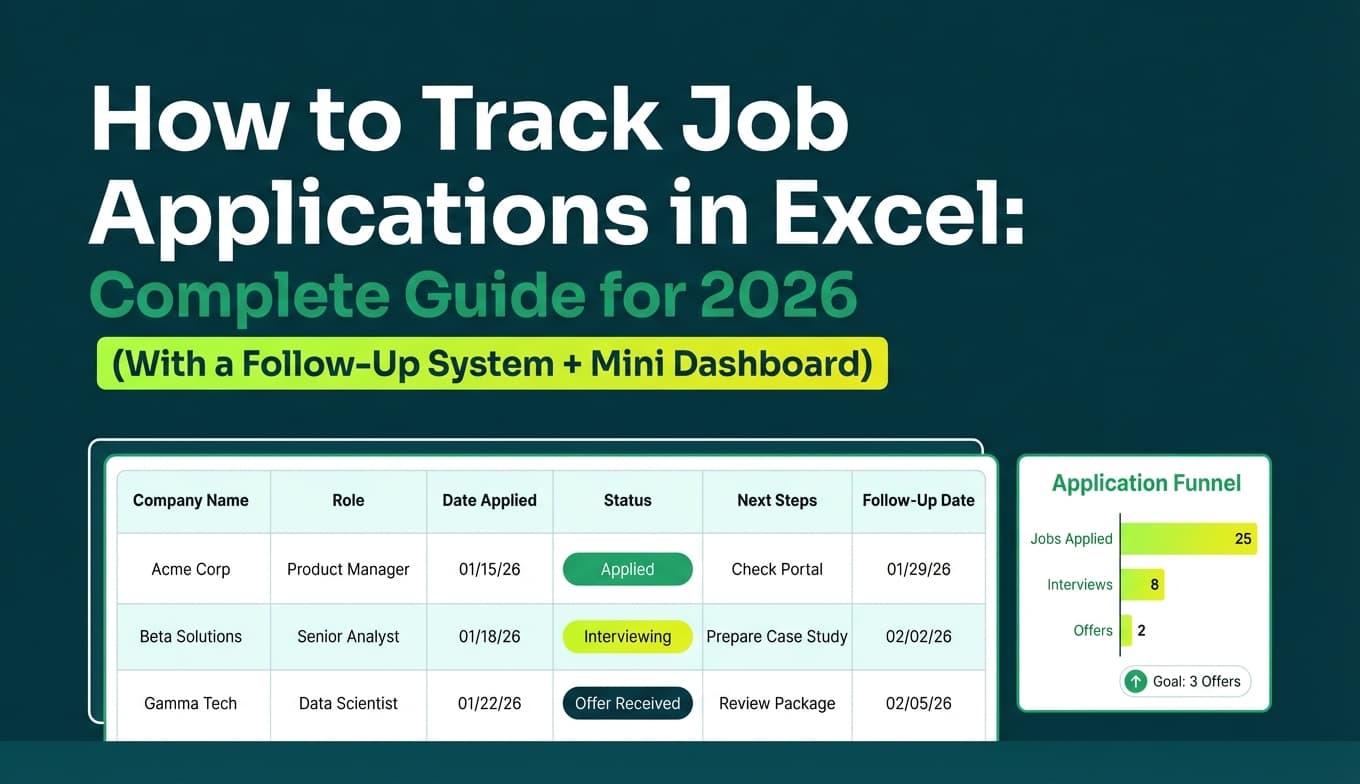
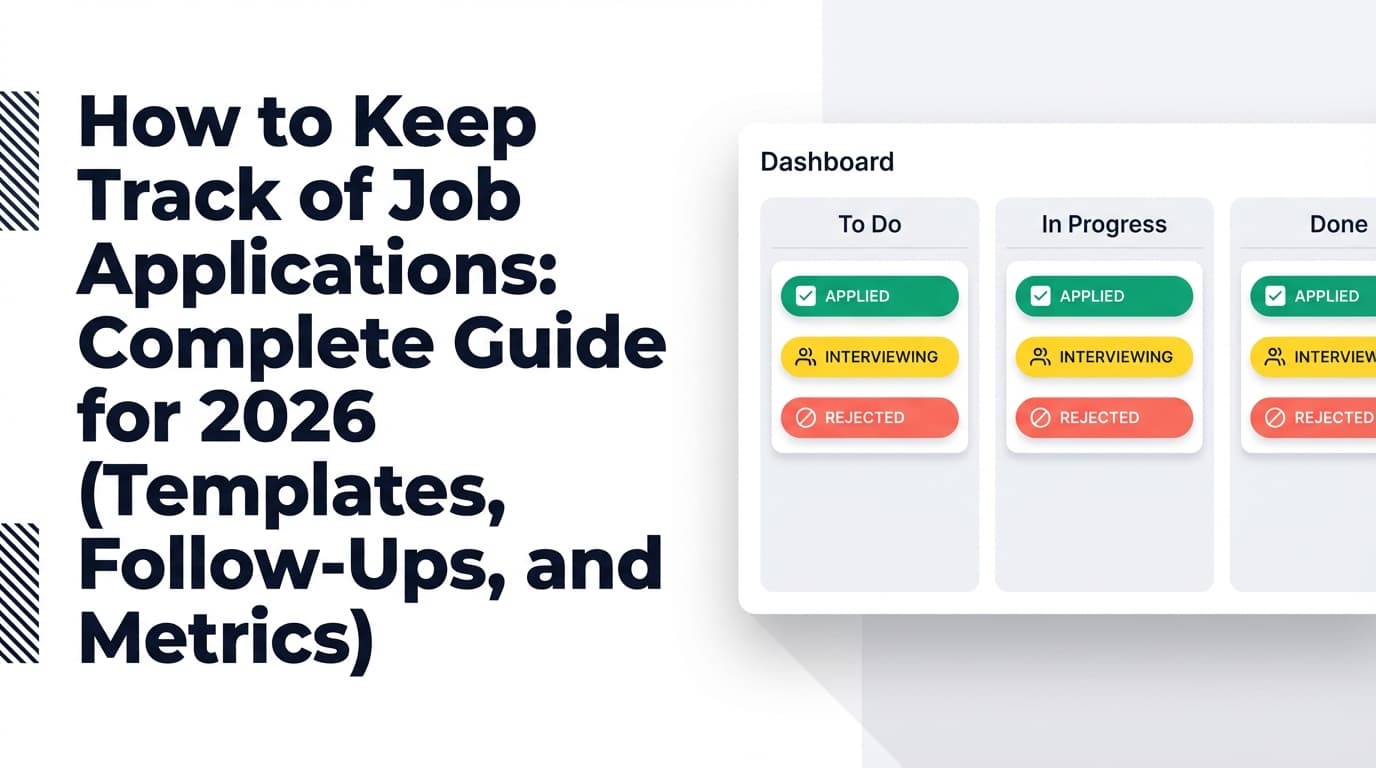
High-volume job searching breaks most “cute” job tracker templates—because the hard part isn’t listing where you applied. It’s staying consistent long enough to spot what’s working, follow up on time, and stop repeating mistakes.
A few numbers put the problem in context:
- Only ~3% of applicants are invited to interview (on average), per CareerPlug’s 2024 Recruiting Metrics Report. (Confidence: High—CareerPlug report.)
Source: https://www.careerplug.com/wp-content/uploads/2024/04/2024-Recruiting-Metrics-Report-1.pdf - BLS analysis found jobseekers averaged about six applications to obtain one interview in their dataset. (Confidence: High—primary government source, but context-specific.)
Source: https://www.bls.gov/opub/btn/volume-9/how-do-jobseekers-search-for-jobs.htm - Recruiters’ initial resume screens can be around 7.4 seconds in TheLadders’ eye-tracking study (also covered by HR Dive). (Confidence: High—primary PDF + secondary coverage.)
Sources:
https://www.theladders.com/static/images/basicSite/pdfs/TheLadders-EyeTracking-StudyC2.pdf
https://www.hrdive.com/news/eye-tracking-study-shows-recruiters-look-at-resumes-for-7-seconds/541582/ - 98%+ of Fortune 500 companies use an ATS, according to Jobscan’s ATS usage reporting. (Confidence: Medium—credible industry source; exact % varies by year/study.)
Source: https://www.jobscan.co/blog/fortune-500-use-applicant-tracking-systems/ - Indeed reports 37% hear back within one week and 44% within a couple of weeks after applying. (Confidence: Medium—Indeed is credible; methodology may be proprietary.)
Source: https://www.indeed.com/career-advice/finding-a-job/how-long-should-you-wait-to-hear-back-about-a-job
In this guide, you’ll learn:
- The exact columns to include (simple + advanced versions)
- A template you can copy into Google Sheets or Excel (plus sample rows)
- Follow-up + pipeline formulas (days since applied, follow-ups due, conversion rates)
- Conditional formatting rules that prevent “lost” applications
- A dashboard layout that turns your tracker into a weekly improvement loop
- When to stick with a spreadsheet—and when a dedicated tracker is a better fit
What is a job tracking spreadsheet?
A job tracking spreadsheet (also called a job application tracking spreadsheet or job search tracker) is a structured table that logs each job you’re pursuing and the status/actions associated with it (applied, follow-up due, interview scheduled, rejected, offer, etc.).
A good job tracker does three things:
- Captures the minimum info quickly (so you actually use it)
- Reminds you what to do next (follow-up, prep, thank-you, referral ask)
- Creates feedback (so you improve your targeting, resume versions, and outreach over time)
Why job tracking matters in 2026 (beyond “being organized”)
1) The funnel is tight—your process has to be tight
CareerPlug’s report highlights how small the interview slice can be (around 3% applicant-to-interview on average). (Confidence: High.)
Source: https://www.careerplug.com/wp-content/uploads/2024/04/2024-Recruiting-Metrics-Report-1.pdf
If your system doesn’t reliably surface follow-ups and next steps, your odds drop even further.
2) Timelines are easy to misread without data
Indeed’s response-time data (many hear back within 1–2 weeks) is useful only if you’re tracking dates consistently. (Confidence: Medium.)
Source: https://www.indeed.com/career-advice/finding-a-job/how-long-should-you-wait-to-hear-back-about-a-job
A spreadsheet makes it obvious which applications are still “alive,” and which are likely ghosted.
3) ATS + fast screens mean “the details” matter
Jobscan’s ATS reporting and TheLadders’ eye-tracking study both reinforce the same idea: you often have one chance to be readable and relevant quickly. (Confidence: Medium–High.)
Sources:
https://www.jobscan.co/blog/fortune-500-use-applicant-tracking-systems/
https://www.theladders.com/static/images/basicSite/pdfs/TheLadders-EyeTracking-StudyC2.pdf
If you’re tailoring resumes (as many high-volume seekers do), tracking resume version sent is not optional.
4) Spreadsheets are powerful, but error-prone—so you need guardrails
Spreadsheet error research by Raymond Panko is frequently cited to show that errors are common in real-world spreadsheets. (Confidence: High that errors are common; specific “88%” stat depends on which audit/study is being cited.)
Source hub: https://panko.com/ssr/DevelopmentExperiments.html
That’s why this guide includes drop-downs, validations, and “don’t break your tracker” design.
How to [job tracking spreadsheet template guide]: Step-by-step
Step 1: Pick your platform (Excel vs Google Sheets)
Both work. The right choice is the one you’ll open daily.
Google Sheets
- Best for: quick access everywhere, easy linking/sharing, simple collaboration
- Watch-outs: performance can degrade with heavy conditional formatting or thousands of rows
Excel
- Best for: power features, pivots, offline work, clean exports
- Watch-outs: version control and cross-device syncing unless you use OneDrive/SharePoint
Pro tip: If you’re applying on mobile or bouncing between devices, Sheets wins. If you love pivots and analysis, Excel is hard to beat.
Step 2: Decide your tracking “pipeline” (stages)
Most trackers fail because stages are vague (“In progress”) or overly specific (20+ statuses you never update).
Use stages that are:
- mutually exclusive (each job has one stage)
- progressive (you can move forward or close out)
A reliable set:
- Interested
- Applied
- Recruiter Screen
- Interviewing
- Offer
- Rejected
- Withdrawn
- Accepted
If you want minimal:
- Applied → Interviewing → Offer → Rejected/Closed → Accepted
Pro tip: Track Outcome separately from Stage (explained below). That separation makes your dashboard accurate.
Step 3: Build the “Simple Tracker” tab (fast entry)
Name this sheet: Tracker (Simple)
Columns (Simple Template)
| Column | What it’s for | Example |
|---|---|---|
| Date Added | When you added it to the tracker | 2026-01-20 |
| Company | Standardized company name | Acme Inc |
| Job Title | Role title | Data Analyst |
| Location | City/Region | NYC |
| Work Mode | Remote/Hybrid/Onsite | Remote |
| Source | Where it came from | Referral |
| Job URL | Link to posting | https://… |
| Stage | Pipeline stage | Applied |
| Date Applied | Date submitted | 2026-01-18 |
| Next Action | What you’ll do next | Follow up |
| Next Action Date | When you’ll do it | 2026-01-27 |
| Notes | Anything important | recruiter name, salary, keywords |
This is enough to run your daily job search without drowning in admin.
Step 4: Upgrade to the “Advanced Tracker” tab (when volume increases)
Name this sheet: Tracker (Advanced)
You’ll use this when:
- you’re tailoring resumes (multiple versions)
- you’re networking and need to track contacts
- you want metrics that help you adjust strategy
Columns (Advanced Template)
Job details
- Company
- Job Title
- Role Category (e.g., SWE, PM, Data)
- Location
- Work Mode
- Source
- Job URL
Application & status
- Stage
- Outcome (blank until closed)
- Date Posted (optional)
- Date Applied
- Date Last Contact
- Follow-Up Count
- Next Follow-Up Date
- Ghosted? (optional flag)
Resume / ATS alignment
- Resume Version ID (e.g.,
DA_v07) - Cover Letter? (Y/N)
- Keywords Targeted (short tags)
- Tailoring Notes (1–2 lines)
People tracking
- Recruiter Name
- Recruiter Email / LinkedIn URL
- Hiring Manager (if known)
- Referral Name + Status (Asked / Referred / N/A)
Interview tracking
- Screen Date
- Interview Round Count
- Next Interview Date
- Thank-you sent? (Y/N)
- Interview Notes (short)
Comp
- Salary Range Posted
- Offer Amount
- Notes / Benefits
Pro tip: Keep columns, but only fill what’s relevant. The goal is having a “home” for information when it arrives.
Step 5: Add guardrails (drop-downs + consistent formatting)
This is what keeps your tracker usable at 200+ rows.
Create a “Lists” tab
Add lists for:
- Stage
- Work Mode
- Source
- Outcome
Then use Data Validation to enforce drop-down values.
Why it matters: If you type “Interview”, “interview”, “Interviewing”, your pivot tables will lie to you.
The copy/paste job tracking spreadsheet template (CSV headers)
Simple template header row
Paste into cell A1: