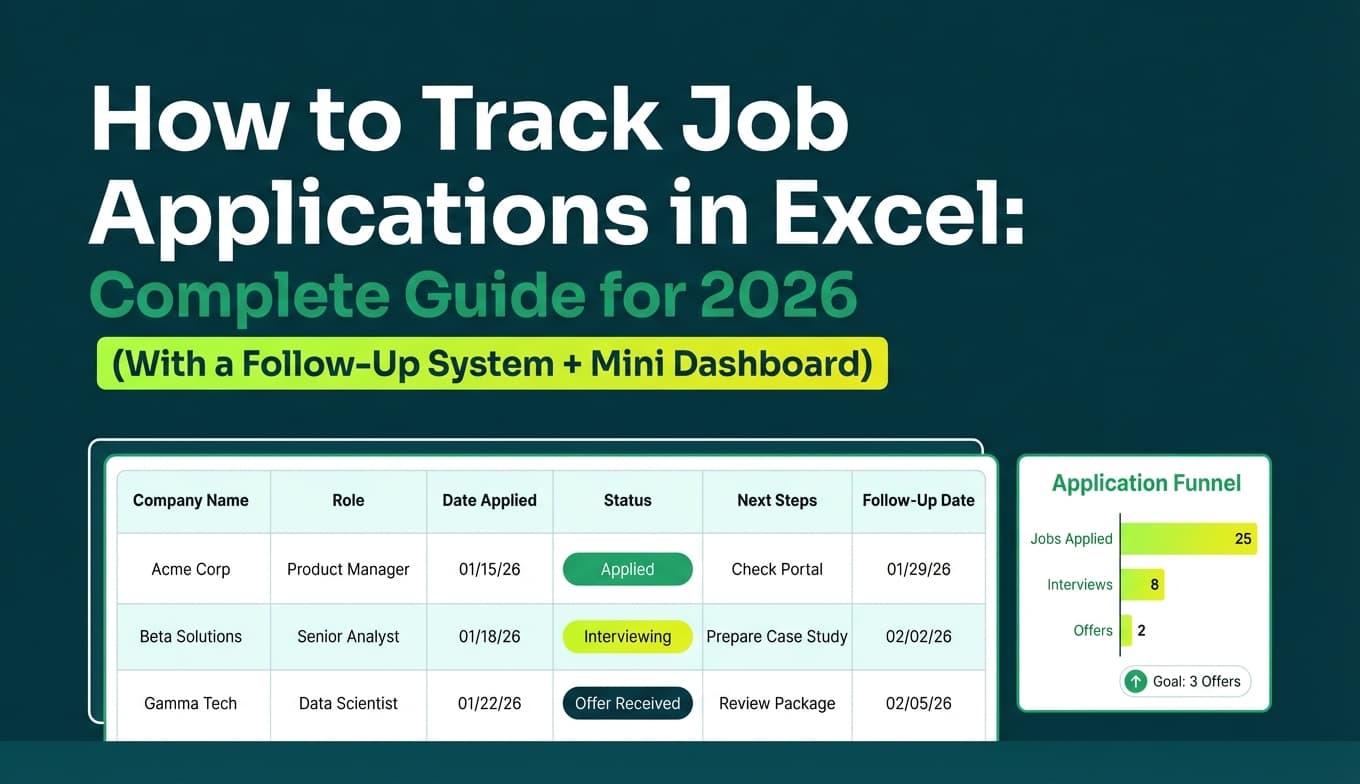
If your job search spreadsheet feels like a graveyard of half-filled rows, it’s usually not because you “lack discipline.”
It’s because the columns aren’t doing any work. They don’t tell you what to do next, they don’t preserve the job description when it disappears, and they don’t help you learn what’s working—so the sheet becomes busywork you abandon.
Meanwhile, the market makes organization non-optional:
- 97.8% of Fortune 500 companies had a detectable ATS in 2025, according to Jobscan’s ATS usage report (Confidence: High; source: Jobscan: https://www.jobscan.co/blog/fortune-500-use-applicant-tracking-systems/).
- Greenhouse reported an average of 222 applications per job opening in Q1 2024 among its customers (Confidence: Medium; strong primary source, but a single vendor dataset: https://www.greenhouse.com/blog/ai-has-doubled-recruiters-workloads).
- The U.S. Bureau of Labor Statistics found that jobseekers who had at least one interview had about a 37% chance of receiving a job offer, versus about 10% for those with no interviews (Confidence: High; source: BLS PDF: https://www.bls.gov/opub/btn/volume-9/pdf/how-do-jobseekers-search-for-jobs.pdf).
- Staffing Industry Analysts reported an average time to hire of 44 days in Q1 (Confidence: Medium; credible industry publication, but not a government dataset: https://www.staffingindustry.com/news/global-daily-news/average-time-hire-rises-again-44-days-q1).
- NACE reported the Class of 2025 submitted more job applications than the Class of 2024 (10 vs. 6 on average) (Confidence: High; source: NACE: https://www.naceweb.org/job-market/trends-and-predictions/facing-a-tough-job-market-class-of-2025-responded-accordingly).
Those numbers point to a simple truth: you need a system—not a prettier spreadsheet.
In this guide, you’ll learn:
- The minimum spreadsheet columns that matter (so you can track without burning out)
- The high-leverage columns that unlock follow-ups, tailoring, and useful metrics
- A step-by-step setup: dropdowns, formulas, conditional formatting, and a weekly review
- Copy/paste templates + example rows
- When to graduate from spreadsheets—and how tools like JobShinobi can reduce manual tracking (without claiming features it doesn’t have)
What are “job tracking spreadsheet columns that matter”?
They’re columns that directly support one (or more) of these outcomes:
- Execution: apply, follow up, interview, negotiate—without dropping anything
- Recall: instantly remember what you applied to, where, and with what materials
- Measurement: understand your conversion rates (per source, per role type, per resume version)
- Iteration: improve your strategy using data from your own pipeline
A great tracker feels like a lightweight CRM:
- Every row has a next step
- Every row has enough context to prep for an interview even if the job post is gone
- Your sheet makes it obvious what’s working and what’s wasting your time
Why the right columns matter in 2026 (and why most trackers fail)
1) Volume is high, and attention is limited
If an average opening can receive hundreds of applications (like Greenhouse’s Q1 2024 stat), then “apply and hope” is a low-information strategy. Your advantage comes from:
- timely follow-ups,
- better targeting,
- clean interview prep,
- and consistently tailoring (without losing track of versions).
2) Hiring is slow enough to create memory gaps
When hiring cycles stretch (Staffing Industry Analysts’ 44-day figure is a useful directional benchmark), it’s easy to forget:
- which stories you positioned for that company,
- what the exact requirements were,
- who you spoke to and what they said.
The job tracker’s job is to preserve that context with minimal effort.
3) Interviews correlate with offers—so your system should optimize for interviews
BLS data shows interview activity strongly correlates with receiving offers (Confidence: High, BLS). Your tracker should therefore prioritize columns that:
- keep you moving into screens (follow-ups/outreach),
- keep you prepared for interviews (job snapshots, notes),
- and help you iterate toward higher interview rates (source + resume version + reason lost).
4) ATS is pervasive (so the resume workflow must be trackable)
Workday claims “more than 98% of Fortune 500 companies use” an ATS (Confidence: Medium; Workday marketing statement: https://www.workday.com/en-us/topics/hr/applicant-tracking-system.html). Jobscan’s Fortune 500 report provides a similar directional result with a measurable figure (97.8% detectable ATS in 2025; Confidence: High).
This doesn’t mean you should obsess over a single “ATS score,” but it does mean:
- you’ll likely tailor your resume,
- you should track which version you used,
- and you should capture key keywords from the job description so you can re-use what worked.
The Minimum Viable Tracker (12 columns that matter for almost everyone)
If you build nothing else, build this.
Design constraint: Every application should take under 60 seconds to log.
Otherwise, you’ll stop logging—and an unmaintained tracker is worse than no tracker.
Column 1) Company
- Type: text
- Why it matters: dedupe, research, networking, recall
- Example: “Acme Health”
Column 2) Job Title (as posted)
- Type: text
- Why it matters: clarifies level; prevents “accidental seniority mismatch”
- Example: “Data Analyst II”
Column 3) Job Link (URL)
- Type: URL
- Why it matters: you’ll need it for interview prep; helps avoid duplicates
- Example:
https://company.com/careers/req-123
Column 4) JD Snapshot (keywords + responsibilities)
- Type: short text
- Why it matters: job posts disappear; you need enough to tailor + prep
- Example: “SQL, dbt, Looker; build dashboards; partner w/ ops”
Keep it short. A 15–30 word snapshot beats a blank cell.
Column 5) Source
- Type: dropdown
- Why it matters: lets you identify channels that convert (and channels that waste time)
- Suggested dropdowns: LinkedIn, Company Site, Indeed, Referral, Recruiter, Other
Column 6) Location / Work Mode
- Type: dropdown
- Why it matters: prevents misaligned applies; helps filtering later
- Examples: Remote, Hybrid, On-site
Column 7) Date Found
- Type: date
- Why it matters: prioritization; prevents stale applications
- Example: 2026-01-12
Column 8) Date Applied
- Type: date
- Why it matters: anchors follow-ups and response-time measurement
- Example: 2026-01-13
Column 9) Status (standardized)
- Type: dropdown
- Why it matters: reporting breaks if statuses are inconsistent
- Recommended statuses (simple and durable):
- Interested
- Applied
- Interview
- Offer
- Rejected
- Accepted
- Archived
Column 10) Next Action
- Type: dropdown (or short text)
- Why it matters: turns a spreadsheet into a workflow
- Examples: Follow up, Prep screen, Thank-you note, Wait, Negotiate
Column 11) Next Action Date
- Type: date
- Why it matters: prevents dropped follow-ups and missed momentum
- Example: 2026-01-20
Column 12) Primary Contact (name + channel)
- Type: text
- Why it matters: follow-up is hard if you don’t know who you’re following up with
- Example: “Jordan Lee (Recruiter) – email”
The High-Leverage Columns (optional, but worth it if you apply at volume or tailor)
These columns are how you stop “random-walking” through your job search.
Column 13) Resume Version (or Filename)
- Why it matters: if you tailor, you need to know what you sent
- Example:
DA_Healthcare_v7
Simple naming convention (recommended):
RoleTrack_IndustryOrAngle_v#
Examples:
SWE_Backend_v12PM_Growth_v5Analyst_Healthcare_v7
Column 14) Cover Letter Version (if you use cover letters)
- Why it matters: similar to resume version
- Example:
CL_General_v3
Column 15) Compensation Range (posted or target)
- Why it matters: avoids wasted time; supports negotiation later
- Example:
$110k–$130k
Column 16) Priority (1–5)
- Why it matters: guides where you spend effort (tailoring, outreach, networking)
- Example rubric:
- 5 = referral + perfect fit
- 3 = good fit + cold apply
- 1 = long shot / practice
Column 17) Referral / Advocate
- Why it matters: referrals change outcomes; track who can vouch for you
- Example: “Sam P. – will refer”
Column 18) Last Contact Date
- Why it matters: prevents accidental spamming; keeps outreach cadence sane
- Example: 2026-01-18
Column 19) Interview Stage (structured)
- Why it matters: “Interview” is too vague to learn from
- Options:
- a dropdown (Screen, Tech, Onsite, Final)
- or dedicated stage columns (better if you want metrics)
Column 20) Notes (single scratchpad)
- Why it matters: you need one place for context that doesn’t fit neatly
- Examples:
- “Role paused until Q2 budget”
- “Hiring manager cares about stakeholder comms”
- “They asked about X—prep story”
Column 21) Reason Lost (post-mortem)
- Why it matters: this is how you improve without guessing
- Suggested dropdowns:
- Resume mismatch / keywords
- Level mismatch
- Compensation mismatch
- Work authorization
- Technical gap
- Role closed / internal fill
- Unknown
Column 22) Duplicate Key (formula column)
- Why it matters: prevents applying twice to the same role under different URLs
- Example (Sheets/Excel):
=LOWER(A2&"|"&B2)(Company + Title)
Copy/paste template: The columns (in workflow order)
Paste this as your header row:
- Company
- Job Title
- Job Link
- JD Snapshot (keywords + responsibilities)
- Source
- Location / Work Mode
- Date Found
- Date Applied
- Status
- Next Action
- Next Action Date
- Primary Contact
- Resume Version
- Cover Letter Version
- Compensation Range
- Priority (1–5)
- Referral / Advocate
- Last Contact Date
- Interview Stage
- Notes
- Reason Lost
- Duplicate Key
If you want the simplest version, use only columns 1–12.
Example rows (what “good data” looks like)
These are realistic examples that preserve context without overwork.
| Company | Job Title | Job Link | JD Snapshot | Source | Work Mode | Date Applied | Status | Next Action | Next Action Date | Resume Version | Notes |
|---|---|---|---|---|---|---|---|---|---|---|---|
| Acme Health | Data Analyst II | (URL) | SQL, dbt, Looker; dashboards; ops partners | Hybrid | 2026-01-13 | Applied | Follow up | 2026-01-22 | Analyst_Healthcare_v7 | HM cares about stakeholder updates | |
| Northstar SaaS | Customer Success Manager | (URL) | renewals, QBRs, churn reduction | Referral | Remote | 2026-01-15 | Interview | Prep screen | 2026-01-18 | CSM_SaaS_v4 | Referral: Jamie will intro |
Notice what’s not there:
- overly detailed fields you’ll never update,
- 6 different date fields you can’t maintain,
- long pasted job descriptions in the main sheet.
How to build your tracker in Excel or Google Sheets (step-by-step)
Step 1: Create a “Lists” tab (do this first)
Make a second tab called Lists. Add these columns:
- StatusList
- SourceList
- WorkModeList
- NextActionList
- ReasonLostList
- InterviewStageList
Populate each column with your approved values. This sets you up for dropdowns and consistent reporting.
Why this matters: inconsistent data is the #1 reason job trackers become useless.
Step 2: Add dropdowns (Data Validation)
For each column that you’ll filter or measure (Status, Source, Work Mode, Next Action, Reason Lost), apply dropdown validation.
- Google Sheets: Data → Data validation
- Excel: Data → Data Validation
Make invalid entries show an error. You’re protecting future-you from messy analytics.
Step 3: Add conditional formatting (so the sheet tells you what to do)
Create formatting rules like:
Rule A: Follow-up overdue (red)
- Condition:
- Status is
AppliedORInterview - AND Next Action Date is before today
- Status is
- Effect: highlight row red or highlight Next Action Date cell red
Rule B: Interview (blue)
- Status equals
Interview→ highlight blue
Rule C: Offer (green)
- Status equals
Offer→ highlight green
Rule D: Archived (gray)
- Status equals
Archived→ gray text
This turns your tracker into a daily “to-do list” without needing a separate task manager.
Step 4: Add 5 formulas that make the tracker smart
Below are formulas you can adapt for both Sheets and Excel.
Replace column letters with your actual layout.
Formula 1) Days since applied
=IF([DateApplied]="","",TODAY()-[DateApplied])
Why it matters: quick aging view to decide what to follow up on vs. archive.
Formula 2) Suggested follow-up date
=IF([DateApplied]="","",[DateApplied]+7)
Why it matters: creates an automatic follow-up prompt. (Always respect any instructions in the posting or recruiter email.)
Formula 3) “Action Needed” flag
=IF(AND([NextActionDate]<>"",[NextActionDate]<=TODAY(),OR([Status]="Applied",[Status]="Interview")),"YES","")
Why it matters: filter YES and execute.
Formula 4) Duplicate key
=LOWER([Company]&"|"&[JobTitle])
Why it matters: prevents accidental duplicate applications.
Formula 5) Response flag (for metrics)
Add a column called Has Response:
=IF(OR([Status]="Rejected",[Status]="Interview",[Status]="Offer",[Status]="Accepted"),1,0)
Now you can calculate response rate and not rely on memory.
Step 5: Build a “Today View”
Create a filter view (or a separate tab) that shows only rows where:
Action Needed = YES- Status is
AppliedorInterview
This becomes your daily operating screen.
The “Two-Tab Upgrade” (recommended): Applications + Contacts
If you’re networking at all, separating contacts is worth it.
Tab 1: Applications (your main tracker)
One row per application.
Tab 2: Contacts (relationship tracking)
Columns:
- Company
- Contact Name
- Role (Recruiter/HM/etc.)
- LinkedIn URL
- Relationship (Warm/Cold)
- Last Contact Date
- Next Outreach Date
- Notes
Why it matters: one recruiter can be tied to multiple roles, and one company can have multiple contacts. Separating contacts keeps the Applications tab clean.
The “Pipeline Upgrade”: Treat interviews as stages (so you can improve)
If you only track “Interview,” you can’t learn where you’re failing.
Pick one structure:
Option A: Single “Interview Stage” dropdown (simpler)
- Screen
- Tech screen
- Hiring manager
- Panel/Onsite
- Final
Option B: Stage columns (best for analytics)
- Screen Date
- Tech Date
- Onsite Date
- Final Date
- Outcome
Why it matters: You’ll often see patterns like:
- strong resume → screens are fine, but technical stage stalls
- or screens are rare → targeting/resume positioning is the bottleneck
Follow-up system: What to track so you don’t feel “spammy” (and still get seen)
A tracker should prevent two extremes:
- never following up (opportunity cost)
- following up too aggressively (reputation cost)
Add these three fields if follow-up is a pain point
- Last Contact Date
- Next Action (Follow up / Wait / Prep)
- Next Action Date
Now your follow-up becomes a calendar, not a vibe.
Practical cadence (non-prescriptive):
- After applying: consider a follow-up around 7–10 business days if you haven’t heard back (varies by company and role).
- After interviews: thank-you within 24 hours; then follow up based on their stated timeline.
Your tracker doesn’t need to decide the perfect cadence—it just needs to ensure you don’t lose track.
Metrics that actually matter (and how to calculate them)
Track metrics to make better decisions, not to punish yourself.
1) Applications per week (consistency)
- Helps you understand your throughput without guessing.
2) Response rate (are you getting any signal?)
Definition: responses include rejection or interview.
Response Rate = SUM(Has Response) / COUNT(Date Applied)
3) Interview rate (the north star)
Interview Rate = COUNT(Status = Interview or later) / COUNT(Date Applied)
4) Source conversion (where your time should go)
Pivot by Source:
- Applications
- Interviews
- Offers
Then ask: “What should I do more of next week?”
5) Resume version performance (if you tailor)
Pivot by Resume Version:
- Applications
- Interviews
This helps you find which positioning generates screens.
Important note: These are correlation insights, not proof. But they’re still vastly better than guessing.
Common mistakes (and how to fix them fast)
Mistake 1: Building a 40-column monster sheet
Why it happens: templates online try to cover every possible scenario.
Fix: start with 12 columns. Add a column only after you’ve said:
“I’ve run into this exact problem 5+ times.”
Mistake 2: Status chaos
If you have Submitted, Sent, Applied - waiting, Applied - maybe, Applied?, metrics break instantly.
Fix: one Status dropdown. Add nuance in Notes, not Status.
Mistake 3: No “Next Action Date”
This is the most common reason spreadsheets don’t change outcomes.
Fix: make Next Action Date mandatory whenever Status is Applied or Interview.
Mistake 4: Losing job descriptions
Job posts disappear or change.
Fix: store a JD Snapshot (keywords + responsibilities) every time.
Mistake 5: Not tracking resume versions (while tailoring constantly)
If you tailor but don’t track versions, you can’t learn what worked.
Fix: add Resume Version. Keep it simple: v1, v2, v3 is fine.
Mistake 6: No weekly review (so you never iterate)
A spreadsheet only becomes strategy when you review it.
Fix: 10 minutes weekly:
- Which sources converted?
- Which roles responded?
- Where did I stall (screen vs. later rounds)?
- What will I do differently next week?
When spreadsheets stop working (and what to use instead)
Spreadsheets are great until the “spreadsheet tax” becomes real:
- you spend 15–30 minutes/day updating rows,
- you miss follow-ups anyway,
- you dread the tracker,
- you can’t keep up at high application volume.
At that point, consider a tool that reduces manual entry.
Tool option: JobShinobi (where it fits, accurately)
JobShinobi includes a job application tracker where you can create, edit, and delete job applications, and export your job applications to an Excel (.xlsx) file. It also supports real-time updates inside the app’s tracker UI. (These capabilities are implemented in the product.)
If you want to reduce manual entry further: JobShinobi supports email-forwarding-based job tracking, where you forward job-related emails to your unique JobShinobi forwarding address and the system parses and logs the application details. This email processing requires a Pro membership (hard enforcement exists in the API).
- Pricing (Pro): $20/month or $199.99/year.
- The pricing UI mentions a “7-day free trial,” but trial enforcement isn’t clearly verifiable from application code, so it should be treated as unconfirmed.
Relevant internal links:
- Job tracker (after login):
/dashboard/job-tracker - Subscription:
/subscription
What JobShinobi does not support (important):
- Export directly to Google Sheets (Excel export is implemented; Google Sheets export is not confirmed/implemented).
Mini-templates you can steal (based on your situation)
Template A: High-volume applicant (fast + ruthless)
Columns:
- Company, Title, Link
- Source, Work Mode
- Date Applied, Status
- Next Action, Next Action Date
- Resume Version
- Notes
Template B: Tailoring-heavy applicant (ATS-optimization workflow)
Columns:
- Company, Title, Link
- JD Snapshot
- Resume Version
- Status
- Next Action Date
- Reason Lost
- Notes (“keywords added”, “skills emphasized”)
Template C: Networking-first applicant
Columns:
- Company, Title
- Contact
- Last Contact Date
- Next Outreach Date
- Status (Interested/Applied/Interview/etc.)
- Notes (what you asked, what they said, next step)
FAQ (questions people actually ask about job tracking spreadsheets)
What should I include in a job application spreadsheet?
At minimum: Company, Job Title, Job Link, Date Applied, Status, Next Action, Next Action Date, and Contact. If you tailor your resume, add Resume Version and a JD Snapshot so you can prep quickly even if the posting disappears.
How do you track job applications in Google Sheets?
Create one row per application, then add:
- dropdowns for Status and Source
- a Next Action Date column
- conditional formatting to highlight overdue actions
- a filter view for
Action Needed = YES
What information should be included in a job tracker (beyond applications)?
If you’re networking, track contacts separately: name, role, LinkedIn, last contact date, next outreach date, and notes. A lot of job-search wins come from relationships, not just applications.
How many days after applying should you follow up?
Many career resources commonly recommend following up around 1–2 weeks after applying if you haven’t heard back, unless the employer specifies otherwise. Your tracker should make follow-up timing explicit via a Next Action Date, rather than leaving it to memory.
Why do I need a job description snapshot?
Because job posts can disappear or change. A short snapshot (keywords + responsibilities) preserves what you need for:
- interview prep,
- resume tailoring,
- and explaining “why this role” later.
Key takeaways
- The job tracking spreadsheet columns that matter are the ones that drive next actions, preserve context, and enable learning.
- Start with the Minimum Viable 12 and keep logging time under 60 seconds per application.
- Add Resume Version and JD Snapshot if you tailor—those two columns pay off every time you get an interview.
- Use dropdowns + conditional formatting so your tracker is a command center, not an archive.
- If you’re overwhelmed by manual updates, consider tools that reduce entry work. JobShinobi can track applications, export to Excel, and (for Pro users) log applications from forwarded job emails—without claiming unsupported features like Google Sheets export.