Recruiters don’t “read” your resume at first—they scan it. One eye-tracking study reported recruiters skim resumes for 7.4 seconds on average. (Source: HR Dive reporting on an eye-tracking study; Confidence: High)
https://www.hrdive.com/news/eye-tracking-study-shows-recruiters-look-at-resumes-for-7-seconds/541582/
So the goal of a resume scanner isn’t to “game a robot.” It’s to make your resume:
- Parsable (the ATS can reliably extract your info)
- Searchable (your resume contains the terms recruiters filter for)
- Readable (a human can confirm you’re qualified—fast)
In this guide, you’ll learn:
- The exact workflow to use a resume scanner (without keyword stuffing or scammy “score chasing”)
- What to change when your scan results say “missing keywords” vs “formatting issues”
- A repeatable system for tailoring quickly (and validating your changes)
- Common mistakes that tank ATS parsing (and how to test them yourself)
- Tools that help (including when an ATS scanner is enough—and when you need a match analysis)
What is a resume scanner (and what it isn’t)?
A resume scanner (often called an “ATS resume checker”) is a tool that compares your resume to:
- Common ATS parsing rules (formatting, headings, layout)
- A job description (keyword match / “match rate”)
- Sometimes, best-practice resume writing heuristics (impact, brevity, metrics)
What a resume scanner can do well
- Flag formatting patterns that often break parsing (tables, columns, headers/footers, icons)
- Identify likely keyword gaps vs a job posting
- Help you standardize job titles, skills, and section headings so recruiters can filter you in
What a resume scanner can’t guarantee
- That you’ll “pass ATS” everywhere (different ATS configure parsing differently)
- That a high score means you’ll get an interview
- That the company’s ATS is using the same weighting as the scanner
Reality check: Even ATS-focused resources emphasize that systems vary and can interpret resumes differently. (Example source discussing ATS differences: Jobscan’s ATS formatting guidance; Confidence: Medium because the exact scoring rules vary by platform and configuration.)
https://www.jobscan.co/blog/ats-formatting-mistakes/
Why resume scanners matter in 2026 (with real data)
Resume scanners matter because ATS and recruiter filtering are normal, not rare.
Here are key stats you can cite (and use to set expectations):
-
98.4% of Fortune 500 companies use an ATS (as cited by Tufts University Career Center). (Confidence: Medium — widely cited across career sites, ultimately attributed to Jobscan research.)
https://careers.tufts.edu/resources/everything-you-need-to-know-about-applicant-tracking-systems-ats/ -
Jobscan reports that over 99.7% of 384 recruiters surveyed use filters in an ATS (or similar system) to find candidates to interview. (Confidence: Medium — strong because it’s a named survey sample, but still one company’s survey.)
https://www.jobscan.co/state-of-the-job-search -
SelectSoftwareReviews cites that 75% of recruiters use an ATS or another tech-driven recruiting tool. (Confidence: Medium — credible industry roundup, but underlying source may differ by stat.)
https://www.selectsoftwarereviews.com/blog/applicant-tracking-system-statistics -
The same SSR roundup cites ATS adoption differences by company size (e.g., 70% of large companies and 20% of small/mid-sized businesses using an ATS). (Confidence: Medium — depends on the referenced survey and year.)
https://www.selectsoftwarereviews.com/blog/applicant-tracking-system-statistics -
MIT Career Advising recommends a practical plain-text (.txt) test because ATS focuses on your resume’s text. (Confidence: High — this is a concrete, verifiable method you can do yourself.)
https://capd.mit.edu/resources/make-your-resume-ats-friendly/
Bottom line: if recruiters are filtering and scanning quickly, you need a resume that survives the parser and clearly signals fit in seconds.
How to use a resume scanner to pass ATS: Step-by-step
This is the workflow I recommend if you’re applying to roles at scale and want results you can repeat.
Step 0: Start with the right “inputs” (resume file + job description)
Before you scan anything, lock these down:
A. Use your most ATS-stable resume version
- Single-column
- Standard section headings
- Minimal graphics
- No icons
- Simple bullets
If you don’t have that version, create it first—otherwise your scan results will be noise.
B. Use the real job description Copy/paste the job description from the employer site (not a rewritten aggregator version). Keep:
- Responsibilities
- Requirements
- “Preferred qualifications”
- Tools/tech stack
- Soft skills or leadership signals
Pro tip: Save the job description in a note so you can reuse it when you re-scan.
Step 1: Run a “parsing check” scan first (formatting + structure)
Most job seekers start with keyword scanning. That’s backwards.
If the ATS can’t parse your resume correctly, you can have “perfect keywords” and still lose.
What to look for in parsing results
Your scanner may not label it “parsing,” but you’ll see symptoms like:
- Contact info missing or scrambled
- Education or dates in the wrong section
- Employer names not recognized
- Bullets appearing out of order
- Skills “merged” into one long string
Fix formatting problems before you touch keywords
Common fixes that improve parsing reliability:
- Use standard section headings
- “Work Experience” or “Experience”
- “Education”
- “Skills”
- “Projects” (if relevant)
- “Certifications” (if relevant)
Career centers explicitly recommend conventional headings because ATS relies on them to categorize content. (Example guidance also appears in university and job sites; Confidence: High for the general principle.)
-
Avoid headers and footers for critical info Some career resources warn ATS may not read headers/footers consistently. (Example: Santa Clara University career toolkit; Confidence: Medium because ATS capabilities differ, but it’s a common failure mode.)
https://www.scu.edu/careercenter/toolkit/job-scan-common-ats-resume-formatting-mistakes/ -
Avoid multi-column layouts, tables, and text boxes These frequently cause “reading order” issues.
-
Don’t use scanned PDFs Some systems can’t “see” text in scanned PDFs because it’s an image. (Source: Applicant Tracking Software support article; Confidence: High for scanned/image-only documents.)
https://support.applicant-tracking.com/support/solutions/articles/3000128879-why-some-resumes-won-t-parse
Pro tip: Even if your scanner says formatting is “fine,” still do the manual tests in Step 4 (below). They catch issues scanners miss.
Step 2: Run a “match scan” (keywords + role alignment) second
Once formatting is stable, you can trust keyword feedback more.
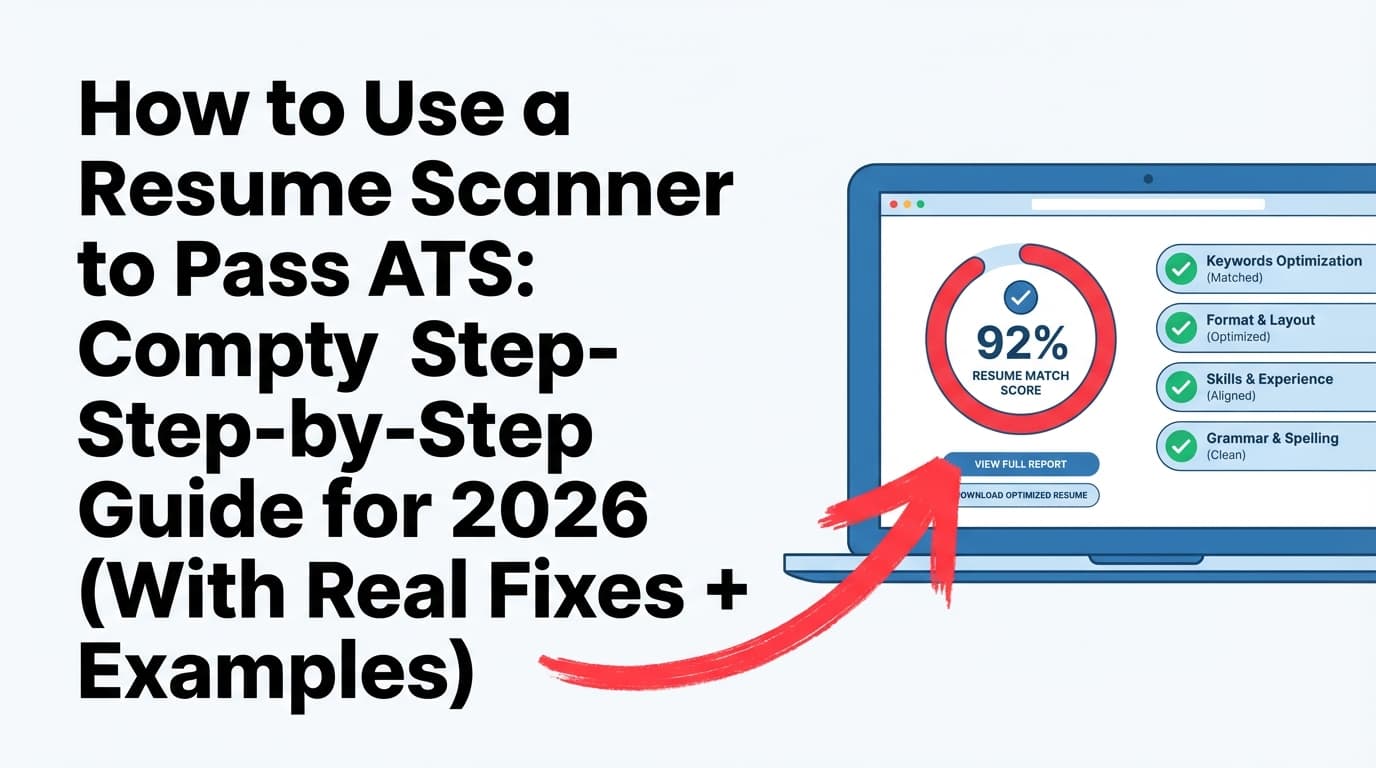
When you run the scan against a job description, your scanner will usually output:
- A match percentage / score
- Missing keywords
- Possibly: “hard skills” vs “soft skills”
- Sometimes: job title match suggestions
The right goal isn’t 100%—it’s “credible alignment”
A perfect match score can backfire if it leads you to:
- Stuff keywords unnaturally
- Add tools you’ve never used
- Remove accomplishments to make room for buzzwords
Instead, aim for:
- The core tools/skills you truly have
- The exact job title language (if it matches your experience)
- Evidence (bullets) that proves the keywords
Confidence note: “Good ATS score” targets vary widely by tool and role, and are not standardized across ATS platforms (Confidence: High that it varies). Treat any numeric score as a directional signal, not a promise.
Step 3: Convert “missing keywords” into real resume edits (the right way)
Most scanners dump a list of keywords. That list is not your to-do list.
Use this 3-bucket method:
Bucket A: “Required + True”
These are must-haves you actually possess.
Action: Add them in 2 places:
- Skills section (as a simple list)
- Experience bullets (proof)
Example:
- Job description keyword: “stakeholder management”
- Skills section:
Stakeholder management - Bullet proof: “Partnered with Sales, Support, and Product stakeholders to reduce churn by 12%…”
Bucket B: “Required + Partially True”
You’ve done the work, but you used different words.
Action: Translate your language into the job’s language (without lying).
Example:
- You wrote: “Worked with cross-functional partners”
- JD says: “stakeholder management”
- You can write: “Managed stakeholders across Product, Sales, and Engineering…”
Bucket C: “Not true / Not your level”
You don’t have it.
Action: Do not add it. Instead:
- Add adjacent skills you do have
- Show transferable achievements
- If it’s truly essential, don’t waste an application—upskill or apply elsewhere
Common trap: Adding every missing tool (Jira, Salesforce, Tableau, Workday, etc.) when you’ve never touched it. That can pass a filter but fail a recruiter screen instantly.
Step 4: Validate your resume in “ATS-like” ways (scanners miss these)
This is how you avoid false confidence from one tool.
Validation test #1: The plain-text (.txt) test
MIT Career Advising suggests saving your resume as plain text to see what the ATS “sees.” (Confidence: High)
https://capd.mit.edu/resources/make-your-resume-ats-friendly/
How to do it
- Open your resume in Word or Google Docs
- Save/download as
.txt - Open the
.txtfile
What you’re checking
- Does your name + contact info appear correctly at the top?
- Are sections clearly separated?
- Are bullets readable?
- Do dates and company names stay aligned?
If the .txt version is a mess, an ATS parser may also struggle.
Validation test #2: Copy/paste into a blank doc
Copy everything from your resume and paste into:
- A blank Google Doc or Notepad
If lines collapse, content disappears, or spacing breaks badly, simplify your formatting.
Validation test #3: Application form autofill
Many ATS portals parse your resume into fields (Experience, Education, Skills). Upload your resume and see:
- Did it populate fields correctly?
- Did it drop employers or dates?
- Did it jam multiple roles together?
If yes, fix structure and try again.
Step 5: Re-scan using a controlled loop (so you don’t “thrash” your resume)
Use a simple iteration rule:
- Fix formatting issues (only)
- Re-scan
- Fix keyword alignment issues (only)
- Re-scan
- Fix clarity/impact issues (only)
- Final re-scan
This prevents the classic problem: you change 20 things at once and have no idea what improved or broke the score.
Pro tip: Keep a “base resume” and create a “targeted resume” per role family (e.g., Product Manager, Data Analyst, SWE). Don’t reinvent your resume for every application from scratch.
Step 6: Tailor your resume without keyword stuffing (use “proof bullets”)
A scanner can tell you “add Kubernetes.” It can’t tell you whether your resume proves competence.
Use this bullet template to embed keywords naturally:
Action + Scope + Tool + Outcome (metric) + Context
Example (generic → stronger):
- Weak: “Responsible for reporting dashboards.”
- Strong: “Built automated KPI dashboards in Tableau for 8 stakeholders, reducing weekly reporting time by 6 hours.”
Now you have:
- Keyword: Tableau
- Keyword: stakeholders
- Proof: outcome + metric
That’s what makes the resume both searchable and credible.
Example: using a resume scanner end-to-end (mini case study)
Let’s say you’re applying for a Data Analyst role and your scanner shows:
Scan result summary (typical)
- Formatting: “Okay”
- Match rate: 52%
- Missing keywords:
- SQL (you have it)
- Tableau (you used Power BI)
- stakeholder management (you did it but didn’t say it)
- A/B testing (you’ve never done it)
What to do next (the correct edits)
1) Add SQL where it counts
- Skills:
SQL (PostgreSQL), Excel, Python - Experience bullet: “Wrote SQL queries (PostgreSQL) to identify funnel drop-offs…”
2) Handle Tableau honestly
If you used Power BI, don’t claim Tableau.
Instead:
- Skills:
Power BI (data visualization) - Bullet: “Built Power BI dashboards…”
- Optional: If the job lists “Tableau or similar,” this is a valid substitution.
3) Translate cross-functional work into “stakeholder management”
- Old bullet: “Worked with other teams on reporting.”
- New bullet: “Managed stakeholders across Marketing and Sales to define KPI requirements…”
4) Don’t add A/B testing if it’s not real
Instead:
- Add adjacent experimentation/analytics work you actually did (e.g., cohort analysis)
- Or skip the application if A/B testing is a hard requirement
Then re-scan. You should see:
- Higher match rate
- More importantly: better alignment between keywords and proof
Best practices: how to get the most value from any resume scanner
1) Treat the scanner as a diagnostic tool, not a judge
Different tools grade differently. Reddit threads are full of people getting wildly different “scores” across scanners (anecdotal, Confidence: Low). The useful part isn’t the score—it’s the specific issue list.
2) Match the exact job title language (when it’s truthful)
If the role is “Customer Success Manager” and you were “Client Success Manager,” consider mirroring the title in your summary (without rewriting your employment history inaccurately).
Example:
- Summary: “Customer Success Manager (Client Success) with 5+ years…”
3) Use both acronym and long-form terms (when relevant)
Some ATS/search filters match exact text. If the JD says “Search Engine Optimization (SEO),” include both:
Search Engine Optimization (SEO)
4) Put keywords in context
Many resources (Indeed, career centers, and ATS blogs) emphasize that keywords should appear in meaningful sentences, not dumped lists. It improves credibility when a human reads it—even if a machine doesn’t care.
5) Don’t hide text (white fonting) or paste the JD invisibly
This is risky and can backfire:
- Formatting can be stripped, revealing hidden text
- Recruiters may consider it deceptive
A variety of recruiting sources discuss “white fonting” as a known tactic and warn against it (example: iHire resource center; Confidence: Medium — outcomes vary, but reputational risk is real).
https://www.ihire.com/resourcecenter/jobseeker/pages/ask-a-resume-writer-does-white-fonting-work-on-resumes
Common mistakes that cause ATS failures (and how to fix them)
Mistake 1: Using a design-heavy template (columns, icons, tables)
Why it hurts: parsers may read left-to-right incorrectly, merge sections, or drop content.
Fix: Rebuild into a single-column layout with simple bullets.
Mistake 2: Putting contact info in the header/footer
Why it hurts: some parsers don’t reliably extract header/footer content.
Fix: Put contact info in the body at the top (plain text).
Mistake 3: Submitting a scanned/image-only PDF
Why it hurts: the ATS can’t parse text that isn’t real text.
Fix: Export from the source document (Word/Docs/LaTeX) to a text-based PDF, or submit DOCX if the employer recommends it.
Support documentation from an ATS vendor explicitly calls out scanned PDFs as a reason resumes won’t parse. (Confidence: High)
https://support.applicant-tracking.com/support/solutions/articles/3000128879-why-some-resumes-won-t-parse
Mistake 4: Chasing a perfect score and deleting substance
Why it hurts: You might remove your best achievements to make room for “keywords,” which makes the resume weaker for humans.
Fix: Keep achievements; weave keywords into existing bullets.
Mistake 5: Adding skills you don’t have
Why it hurts: Even if you pass an ATS filter, you fail recruiter screens or interviews.
Fix: Use Bucket A/B/C from Step 3 and only add what you can defend.
Tools to help with ATS scanning (honest recommendations)
Different tools help with different parts of the process:
Resume scanners / match tools (category)
- Useful for keyword gap lists and formatting flags
- Best for creating a repeatable tailoring loop
JobShinobi (resume analysis + job matching + editing workflow)
If you want a tool that supports both resume analysis and job-to-resume matching, JobShinobi includes:
- AI resume analysis that returns ATS-focused scoring and detailed feedback (Confidence: High, supported by product constraints)
- Job description extraction from a URL or pasted text, and resume-to-job matching with keyword gap analysis (Confidence: High)
- A LaTeX resume builder with PDF compilation + preview (Confidence: High)
- Resume version history (useful when you’re tailoring many variants) (Confidence: High)
Pricing note (be precise): JobShinobi Pro is $20/month or $199.99/year. The marketing site mentions a “7-day free trial,” but trial mechanics aren’t clearly verifiable from code alone (Confidence: Medium), so treat it as “mentioned,” not guaranteed.
(Internal links: /login, /subscription)
Other helpful tools (non-scanner)
- A plain text editor (Notepad/TextEdit) for the
.txtand copy/paste tests - A checklist doc you reuse for every application (formatting + keyword buckets)
A simple “ATS pass” checklist you can reuse
Use this before you hit submit:
Parsing / formatting
- Single-column layout
- No tables, text boxes, or icons
- Contact info is in the body (not header/footer)
- Standard section headings (Experience, Education, Skills)
- Dates are consistent (e.g.,
MM/YYYYorMonth YYYY) - Plain-text (.txt) version is readable and correctly ordered (MIT test)
Keyword alignment (without lying)
- Core tools from the JD appear in Skills (if true)
- Core tools appear in Experience bullets (proof)
- Job title language is mirrored appropriately
- Acronyms + long-form are included where helpful
- No keyword stuffing, hidden text, or deceptive tactics
Human readability (7-second scan)
- Top third of resume signals role fit fast
- Bullets start with strong verbs
- Metrics are present where possible
- No long paragraphs
Key takeaways
- A resume scanner is most useful when you use it in a loop: fix formatting → re-scan → fix keywords → re-scan.
- Start with parsing stability (formatting) before you chase keyword match rates.
- Don’t aim for “100%.” Aim for truthful alignment + proof bullets.
- Validate with manual tests (plain-text and application autofill) because scanners miss real ATS parsing failures.
- Tools can help, but no scanner can guarantee results across every ATS configuration.
FAQ
How to pass ATS resume checker?
Focus on the two things ATS-driven workflows actually reward:
- Parsable formatting (simple structure, standard headings, no tables/columns)
- Keyword alignment with proof (the same terms from the JD, backed by measurable bullets)
Then validate with the .txt test and an application portal autofill check.
How to scan a resume in ATS?
You can’t run your resume through the employer’s ATS directly (most of the time), but you can simulate what it does by:
- Using a resume scanner against the job description
- Uploading to application portals and checking how fields populate
- Doing a plain-text export test to see reading order
Can ATS read scanned documents?
Usually not reliably. If your PDF is scanned/image-only, many ATS parsers can’t extract text. ATS vendor support documentation explicitly calls out scanned PDFs as a reason resumes won’t parse.
https://support.applicant-tracking.com/support/solutions/articles/3000128879-why-some-resumes-won-t-parse
How do I convert my resume into an ATS-friendly resume?
Use this quick conversion plan:
- Reformat into a single-column layout
- Replace design elements (icons, tables) with plain text
- Standardize headings (Experience, Education, Skills)
- Run a scan vs the job description
- Add missing “Required + True” keywords into Skills + proof bullets
- Validate with the
.txttest
Is a PDF or DOCX better for ATS?
It depends on the employer’s system and instructions. Many modern ATS can read text-based PDFs, but PDFs can fail if they’re scanned or heavily designed. DOCX is often safer for parsing consistency, while PDF preserves layout for humans. If the application instructions specify a format, follow them.
Do ATS scanners actually work?
They work as diagnostics (formatting + keyword gap identification), but they’re not a guarantee. Different scanners use different scoring methods, and real ATS configurations vary—so focus on actionable flags, not the number.
How do I “trick” resume scanners?
Don’t. Tactics like hidden text (“white fonting”) can be detected, can break formatting, and can damage trust if discovered. Use the scanner to improve clarity and alignment truthfully instead.