If you’re searching for ats optimized resume word format, you’re usually trying to prevent one of these outcomes:
- The ATS scrambles your content (dates jump lines, sections reorder, company names disappear).
- The ATS parses your resume fine, but you still get filtered because your resume doesn’t match the job keywords closely enough.
- Your resume looks polished in Word, but the upload portal or ATS reads a hidden layout choice (columns/tables/text boxes) and your information becomes incomplete or out of order.
This page gives you two things:
- A Word-specific ATS formatting checklist you can apply immediately to your
.docxresume. - A conversion-focused guide to using JobShinobi to optimize the part that templates don’t solve: ATS scoring, missing keywords, and job-specific tailoring.
Important limitation (so you’re not surprised later): JobShinobi does not export a
.docxWord resume. In JobShinobi you can download your resume as PDF (compiled from LaTeX) and also download the.texsource.
If an employer requires Word format, use the checklist and outline below to keep your Word version ATS-safe, and use JobShinobi to improve the content, structure, and keyword alignment you put into that Word document.
Get started: /login
Why Choose JobShinobi for the “ats optimized resume word format” use case?
Most pages that rank for Word ATS templates focus heavily on design claims (“ATS-friendly,” “recruiter-approved,” “simple format”). That helps—but it doesn’t answer the real high-intent question behind this keyword:
“What exactly should I change so my resume matches the job and passes screening?”
JobShinobi is built for job seekers who want to go beyond formatting:
- Resume Analysis (AI): Generates an ATS-oriented score breakdown and detailed feedback. It can return cached analysis when the resume hasn’t changed, which helps you iterate without chasing random score fluctuations.
- Job Description Extraction + Resume-to-Job Matching: Paste a job description or job URL; get a match score, plus missing keywords and present keywords.
- AI Resume Editor (Streaming): A chat-based editor that can update sections and compile-check changes as part of the workflow.
- Resume Version History: Save versions as you tailor for different applications.
- Job Tracker: Track applications and export your job tracker to Excel (.xlsx).
So even if you’re delivering a Word document, JobShinobi can function as your “optimization engine” for what you write in that Word document.
Benefit 1: ATS-focused analysis you can re-run (and trust)
JobShinobi’s resume analysis endpoint stores results and can return cached analysis if your resume hasn’t changed since the last scan. That matters when you’re iterating in small steps and want consistency.
Your analysis output includes:
- Overall score + category scores (including an ATS score)
- Strengths and weaknesses
- ATS issues and keyword analysis (present/missing/overused)
- Optional enhanced analysis fields (when enabled)
This helps you avoid the common trap: spending hours perfecting a Word layout while your content still misses role-critical keywords.
Benefit 2: Job-specific keyword gaps (not generic advice)
“ATS optimized” is often code for “keyword aligned.”
JobShinobi’s resume-to-job matching workflow saves job analysis and returns:
- Match score
- Missing keywords and present keywords
- Recommendations you can apply while tailoring
Instead of guessing which terms to add, you get a concrete list—then you decide what’s accurate and relevant to include.
Benefit 3: Faster tailoring with an AI editor (plus version history)
JobShinobi includes a streaming AI resume editor designed for editing workflows (get current resume → edit → update → compile-check). Combined with version history, it’s built for the reality of job searching: tailoring, saving, reverting, and iterating.
What “ATS Optimized Resume Word Format” Actually Means (Plain English)
An ATS-optimized Word resume is one that:
- Parses reliably into common ATS fields (name, contact, job titles, dates, skills, education).
- Uses standard section labels so ATS systems can classify your content.
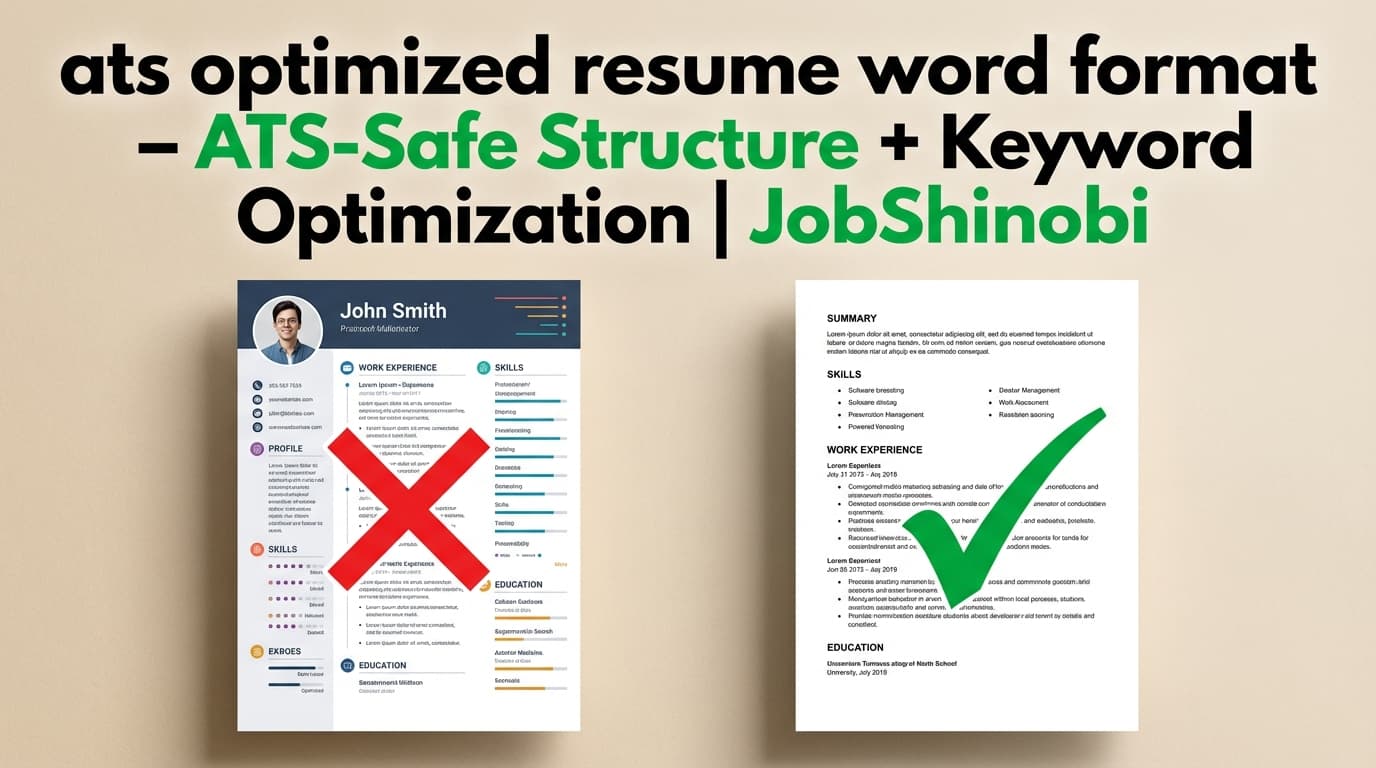
- Avoids layout constructs that often break parsing (columns, text boxes, floating objects).
- Includes job-relevant keywords in natural language—especially in Skills and Experience bullets.
- Presents dates, titles, and employers consistently.
Formatting prevents technical parsing issues. Keywords and bullet content drive ranking.
You need both.
Word-First ATS Formatting Checklist (Use This Before You Upload)
This section is intentionally practical. If you follow it, your Word resume is far less likely to break in an ATS.
1) Choose a single-column layout (don’t “simulate” columns)
Do
- One column
- Left-aligned headings
- Consistent spacing
- Simple bullet lists
Avoid
- Two-column layouts
- Sidebars
- “Columns” feature in Word
- Multi-column tables used as layout
Why it matters: Many ATS pipelines extract text linearly. When your resume is visually two-column, ATS may read the right column before the left, or merge lines unpredictably.
2) Don’t use text boxes, shapes, or floating elements
Do
- Plain text in the body
- Simple section headings
Avoid
- Text boxes (even invisible ones)
- Shapes behind text
- Floating icons for contact info
- SmartArt
Why it matters: These elements can be treated as separate layers or ignored, leading to missing contact info or scrambled experience entries.
3) Avoid tables for layout (including “hidden tables”)
Tables are one of the most common reasons a Word resume parses poorly.
If you must align dates to the right:
- Prefer putting dates on their own line, or
- Use a simple tab stop carefully (test it—see “How to test parsing” below)
4) Use standard section headings (don’t get creative)
ATS systems often rely on familiar labels.
Recommended headings:
- Professional Summary (or Summary)
- Work Experience (or Experience)
- Education
- Skills
- Projects (optional)
- Certifications (optional)
Avoid headings like:
- “Where I’ve Made Impact”
- “My Journey”
- “What I Bring”
5) Keep fonts boring (boring is good for ATS)
Use common fonts:
- Calibri, Arial, Helvetica, Times New Roman (examples)
Keep sizes consistent:
- Body: 10.5–12 pt
- Headings: 12–14 pt
Avoid:
- Decorative fonts
- Excessive kerning/spacing hacks
6) Keep contact info in the document body (not header/footer)
Some ATS systems parse headers/footers inconsistently.
Put this at the top of the body:
- Name
- Phone
- Location (optional)
- LinkedIn / portfolio (optional)
7) Use simple bullet characters
Do
- Standard bullets (•) or hyphens (-)
- Short, impact-oriented bullets
Avoid
- Icon bullets
- Custom symbols
- Image bullets
8) Keep dates consistent and explicit
Use clear date formats:
Jan 2022 – Mar 20242022 – 2024
Avoid ambiguous formatting and mixed styles.
9) Name your file clearly
Use a predictable file name:
FirstName_LastName_Resume.docxFirstName_LastName_TargetRole_Resume.docx
Avoid special characters and “final_final_FINAL” chaos.
Copy/Paste: A Simple ATS-Optimized Word Resume Outline (One Column)
Paste this into Word and fill it in. It’s conservative by design.
FULL NAME
City, ST (optional) • Phone • Email • LinkedIn • Portfolio
PROFESSIONAL SUMMARY
2–4 lines tailored to the role. Include your target title and 3–6 keywords you genuinely match.
SKILLS
Category (optional): Skill, Skill, Skill
Tools (optional): Tool, Tool, Tool
WORK EXPERIENCE
Job Title, Company — Location (optional)
Month YYYY – Month YYYY
- Impact bullet with metric/result
- Impact bullet tied to job requirements
- Tool/skill keyword bullet (natural usage, not stuffing)
PROJECTS (optional)
Project Name — Tech/Tools
- What you built + measurable outcome
EDUCATION
Degree, School — Year
CERTIFICATIONS (optional)
Certification — Year
If you want the outline to be job-targeted, JobShinobi helps you identify which keywords and responsibilities to emphasize.
How to Test if Your Word Resume Will Parse Correctly (Quick DIY Test)
Before uploading to an ATS, do a simple “text extraction” check:
- Open your Word resume
- Select all (Ctrl/Cmd + A)
- Copy and paste into a plain text editor (Notepad/TextEdit)
- Inspect:
- Are sections in the correct order?
- Are job titles/company names/dates intact?
- Did anything disappear (often a sign of text boxes/tables)?
- Did lines merge in weird ways?
If it looks clean in plain text, you’ve removed many parsing risks.
Where Word Templates Help (and Where They Don’t)
Word templates help with:
- Clean one-column structure
- Standard headings
- Fast setup
Word templates don’t solve:
- Missing keywords for a specific job description
- Bullet quality (“responsibilities” vs “impact”)
- Role alignment (what to emphasize for this job vs your past jobs)
- Iteration speed when you apply to multiple roles
That’s exactly where JobShinobi is designed to help.
How JobShinobi’s Workflow Helps You Optimize for ATS (Even If You Need Word)
Step 1: Build your “source of truth” resume in JobShinobi
Start from the resume templates library and open the editor.
Internal link: /dashboard/resume
What you can do in the editor:
- Edit resume content (LaTeX-based)
- Compile and preview as PDF
- Save versions over time
- Download PDF and .tex
Again: no
.docxexport from JobShinobi.
Step 2: Run Resume Analysis (ATS + keyword feedback)
Use the analysis feature to get:
- ATS score and category scores
- Strengths/weaknesses
- Keyword analysis (present/missing/overused)
- ATS issues
Re-run analysis after edits. If the resume hasn’t changed, JobShinobi can return cached results.
Step 3: Match your resume to a job description (or job URL)
Paste the job description (or provide a job URL) and run match analysis to see:
- Match score
- Missing keywords you can legitimately add
- Recommendations for tailoring
This turns “ats optimized resume word format” from a formatting problem into a measurable alignment process.
Step 4: Use the AI editor to rewrite the sections that matter most
Use prompts like:
- “Rewrite these bullets to emphasize outcomes and metrics.”
- “Tailor my summary for a Product Analyst role using this job description.”
- “Reduce repetition and strengthen action verbs in Experience.”
Then save a version (so you can revert later).
Step 5: If you must deliver Word, transpose the final content into your Word outline
Use the one-column Word outline above and paste in the optimized content. Keep formatting conservative.
This approach gives you:
- Word format that’s less likely to break parsing
- Content and keywords optimized with a dedicated analysis + match workflow
Key Features for the “ats optimized resume word format” JobShinobi workflow
| Feature | What It Does | Why It Matters |
|---|---|---|
| Resume Templates Library | Start from categorized templates stored in the app | Helps you start structured and consistent |
| LaTeX Editor + PDF Preview | Edit and compile to preview the finished resume | Keeps layout stable while you iterate |
Download PDF + Download .tex |
Export your resume as PDF or source | Good for sharing and maintaining a “source of truth” |
| Resume Analysis (with caching) | ATS/keyword feedback + stored results | Helps you iterate with less guesswork |
| Enhanced analysis mode (optional) | Deeper analysis objects when enabled | More actionable guidance for improvements |
| Resume-to-Job Matching | Match score + missing/present keywords | Practical tailoring guidance per job |
| AI Resume Editor (streaming) | Chat-based editing workflow + compile-check | Faster edits without breaking structure |
| Resume Version History | Store multiple versions over time | Tailor for jobs without losing past drafts |
| Job Tracker + Excel export | Track applications and export to .xlsx |
Stay organized during high-volume applying |
ats optimized resume word format vs. PDF: What you should do in real applications
Many applicants ask: “Should I submit Word or PDF?”
A practical decision rule:
- If the employer portal requests Word: submit Word (and follow the Word checklist).
- If the portal allows PDF and you want consistent visuals: submit a clean PDF.
- If you’re unsure: choose the format the portal recommends; don’t fight the instructions.
JobShinobi supports PDF output (and LaTeX source). If you frequently apply across platforms, having a stable PDF “source” can reduce formatting surprises.
How JobShinobi Helps Beyond the Resume: Track Applications Automatically (Pro)
JobShinobi also includes a job tracker and a workflow for processing forwarded application emails (Pro membership required for the SendGrid processing flow). It can update job applications and keep your tracker current, plus export to Excel.
Internal link: /dashboard/job-tracker
Pricing
JobShinobi offers paid subscriptions via Stripe:
- Monthly: $20.00
- Yearly: $199.99
You can sign in here: /login
Note: Do not assume a trial. A “7-day free trial” is not verified as an implemented capability in the code-backed constraints.
Frequently Asked Questions
What is the best resume format to use for ATS in Word?
A one-column, text-first Word resume with standard headings (Professional Summary, Work Experience, Education, Skills) and simple bullets is typically the safest. Avoid tables used for layout, text boxes, columns, icons, and header/footer content.
Can I make an ATS-friendly resume in Word?
Yes—Word is commonly accepted. The key is to keep the structure simple and test parsing (copy/paste into plain text) before uploading.
Does JobShinobi export a Word (.docx) resume?
No. JobShinobi exports PDF and .tex (LaTeX source). If you need Word format for an application, use the Word outline on this page and transpose the optimized content into Word.
How do I optimize my resume for ATS keywords?
Use the job description as your keyword source. Focus on:
- Required tools/skills
- Core responsibilities
- Role title variations and seniority terms
JobShinobi’s resume-to-job matching highlights missing vs present keywords so you can tailor intentionally without stuffing.
How do I tailor my resume faster for multiple jobs?
Use a repeatable system:
- Keep a strong baseline resume
- For each job, identify missing keywords and adjust summary/skills/bullets
- Save a version per application
JobShinobi supports analysis, job matching, AI editing, and version history—so tailoring doesn’t become copy/paste chaos.
Get Started with JobShinobi Today
If you came here for ats optimized resume word format, the checklist and outline above will help your Word resume parse cleanly.
If you want to go beyond formatting—and actually improve your screening outcomes—use JobShinobi to:
- Analyze ATS and keyword fit
- Match to job descriptions and surface missing keywords
- Edit faster with a streaming AI resume editor
- Save versions as you tailor
Start here: /login