A job search gets messy fast: dozens of tabs, a few recruiter emails, “I swear I applied to this already,” and follow-ups you meant to send but forgot.
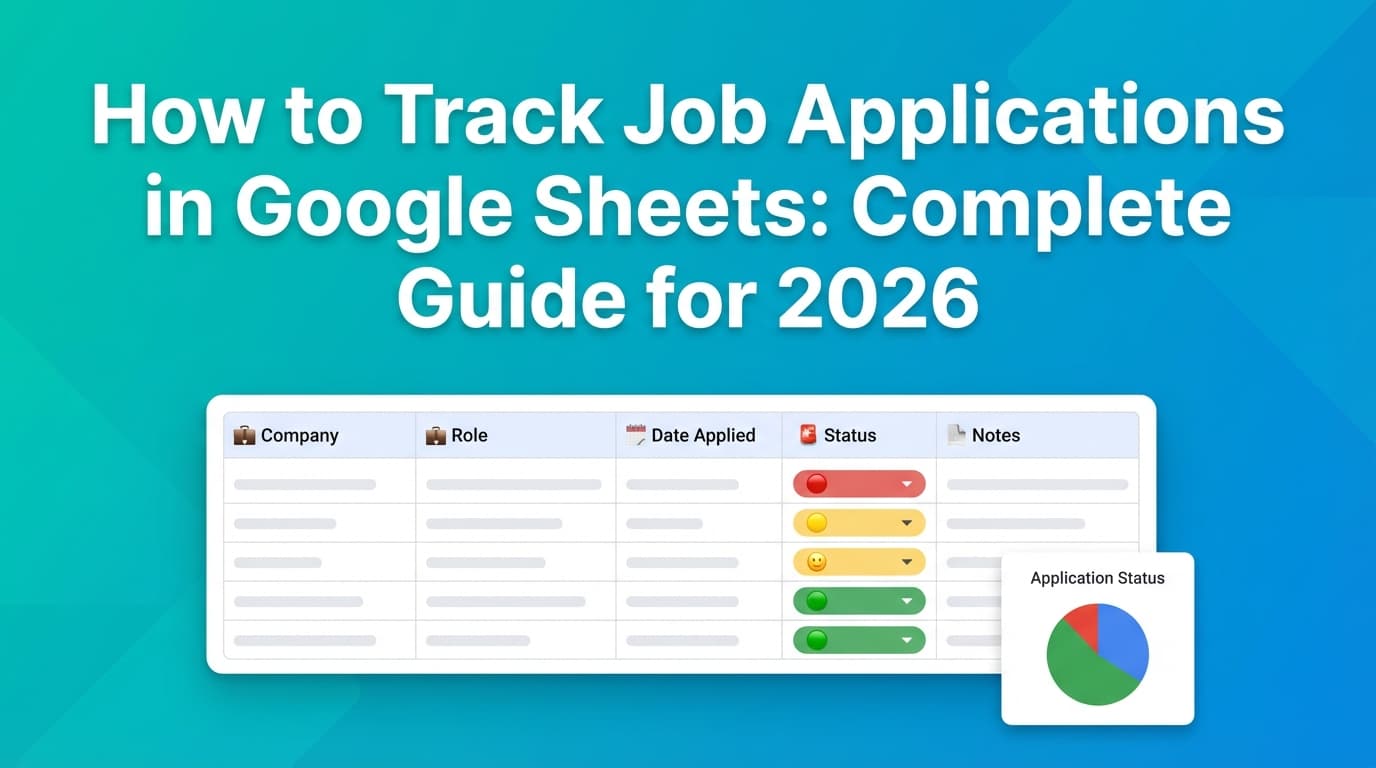
A Google Sheet can fix that—if you set it up like a pipeline (what stage am I in?) and a task system (what do I do next?), not just a diary of applications.
And the broader job-search context is why organization matters:
- The job hunt can last months. One widely used labor-market series, Median Weeks Unemployed (UEMPMED), is published via FRED (sourced from BLS data).
Source: FRED https://fred.stlouisfed.org/series/UEMPMED and BLS duration table https://www.bls.gov/news.release/empsit.t12.htm (Confidence: High) - Recruiting benchmarks suggest hiring can take longer than it used to. Gem reports a 24% increase in average time to hire (41 vs. 33 days) and 42% more interviews per hire in 2024 vs. 2021 (20 vs. 14) (benchmarks vary by dataset and company mix).
Source: Gem PDF + recap post https://lp.gem.com/rs/972-IVV-330/images/2025%20Recruiting%20Benchmarks%20-%20Gem.pdf and https://www.gem.com/blog/10-takeaways-from-the-2025-recruiting-benchmarks-report (Confidence: Medium) - A job seeker survey reported 34% of respondents had job hunts lasting six months or longer.
Source: Aerotek https://www.aerotek.com/en/insights/2025-job-seeker-survey-workers-report-hunts-lasting-over-six-months (Confidence: Medium) - A commonly cited recruiting stat: an average corporate opening attracts ~250 resumes, with 4–6 candidates typically selected for interviews.
Source: Glassdoor compilation https://www.glassdoor.com/blog/50-hr-recruiting-stats-make-think/ (Confidence: Medium—secondary compilation, but widely referenced)
In this guide, you’ll learn:
- The exact Google Sheets job application tracker structure (tabs + columns)
- How to add dropdowns, formulas, and conditional formatting
- A follow-up workflow that prevents missed opportunities
- A dashboard to track response rate, interview conversion, offers
- When a spreadsheet stops being enough—and what to use instead
What is a job application tracker?
A job application tracker is a lightweight CRM for your job search. It helps you answer, at any moment:
- What have I applied to?
- What stage is each application in?
- Who is the contact?
- What’s the next action (and when)?
- What’s working (sources, resume versions, role types)?
Google Sheets works especially well because it’s flexible, searchable, and easy to turn into a dashboard.
Why Google Sheets is a good tool for job tracking (and where it breaks)
Advantages
- Easy to customize (columns match your process)
- Works on any device
- Built-in collaboration (coach, mentor, accountability buddy)
- Built-in features: dropdowns, conditional formatting, pivot tables, charts
Drawbacks
- Manual data entry can become a second job
- Metrics break if your statuses aren’t consistent
- Hard to “automatically log” new events unless you build automation
You can absolutely start in Sheets—and many people should. The key is to set it up in a way that scales past 20 applications.
How to track job applications in Google Sheets (step-by-step)
Step 1: Create a new Google Sheet with 5 tabs
Create a new spreadsheet and add these tabs:
- Applications (main database)
- Contacts (people + networking)
- Interviews (events log)
- Lists (dropdown values)
- Dashboard (KPIs + charts)
This structure beats most competitor templates because it separates:
- Entities (applications vs. people vs. interviews)
- Inputs (Lists tab)
- Outputs (Dashboard)
Step 2: Build your Lists tab (so your data stays clean)
In the Lists tab, create these columns:
A: Status (simple, clear)
- Saved
- Applied
- Follow-up due
- Recruiter screen
- Interviewing
- Rejected
- Offer
- Accepted
- Withdrawn
B: Source
- Indeed
- Company site
- Referral
- Recruiter inbound
- Event
- Other
C: Priority
- High
- Medium
- Low
D: Stage (optional detail)
- Application submitted
- Recruiter screen
- Hiring manager screen
- Technical / Case / Panel
- Final
- Offer
Why this matters: If you type “Interviewing,” “interviewing,” “2nd round,” and “phone screen” interchangeably, your dashboard will lie.
Step 3: Set up the Applications tab (copy this exact column layout)
In Applications, add headers (Row 1):
- Company
- Role
- Location / Remote
- Source
- Job URL
- Date Found
- Date Applied
- Status
- Stage
- Priority
- Contact Name
- Contact Link (email or LinkedIn)
- Last Touchpoint (date)
- Next Follow-up Date
- Follow-up Due?
- Days Since Applied
- Resume Version
- Cover Letter? (Y/N)
- Notes / JD Highlights
The “must-have” columns (if you want to keep it minimal)
If you’re overwhelmed, keep only:
- Company, Role, Source, Job URL
- Date Applied, Status
- Next Follow-up Date
- Resume Version
- Notes
Step 4: Add dropdowns (data validation / dropdown chips)
Google Sheets supports dropdowns (including “dropdown chips”).
How to add dropdowns:
- Select the Status cells (e.g., H2:H)
- Go to Insert → Dropdown (or Data → Data validation)
- Choose Dropdown (from a range) and select
Lists!A:A
Sources:
- Google Help: smart chips/dropdowns https://support.google.com/docs/answer/12319513 (Confidence: High)
- Google Workspace Updates: dropdown chips https://workspaceupdates.googleblog.com/2022/12/drop-down-chips-google-sheets.html (Confidence: High)
Repeat for:
- Source →
Lists!B:B - Priority →
Lists!C:C - Stage →
Lists!D:D
Step 5: Add formulas so your tracker becomes a system
5.1 Days since applied
In Days Since Applied (column P if you placed it there; adjust as needed):